Time entries
A time entry is a record of work: who worked, how long, on which day and on what. Every time someone works, an entry is added; a total is never overwritten. The logged hours of a task, a phase or the project are always the sum of their time entries, and they are compared with the estimated hours to show the variance.
The owning PM logs time for themselves and for anyone on the team. A consultant logs time only on what is assigned to them, and only for themselves. The global hours query is for PMs and organisation-wide members.
Hours can be logged on tasks and on issues; the rules are identical (with “assigned to the issue” instead of “assigned to the task”).
Log hours
- On the task's page (or the issue's), press Log time. It is available on all of its tabs.
- In the Log worked hours dialog, fill in the fields and press Add time entry.
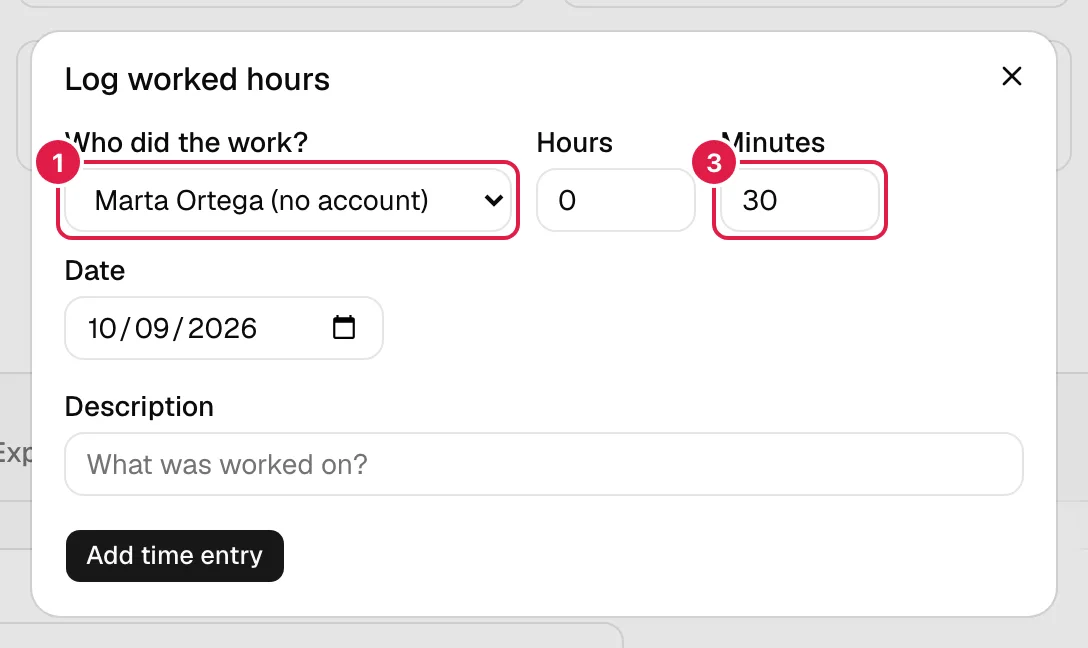
| Field | Meaning and validation |
|---|---|
| Who did the work? | Only the owning PM sees it. Myself by default. See Log time on behalf of someone else. |
| Hours | Whole number ≥ 0. If it is not a whole number: “Hours must be a whole number equal to or greater than 0.” |
| Minutes | Whole number from 0 to 59: “Minutes must be a whole number between 0 and 59.” For an hour and a half, 1 hour and 30 minutes. |
| Date | Required (“The date is required.”), today by default. It can be a past day; there is no limit on hours per day. |
| Description | Required (“The description is required.”). Placeholder: “What was worked on?”. |
With hours and minutes both at 0: “An entry of 0 hours and 0 minutes can't be logged.” Each time entry gets its own code (H0001…), used to find it or to quote it to the assistant (Short codes).
Who can log time where
- The project's owning PM: on any task or issue of their project, assigned or not.
- Consultant/Developer: only on tasks and issues where they are assigned, and only for themselves. If they are not: “You can only log hours where you're assigned.”
- A Director or Team Leader who is not the owner cannot log time unless assigned: the extended visibility of their role is read-only.
Log time on behalf of someone else
Only the project's owning PM.
Who did the work? lists you and the project's active team, with or without an account (people without an account are shown with “(no account)”). Being assigned to the task is not necessary, but being on the project team is (Project team). The time entry stores whose hours they are and who logged them (you): in the Queries tables it shows as “Logged by …”. A person without an account can never log time themselves; the PM always does it. If someone without permission tries: “Only the owning PM can log hours on behalf of another person.”
See a task's hours
The task's Time entries tab (Time entries) lists, from newest to oldest: code, person (whose hours they are), duration (“2 h 30 min”), date and description. When empty: “No hours have been logged on this task yet.”
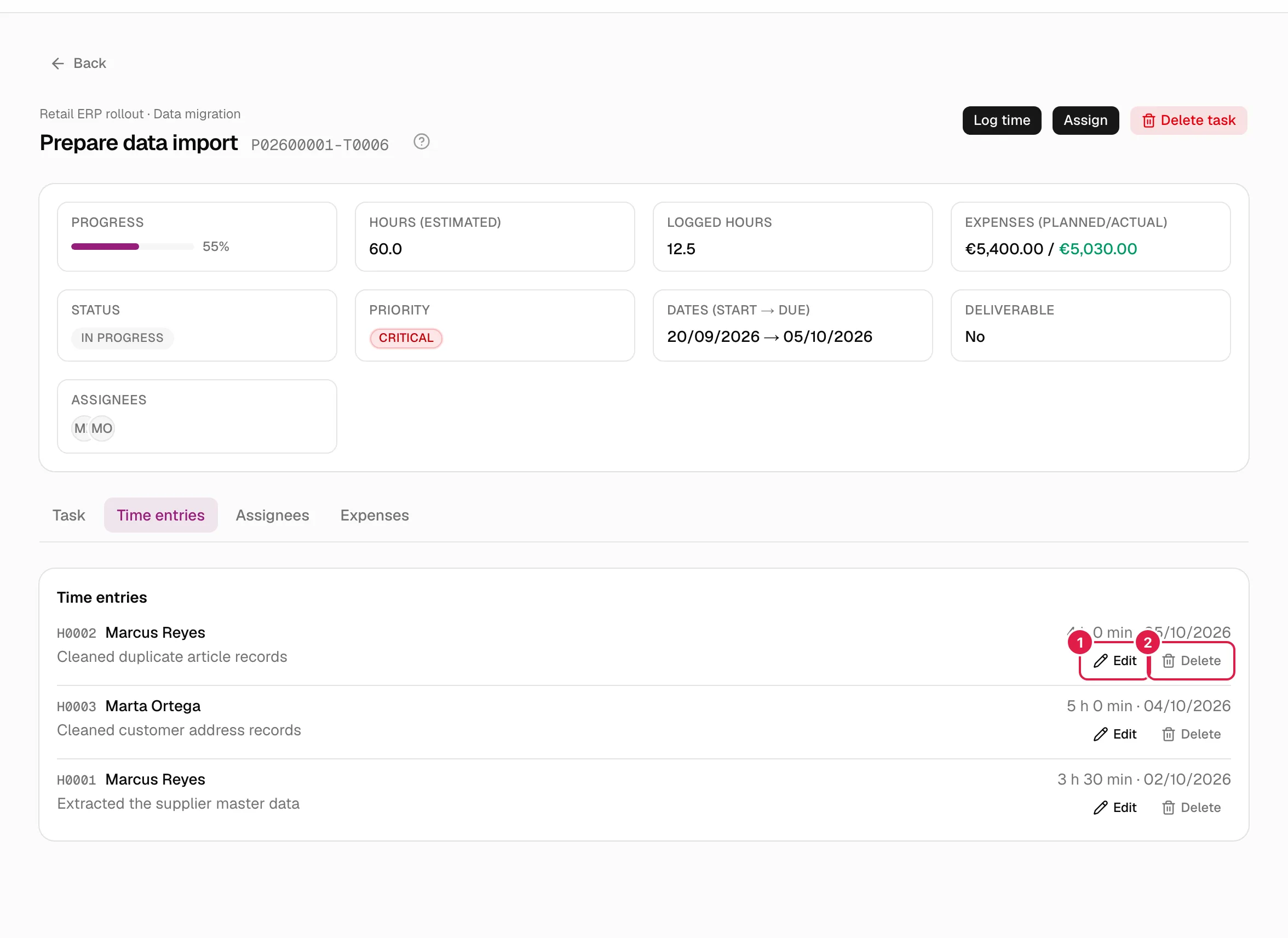
The task's list does not mark “(no account)” or who logged each line; that detail appears in the tables of My work and Queries.
Edit and delete a time entry
Whoever logged the entry and the owning PM of the project of its task or issue can do it.
Next to the line (only if you can) there are Edit and Delete.
- Edit opens Edit time entry with hours, minutes, date and description; the same validations apply. You cannot change whose hours they are or the task: if you made a mistake, delete and log again.
- Delete asks for confirmation: “Delete the 2 h 30 min time entry of 12/09/2026? This can't be undone.”
- If you do not have permission: “Only whoever logged the time entry or the project's owning PM can change or delete it.”
In practice: if the PM logged hours on behalf of a consultant, the consultant sees them in their calendar but cannot edit or delete them (the PM logged them). And if you are removed from a task, you keep the right to edit what you logged.
My work: calendar and list
Anyone with an account sees their own hours here, and only their own.
My work → My time entries shows a monthly calendar (week from Monday to Sunday) and, on the right, the time entries of the selected day.
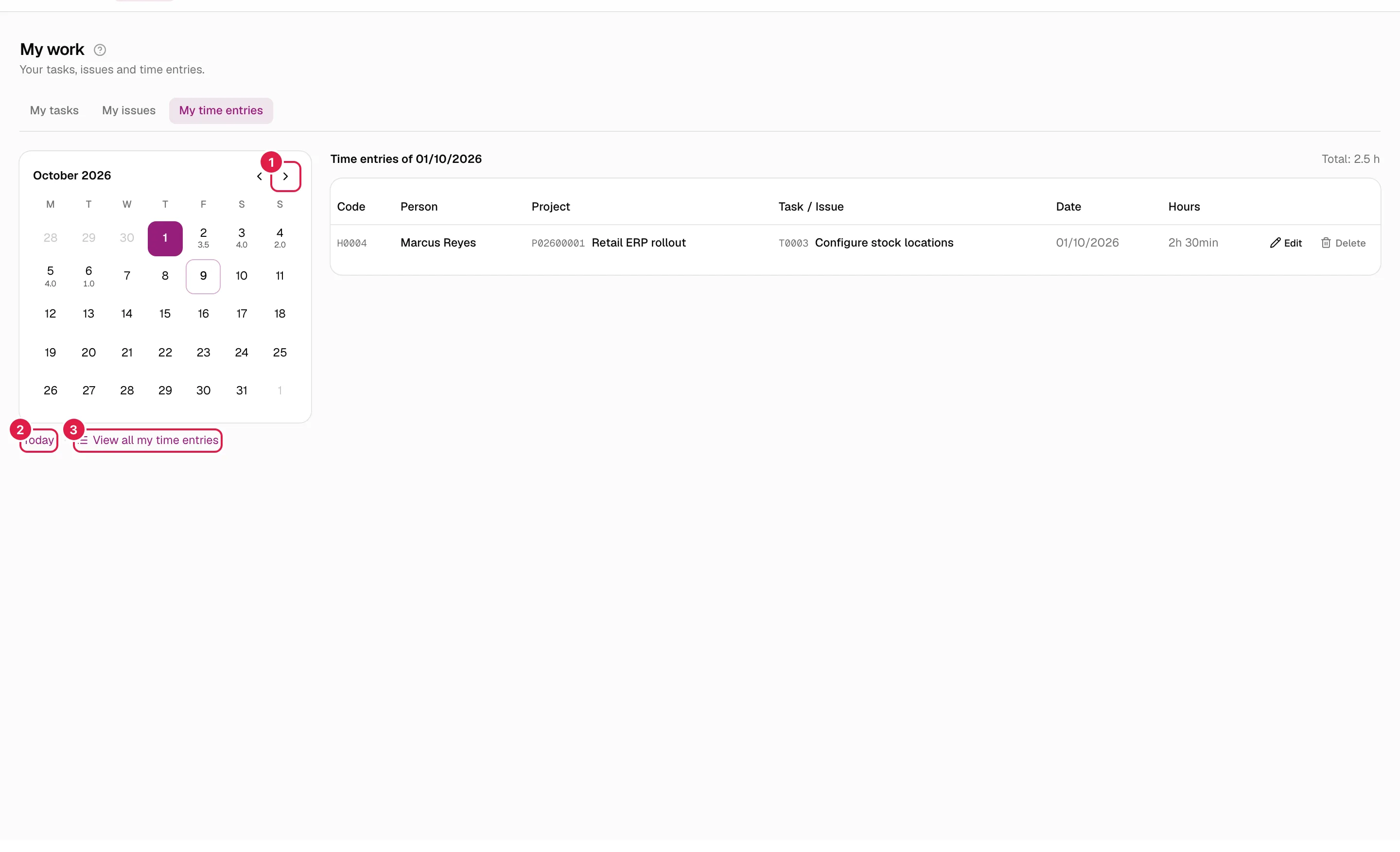
- Each day with hours shows the day's total underneath. Press a day to see its time entries: Time entries of 12/09/2026, with “(today)” if it is today and Total: 7.5 h.
- The Previous month and Next month arrows change the month; Today goes back to the current day.
- View all my time entries opens All my time entries: the complete list, from newest to oldest (“You don't have any time entries yet.” if there are none).
- With no hours that day: “No time entries on this day.”
The table has Code, Person, Project, Task / Issue (with a link), Date and Hours; if someone else logged it, it reads “Logged by …”. If you can edit or delete a row, the last column has the buttons. Hours that other people logged for you show here; those you logged for others do not (they are theirs).
Time-logging reminder
The assistant can remind you that you did not log hours yesterday. It appears inside PjMan (a dot on the assistant button and a notice when you open it: “You didn't log any time yesterday, Thursday 24.”, with Log time now, Not today and “Your recent tasks”) and never by email. It only appears if all of the following hold:
- you have Remind me to log hours turned on in Settings → Assistant (it is on by default) and you have saved your Anthropic key;
- you logged your own hours at some point in the last 30 days (people who never log time are not bothered);
- you have no hours of your own on your last working day (Monday to Friday; there is no holiday calendar, so a public holiday counts as a working day);
- you did not press Not today for that day. That “not today” is saved on your account and applies on all your devices.
Log time now opens the assistant with the sentence “On Thursday I worked on ” already typed, for you to complete. Dates are those of your local day, according to your time zone.
Queries: all the hours in scope
PMs (on their projects) and organisation-wide members, such as a CEO (on all projects in the organisation). A consultant sees “You don't have access to this section: it's only for PMs and organisation members (team role marked “whole organisation”, e.g. CEO).”
Queries → Time entries is a filterable table of time entries on tasks and issues within the scope you can see.
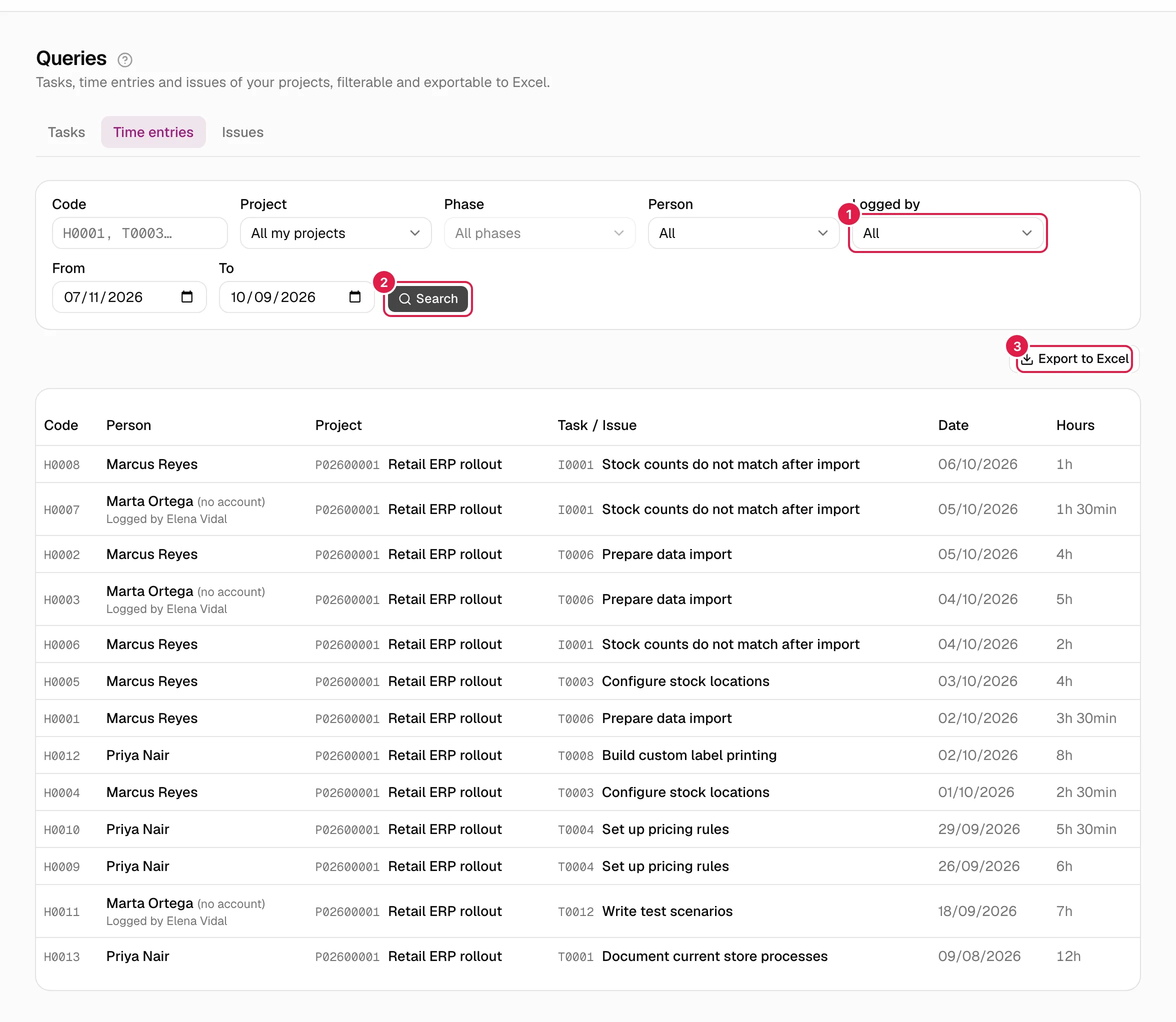
Filters: Code (the time entry's, e.g. H0001, or that of its task or issue, T0003), Project, Phase (enabled when you choose a project), Person (whose hours they are), Logged by, From and To. By default, the last 90 days. Nothing is queried until you press Search: before that you read “Adjust the filters and press Search to see results.”. With no results: “No time entries match these filters.” and “Try widening the date range.”
This table is read-only: it has no Edit or Delete (those are done on the task's or issue's page, or in My work).
Export to Excel
Export to Excel (enabled after searching) downloads an .xlsx called time-entries_YYYY-MM-DD.xlsx, sheet “Time entries”, with exactly the same filters and range you see: Code (full reference, e.g. P02600001-H0001), Person (with “(no account)” and “(logged by …)” where applicable), Project, Task / Issue, Date and Hours (“2 h 30 min”).
Who can do what
| Action | Owning PM | Assigned consultant | Director / Team Leader who is not the owner | CEO |
|---|---|---|---|---|
| Log time for themselves | Yes | Yes | Only if assigned | Only if assigned |
| Log time on behalf of someone else | Yes | No | No | No |
| Edit / delete | All in their project | Only those they logged | Only those they logged | Only those they logged |
| See other people's hours on the page | Yes | Yes (on the tasks they see) | Yes | Yes |
| My work → My time entries | Their own | Their own | Their own | Their own |
| Queries and export | Yes | No | Only if their account is PM (on their projects) or their role is “whole organisation” | Yes |
Related topics
Updated 2026-10-08