My work
My work (main menu) is your personal work dashboard. It gathers only what is assigned to you, across all the organisation's projects, and has three tabs: My tasks, My issues and My time entries. It is the home screen of a Consultant/Developer.
Anyone with an account can enter: Consultant/Developer, PM or “entire organisation” member. Each sees only their own tasks, issues and time entries, whatever their role or team level. People without an account do not sign in to PjMan.
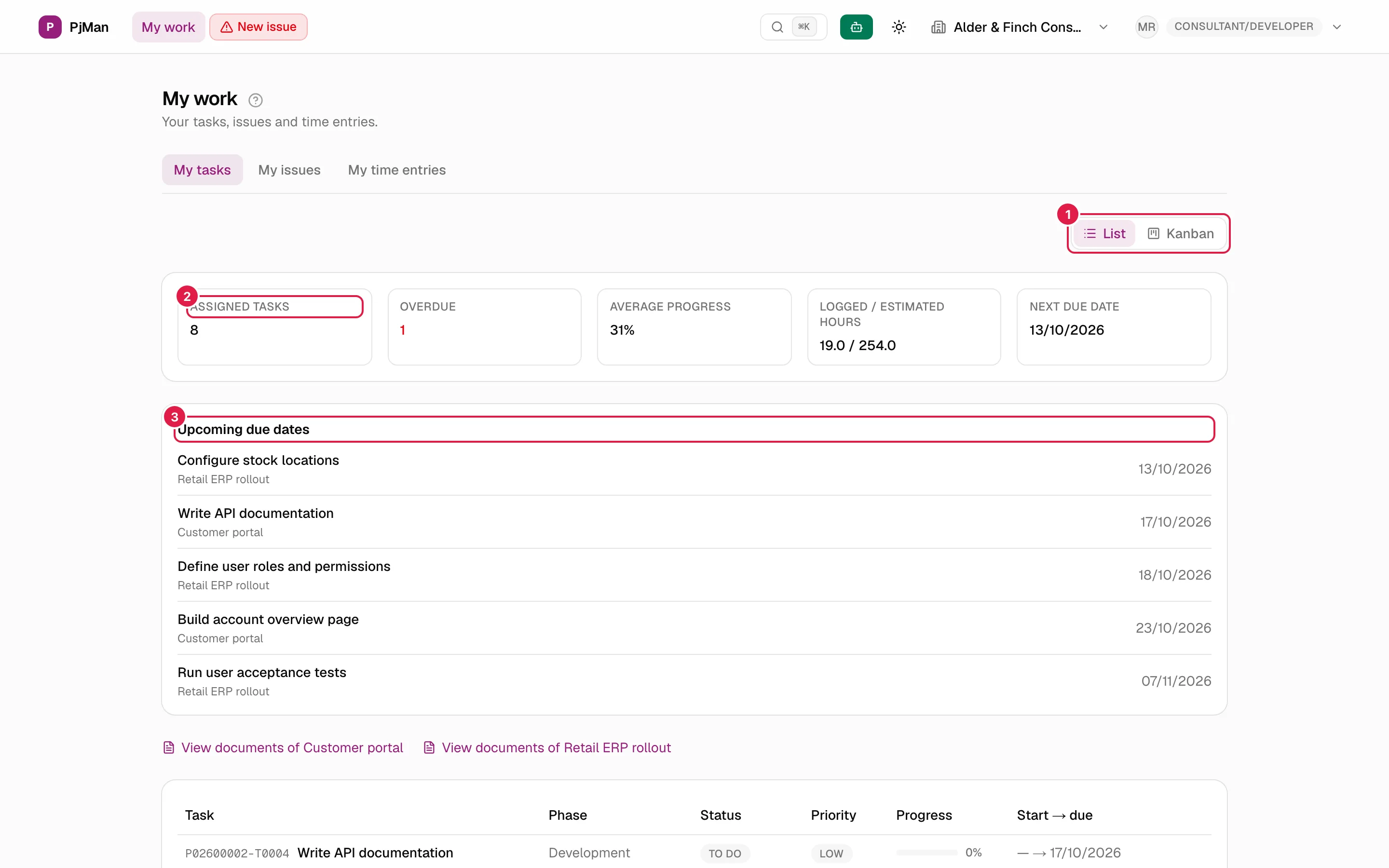
What is in My work and what is not
What appears are the tasks and issues where you, with your account, are listed as an assignee. Tasks of a project that you see as a Director, Team Leader or owner PM are not included if you are not assigned to them: you see those in the project itself (Phases and Issues tabs) or in Queries. A task assigned to a person without an account, or to someone else, does not appear here.
A consultant never sees the rest of the project from here: no other tasks, no contacts and no communications.
My tasks
Route /my-tasks. From top to bottom:
- List | Kanban switch on the right: see the same tasks as a board.
- Indicators:
| Indicator | What it shows |
|---|---|
| Assigned tasks | How many tasks are assigned to you (in all statuses) |
| Overdue | Those with a due date before today and a non-final status; red if there are any |
| Average progress | Simple average of the progress % of your tasks, rounded |
| Logged / estimated hours | Sum of the estimated hours of your tasks and of the hours logged on them by anyone (not just you); if the logged hours exceed the estimate, the difference appears in red in brackets |
| Next due date | The date of the next pending task, or “—” |
- Upcoming due dates: up to five unfinished tasks dated today or later, from the nearest to the furthest, with their project. If there are none: “You have no tasks with an upcoming due date.”. Each title opens the task.
- “View documents of {project}” links: one for each project in which you have a task. They lead to the project's documents in read-only mode, available because you are assigned (see Documents).
- Task table with the full code (
P02600001-T0003, because it mixes projects), title, priority, status, progress, phase, start date and due date. With no tasks: “You don't have any assigned tasks yet.”.
The date of “today” for overdue and upcoming is the server's, not your time zone.
What you can do with a task
Open the task with a click. As an assignee you can change its status, the progress % and mark it as “Finished”, tick checklist items and log your hours with Log time. Changing the title, dates, priority, estimate, assignees or deleting it is for the owner PM only. Details in Tasks and Time entries. On the My work Kanban you can also drag your task cards to another status.
My issues
Route /my-tasks/incidents. A table of the issues assigned to you, with project, phase, severity, priority, assignees, hours (logged / estimated or “Not estimated”), detection date and status. It also has the List | Kanban switch. With no issues: “You don't have any assigned issues yet.”.
My time entries
The third tab, /my-tasks/time-entries, contains the monthly calendar with your hours per day, the detail of a day and “View all my time entries”. It is explained in Time entries.
Time logging reminder
If you switch on Remind me to log hours in your assistant settings and you logged no hours on your last working day, the assistant reminds you inside PjMan (a dot on its button and a notice when you open it). Never by email or outside the application. See The assistant panel.
Who sees what
| PM | Consultant/Developer | “Entire organisation” member (CEO) | |
|---|---|---|---|
| See My work | Yes | Yes | Yes |
| What appears | Only what is assigned to them | Only what is assigned to them | Only what is assigned to them |
| Change status, progress and “Finished” of an assigned task | Yes | Yes | Yes, if it is an account with assigned tasks |
| Change an issue's status | Only if they are the owner PM | No | Only if they are the owner PM |
| Project documents | Yes | Read-only, in projects where they have a task | Yes |
Related topics
Updated 2026-10-08