Registration and first sign-in
There are two ways into PjMan: sign up yourself (you become the PM of a new organisation) or accept an invitation from a PM (you join their organisation as a Consultant/Developer). This page explains both, signing in and what to do if you forget your password.
The screens on this page are public: you do not need to be signed in. Signing up yourself always creates a PM account; an invitation always creates a Consultant/Developer one.
The public screens are available in Spanish, English, German and French, and are shown in the language you arrive in.
Signing up
Route: Sign up on the sign-in screen, or /register.
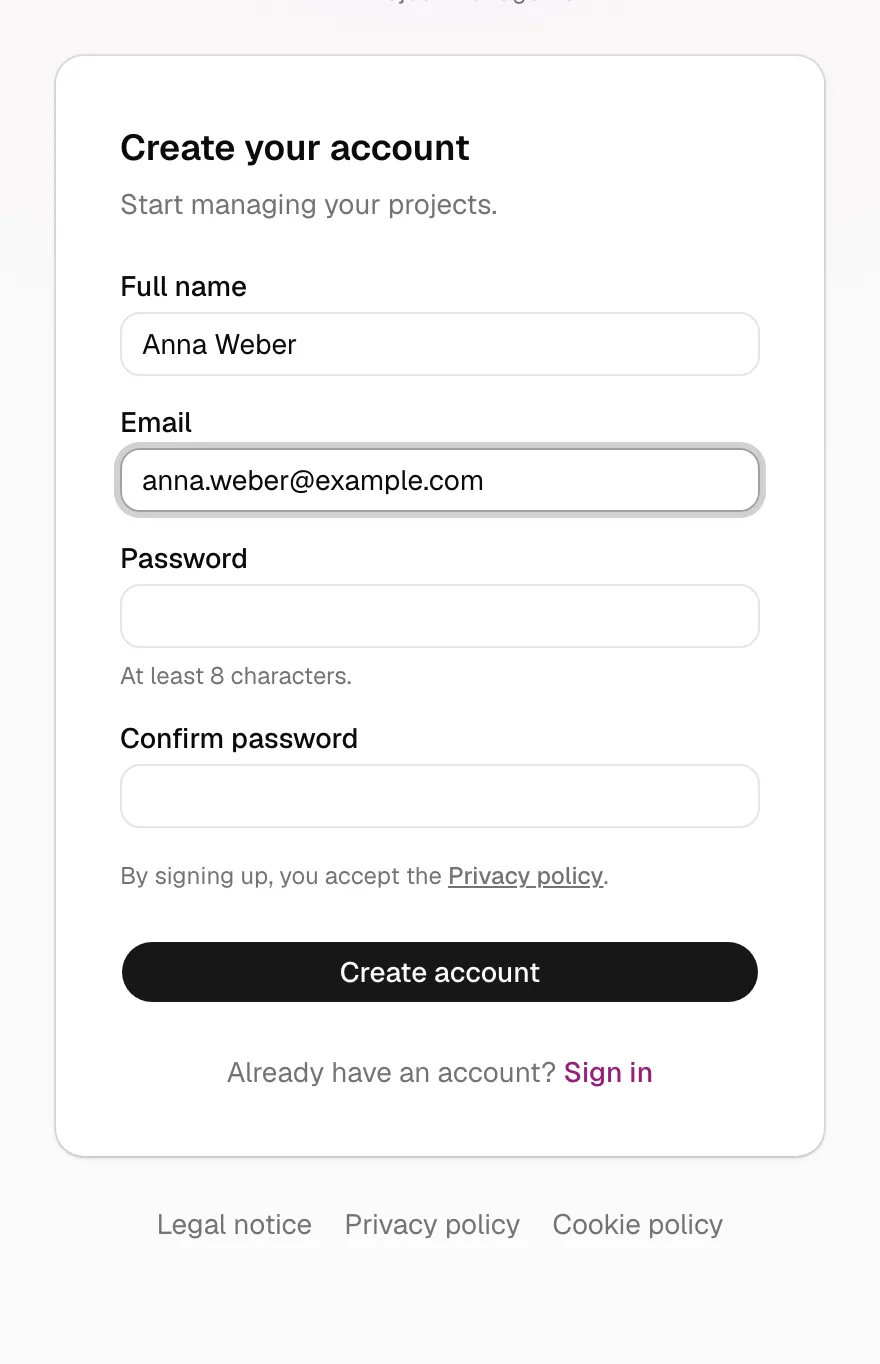
| Field | What to enter | Validation |
|---|---|---|
| Full name | Your first name and surname | Required. “Full name is required.” |
| The address you will sign in with | Required and in a valid format: “Enter a valid email.” It is stored in lower case. | |
| Password | Whatever you choose | At least 8 characters (“The password must be at least 8 characters long.”). If the system considers it too weak: “The password doesn't meet the minimum security requirements. Try another one.” |
| Confirm password | Repeat the one above | “The passwords don't match.” |
If any field is missing: “Fill in all the fields.”. Under the Create account button it says that by signing up you accept the Privacy policy (with a link). After an error your name and email are kept, but the passwords are cleared.
Confirming your email
When you submit the form you see the message “Check your email to confirm your account before signing in.” and you are not signed in. Open the confirmation email and click the link: it takes you to the sign-in screen. Until you confirm, trying to sign in gives “Confirm your email before signing in.”.
If the email already has an account
If an account with that email already exists (in any organisation) you see, in red: “An account with this email already exists. Sign in or reset your password if you don't remember it.”, with both links. Another possible message is “If the details are correct, you will receive a confirmation email.”, which neither confirms nor denies that the email exists.
Other errors: “We couldn't complete your registration. Try again in a few minutes.” and “Your account was created but we couldn't finish setting it up. Contact support.”.
What signing up creates
When you sign up, the following is created all at once:
- A new organisation for you, called “Organización de” followed by your name. There is currently no screen to rename it; it is only visible if you belong to several organisations (header selector).
- Your user, with the PM account role and the language of the page you signed up on.
- The organisation's factory catalogue (see Master data and catalogues):
- 4 project templates: ERP implementation, Software development, BI project and Architecture / Engineering.
- 4 platforms / main technologies: “Cloud platform”, “On-premise platform”, “Custom-built solution” and “Other”.
- 6 team roles: Director, Team Leader, PM, Consultant, Developer and CEO.
- 5 issue statuses: Open, Under analysis, Being resolved, Resolved and Closed.
- 3 currencies: EUR, USD and GBP.
- 4 expense types: Service, Materials, Travel and Software licence.
No project or person is created, and there are no deliverable types. Carry on with Your organisation and your first project.
Signing in
Route: /login (title “Sign in”).
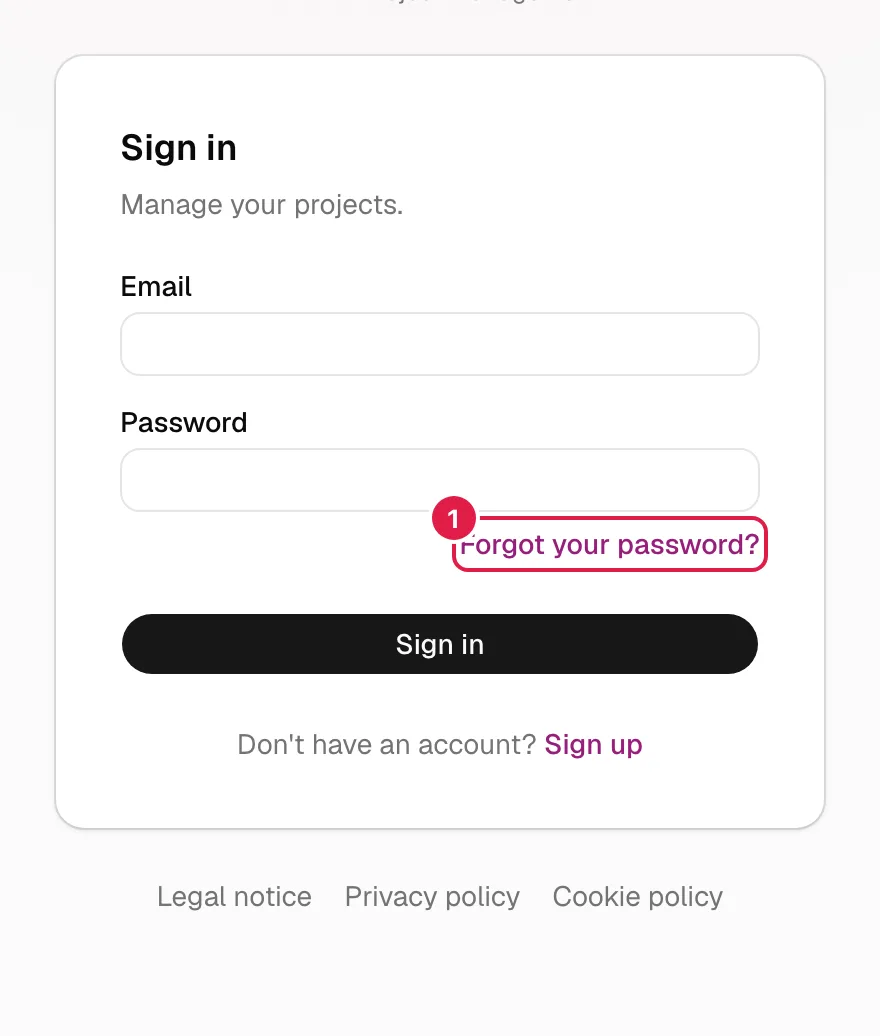
- Type your Email and your Password.
- Click Sign in.
Errors: “Enter your email and password.”, “Incorrect email or password.” (it does not say which of the two is wrong), “Confirm your email before signing in.” and, if your user exists but has no PjMan account, a notice to contact the administrator.
Where you land: on your home screen according to your role: the PM goes to Projects; the Consultant/Developer to My work; and a whole-organisation member (for example, a CEO) to the Organisation dashboard. If you arrived from an internal link, you go back to that page. Opening the site root while signed in takes you to the same home screen.
From this screen you can also go to Forgot your password? and to Sign up.
Accepting an invitation
Route: the link in the invitation email (/accept-invitation). A PM invites you from People of the organisation, the project team or the organisation members. More about the PM's flow in Invitations.
The screen, titled Activate your account, says “You have been invited to a project team in PjMan. Choose your password to get started.”. The steps:
- Open the link in the email in the same browser and device where you are going to use it.
- “Confirm that you want to continue to activate your account.” appears. Click Continue. This step stops the link scanners in email systems from using up the link before you do.
- Fill in Full name, Password (at least 8 characters) and Confirm password, and click Activate account.
When you finish, your account is tied to the organisation that invited you, with the Consultant/Developer account role (even if your team role is Director or CEO), and you land in My work. If you were invited to several projects in that organisation, you are active in all of them. If you were a person without an account, your whole history moves to your account (see People of the organisation).
Error messages:
| Message | What it means and what to do |
|---|---|
| “This invitation link is invalid or has expired. Ask your PM to invite you again.” | The link was already used, has expired or is incorrect. Ask the PM to resend the invitation. |
| “This link was opened in a different browser or device from the one you used the first time (for example, in your phone's email app). Open it in that same browser. If you can't, ask your PM to invite you again.” | Copy the link and open it in the browser where you started. |
| “Fill in all the fields.”, “The passwords don't match.”, “The password must be at least 8 characters long.” | Correct the form. |
| “There is no pending invitation for this email. Ask your PM to invite you again.” | The invitation was cancelled or no longer exists. |
If you already have a PjMan account with that email (for example, in another organisation), you receive no email: the PM adds you directly and you will see an organisation selector in the header.
Recovering your password
Route: Forgot your password? on the sign-in screen (/forgot-password, title “Forgot your password?”).
- Type your Email and click Send link.
- You always see the same message, whether or not the account exists: “If the email is registered in PjMan, we have sent you a link to reset your password.”. That way nobody can find out which emails are registered.
- If the sending limit is exceeded: “Too many attempts. Wait a few minutes and try again.”.
It is also the only way to change your password (there is no change screen inside the application).
Resetting your password
Route: the link in the recovery email (/reset-password, title “Choose your new password”).
- Open it in the same browser you requested it from.
- Click Continue at “Confirm that you want to continue to choose your new password.”.
- Type Password and Confirm password (at least 8) and click Save password.
- You return to the sign-in screen with the notice “Password updated. You can now sign in with it.”. The recovery session is closed: you must sign in with the new password.
Errors: “This recovery link is invalid or has expired.” and “This link was opened in a different browser or device from the one you used to request the change. Open it in the same browser where you requested it, or request a new one here.”, both with the Request a new link link. When saving: “The passwords don't match.”, “The password must be at least 8 characters long.”, “The new password must be different from the current one.”, “The password doesn't meet the minimum security requirements. Try another one.” or “We couldn't update your password. Please try again.”.
Signing out
Your account menu (name and role, top right) → Sign out. You return to the sign-in screen in your language.
Related topics
Updated 2026-10-08