Create a project
The New project form creates a project with the bare minimum (name and client) and, if you wish, with the phases already prepared from a template. Everything else (status, currency, actual dates) is adjusted afterwards in Edit, change the PM of and delete a project.
Only a user with the PM role can create projects. The New project button in the list does not appear to anyone else, and if someone tries to submit the creation some other way they get “Only a PM can perform this action.”. Whoever creates the project becomes its owning PM.
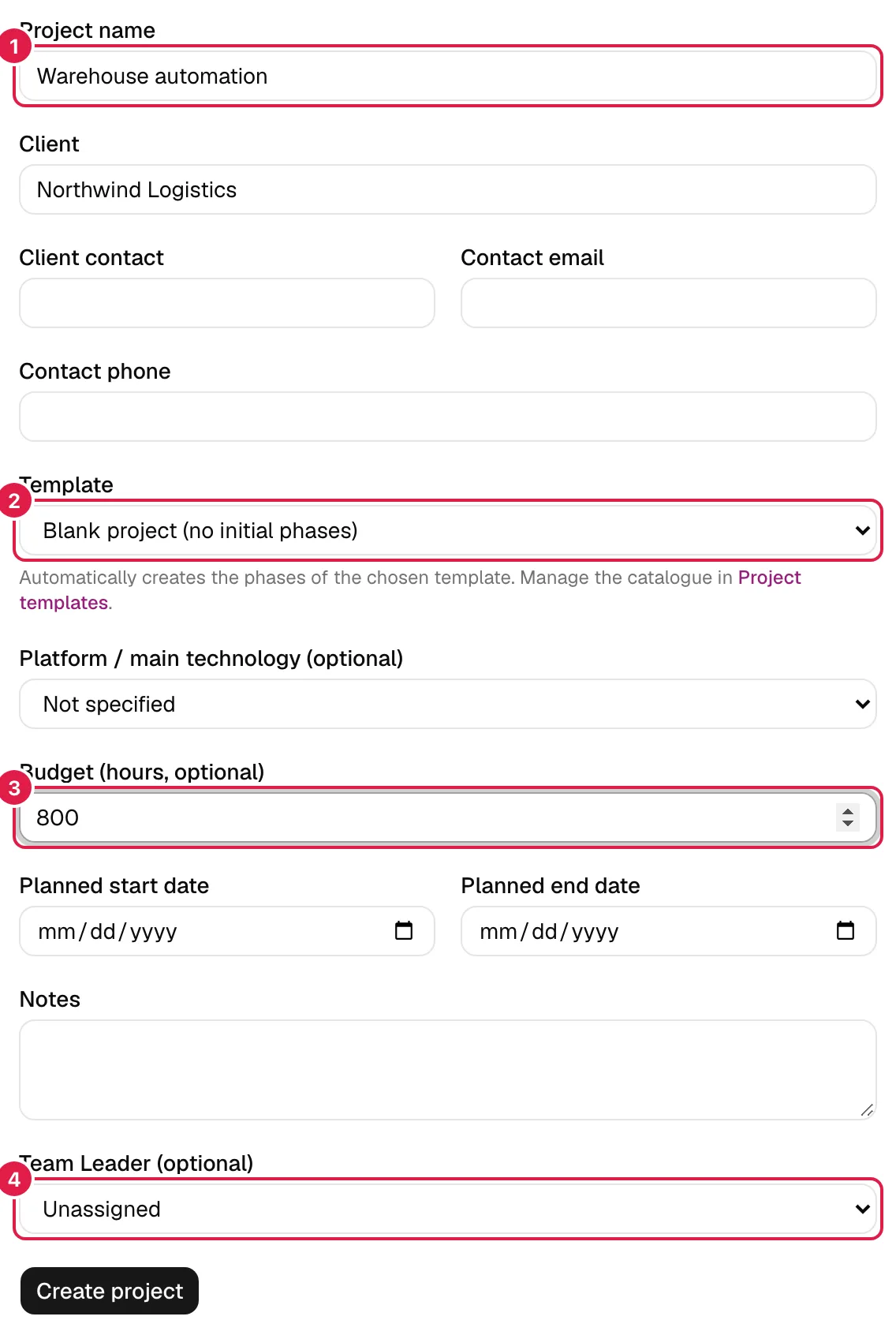
In the image: 1 name, 2 template, 3 hour budget and 4 Team Leader.
It opens from Projects → New project (see Project list, statuses and codes). When you click Create project it takes you straight to the summary of the project you have just created.
The form fields
| Field | Required | What it means |
|---|---|---|
| Project name | Yes | What the project is called throughout the application. Leading and trailing spaces are removed when it is saved. If you leave it empty: “The project name is required.”. |
| Client | Yes | Name of the company or organisation you are working for. It is just text (there is no separate client record). If you leave it empty: “The client is required.”. |
| Client contact, Contact email, Contact phone | No | Details of the reference person at the client, kept in the project itself as reference information. They do not create a contact in the Contacts section (see Contacts). The email field requires a valid email format. |
| Template | No | Decides whether the project starts with phases (see below). By default, Blank project (no initial phases). |
| Platform / main technology (optional) | No | A value from the organisation's own catalogue (for example “Cloud platform”). It is used for classification and is shown next to the client. Default: Not specified. |
| Budget (hours, optional) | No | Total budgeted hours. Half hours are allowed (step of 0.5). Empty means “no budget defined”, which is not the same as 0 hours. |
| Planned start date, Planned end date | No | Planned dates. If both are filled in and the start is after the end: “The planned start date cannot be after the planned end date.”. |
| Notes | No | Free text for the project. |
| Team Leader (optional) | No | A person with an account who joins the team with the Team Leader team role (see Team Leader). Default: Unassigned. |
Hour budget
If you fill it in, the project summary compares the logged hours with this budget and, in the list, the figure is shown in red when it is exceeded (see Project summary). If you leave it empty, the project shows “no budget” and is never considered over budget. A negative value is rejected with “The hour budget must be a number equal to or greater than 0.” (the same happens with text that is not a number).
Project template or blank project
The template decides which phases the project will have from the very first minute. The selector groups the options into two blocks:
- Predefined: they come with your organisation and cannot be edited or deleted.
- Yours: the ones you have created in Project templates (see Master data and catalogues). The text under the selector links to that catalogue.
| Option | Phases created |
|---|---|
| Blank project (no initial phases) | None. You add them by hand (see Phases and sub-phases). |
| ERP implementation | Analysis · Configuration/set-up · Data migration · Custom developments · Training · Testing/UAT · Go-live · Post go-live support |
| Software development | Discovery · Design · Development · Testing · Deployment · Support |
| BI project | Requirements · Data modelling · ETL · Visualisation/Dashboards · Validation · Production |
| Architecture / Engineering | Preliminary design · Basic design · Detailed design · Permits · Construction/Execution · Handover |
| A template of yours | The phases that template has, in its order |

What is copied exactly. Only the name and the order of each phase in the template. The phases are created in the language of whoever creates the project and from then on they are ordinary project data: you can rename, reorder or delete them, or add more. Tasks, dates and sub-phases are not copied.
What is not copied: the link. The project's phases are independent copies. If you later edit the template (rename, add or delete phases), projects already created do not change; only future ones will use the new version. Nor can you change template after the project has been created.
Team Leader
The Team Leader (optional) selector lists all the people with an account in your organisation, sorted by name (people without an account do not appear). If you choose someone, when the project is created they are added to the team with the Team Leader team role, already Active and with no hourly rates (you can set them later in Project team).
What is it for? The Team Leader is the only role that can reassign the PM of the project (see Edit, change the PM of and delete a project), as well as having full visibility of the project through their team level. If the “Team Leader” role does not exist in your organisation's catalogue, the project is still created but without that member.
Project code
Every project automatically receives a code of the form P + the last three digits of the year + a five-digit sequential number, counted per organisation and year: P02600001 is the first project created in 2026. The year is that of the creation date in your time zone. The code is unique, cannot be edited and is not reused even if you delete the project. The project's phases, tasks and other items have their own short codes (F001, T0003…); they are explained in Short codes.
What is configured by default
When the project is created, in addition to what you have filled in:
- Status: Planned.
- Currency: EUR. It is used for the team's hourly rates and to show the project's expense amounts; it is changed when editing.
- The project's own task statuses: To do, In progress, Blocked, In review and Closed.
- Owning PM: you, and you do not appear in the Team table (the owning PM does not go through it).
Who can do what
| Action | PM | Consultant/Developer | “Whole organisation” member (CEO) |
|---|---|---|---|
| See the creation button and form | Yes | No | Only if they also have a PM account |
| Create a project | Yes | No | Only if they also have a PM account |
Related topics
Updated 2026-10-08