Your own Anthropic key
The PjMan AI assistant doesn't work with a shared key: each person enters their own, which is stored encrypted and used only for the requests you make. That way the usage is billed to your own account with the provider and nobody else spends on your key. It is configured in Settings → Assistant.
PM accounts and Consultant/Developer accounts can use the assistant (and see the Assistant tab in Settings), each with their own key and always within their permissions. This includes a “whole organisation” member (for example, a CEO), because their account is of the Consultant/Developer type: they need their own key and don't use anyone else's. If your account has no access, the tab doesn't appear and the API replies “Your role doesn't have access to the AI assistant.”.
Get a key
The key is issued by the AI model provider (Anthropic), not by PjMan. The steps are the usual ones for any API provider:
- Create a developer account on the provider's site and sign in to its console.
- Add a payment method or credit: without a balance, requests are rejected.
- In the API keys section, create a new key and give it a name that helps you recognise it (for example, “PjMan”).
- Copy the key right then: the console only shows it once. It starts with
sk-ant-.
Save, replace and remove the key
Each person manages only their own key.
Save. In the Anthropic API key field, paste the key and press Save key. While it is being checked, the button reads Checking key...: PjMan makes a minimal call to the provider with that key to verify that it works (it counts as a use of very few tokens). Results:
| What happens | Message |
|---|---|
| Valid key | “AI key saved.” (green notice) and the screen changes to “Key configured on …”. |
| Empty field | “The API key is required.” |
| The provider rejects the key | “Your Anthropic key isn't valid. Check it and try again.” Nothing is saved. |
| Network failure or the provider's request limit | A message saying that the assistant couldn't be reached, or that your key's request limit has been reached; the key is considered neither bad nor good and isn't saved. |
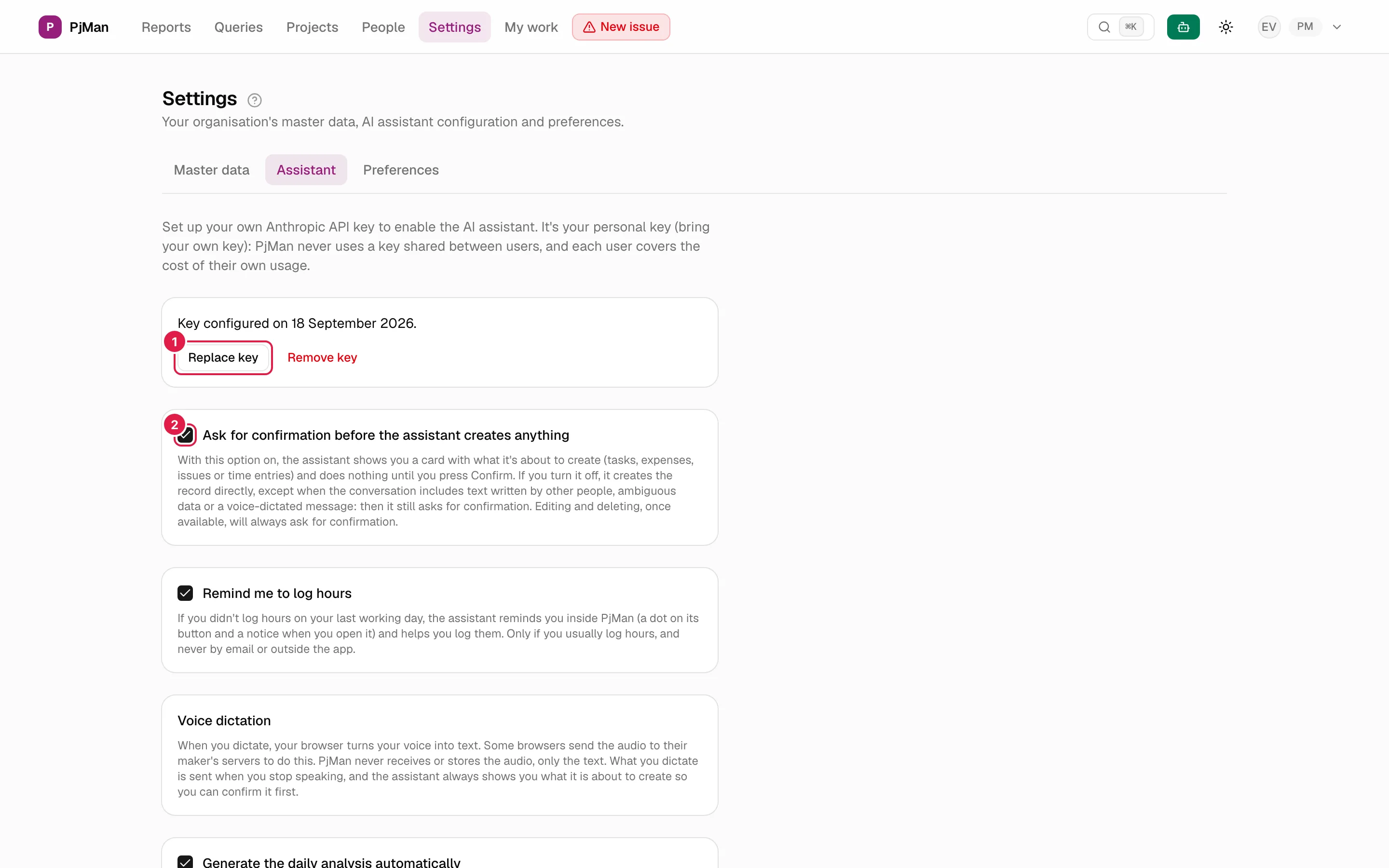
Replace. With a key already configured you see “Key configured on {date}.” and two buttons: Replace key (shows the form again; Cancel closes it without changes) and Remove key.
Remove. Remove key asks for confirmation: “Are you sure you want to remove your AI key? The assistant will be disabled until you set a new one.”. Removing it deletes the encrypted key; the assistant panel then shows “Set up your Anthropic key” with a Go to Settings → Assistant button.
Your conversation history and the suggestions already generated are not deleted when you remove or change the key.
Public demo account: don't enter your key
What data is sent and what isn't
Each time you make a request to the assistant, the PjMan server calls the provider with your key and sends it:
- What you type (or dictate), and the recent history of your conversation.
- A context block generated by PjMan: your language, the local date, your role, the screen you are on and the basic data of what you have open (project, phase, task or issue), plus what you can do there.
- The results of the queries the assistant runs with your permissions (for example, the list of tasks that match a search, or the data of a project's status).
- The content you attach on purpose: a pasted text, or a communication or daily suggestion that you send with Ask / Ask the assistant.
Not sent: your key to anyone else (it is decrypted only on the server, at the moment of the call, and never goes back to the browser), your password, or data of projects you don't have access to (the assistant only sees what your role lets you see). Texts written by other people that reach the assistant are marked as data, never as instructions.
For its part, PjMan stores your conversations for 30 days (see The assistant panel) and a record of the actions the assistant has carried out for you. Voice dictation has its own privacy note in Voice.
Encryption. The key is encrypted before it is stored in the database with a master key held by the server; it is never shown again (you only see the date you configured it). There is no platform-wide key that is used when you don't have your own: without a key, the assistant simply doesn't work.
Cost
The cost is charged by the provider to your account according to the tokens you use; PjMan adds no surcharge. Each message costs more or less depending on the length of the conversation and the data it queries (reports, portfolios and long pasted texts use more). Under the key, the AI assistant usage card shows you:
- Total tokens: “{n} input tokens + {n} output tokens” and, where applicable, the prompt cache (the part of the input that is reused and paid for at a lower price).
- Total estimated cost, in dollars.
- Last analysis: tokens and cost of the last daily analysis or “Generate analysis now” (if there isn't one yet: “You haven't generated any project analysis yet.”).
It is an estimate with prices set in the application, not an invoice; the actual cost is in your provider's console. If a model has no configured price, those calls are marked “no price” and not added up. PjMan imposes no limit and doesn't warn you about a maximum spend: if you want a cap, set it in your provider account.
The other assistant settings
On the same tab, each setting is applied when you tick or untick the checkbox (there is no Save button):
| Setting | What it does | Who sees it |
|---|---|---|
| Ask for confirmation before the assistant creates anything | On (default): the assistant shows a card and creates nothing until you press Confirm. Off: it creates directly, except in the cases that force the card. Editing and deleting always ask for confirmation. See Confirmation by risk level. | PM and Consultant/Developer |
| Remind me to log hours | If you didn't log hours on your last working day, the assistant button shows a dot and, when you open it, a notice with Log time now / Not today. Never by email or outside the application. | PM and Consultant/Developer |
| Generate the daily analysis automatically | Turns on the daily suggestions at 06 your time. | PM only |
| Time zone | Defines what “your day” is for the assistant: the local date for “today”, “this week”, the reminder and the time of the daily analysis. If you haven't configured it, a default is applied, shown with “(default value — set it if it isn't yours)”. Find yours in the drop-down and it is saved when you choose it. An invalid zone gives “That time zone isn't valid.”. | PM and Consultant/Developer |
| Voice dictation | Informational only: the privacy note for dictation. | PM and Consultant/Developer |
Who can do what
| Action | PM | Consultant/Developer (includes “whole organisation” member) | Other roles |
|---|---|---|---|
| See the Assistant tab | Yes | Yes | No |
| Save, replace and remove their own key | Yes | Yes | No |
| Use the assistant | Yes, with their PM permissions | Yes, only with what their role sees and can do | No |
| Turn on the daily analysis | Yes | No (the setting doesn't appear) | No |
Related topics
Updated 2026-10-08