Team roles
A team role describes a person's part in a project (Director, Team Leader, Consultant…) and carries a level that decides how much of that project they can see. This screen is your organisation's catalogue of roles. The roles are chosen later when adding people to a project (see Project team) or to the organisation (see Organisation members).
You get here from Settings → Master data, on the Team roles card, with the Edit button.
Only a PM account can view and modify the catalogue. Other accounts that open the route by hand do not see the screen (the request is rejected on the server).
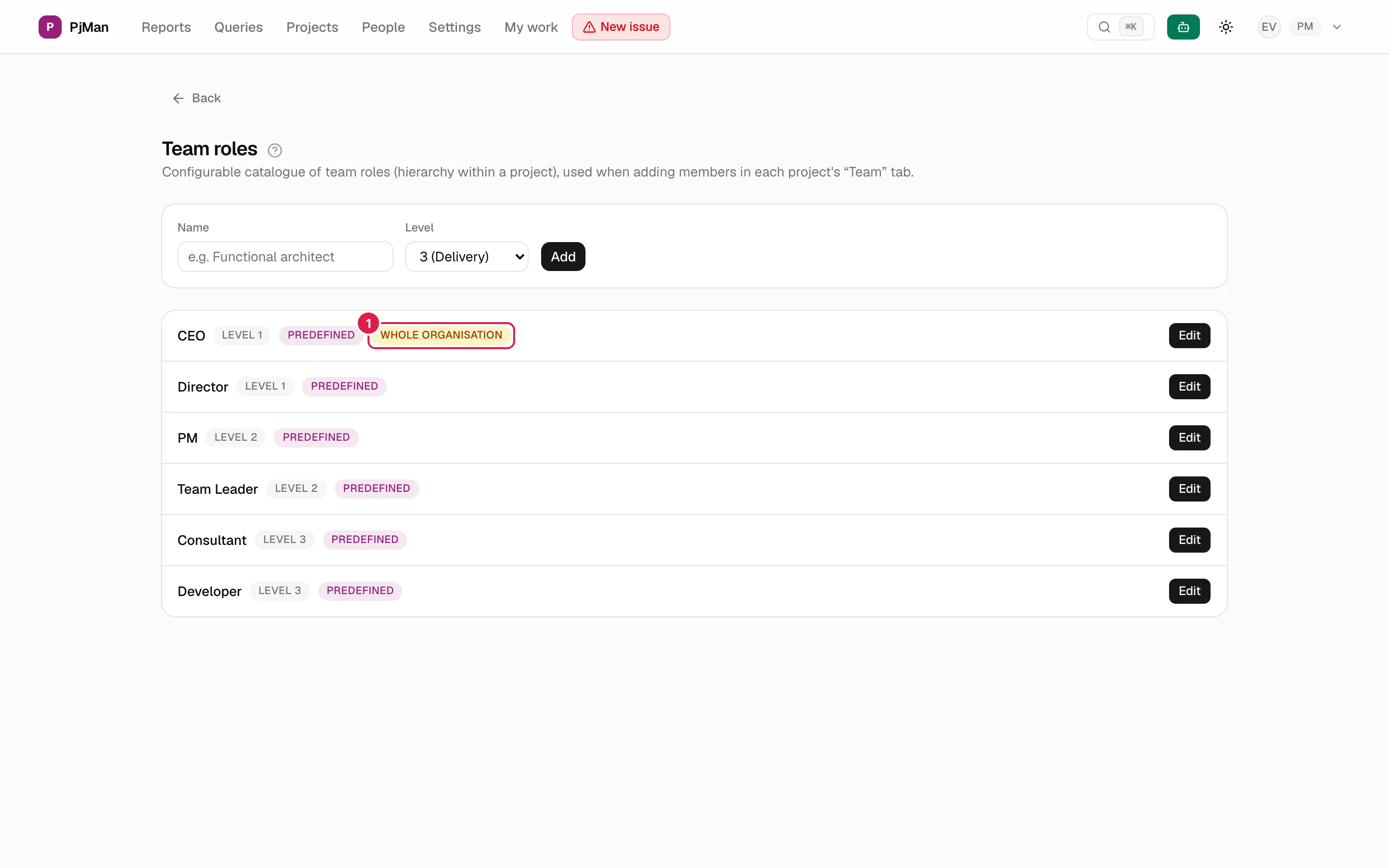
Each row shows the name, the Level N label, Predefined if it is a default role and, in marker 1, Whole organisation if the role can be given at organisation level.
The predefined roles
Every new organisation comes with six default roles, marked with the Predefined label:
| Role | Level | Notes |
|---|---|---|
| Director | 1 (Management) | |
| Team Leader | 2 (Leadership) | The only role that can reassign the PM of the project (see Roles and access). |
| PM | 2 (Leadership) | This is the role an outgoing PM receives when the project is reassigned. |
| Consultant | 3 (Delivery) | |
| Developer | 3 (Delivery) | |
| CEO | 1 (Management) | Carries the Whole organisation label: it is the only role that can be given at organisation level. |
The default names are shown in your interface language (for example, “Consultor” in Spanish and “Consultant” in English). Predefined roles cannot be deleted, and their name and level cannot be changed: the way permissions are calculated depends on their name and level.
What each level means
| Level | Text in the list | Effect |
|---|---|---|
| 1 | 1 (Management) | Sees the whole project, read-only. |
| 2 | 2 (Leadership) | Same as level 1. |
| 3 | 3 (Delivery) | Does not see the project: only the tasks and issues assigned to them. |
Levels 1 and 2 give the same visibility; the difference is organisational (and the fact that “Team Leader” also has PM reassignment). Details in Roles and access.
Creating your own role
- In the top card, type the Name (for example “Functional architect”).
- Choose the Level: 1 (Management), 2 (Leadership) or 3 (Delivery). The default is 3 (Delivery), the most restrictive.
- Click Add.

Validations:
| Case | Message |
|---|---|
| Empty name | “The team role name is required.” |
| Level other than 1, 2 or 3 | “The level must be 1, 2 or 3.” |
| A role with that name already exists | “A team role called "…" already exists.” |
The name comparison ignores capitals and extra spaces and also takes into account the translated names of the default roles: you cannot create “consultor” if you already have “Consultant”.
Editing a role
Click Edit on the row. The Edit team role dialog lets you change the Name and the Level, and is saved with Save changes.
- On a predefined role both fields appear disabled and a text explains why: “Predefined roles have a fixed name and level.”. Saving without touching anything changes nothing.
- On a role of your own, a change of level applies immediately to everyone who already has it in any project: if you move a role from 3 to 2, those people start to see their projects in full.
- If you change the name to one that already exists you will see the same duplicate notice.
Deleting a role
The Delete button only appears on your own roles. It asks for confirmation (“Delete the team role “…”?”). If the role is in use in any project team, the deletion is rejected with “It can't be deleted: some project members use this team role.”: first change those people's role in the project's Team tab.
Who can do what
| Action | PM | Consultant/Developer | “Whole organisation” member without a PM account |
|---|---|---|---|
| View the catalogue | Yes | No | No |
| Create, edit and delete your own roles | Yes | No | No |
| Change or delete a predefined role | No (nobody) | No | No |
Related topics
Updated 2026-10-08