Roles and access
In PjMan every person has two separate things that decide what they can see and do: their account role (at organisation level) and their team role (at project or organisation level). Understanding the difference clears up almost every question about permissions.
This page is informational and anyone can read it. Each operation in the help carries its own role label.
Account role
The account role is set when the account is created in an organisation and cannot be changed from the application:
| Account role | How you get it | What it is |
|---|---|---|
| PM | When you register (you create your own organisation). | Manages the organisation: creates projects, people, catalogues and members. |
| Consultant/Developer | By invitation, or when someone who already has an account in another organisation is added. | Works on tasks and issues. It is the role of every invited person, whatever team role they have. |
| Administrator | Reserved for a future multi-company phase. | Gives no access today. |
Team role and levels
The team role (Director, Team Leader, PM, Consultant, Developer, CEO and any you create yourself) describes the part someone plays in a project and carries a level from 1 to 3. It is assigned in the Team tab of each project (see Project team). The catalogue is managed in Team roles.
| Level | Name in the interface | Default roles | What it gives |
|---|---|---|---|
| 1 | 1 (Management) | Director, CEO | Full view of the project, read-only (except creating issues). |
| 2 | 2 (Leadership) | Team Leader, PM | Same as level 1. In addition, the Team Leader can reassign the PM. |
| 3 | 3 (Delivery) | Consultant, Developer | Nothing of the whole project: they only see the tasks and issues they are assigned to. |
What really matters is level 1-2 versus level 3:
- Level 1 or 2 in a project: you see that whole project (phases, tasks, risks, issues, change requests, expenses, contacts, communications, documents, meeting minutes and the team with their hourly rates), but read-only. It does not change the account role.
- Level 3: the team role opens nothing for you. Your access comes only from your assignments to tasks and issues.
Owning PM versus others
Every project has one owning PM: the person with the PM account role who is named as the project's PM. They are the only person who can modify it: edit and delete it, create and edit phases, tasks, risks, change requests, contacts, communications, meeting minutes, expenses and documents, manage the team, assign tasks and issues, and edit or delete issues. The owner does not appear in the team table: their level (2) is implicit.
Other people with the PM account role who do not own a project cannot see it, unless they are in its team at level 1 or 2; in that case they see it in read-only mode.
Reassigning the PM
Only the project's Team Leader (the team role called “Team Leader”; level 2 is not enough). Neither the Director nor the owning PM can.
A Team Leader sees the Reassign PM button in the project header.
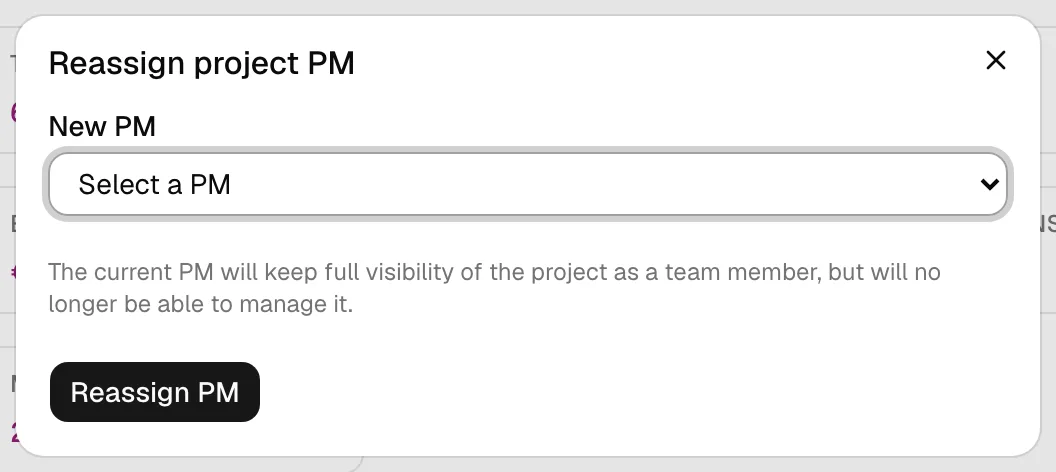
In the Reassign project PM dialog you choose, in New PM, another person with the PM account role in your organisation (the current PM is not listed). When you confirm:
- The project passes to the new PM, who is now the owner.
- The outgoing PM stays in the team with the “PM” team role (level 2): they keep the full view but can no longer manage the project.
- If the new PM had a row in the project team, it is deleted (the owner never appears in that table).
If there is no other PM, the dialog says “There's no other user with the PM role in your organisation to reassign this project to.”. When creating a project, the PM can name a Team Leader (optional) from among the people with an account; it can be added or changed later in the Team tab.
“Whole organisation” members
A team role marked Whole organisation (by default, only CEO) can be given in two ways with very different scope:
| In a project's team | In Settings → Organisation members | |
|---|---|---|
| Scope | That project only | All the projects of the active organisation |
| Menu | “My work” only | Organisation, Reports, Queries and “My work” |
The full detail is in Organisation members (CEO).
What each person sees in the menu
| Person | Main menu | Start screen |
|---|---|---|
| Account PM | Projects, People, Settings, Reports, Queries, My work | Projects |
| “Whole organisation” member (even if also a PM) | Organisation, Reports, Queries and, if a PM, also Projects, People and Settings; My work | Organisation dashboard |
| Consultant/Developer (with or without a team role in projects) | My work | My work |
The New issue button is in everyone's header, but it only offers the projects where you can create one. Someone who has visibility of a project through their team role (level 1-2) but a Consultant/Developer account has no “Projects” link in the menu: they can open the project from the tasks or issues in “My work” or from a direct link.
Summary table: who can do what
Columns: Owning PM of the project; Level 1-2 = person with a team role of level 1 or 2 in that project, or a “whole organisation” member (this includes another PM who is in the team); Assignee = Consultant/Developer (level 3 or no team role) with assigned tasks or issues. “Reads” means read-only.
| Screen or entity | Owning PM | Level 1-2 (not the owner) | Assignee (level 3) |
|---|---|---|---|
| People, Master data, Team roles, Organisation members | Yes (any PM account) | No (unless their account is a PM) | No |
| Create project | Yes (PM account) | No (unless a PM account) | No |
| Project list | Their own and those where they are level 1-2 | The projects where they are level 1-2; a “whole organisation” member, all of them | No |
| Edit or delete the project | Yes | No | No |
| Reassign PM | No (unless also the Team Leader) | Only the Team Leader | No |
| Phases and tasks | Creates, edits, deletes, assigns | Reads | Only their tasks |
| Change a task's status, progress and “finished” | Yes | No | Yes, on their assigned tasks |
| Project team and hourly rates | Manages | Reads, with rates | No |
| Risks, change requests, contacts, communications, meeting minutes, expenses | Manages | Reads | No |
| Issues | Creates, edits, deletes, assigns | Reads and creates | Only their own (or those of their tasks) |
| Documents | Manages | Reads | Read-only, from My work |
| Log time | On their tasks or on behalf of anyone | No (unless assigned) | On their assigned tasks, in their own name only |
| My work | Yes | Yes (their assignments) | Yes |
| Queries and Reports | Yes | Only the “whole organisation” member (and PM account) | No |
| Organisation dashboard | No | Only the “whole organisation” member | No |
| AI assistant | Yes, with their own key | Yes, with their own key | Yes, with their own key |
The assistant does for you what your role allows, nothing more: it opens no new access. Daily suggestions are for PMs.
Related topics
Updated 2026-10-08