Organisation dashboard
The Organisation dashboard (the Organisation entry in the main menu) is the home screen of anyone with a team role marked “entire organisation”, such as a CEO. In a single grid it shows all the organisation's projects, whichever PM runs them, with their progress and key figures at a glance. It lets you take the pulse of the whole portfolio without going into each project.
Only organisation members with an “entire organisation” team role (see Organisation members (CEO)). It is read-only: there is no create-project button and no editing action. Anyone else, including a PM who is not an organisation member, sees “You don't have access to this dashboard: it's only for organisation members (team role marked “whole organisation”, e.g. CEO).”. PMs have their own list in Projects.
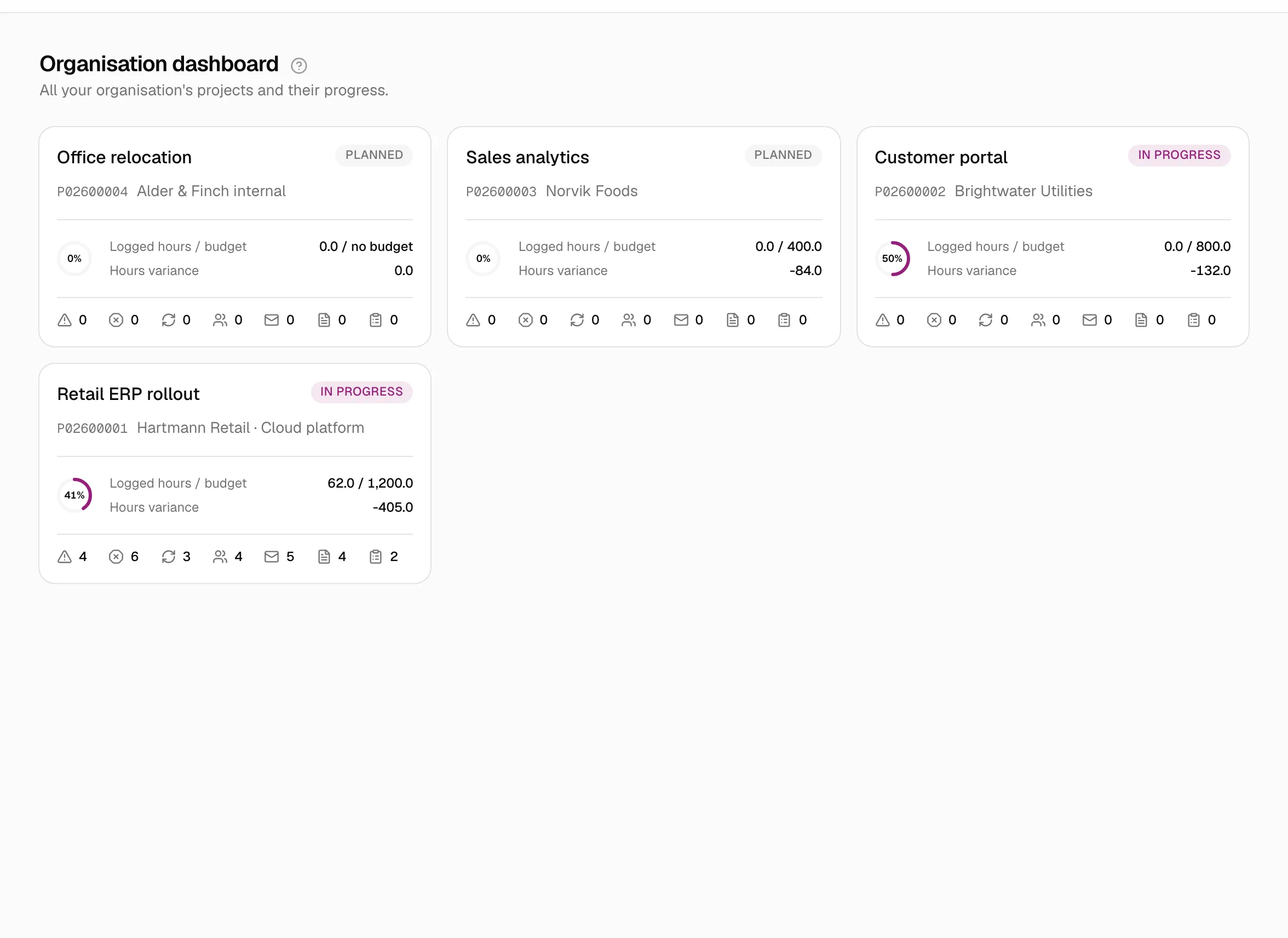
What it shows
Under the Organisation dashboard title and the subtitle “All your organisation's projects and their progress.”, a grid of cards (one, two or three per row, depending on screen width), from newest to oldest. Each card shows:
- Project name and its status (in progress, closed…).
- The project's code, client and, if the project has one, its platform or main technology.
- The progress dial (the project's progress %, calculated in the same way as in the rest of the application).
- Hours against budget (logged / budgeted, or “no budget”), in red if the budget is exceeded, and the hours deviation, in red if positive.
- A row of counters with icons: risks, issues, change requests, contacts, communications, documents and meeting minutes. When you hover over one, the name and the figure appear.
Unlike a PM's project list, the cards carry no assistant suggestions and do not show who the PM of each project is.
A click on a card opens the project. Inside, the organisation member sees the whole project but read-only: they can look at everything, and only change what they could change for other reasons (for example, if they also have assigned tasks). See Roles and access.
If there are no projects yet: “There are no projects yet” and “Your organisation's projects will appear here as soon as they exist.”.
How to get there and how it relates to other screens
- It is the screen that the logo and sign-in take you to when you are an “entire organisation” member.
- For analysis with filters and charts use Reports; for tables you can export to Excel, Queries. Both give the CEO the scope of the whole organisation.
- The dashboard has no filters, search box or pagination of its own: it always shows all the projects.
Who can do what
| PM | Consultant/Developer | “Entire organisation” member (CEO) | |
|---|---|---|---|
| See the dashboard | No (unless they are also an organisation member) | No | Yes |
| Create or edit projects from here | — | — | No |
Related topics
Updated 2026-10-08