Editing, changing the PM and deleting a project
Three management operations on a project that already exists: editing its details (Edit button in the header), reassigning the owning PM and deleting it.
Editing and deleting are exclusive to the project's owning PM. Reassigning the PM is exclusive to the project's Team Leader (neither the owning PM nor a Director can). No other PM, even in the same organisation, can touch the project.
Editing the project
Press Edit in the project header (see Project summary). The Edit project screen shows the project name under the title and the same form as when creating, with a few extra fields.
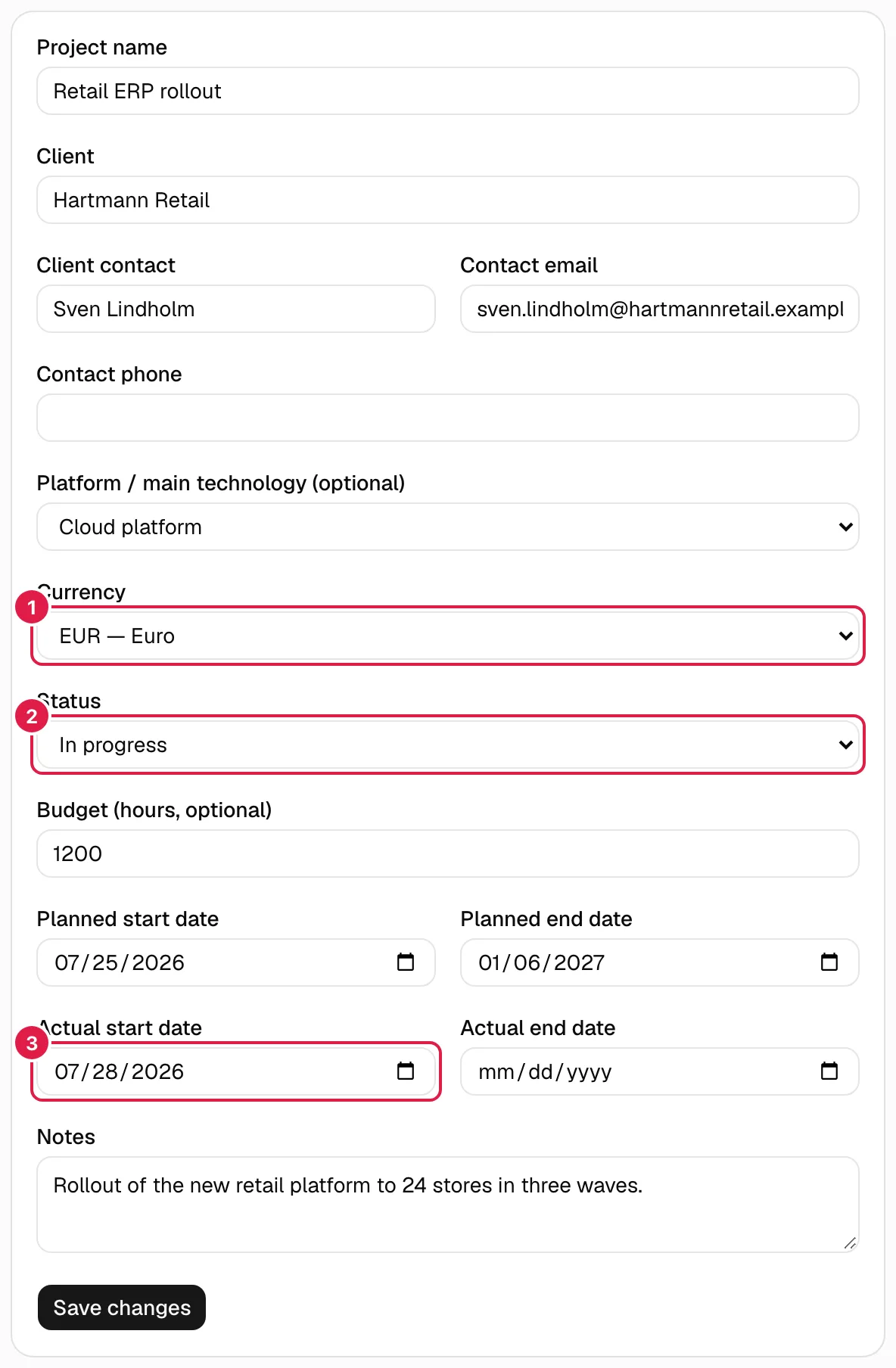
In the image: 1 currency, 2 status and 3 actual start date.
| Field | What it does | Validation and notes |
|---|---|---|
| Project name | Renames the project. | Required: “The project name is required.”. |
| Client | Changes the client's name. | Required: “The client is required.”. |
| Client contact, Contact email, Contact phone | Reference details for the client. | If left empty they are saved as “No data”. |
| Platform / main technology (optional) | Pick a value from the catalogue, or Not specified to remove it. | Only values from your organisation. |
| Currency | The project's currency, in the format “EUR — Euro”. | Required: one is always selected. Changing it does not convert amounts: it only changes the currency in which the team's hourly rates and expense totals are displayed. |
| Status | Planned, In progress, On hold or Closed. | See Statuses. It is manual and blocks nothing. |
| Budget (hours, optional) | Budgeted hours. | Empty = “no budget”, not 0 h. Negative values are not allowed: “The hour budget must be a number equal to or greater than 0.”. |
| Planned start date / Planned end date | Planned dates. | The start cannot be after the end: “The planned start date cannot be after the planned end date.”. |
| Actual start date / Actual end date | When it really started and finished. They exist only when editing. | Same rule: “The actual start date cannot be after the actual end date.”. |
| Notes | Free text. |
When you press Save changes you return to the project summary. If something is not valid, the message appears below the form and what you typed is kept.
What cannot be changed: the project's code, the template it was created from (the phases already created are yours and are edited one by one, see Phases and sub-phases) and the PM (only by reassignment, see below).
Reassigning the PM
This hands ownership of the project over to another PM in your organisation (for example when the original PM leaves the project). Only the project's Team Leader can do it: the active team member with the “Team Leader” team role (which can be set when creating the project or by adding someone to the team). Their account can be Consultant/Developer; what counts is their team role.
- Open the project and press Reassign PM in the header.
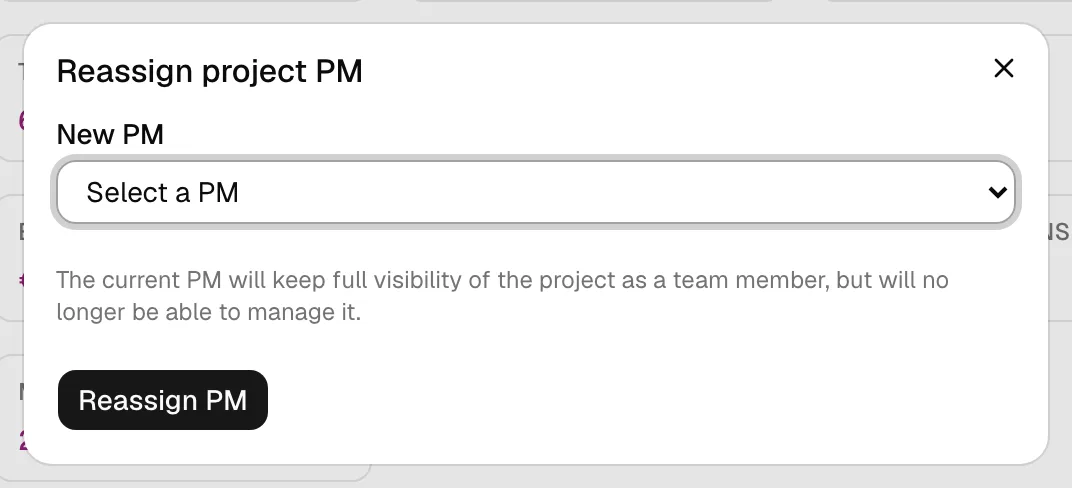
- In the Reassign project PM dialog, pick the person in New PM (Select a PM). The list shows “Name (email)” for the users with a PM account in the organisation, excluding the current PM.
- Press Reassign PM.
What happens:
- The new PM becomes the owner and can manage the project. If they had a team row in that project, it is removed (the owning PM does not appear in the Team table).
- The outgoing PM does not lose visibility: they are added to the team as an active member with the “PM” team role (if they were not already on the team), but they can no longer manage the project. The dialog text says so: “The current PM will keep full visibility of the project as a team member, but will no longer be able to manage it.”.
- The Team Leader stays Team Leader, unless they are the new PM themselves: in that case their team row is removed and they stop seeing the button.
- Only whoever is then the Team Leader can hand the project back to the previous PM.
If there is no other PM, the dialog says “There's no other user with the PM role in your organisation to reassign this project to.”. Other possible messages: “Select a new PM.”, “That user is already this project's PM.”, “The selected user doesn't exist or doesn't have the PM role in your organisation.” and “Only the project's Team Leader can reassign the PM.”.
Deleting the project
Press Delete project in the header. The browser asks for confirmation: “Are you sure you want to delete this project? Its phases and tasks will also be deleted.”. If you accept, the project disappears and you return to the project list. It cannot be undone.
Permanently deleted:
- The phases and sub-phases, and all the tasks, with their assignments, dependencies, checklists and time entries.
- The project's task statuses.
- The risks, issues (with their assignments and hours), change requests, expenses, contacts, communications, documents, meeting minutes with their agreements, and the assistant's suggestions and progress history.
- The project team membership (the team rows, with their hourly rates).
Not deleted: the people (with or without an account), the catalogues (platforms, templates, currencies, team roles) and the template the project was created from. The project's code is never assigned to another project.
If the deletion fails (for example, because you are no longer the owning PM), you will see the error in a pop-up notice and the project stays where it was.
Who can do what
| Action | Owning PM | Project Team Leader | Director or other level 1-2 | “Whole organisation” member | Other PM | Consultant/Developer |
|---|---|---|---|---|---|---|
| See the project | Yes | Yes | Yes | Yes | No | No |
| Edit details | Yes | No | No | No | No | No |
| Delete | Yes | No | No | No | No | No |
| Reassign PM | No | Yes | No | No | No | No |
Related topics
Updated 2026-10-08