Phases and sub-phases
Phases divide a project into stages (for example “Analysis”, “Testing/UAT”, “Go-live”). Each phase holds that stage's tasks and can have sub-phases for finer detail. A project's progress and hours are calculated phase by phase, so the structure you choose determines how you read the summary.
Creating, editing, moving and deleting phases is reserved for the owning PM. Everyone else with full visibility of the project (team level 1 or 2 and organisation-wide members) sees the phases read-only, without the management buttons. A Consultant/Developer does not see the project's phases: only their tasks, in My work.
The project's Phases section
This is each project's entry page (see Project summary). It shows a Phases heading, the List | Kanban switch (see Kanban boards) and, for the owning PM, the form for adding phases. Each phase is a collapsible card, closed by default; whether each phase and sub-phase is open or closed is independent.
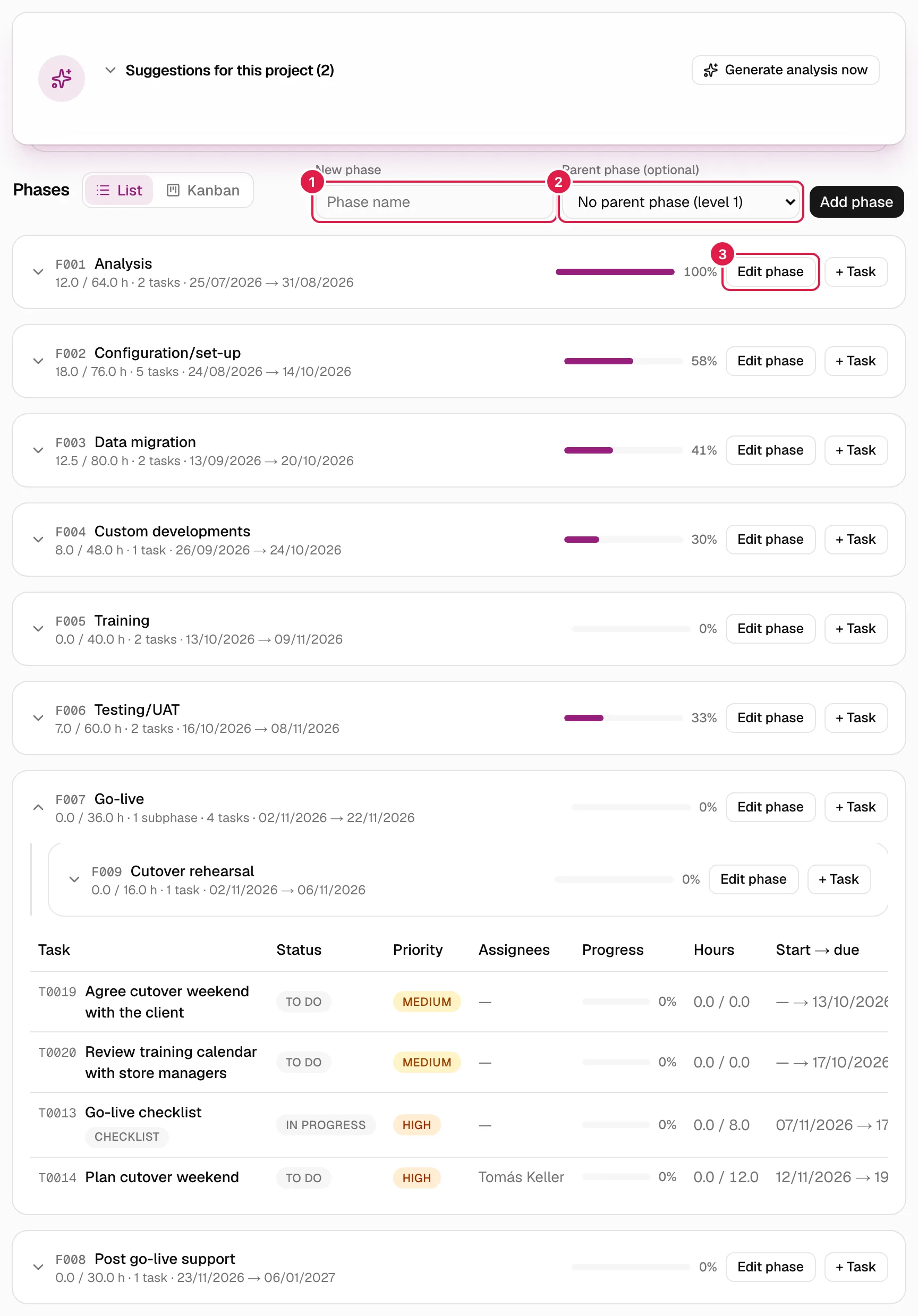
In the image: 1 field for the new phase's name, 2 parent phase selector and 3 Edit phase button.
The header of each card shows:
| Element | Meaning |
|---|---|
| Code and name | The code (F001) is unique within the project, automatic and immutable; it is used to find the phase (see Short codes). |
| “x / y h” | Logged hours / estimated hours of the phase, including its sub-phases. |
| “N sub-phases · N tasks” | How many direct sub-phases it has and how many tasks of its own (those of its sub-phases are not counted here). |
| “start → end” | The phase's planned dates, if it has any. |
| Progress bar | The phase's progress percentage (see Progress). |
| Edit phase and + Task | Owning PM only: they open the phase editor and the form for adding a task to it (see Tasks). |
When you expand a phase, its sub-phases appear first (with a vertical line on the left) and then the task table of the tasks that hang directly from it.
Levels: phases and sub-phases
There are three levels at most: phase (level 1) → sub-phase (level 2) → sub-phase of that sub-phase (level 3). A level 3 phase can no longer have sub-phases. Tasks can hang from a phase at any level.
Use sub-phases when a stage breaks down into blocks that stand on their own (for example, “Data migration” → “Customers”, “Items”). If you only need to group things, tasks may be enough.
Create a phase or sub-phase
Only the project's owning PM.
In the Phases section, at the top right:
- Type the name in New phase (the field shows “Phase name”). It is required: “The phase name is required.”.
- If you want a sub-phase, choose its parent in Parent phase (optional). The default is No parent phase (level 1). The list only offers phases that can still take sub-phases (levels 1 and 2), and sub-phases are shown with dashes: “— Sub-phase”.
- Press Add phase.
What happens:
- It is created with the next free code (
F001,F002…). - Its order is the last of its siblings plus one: each level and each parent phase has its own numbering starting at 1.
- No dates or notes are asked for on creation: you set them later when editing.
- In a project with no phases (for example, created as a Blank project) the section first shows “This project has no phases yet.”.
A project created from a template already starts with its level 1 phases. Those phases are copies that belong to you: you can edit, reorder or delete them just like the ones you create by hand.
Possible errors on creation: “The selected parent phase doesn't exist or doesn't belong to this project.”, “This phase is already at the deepest level allowed (3); it can't have sub-phases.”.
Edit a phase
Only the owning PM. Anyone who opens this screen without being one gets “You don't have access to this project.”.
Edit phase opens the edit screen (with a link back to the project). When you save with Save changes you return to the Phases section.
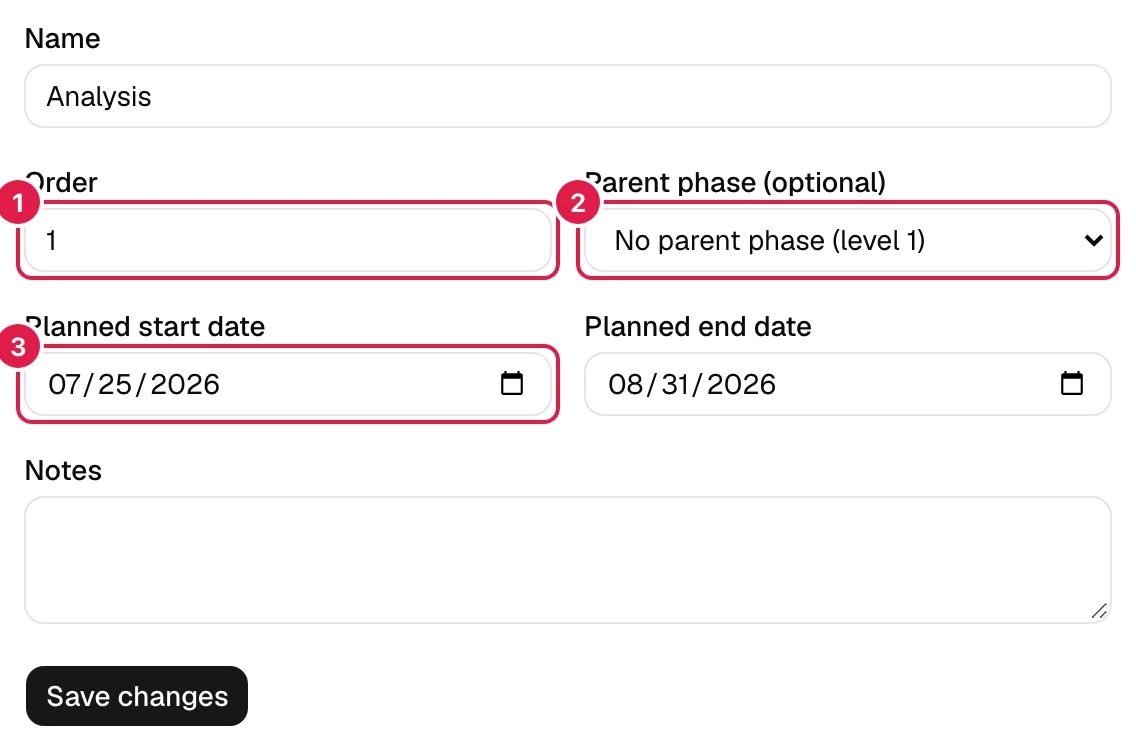
In the image: 1 order, 2 parent phase and 3 planned start date.
| Field | What it does | Validation |
|---|---|---|
| Name | Renames the phase. | Required. |
| Order | The phase's position among its siblings. Phases are shown from lowest to highest order. | Whole number from 1 (“The order must be a number equal to or greater than 1.”; with decimals: “Enter a whole number, without decimals.”). Empty = keeps the previous value. |
| Parent phase (optional) | Moves the phase to another parent or returns it to level 1 with No parent phase (level 1). | See Move a phase. |
| Planned start date / Planned end date | Planned dates; they feed the Planning calendar. | The start cannot be after the end: “The planned start date cannot be after the planned end date.”. |
| Notes | Free text. |
Reorder
You do not drag: you change the number in the Order field. Each phase has a number within its group of siblings, so each level is ordered separately. If two siblings have the same number, the programme does not guarantee which comes first: use distinct numbers. To insert a phase between 2 and 3, give it 3, for example, and renumber the one that was 3 to 4.
Move a phase
By changing Parent phase you turn a phase into a sub-phase of another, or a sub-phase into a level 1 phase. The selector already excludes the phase itself and its descendants. The server also rejects:
- A phase as its own parent: “A phase can't be its own parent phase.”.
- Moving it inside one of its own sub-phases: “A phase can't be moved inside one of its own sub-phases (it would create a cycle).”.
- A parent that is already at level 3: “This phase is already at the deepest level allowed (3); it can't have sub-phases.”.
When a phase is moved it keeps its Order number, which may coincide with that of the new parent's other children; check it on the same screen.
Delete a phase
Only the owning PM.
On the edit screen, Delete phase. The browser asks for confirmation: “Are you sure you want to delete this phase? Its tasks will also be deleted and, if it has sub-phases, those too (with their own tasks).”. When you accept you return to the Phases section. It cannot be undone.
Deleted along with it:
- All its sub-phases, at any depth.
- All the tasks of the phase and its sub-phases, with their assignments, checklist, dependencies (including those other tasks had towards them) and the hours logged on those tasks.
Not deleted, but they lose their link to the phase or task: the risks, issues, communications, expenses and minutes that were linked to that phase or its tasks. They stay in the project as “unlinked” items. The agreements of a set of minutes whose task is deleted are kept without an associated task.
A phase's progress and hours
A phase's percentage is not typed in: it is the average of its tasks weighted by estimated hours, and if it has sub-phases, each counts as one more element with the weight of its estimated hours. A project's is the weighted average of its first-level phases. Rules and an example in Project summary.
The hours on the card (“logged / estimated”) add up the phase's tasks and those of all its sub-phases. The hours of issues do not go into phases; they are only added to the project total.
Who can do what
| Action | Owning PM | Level 1-2 / organisation-wide member | Consultant/Developer |
|---|---|---|---|
| See phases and their progress | Yes | Yes (read-only) | No (only their tasks) |
| Create phases and sub-phases | Yes | No | No |
| Edit, reorder and move | Yes | No | No |
| Delete | Yes | No | No |
Related topics
Updated 2026-10-08