Status, forecast, portfolio, client report and meetings
As well as creating and changing records, the assistant can read a whole project and summarise it. The figures it quotes are not calculated by the model: PjMan calculates them on the server with the same rules as the rest of the application, and the assistant relays them. All these requests are read-only: they never ask for confirmation and never change anything.
Status, forecast, report and meeting all need to see the whole project: the owning PM, or anyone who has that access through their team role or through whole-organisation visibility. A Consultant/Developer who only has tasks assigned in the project cannot ask for them: the assistant replies with the reason. The portfolio is for PMs and “whole organisation” members (the same gate as Reports).
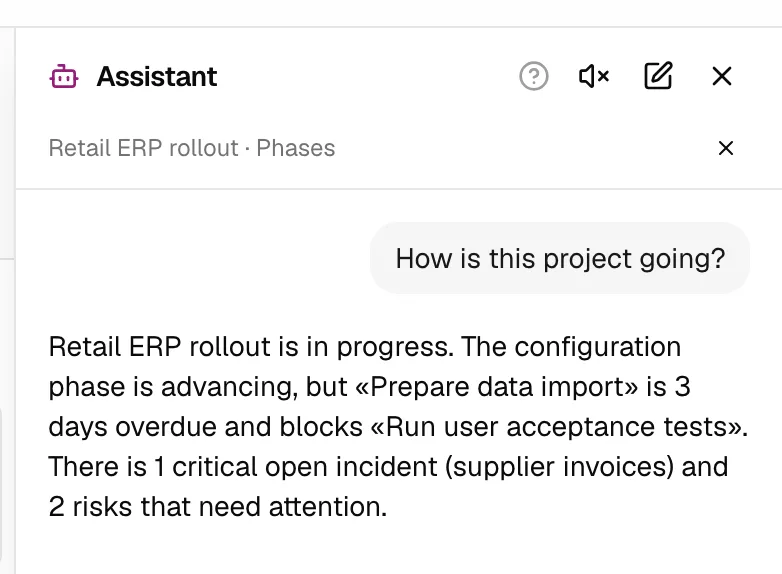
Project status: “How is this project going?”
Ask it with the project open or by naming it. The assistant queries and summarises the important things first. The data available is:
- Current progress and its change over the last 7 and 28 days (if there is history).
- Hours: estimated, logged, deviation, budget, % of budget used and the consumption index (hours consumed against estimated, compared with progress: above 1 means more is being spent than is being achieved).
- Expenses by currency (planned, actual, deviation). It never adds different currencies together.
- Open issues by severity and the oldest ones, with the days they have been open.
- Overdue tasks (with the days overdue) and blocked ones.
- Open risks (identified or being monitored), sorted by probability × impact.
- Upcoming milestones in the next 30 days: end of phase and deliverables.
- Pending change requests (with how many days they have been pending) and the latest meeting with its pending agreements.
- End-date forecast (see below).
Long lists are limited to the 5 most relevant items of each type.
End-date forecast: “When will we finish at this pace?”
It estimates the end date from the recent pace of progress, based on daily snapshots of the % progress. The answer always explains what it is based on:
- The forecast date and the difference from the planned end date (weeks early or late; if the project has no planned date, it says so).
- The pace of the last few weeks (progress points per week) and, when there is enough history, the pace of the last 2 weeks as a contrast.
- Its limits: it assumes the pace is maintained; adding tasks lowers the % progress and worsens the forecast; progress is the percentage weighted by the estimated hours that people put on their tasks.
When it cannot be estimated, the assistant gives the reason instead of inventing a date:
| Case | What it says |
|---|---|
| Little data | At least 14 days of progress history are needed. |
| Progress stalled | A pace of 0.5 points per week or less: “progress is stalled”. |
| Too far away | At that pace it would not finish within a reasonable time (more than 104 weeks). |
| Project on hold, closed or already at 100 % | It is not estimated. |
Portfolio: “Which projects are doing worst?”
It lists your projects (the PM's own; all the organisation's for someone with full visibility), not counting closed ones, sorted from worst to best, with a traffic light based on fixed rules and its reasons. By default it shows 10 projects (between 5 and 15 if you ask, “the 15 worst”).
| Colour | When |
|---|---|
| Red | Forecast of more than 4 weeks late, any critical issue open, hour consumption more than 30 % above progress, or more than 25 % of live tasks overdue. |
| Amber | Between 1 and 4 weeks forecast late, high-severity issues open, consumption more than 15 % above progress, any task overdue or blocked, or a change request pending for more than 7 days. |
| Green | None of the above and with a calculable forecast. |
| No data | There is not enough data to forecast the end. |
| On hold | The project is on hold. |
The reasons appear next to each project (for example, “2 of 9 live tasks overdue”). For the same data on screen, see Reports.
Client status report
“Prepare the client status report for me” (you can add the period: “for the last 30 days”; from 7 to 31 days, 14 by default; and the language: “in Spanish”). The assistant gathers the data and writes a draft email that appears on a Client report card with the Draft label, the Subject: and the body, in a professional, friendly tone. The usual structure is: greeting (to the client contact if there is one), a 2-3 sentence summary, progress, completed in the period, next steps, points of attention (blockers and delays), “what we need from you” only if there are pending agreements, open risks and issues, hours consumed against budget (if there is a budget) and a sign-off.
What data it uses. Only a closed list of fields: progress, tasks finished in the period (with the caveat that the last-modified date is used because there is no closing date), in progress and upcoming, blockers and delays (title, phase and dates), open issues (title and severity), open risks, change requests (title and status), pending agreements from the latest minutes and hours consumed against budget. It never uses task descriptions, meeting-minute notes or communication subjects or bodies. The assistant only reports facts present in the data, and does not attribute causes that do not appear.
Internal data. By default the report does not include costs, margins, expenses or internal notes. Below the draft, the Include internal data button requests the report again with that section authorised (hourly sell and cost rates, cost and margin of the hours, expenses, project notes and the contingency plans of risks). Only that button turns it on: neither the model nor pasted text can. When they are included, the card warns: “Includes internal data (costs, margins or notes): review it before sending.”.
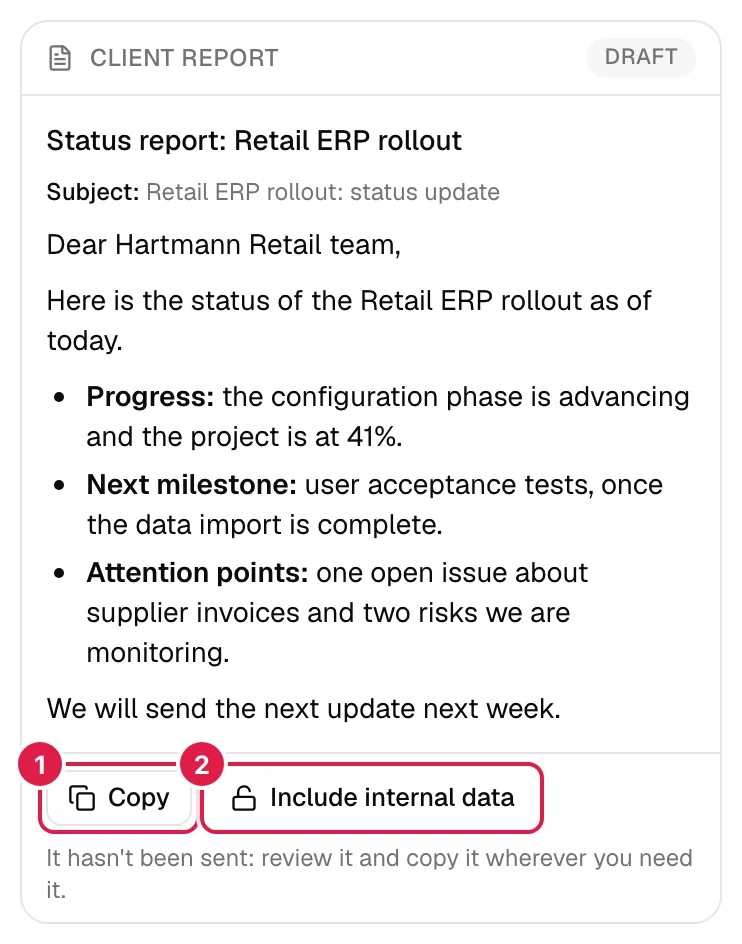
Copy, don't send. The Copy button puts the subject and body on the clipboard (“Copied”). PjMan does not send emails: the card reminds you of this (“It hasn't been sent: review it and copy it wherever you need it.”). Always review the draft before sending it. If you have it read aloud (Voice: dictation and reading aloud), you are only told that it is on screen.
Preparing a follow-up meeting
“Prepare the follow-up meeting with the client for me” generates a Meeting preparation card (also as a copyable draft) with: objective, what is outstanding since the last meeting, topics to cover, decisions to be made, risks to discuss and a proposal for next steps. It is built from:
- The agreements from the latest minutes, done and pending (flagging the overdue ones).
- The pending decisions: unresolved change requests, with who asked for them, effort, estimated delay and days pending.
- Open risks and serious issues (plus the number of other open ones).
- Blocked and overdue tasks, and the upcoming tasks.
- Pending communications, optionally only from one contact (“prepare the meeting with Sofía Lang for me”).
- The end-date forecast.
Afterwards, if you want to record what was discussed, paste the notes and use Pasted text: notes and requirements to create the minutes.
Who can do what
| Request | Owning PM | Team member with full access / “whole organisation” | Consultant/Developer with assigned tasks |
|---|---|---|---|
| Status, forecast | Yes, on their projects | Yes, on the projects they see in full | No: the assistant explains that it needs to see the whole project |
| Client report, prepare meeting | Yes | Yes, on the projects they see in full | No |
| Portfolio | Yes (their projects) | Only with whole-organisation visibility (all projects) | No: “The portfolio view is for PMs and for anyone with visibility of the whole organisation.” |
| Include internal data | Yes | Yes, if they see the whole project | No |
A PM does not see another PM's projects: for them they do not exist in these answers.
Related topics
Updated 2026-10-08