Guided tour
The guided tour is a series of short notices that explain what each screen is for, with an example. It is not a step-by-step walkthrough: each notice appears only once per screen, the first time you open it.
PMs and Consultants/Developers (the accounts with access to the assistant) see and configure it. Without that access, the notices do not appear and the checkbox is not shown in Preferences.
What it looks like
A box with a small animation, a title and a description appears at the bottom right. It does not disappear on its own: close it with the X (described as “Close”) or just keep navigating. If you open several new screens in a row without closing the notices, they stack up.
If the assistant panel is open in full screen, the notice waits until you close it.
On which screens it appears
There are 16 notices:
| Notice | Screen where it appears |
|---|---|
| Projects | Projects list |
| Queries | Queries |
| Reports | Reports |
| People | People |
| Settings | Settings → Preferences |
| My work | My work |
| Phases | Phases tab of a project |
| Planning, Team, Risks, Issues, Change requests, Contacts, Communications, Documents | The tab of the same name in a project |
| Kanban view | Any Kanban board (tasks or issues) |
The “Kanban view” notice is a single one for all boards: it appears on the first one you open.
Turning it off and seeing it again
In Settings → Preferences there is the Show the guided tour checkbox, with the text “Shows an informational notice, once per screen, when you enter the different sections of the app…”.
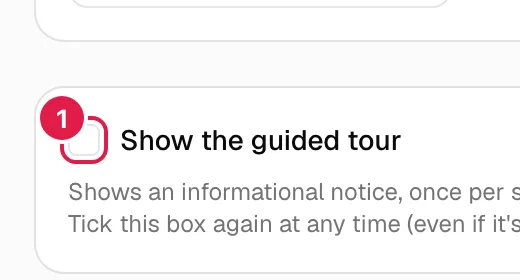
- Clearing it turns the notices off for your account. It is immediate, with no save button.
- Ticking it again turns them back on and erases the memory of the notices already seen: they will appear again on every screen.
- To see them again with the tour already on, clear the checkbox and tick it again. Although the help text talks about ticking an already ticked box again, a click on a ticked box clears it.
Where what you have seen is remembered
- “Tour on or off” is saved in your account (per organisation, if you belong to several).
- “Screens already seen” is saved in your browser. In another browser or computer, or after clearing the site data, the notices appear again even if you have already seen them elsewhere.
On your first visit the tour is on by default.
Related topics
Updated 2026-10-08