Organisation members (CEO)
An organisation member is someone with a team role flagged Whole organisation (CEO out of the box) who sees all the projects of the active organisation without having to be added to each one. They are managed in Settings → Master data → Organisation members.
Only a PM account sees this screen and adds or removes members. Anyone who is not a PM sees “You don't have access to this section: it's for PMs only.”.
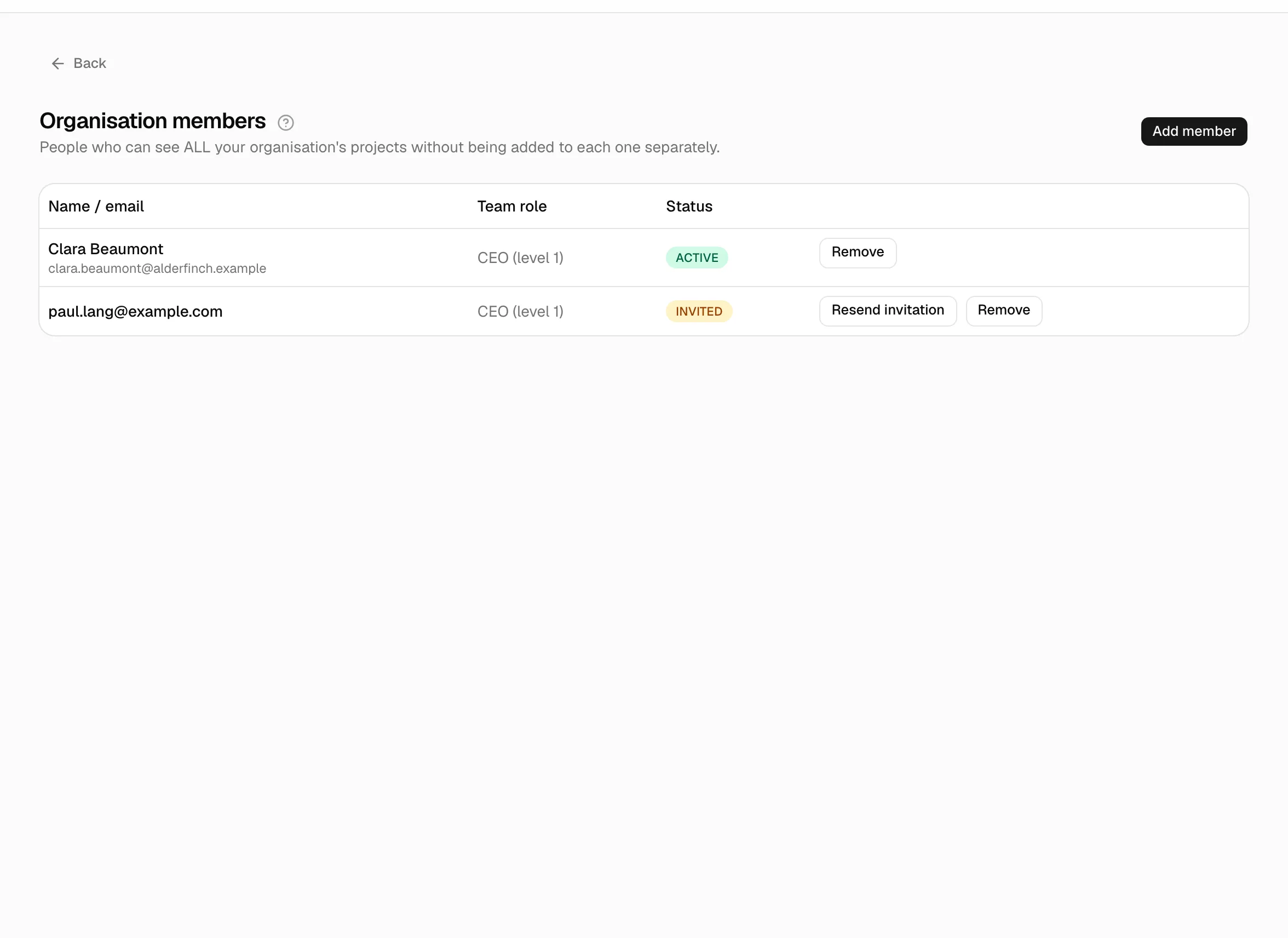
Adding a member
- Press Add member. The button only exists if some role is flagged Whole organisation in Team roles. If there is none, the screen says “Your organisation has no team role marked as “whole organisation” yet. Check the catalogue in Team roles.”.
- In the Add organisation member dialog, type the Email and choose the Team role (today only CEO, which appears as “CEO (level 1)”).
- Press Add to organisation.
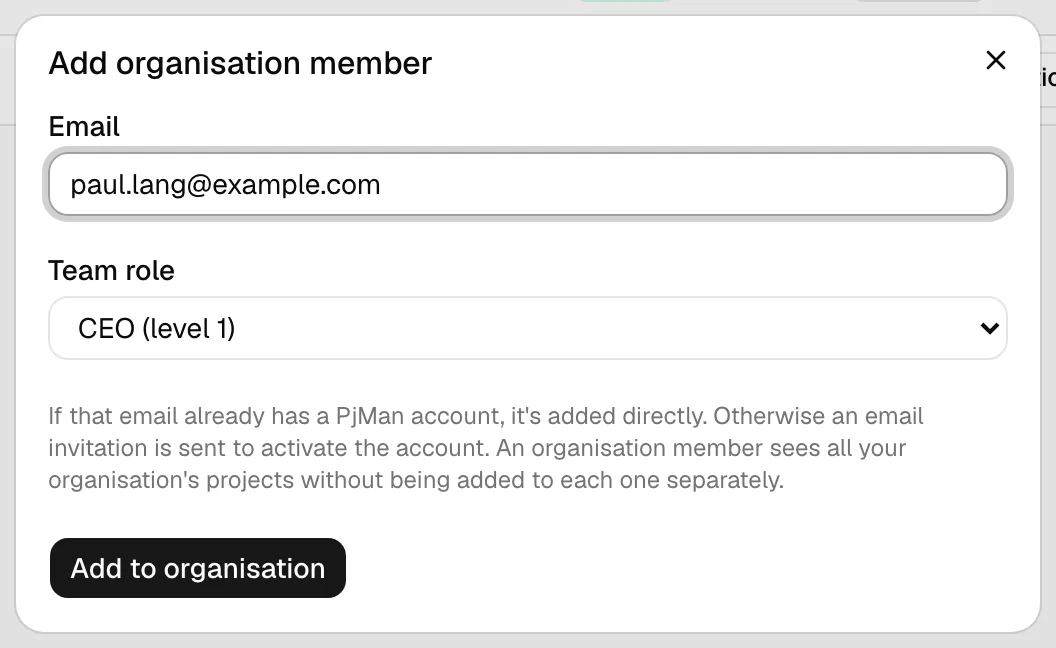
What happens depending on the email:
| The email… | Result |
|---|---|
| Has no PjMan account | An invitation email is sent; the row stays in Invited status until they accept it (see Invitations). |
| Already has an account in your organisation | Added instantly, Active status, no email. |
| Already has an account in another organisation | A new membership is created in yours (account role Consultant/Developer) and it is Active instantly, no email. |
Errors: “Enter a valid email.”, “Email is required.”, “That user is already a member of the organisation.”, “There's already a pending invitation for that email in this organisation.” and, if the sending limit is exceeded, “Too many invitations have been sent in a short time. Wait a few minutes and try again.”.
Table actions
Columns: Name / email, Team role, Status (Active or Invited).
- Resend invitation (only on Invited rows): sends the email again to the same address and confirms with “Invitation resent to …”. If the row has no pending invitation: “This member has no pending invitation.”.
- Remove (always): asks for confirmation, “Are you sure you want to remove this member from the organisation?”. It removes the view of the whole organisation; it does not delete the person or their account. On an Invited row it amounts to cancelling the invitation.
There is no editing: to change the role, remove the member and add them again.
What a “whole organisation” member sees and can do
Always within the active organisation: if the person belongs to several, they only see the organisation selected in the header and never projects from others (see Several organisations).
Menu and home screen. Their home is the Organisation dashboard (all projects with their progress, with no create-project button and no daily suggestions). In the menu they have Organisation, Reports, Queries and My work. They do not have Projects, People or Settings → Master data (unless they are also an account-level PM; then they see the PM's whole menu, with the “PM · CEO” label). They enter each project from the dashboard cards.
Inside any project they see everything read-only: phases, tasks, planning, team with sale and cost hourly rates, risks, issues, change requests, expenses, contacts, communications, documents and meeting minutes. They see no buttons to edit, delete, add or reassign the PM.
What they cannot do: create or edit projects, phases, tasks, risks, contacts, expenses or other entities; manage people, catalogues or members; log time on behalf of others; see People.
The only write actions they have:
- Creating issues in any project of the organisation (New issue button in the header or on the Issues tab). Editing or deleting them remains the owning PM's job.
- What any Consultant/Developer does on whatever is assigned to them: change the status and progress of a task, log their hours. To assign them work, the PM must also add them to the project's team.
AI assistant: they can use it with their own Anthropic key (Settings → Assistant). It always runs with the person's permissions: reading everything they can see and little more. They do not receive daily suggestions.
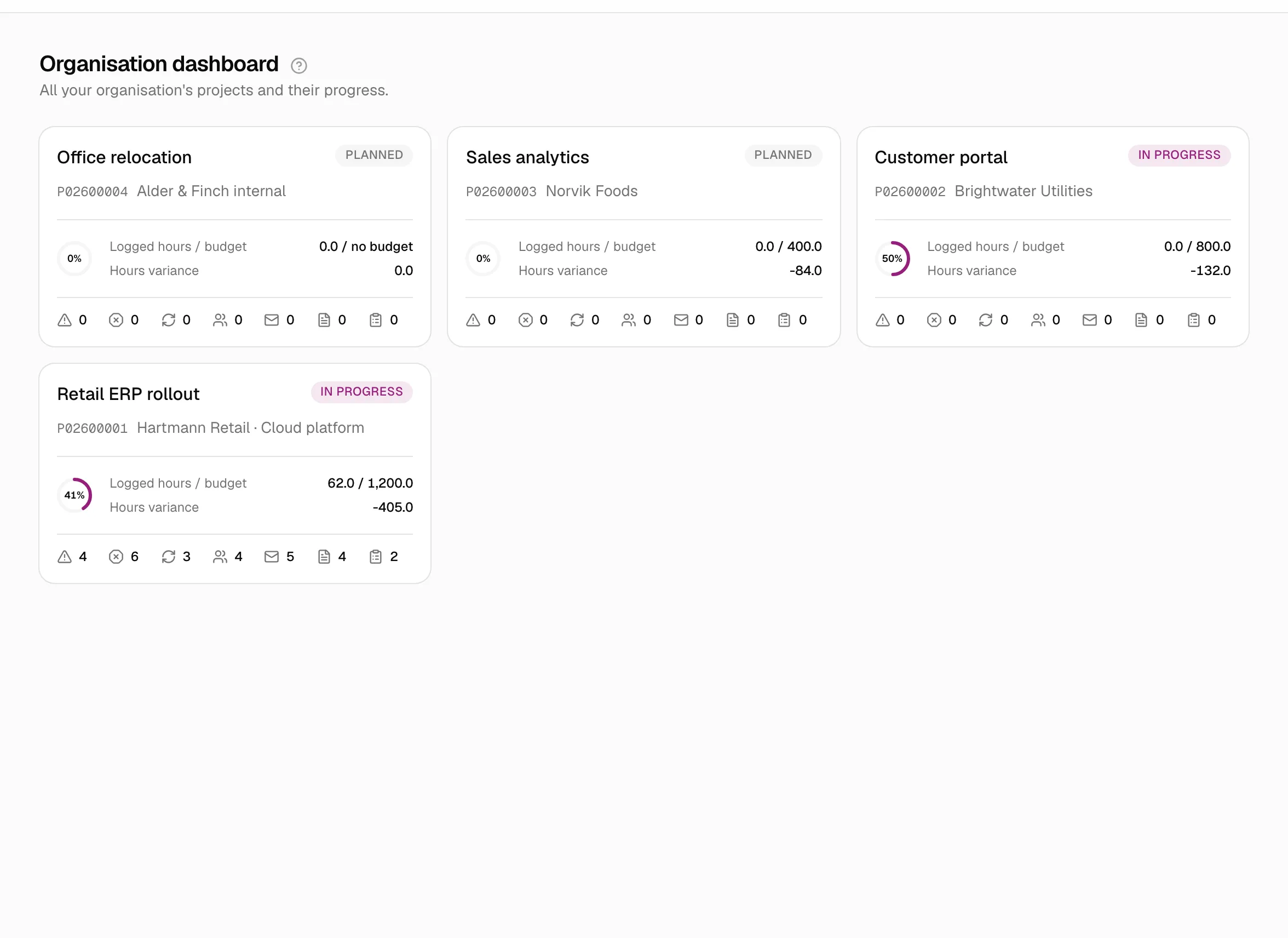
CEO on the team of a single project
You can also choose the CEO role when adding someone to a project's Team tab. There the role does not give a view of the organisation: it gives level 1 only in that project. When you choose it, the selector warns: “Gives read-only access to this project. Visibility of the whole organisation is granted in Settings → Organisation members.”.
| CEO on a single project's team | “Whole organisation” member | |
|---|---|---|
| Projects they see | Only that one | All those of the active organisation |
| Menu | Only My work and New issue | Organisation, Reports, Queries, My work |
| Home screen | My work | Organisation dashboard |
| Reports and Queries | No | Yes, across the whole organisation |
| Reading inside the project | Complete, with hourly rates | Complete, with hourly rates |
| Creating issues | Only in that project | In all of them |
| Assigning tasks to them | Yes, they are already on the team | They must also be added to the team |
| How they are managed | Project Team tab (owning PM) | This screen (PM account) |
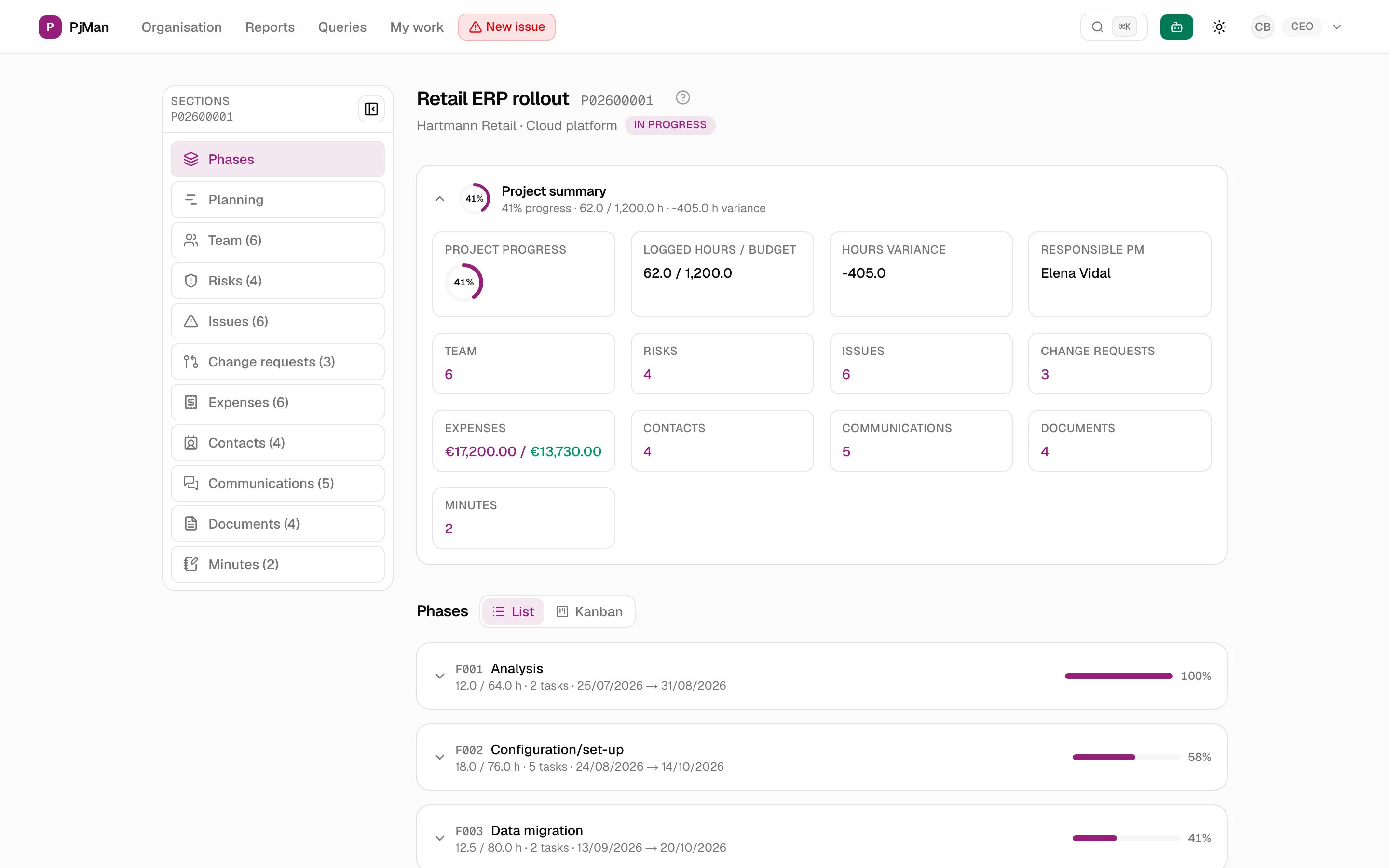
Who can do what
| Action | PM | “Whole organisation” member | Consultant/Developer |
|---|---|---|---|
| See this screen | Yes | No | No |
| Add members, resend invitations and remove members | Yes | No | No |
| See the Organisation dashboard | No (unless also a member) | Yes | No |
| See all of the organisation's projects | Only their own | Yes, read-only | No |
Related topics
Updated 2026-10-08