Documents
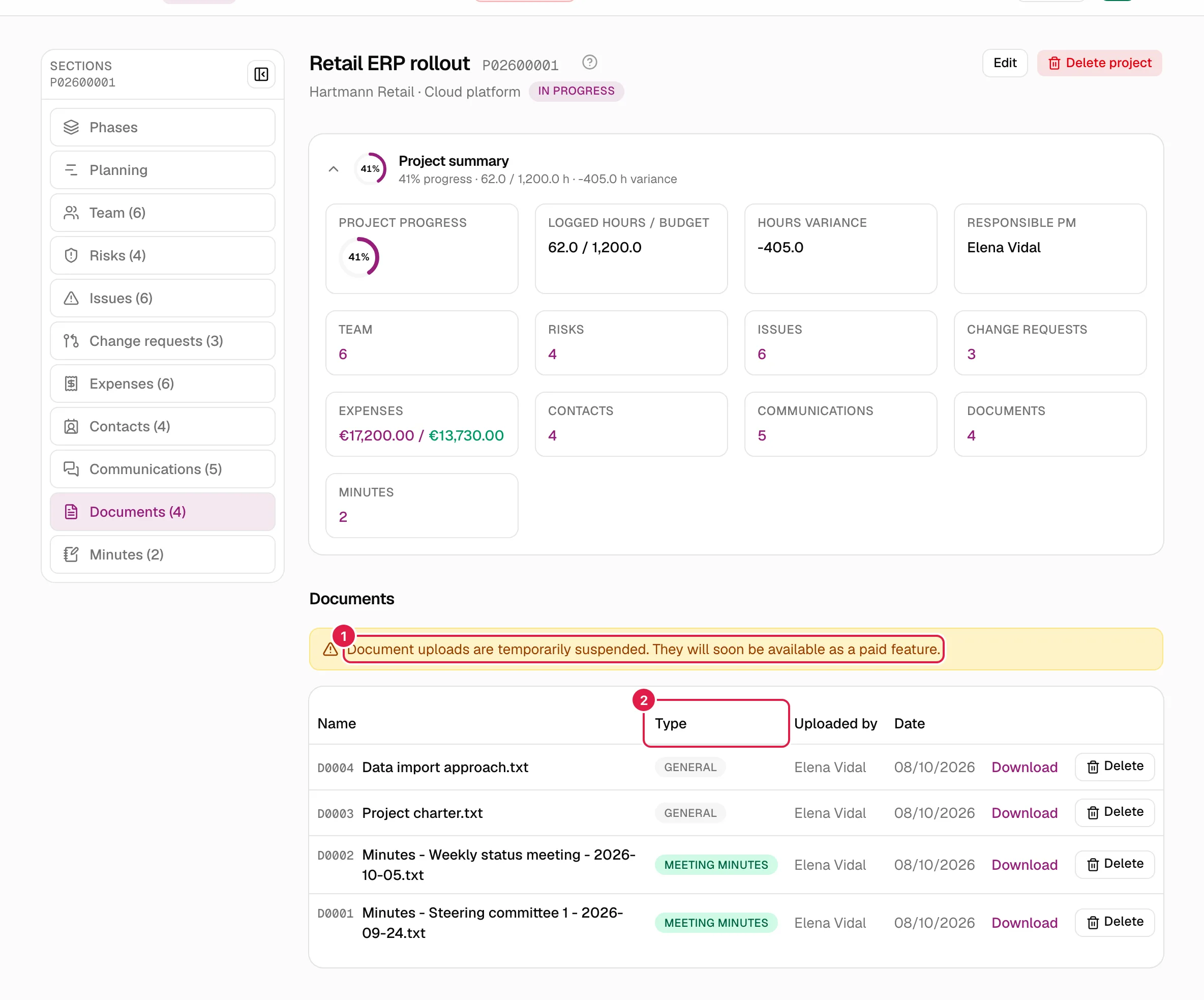
The Documents tab gathers the files associated with a project. Today it works as a reference archive: you can see the list, download each file and (the owner PM) delete it. Uploading documents is temporarily suspended.
The owner PM sees the list, downloads and deletes. Level 1 or 2 team roles (Director, PM, Team Leader) and members of the entire organisation (CEO) see and download, without deleting. A Consultant/Developer sees the documents of projects where they have at least one assigned task, on a separate read-only screen (see below).
Upload status
Where the Upload document button used to be, the owner PM now sees this amber notice: “Document uploads are temporarily suspended. They will soon be available as a paid feature.”. There is no upload button, and the other roles do not see the notice.
What does end up in the list without you uploading it:
- Meeting minutes documents: when you save meeting minutes, PjMan automatically generates a text file with their content (title, date, notes and agreements) and adds it here with the Meeting minutes type.
- Documents that were already uploaded before the suspension.
If the project has none you see “This project has no uploaded documents yet.”.
The table
| Column | What it shows |
|---|---|
| Name | Short code (for example D0002) and file name. |
| Type | Type label (see below). |
| Uploaded by | The person who uploaded it or, for meeting minutes, whoever saved them. |
| Date | Date it was added. |
| (link) | Download. |
| (button) | Delete, owner PM only. |
The most recent come first. The number of documents also appears on the tab and in the project summary.
Document types
| Type | Origin |
|---|---|
| General | General documentation; it was the default type when uploading. |
| DSN | Second category you could choose when uploading, to keep that kind of documentation separate from general documentation. |
| Meeting minutes | Assigned by the system when meeting minutes are saved. It could not be chosen by hand (“A meeting minutes document can't be uploaded manually.”). |
| Communication | Assigned by the system when an email was imported and the original file was kept. Today it only exists in older imports. It could not be chosen by hand. |
Communication types are email content exchanged with the client, so a consultant never sees them and cannot download them.
Download
Download opens a signed, temporary address (valid for 60 seconds) to the private storage where the files are kept: documents never have a permanent public address. If the link expires, press Download again. Anyone who sees the list can download; without permission you see “You don't have access to this project's documents.” or “You don't have access to this document.”.
Delete a document
Only the owner PM sees Delete.
Delete asks for confirmation (“Are you sure you want to delete this document?”) and removes both the file from storage and the row from the list. It is permanent. It works with any type, Meeting minutes included: the minutes still exist but lose their downloadable file.
Size and type limits
PjMan defines no limit of its own on file size or type (it accepts any extension and only rejects empty files), and it does not keep versions: each file was a new document, and if it changed it was uploaded under another name. The limits of the hosting and storage services may apply.
Consultant view: read-only
A Consultant/Developer gets there from My work, where under the tasks panel a View documents of {project} link appears for each project in which they have assigned tasks.
That screen (Documents of {project}) shows the client's name and the note “{client} · read-only, available because you're assigned to a task in this project.”. It shows the same table without the delete column and with Download, and without the Communication-type documents. If you have no task in that project, you see “You don't have access to this project's documents.”.
Who can do what
| Action | Owner PM | Director / PM / Team Leader, CEO | Consultant/Developer with tasks in the project | No relation to the project |
|---|---|---|---|---|
| See the list | Yes | Yes | Yes, in My work (without Communication type) | No |
| Download | Yes | Yes | Yes (without Communication type) | No |
| Upload | Suspended | Suspended | No | No |
| Delete | Yes | No | No | No |
Related topics
Updated 2026-10-08