Command palette and shortcuts
PjMan has two global shortcuts: the command palette (Ctrl+K on Windows and Linux, ⌘+K on Mac) and the assistant panel (Ctrl+J / ⌘+J). Further down you will find the keyboard shortcuts of specific forms. Everything the palette does has an equivalent with clicks in the menu and tabs: it is a quick way in, not a separate feature.
The palette is available to every role, but each one sees only what their role allows (table in What each role sees). The assistant panel is available to those who have access to it.
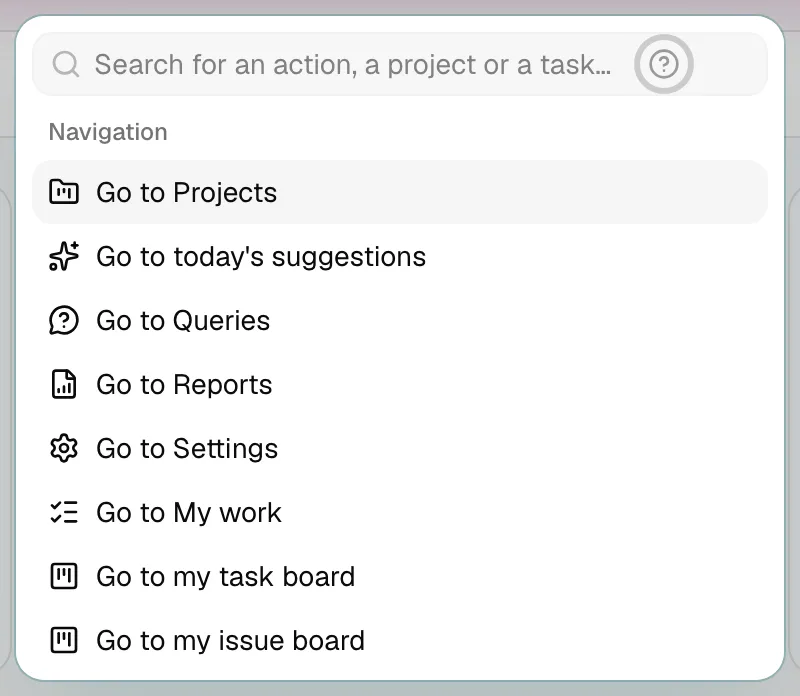
Opening and closing the palette
- Press Ctrl+K / ⌘+K from any screen in the management area, even with the cursor inside a text field. Pressing it again closes the palette.
- Or press the Search… button in the header, which shows the shortcut next to the text (on narrow screens only the icon remains). On Mac it shows “⌘K”; elsewhere, “CtrlK”.
- Inside the palette: type to filter, ↑ / ↓ to move, Enter to run and Esc to close. Closing clears what you typed.
The palette loads your projects and tasks when it opens; meanwhile you will see Loading…, and if nothing matches, No results found. With nothing typed it shows only the first 8 of each group; once you type, it searches them all.
What it lets you do
The field is called Search for an action, a project or a task…. It searches by the item's text and by keywords (for example, “settings” also finds “master data” or “team roles”).
| Group | Items | What happens when you choose it |
|---|---|---|
| Go to code | Appears only if what you typed is a code (see Short codes) | Opens that record, if you can see it |
| Navigation | Go to Projects, Go to today's suggestions, Go to Queries, Go to Reports, Go to Settings, Go to My work | Navigates to that section. “Today's suggestions” takes you to the project list and scrolls down to that block |
| Boards (in Navigation) | Go to my task board, Go to my issue board, Go to the global task board, Go to the global issue board and, inside a project, View this project's task board / View this project's issue board | Opens that Kanban board |
| Projects | Each project, with its code and client | Opens the project summary |
| Create task, Create risk, Create change request, Create contact, Log communication, Upload document, Create meeting minutes | One “… in {project}” entry per project | Navigates to the project or its tab; you then press the create button there. It does not open the form directly |
| Create issue | “Create issue in {project}” | Navigates to the project's issues |
| Tasks (and log time) / My tasks (and log time) | Each task, with its full reference | Opens the task (time is logged from there) |
| Mark as finished | Mark “{title}” as finished, appears only when you type something and only for tasks that are not finished | Marks the task as finished immediately and shows the message “{title}” marked as finished.; if it fails, “The task couldn't be marked as finished.” |
| AI assistant | Ask the assistant (with the Ctrl/⌘+J shortcut) and, when you type, Ask the assistant: “…” | Opens the assistant panel; the second one leaves your text written in the message box, without sending it |
What each role sees
| Group | PM | “Whole organisation” member (CEO) | Consultant/Developer |
|---|---|---|---|
| Go to code | Yes | Yes | Yes (only assigned tasks and issues) |
| Go to Projects / Settings | Yes | No | No |
| Go to today's suggestions | Yes | No (they belong to the PM) | No |
| Go to Queries / Reports | Yes | Yes | No |
| Go to My work | Yes | Yes | Yes |
| Personal boards | Yes | Yes | Yes |
| Global boards | Yes | Yes | No |
| This project's board (inside a project) | Yes | Yes | Yes, if they have access |
| Projects, and create task/risk/change request/contact/communication/document/minutes | Yes | No | No |
| Create issue | Their projects | Wherever they can create them | Only in projects where their team role is Director, PM or Team Leader level |
| Tasks | All those in their projects | The ones they can see | Only My tasks (the assigned ones) |
| AI assistant | Yes | Yes | Yes |
The lists come from the same services as the rest of the application, which filter by role on the server; the palette never shows more than your role allows.
Assistant panel: Ctrl+J / ⌘+J
- Ctrl+J / ⌘+J opens and closes the assistant panel. It is only active if your account has access to the assistant.
- If a dialog is open (a create form, for example) or the palette is open, the shortcut does nothing: close it first.
- In some browsers, Ctrl+J may be reserved by the browser itself (for example, it opens downloads in Firefox). In that case use the green Assistant button in the header (on wide screens it shows the shortcut) or the Ask the assistant entry in the palette.
- On medium-sized screens the header has no room for the button: the panel opens with the shortcut or from the palette.
Inside the panel:
| Key | Effect |
|---|---|
| Enter | Sends the message |
| Shift+Enter | New line |
| ↑ (with the box empty) | Brings back your last sent message |
| Esc | Acts in this order: stops dictation (the text stays, unsent); otherwise stops reading aloud; otherwise interrupts the reply in progress; otherwise closes the docked panel |
On an assistant confirmation card that you are editing, Esc cancels the editing of that card. More in The assistant panel and Voice.
The “?” icon
The command palette and the assistant panel each carry a ? icon that opens this help on the page that explains each one (this one, for the palette; The assistant panel and screen context, for the panel). The other screens do the same: see the help home page.
Other keyboard shortcuts
| Where | Key | Effect |
|---|---|---|
| Queries filters (task search field) and board filters (Code or title field) | Enter | Applies the search (on boards with an instant filter it is already applied as you type) |
| Tabs of a card's modal (The card in the modal) | ← / → | Switches tab (wraps around at the end) |
| Home / End | First / last tab | |
| Forms and dialogs | Esc | Closes the dialog |
There are no other global shortcuts: navigation between sections is done with the menu or the palette.
Related topics
Updated 2026-10-08