Planning and Gantt
The Planning tab draws the project over time: each phase and sub-phase is a row, and its tasks go underneath. The bars are placed on a weekly calendar so that you can see at a glance what overlaps, what comes first and how much progress has been made.
It is a read-only view: nothing is edited from the chart. Dates are changed where they are created (see below).
It is visible to the owner PM, to level 1 or 2 team roles (Director, PM, Team Leader) and to members of the entire organisation (CEO), all of them read-only because the screen has no write actions. A level 3 Consultant/Developer has no access: they see their dates in My work. A PM does not see the planning of other people's projects.
How to read it
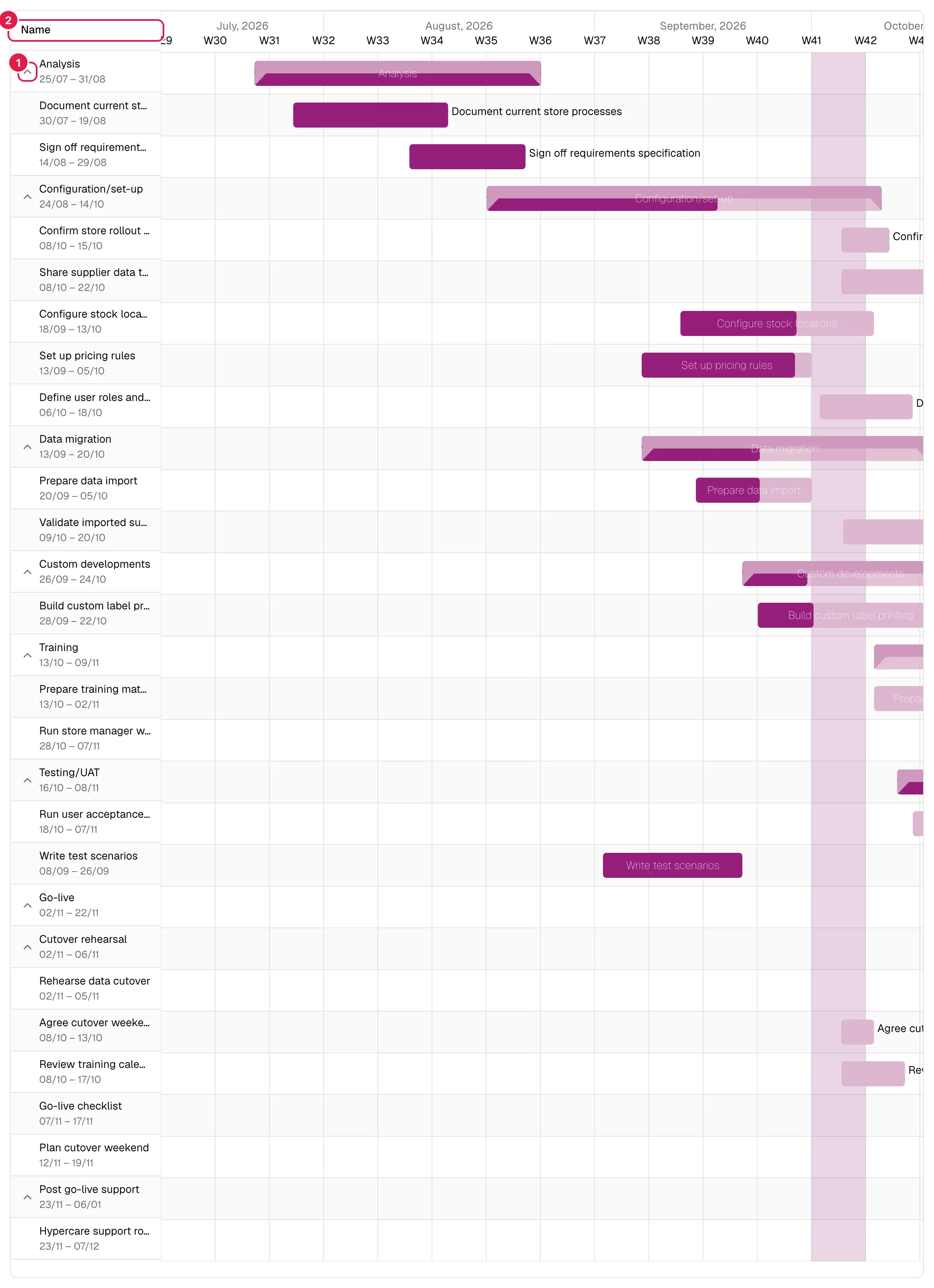
- Left column (“Name”): the hierarchy. Each row carries its name and, below it in grey, the short date range (day/month) or “—” if it has no dates. Phases and sub-phases (up to three levels) have an arrow to collapse and expand.
- Right area: the calendar, in weeks, with a highlighted mark for today. If the project is long, the area scrolls horizontally inside its box.
- Bars: a phase's bar has end caps and a stronger tone than a task's. The more intensely coloured fill is the progress %: the task's own, or the phase's, calculated from everything it contains (see Phases).
- Tooltip: when you hover over a bar, its name, its dates and “{progress}% · {logged hours} / {estimated hours} h” appear (for example “45% · 18 / 40 h”). If the task has no estimate, instead of the estimated hours you see “not estimated”.
Collapse and expand
Click a phase's arrow (Collapse phase / Expand phase) to hide or show its sub-phases and tasks. Collapsing a phase collapses everything inside it. The collapsed state is not saved: on reload everything is expanded again.
Scale and zoom
The scale is fixed: weekly view. There is no day/month selector and no zoom. To see another stretch, scroll horizontally.
Where the dates come from
| Row | Start | End |
|---|---|---|
| Task | The task's Start date; if it has none, the date the task was created | The task's Due date (required for it to be drawn) |
| Phase / sub-phase | The phase's Planned start | The phase's Planned end |
Rules for incomplete cases:
- If a phase has no planned dates but its tasks or sub-phases do, the phase's bar spans from the earliest to the latest date of everything it contains (at any depth). If only one of the two dates is missing, it is filled in using the same criterion.
- If a phase does have its planned dates, those are used even if its tasks fall outside them: the phase's bar is not stretched to cover them.
- If the start falls on the same day as the end or after it, the bar starts one day earlier so that it can be drawn.
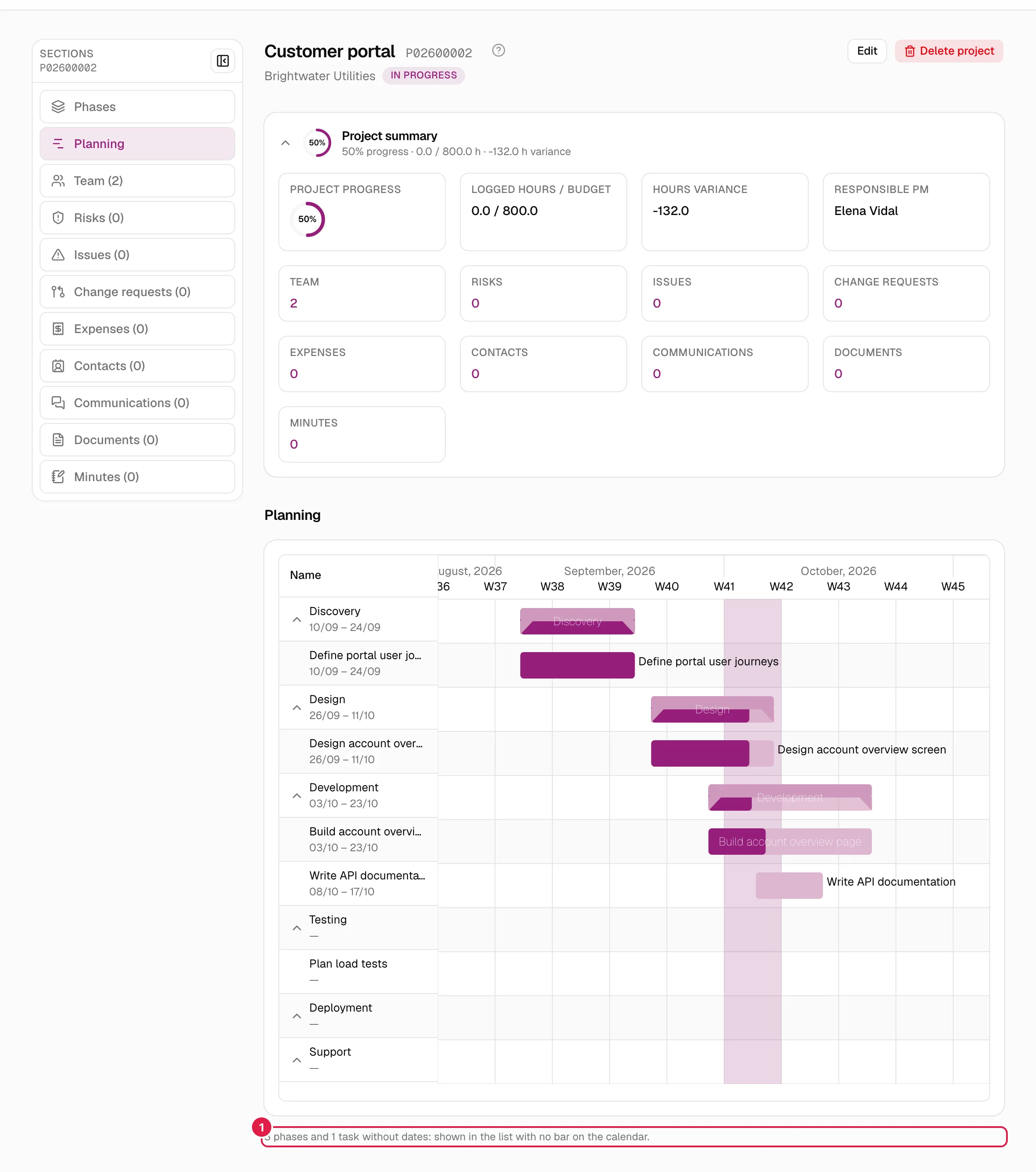
- A task with no due date and a phase with no dates of its own or in its content have no bar: they appear in the list with “—”. Rows are never hidden.
- Below the chart, a note summarises how many: “2 phases and 3 tasks without dates: shown in the list with no bar on the calendar.” (or phases only, or tasks only).
If the project has no phases at all you see “There are no phases in this project yet. Add a phase to start planning.”. Phases are created from the project's phases tab, not from here.
What can be edited and what cannot
Nothing is edited on the chart: bars cannot be dragged or resized, progress cannot be changed with the mouse and there are no create buttons. To change the planning:
| I want to change… | Where |
|---|---|
| A phase's planned start or end | Phase editing (Phases and sub-phases) |
| A task's start or due date | Task editing (Tasks) |
| The progress % | On the task; the phase's and the project's are calculated automatically |
| Create phases or tasks | Phases and sub-phases and Tasks |
When you return to the tab, the chart reflects the changes.
Dependencies
Dependencies between tasks are not drawn on the chart: there are no arrows between bars. They are viewed and managed on each task's page.
Who can do what
| Action | Owner PM | Director / PM / Team Leader, CEO | Consultant/Developer (level 3) |
|---|---|---|---|
| See the Gantt | Yes | Yes | No |
| Collapse/expand, see tooltips | Yes | Yes | — |
| Change dates from the chart | No (it doesn't exist) | No | — |
Related topics
Updated 2026-10-08