Project summary
When you open a project, the top of the screen is always the same in every section: the name and status, the management buttons, the Project summary panel with the indicators, and the section menu. The content below changes according to the section you pick; the first one, Phases, is the landing page (see Phases and sub-phases).
The full project is visible to its owner PM, to team members with a level 1 or 2 role (Director, Team Leader…) and to “entire organisation” members (CEO). Only the owner PM can change it; everyone else sees it read-only. A Consultant/Developer who tries to open it sees “You don't have access to this project.”; their tasks are in My work.
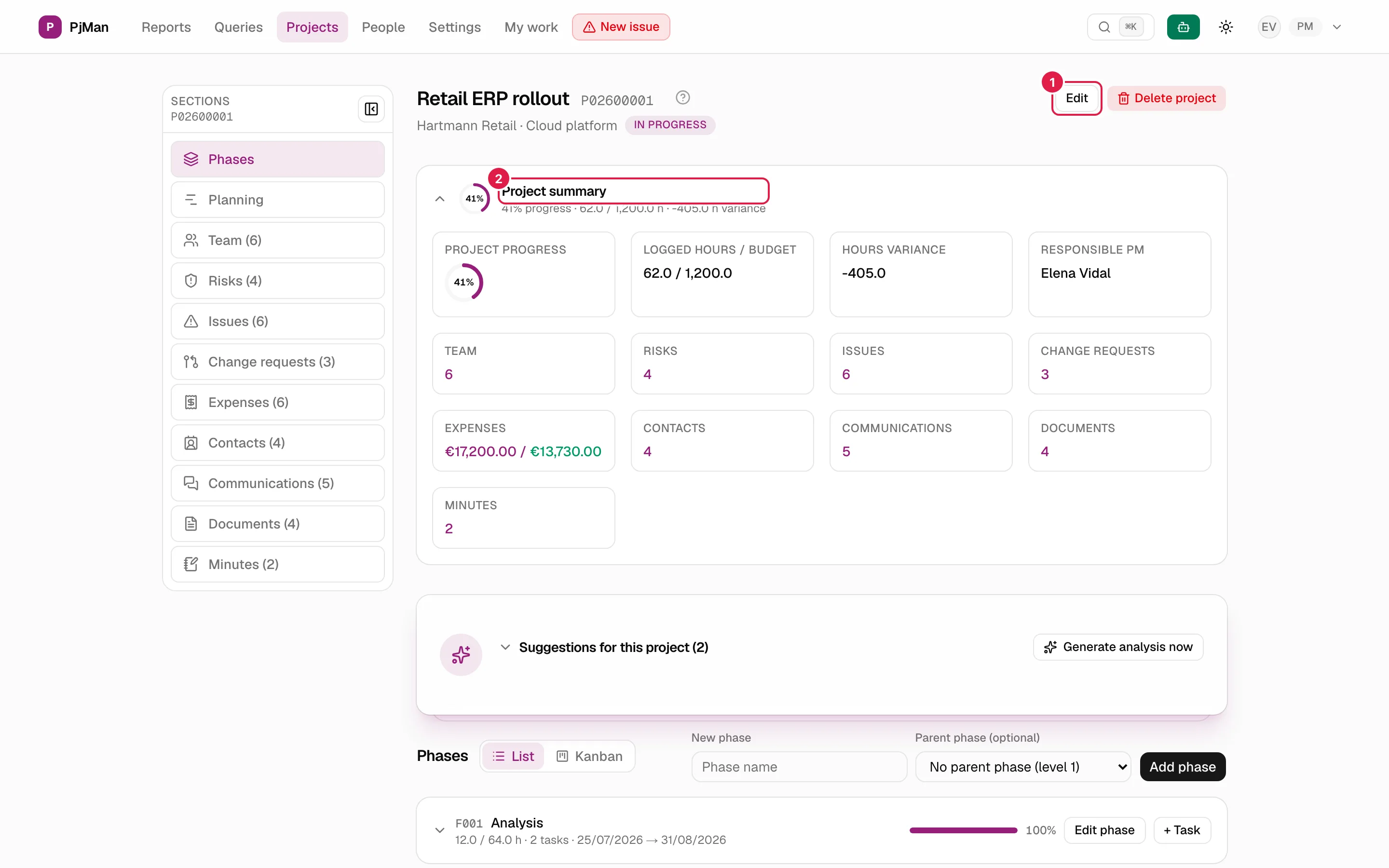
In the image: 1 the Edit button (owner PM only) and 2 the summary panel.
The header
- The project name and its code (for example
P02600001). - Below, the client, the platform / main technology (if it has one) and the status label (see Statuses).
- On the right, the buttons that correspond to your role:
| Button | Who sees it | What it does |
|---|---|---|
| Edit | The owner PM | Opens the project editor (see Edit a project). |
| Delete project | The owner PM | Deletes the project after confirmation (see Delete a project). |
| Reassign PM | The project's active Team Leader | Hands ownership of the project over to another PM (see Reassign the PM). |
Anyone who has neither of those two roles sees no buttons.
The “Project summary” panel
This is a collapsible panel. When collapsed, its line sums up the essentials: “{n}% progress · logged hours / budget · {n} h variance” (the variance only appears if it is not zero, and is red if positive). The panel remembers in your browser whether you left it collapsed or expanded, project by project. When expanded, it shows one card per indicator:
| Card | What it shows |
|---|---|
| Project progress | A dial with the progress percentage (see Progress). |
| Logged hours / budget | Hours logged against the project's hour budget, or “no budget” if it has none. |
| Hours variance | Logged hours minus estimated hours (see Deviation). Red if positive. |
| Responsible PM | The name of the owner PM. |
| Team, Risks, Issues, Change requests, Contacts, Communications, Documents, Meeting minutes | How many items there are in each section. The figure is a link to that section. |
| Expenses | The planned amount and, if there are already expenses with an actual amount, the actual one: “planned / actual”, in the project's currency. The actual amount is red if it exceeds the planned one and green if not. With no expenses, it shows 0. |
Weighted progress
The progress percentage is never typed in by hand: it is always calculated with the same rule, from the bottom up.
- Each task has its own percentage (set by whoever is working on it).
- The progress of a phase is the average of its tasks weighted by the estimated hours of each one: a 40 h task weighs four times as much as a 10 h one. If the phase has sub-phases, each sub-phase counts as one more element, weighted by its total estimated hours.
- The progress of the project is the average, again weighted by estimated hours, of its top-level phases.
Example: the “Analysis” phase has two tasks, one of 40 h at 100% and another of 10 h at 50%: progress = (40×100 + 10×50) / 50 = 90%.
Two special cases: if no element has estimated hours, a simple average is used (so you don't get a misleading 0 when there is progress); and a phase with no tasks counts as 0% progress and, while other phases have hours, carries no weight. Issues never count towards progress: only tasks do.
Hours deviation
Deviation = logged hours − estimated hours. Positive means more was worked than planned (red); negative means less. It is compared against the sum of the estimates of the tasks (and of the issues), not against the project budget; the Logged hours / budget card is the one that compares against the budget. The project total also includes the hours of the issues; individual phases include only those of their tasks.
The section menu
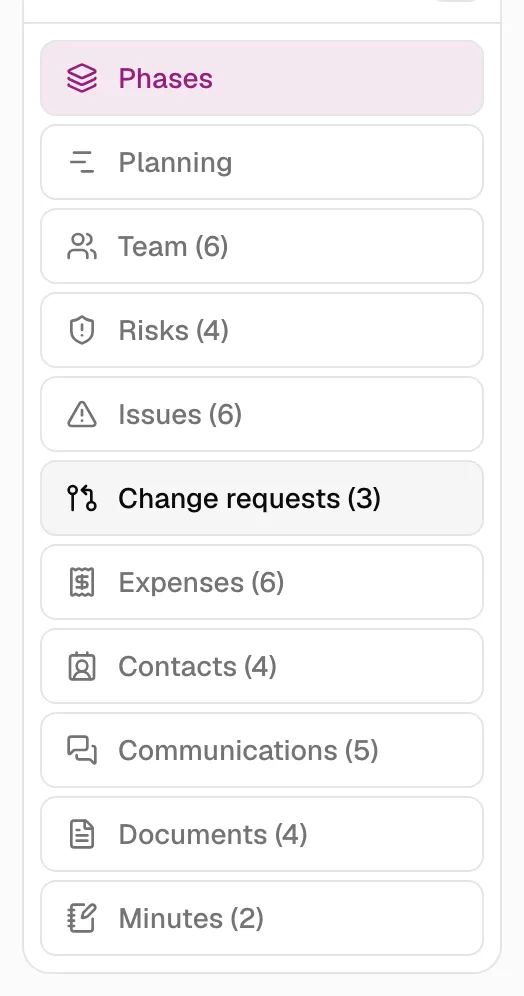
Each project is organised into sections, all with the same header above them:
| Section | Content | Counter |
|---|---|---|
| Phases | Phases, sub-phases and tasks; List or Kanban view | No |
| Planning | Calendar with bars (Gantt) | No |
| Team | The project's people with their role and hourly rates | Yes |
| Risks | Risk register | Yes |
| Issues | The project's issues | Yes |
| Change requests | Changes requested to the scope | Yes |
| Expenses | Planned and actual expenses | Yes |
| Contacts | The project's contacts | Yes |
| Communications | Emails and logged communications | Yes |
| Documents | The project's documents (see Documents) | Yes |
| Meeting minutes | Meeting minutes and their agreements | Yes |
On wide screens (from 1280 pixels) it is a vertical column on the left with an icon per section and the counter. It starts expanded and collapses by itself after 3 seconds to icons only; the button at its top expands or collapses it (“Expand sections menu” / “Collapse sections menu”). On narrower screens it becomes a row of tabs with the counter in brackets, which scrolls horizontally if it does not fit.
Who sees what
| Person | What they see of the project |
|---|---|
| Owner PM | Everything, and is the only one who can change it (buttons, creating, editing and deleting in each section). |
| Level 1 or 2 team member | All sections read-only; if they are also a Team Leader, the Reassign PM button. |
| “Entire organisation” member (CEO) | All sections read-only, including the team's hourly rates. |
| Consultant/Developer (level 3 or no team role) | Nothing of the project: “You don't have access to this project.”. Only the tasks and issues assigned to them, in My work. |
The Phases page also includes the project's daily suggestions block (see Daily suggestions) and the List | Kanban switch (see Kanban boards).
Related topics
Updated 2026-10-08