People of the organisation
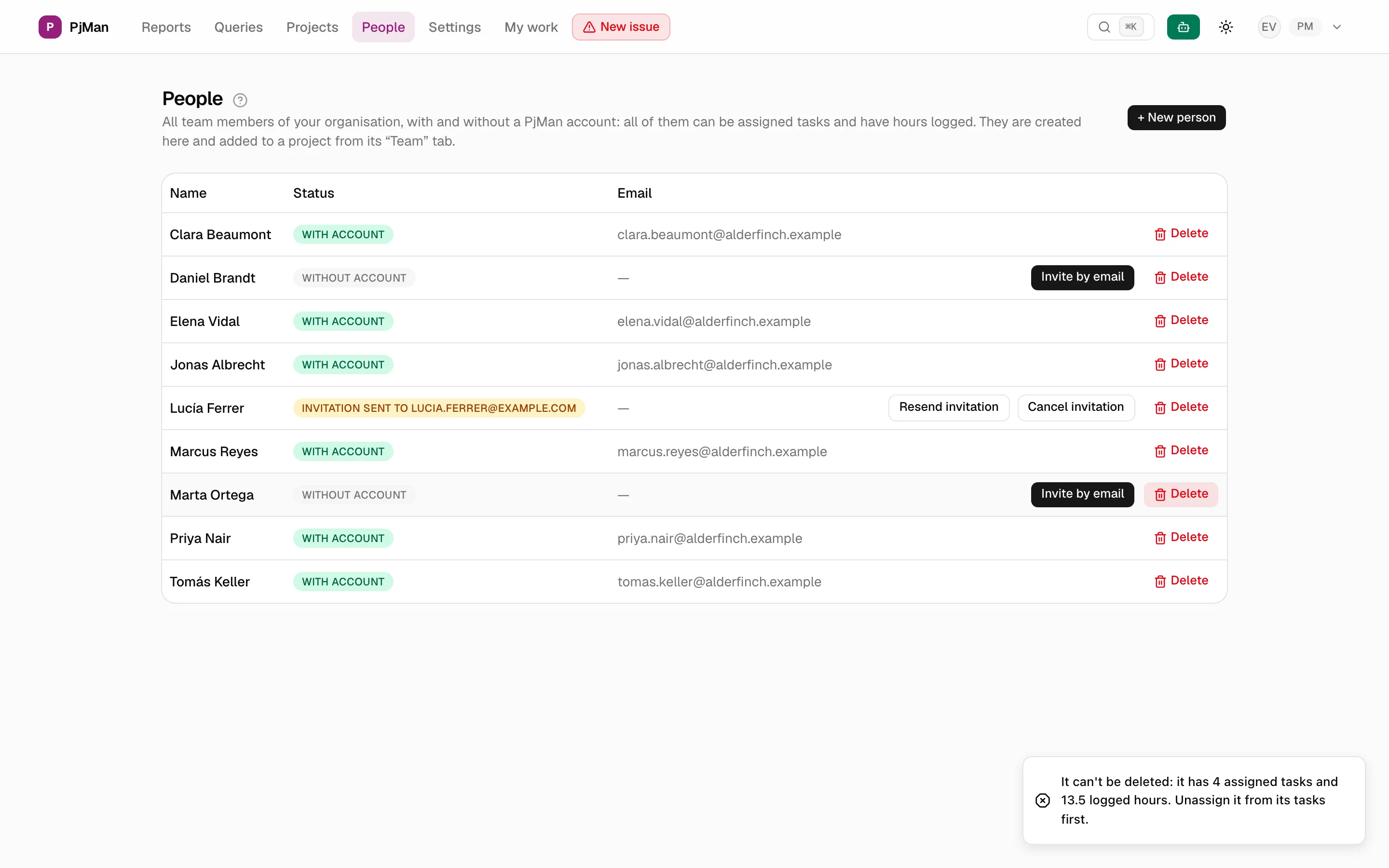
The People screen (main menu) is the directory of everyone on your organisation's team. It brings people with an account (they sign in to PjMan with their own user) and people without an account (they only exist as a name and never sign in) together in a single table. Tasks can be assigned to all of them and hours can be logged for all of them.
Only the PM sees this screen and can create, invite and delete people. A Consultant/Developer, or an organisation member (for example a CEO) who is not a PM, sees the notice “You don't have access to this section: it's only for PMs.”.
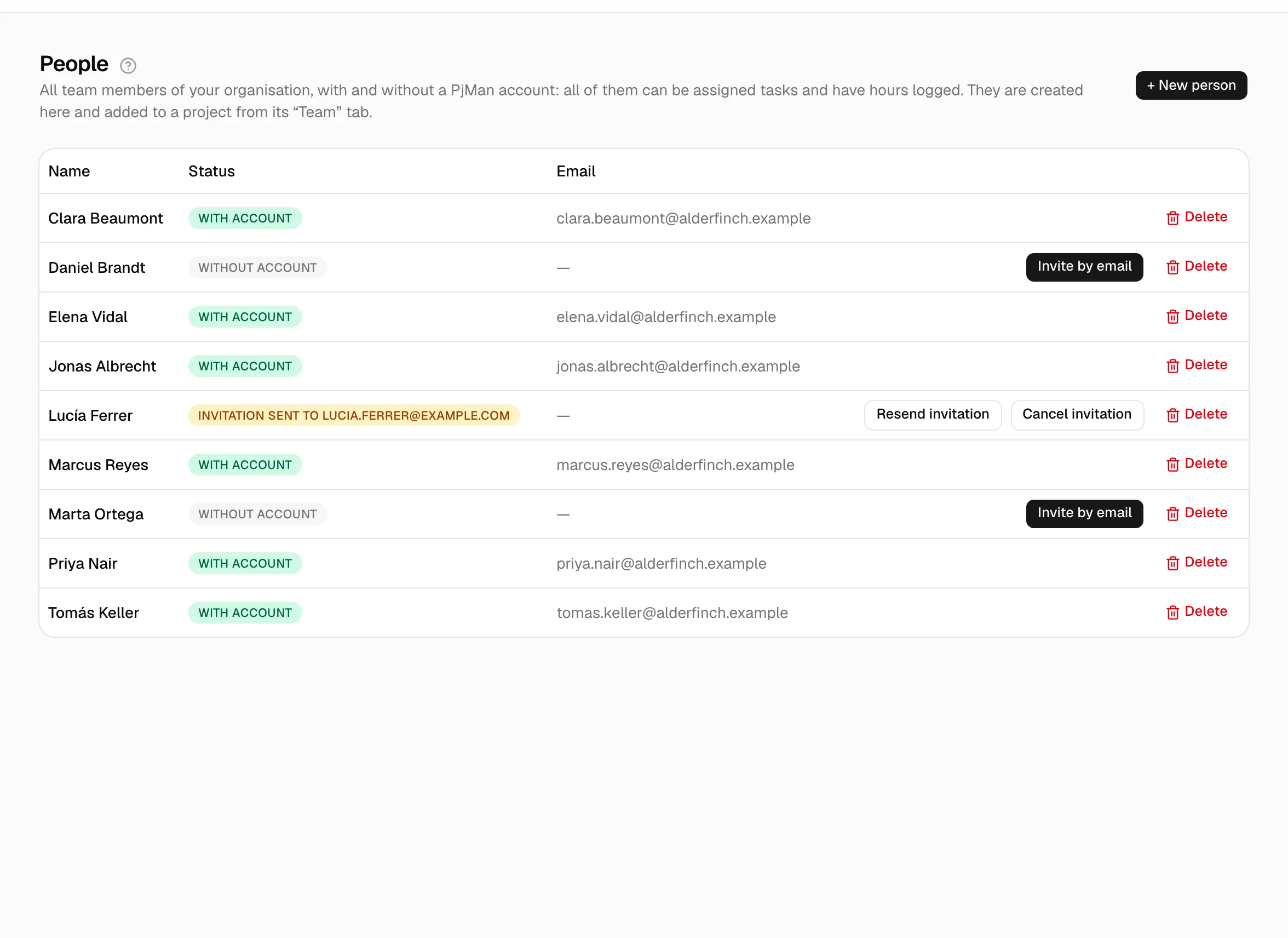
The difference between “with account” and “without account”
| With account | Without account | |
|---|---|---|
| Signs in to PjMan | Yes, with their own email and password | Never |
| What they see | Only their assigned tasks and issues (My work), plus whatever their team role grants (see Roles and access) | Nothing: no access |
| Who logs their hours | They do, on their own tasks, or the PM on their behalf | Only the PM, on their behalf |
| What you need to create them | Name and email (an invitation is sent) | Just the name |
| How they show in the table | Green “With account” badge | Grey “Without account” badge |
When to choose each one
- With account: people who will work inside PjMan: see their tasks, change their status and log their own hours.
- Without account: people who work on the project but whom you don't want using the tool (a subcontractor, someone from the client, an occasional collaborator). You run their work: you assign them tasks and log hours for them. They have tasks, hours and a place in the project team, but no access.
Create a person with an account
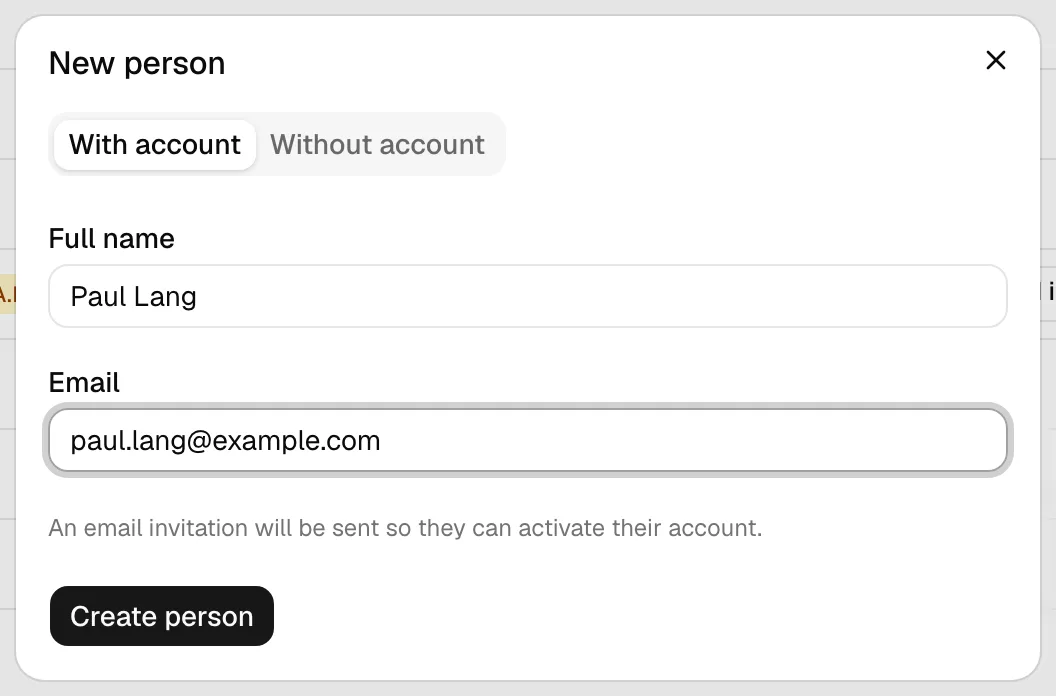
- Press + New person.
- On the With account tab, enter the first and last name and the email.
- Press the create button. What happens depends on the email:
| The email… | Result |
|---|---|
| Has no PjMan account | A real invitation email is sent. Until they accept it, the person shows in the table as “Without account” with the yellow badge “Invitation sent to …”. Once accepted, they become “With account”. |
| Already has an account in your organisation | The person is with account straight away; no email is sent. |
| Already has an account in another organisation | A new, independent membership is created in your organisation and the person is with account straight away; no email is sent and their other membership is left untouched. They will see an organisation selector in the header. |
Create a person without an account
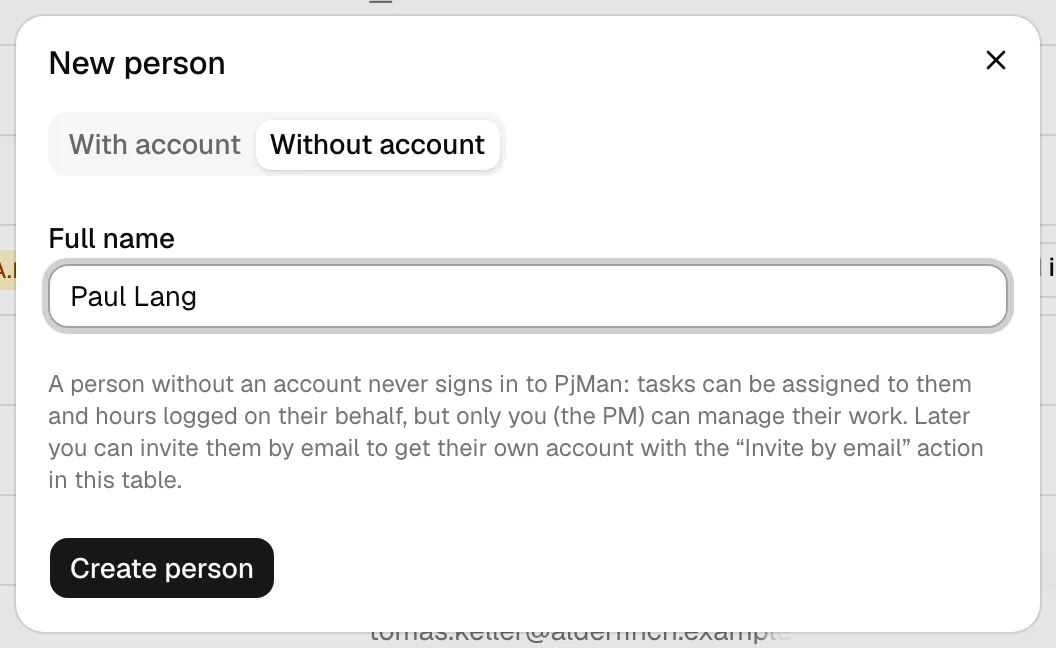
- Press + New person and choose the Without account tab.
- Enter the first and last name and create the person.
There is no check for another person with the same name: two real people can share a name, and each creation adds a new one.
You can then assign them tasks, add them to a project team (see Project team) and log hours for them (see below).
Move from “without account” to “with account”
It is possible and you lose nothing. In the person's row, press Invite by email, enter their email and send.
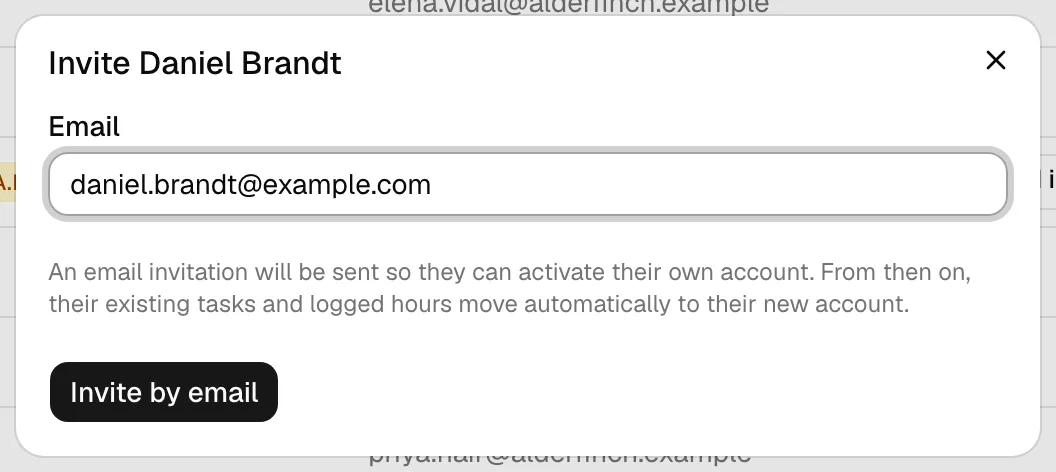
- If the email has no account, they receive the invitation; when they accept it, their whole history moves to their new account: assigned tasks and issues, logged hours and their place in project teams. They are the same rows (same dates, hours and descriptions); only who they belong to changes.
- If the email already has an account (in your organisation or another), the move is immediate, as in the table above, and you see a notice with the result.
- While an invitation is pending, the row shows “Invitation sent to …” and the Invite by email button disappears: you cannot invite the same person twice (“There's already a pending invitation for this person.”). The application does not check whether the same email is pending on another person: avoid repeating it, because on acceptance only one of them is moved.
- An account can match only one person. If you invite with the email of an account that has already received another person on your list, it is rejected: “That email belongs to an account that already matches another person on your list. Use a different email or delete the duplicate person.”.
- Merged, not duplicated. If the account receiving the history was already assigned to the same task or issue or was already a member of the same project, the two rows are merged: the account's row is kept and the person's is discarded. In a project team the account's role and rates are kept and only the hourly rates it was missing are filled in from the person's. Logged hours are always all moved.
The notice after an immediate move reads, for example: “History moved to the account — tasks: 3, issues: 1, time entries: 12, project teams: 2.” and, if anything was merged, adds “N items already existed on the account and were merged with what was moved.”. If there was nothing to move, no notice appears. If the person accepts an invitation by email, the move happens at that moment and you get no notice on your screen.
The person stops showing as “without account”: their row becomes the real account's row, with no duplicates.
Resend and cancel a pending invitation
The row labelled “Invitation sent to …” has two buttons:
- Resend invitation: sends another email to the same address (in case it did not arrive or the link expired) and confirms with “Invitation resent to …”. It counts towards the sending limit.
- Cancel invitation: asks for confirmation (“Cancel the invitation sent to …? The person will stay without an account and you can invite them again.”) and returns the person to “Without account”. You can invite them again with the same email or another; it is how you correct a wrong email.
Cancelling cannot recall the email already sent. More in Invitations.
Move from “with account” to “without account”
It is not possible. What you can do is delete their membership of the organisation (see below), as long as they have no work attached, and then create a new person without an account.
Log hours on behalf of someone else
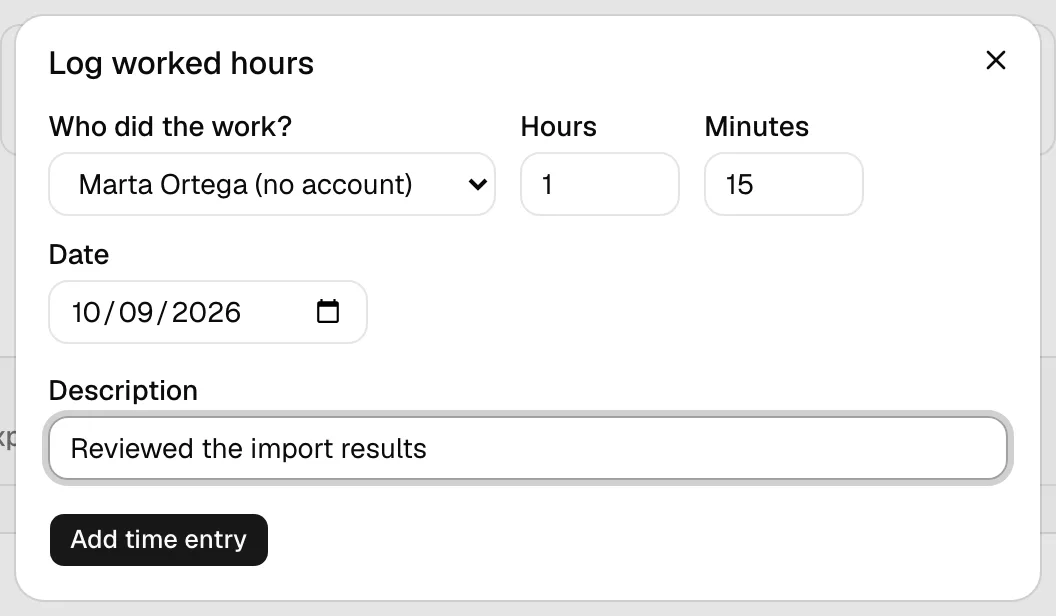
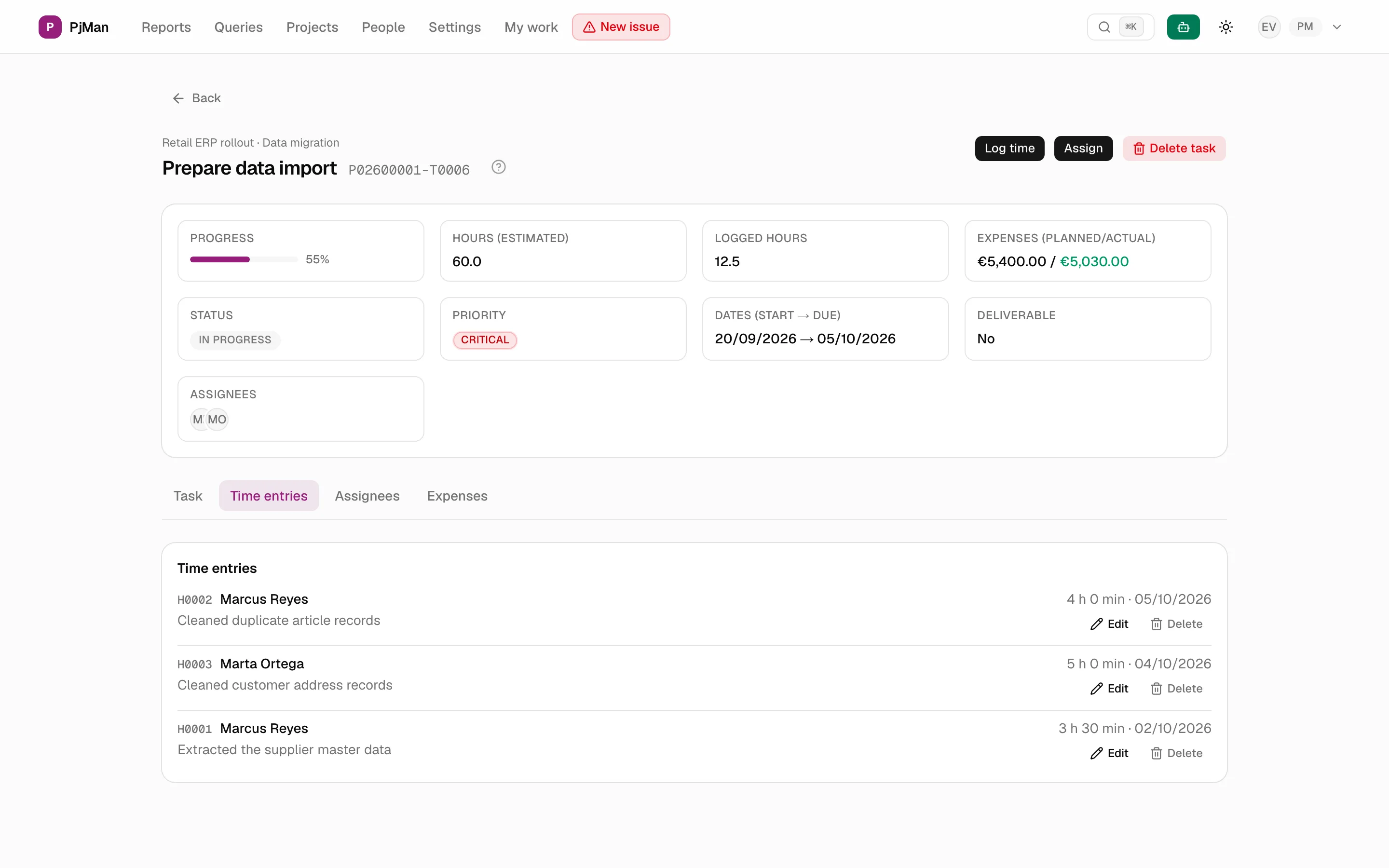
Only the PM who owns the project can log hours on behalf of another person, with or without an account, whether or not they are assigned to the task. You do it from the task's Time entries tab: press Log time and, in the dialog, choose the person in Who did the work? (yourself by default).
- A person without an account can never log time themselves, because they have no session.
- Each time entry stores whose hours they are and who logged them (you), so the history is always clear.
- A person with an account can only log time on their own assigned tasks; if they try to do it for someone else they see “Only the PM who owns the project can log hours on behalf of someone else.”.
Add a person to a project
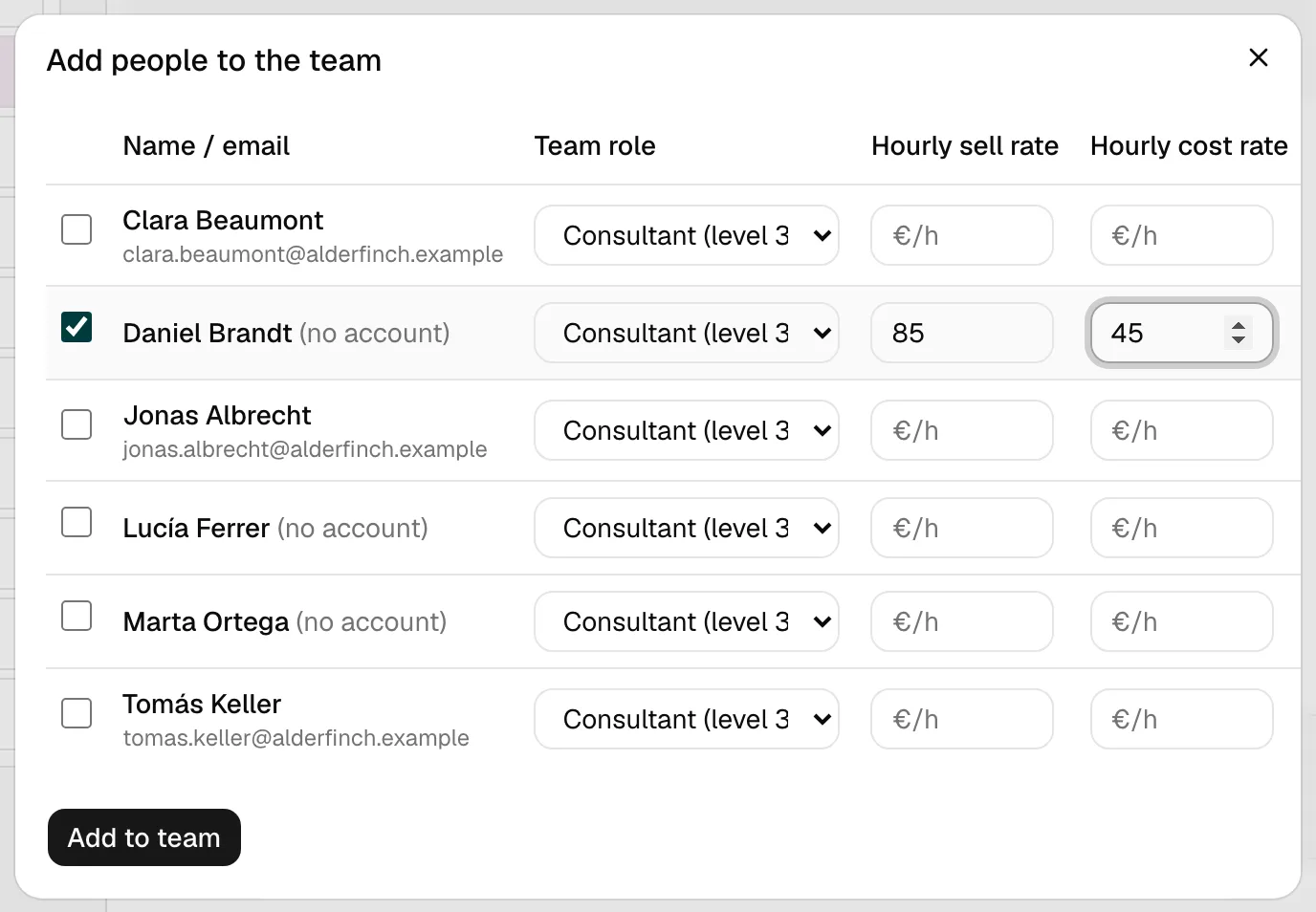
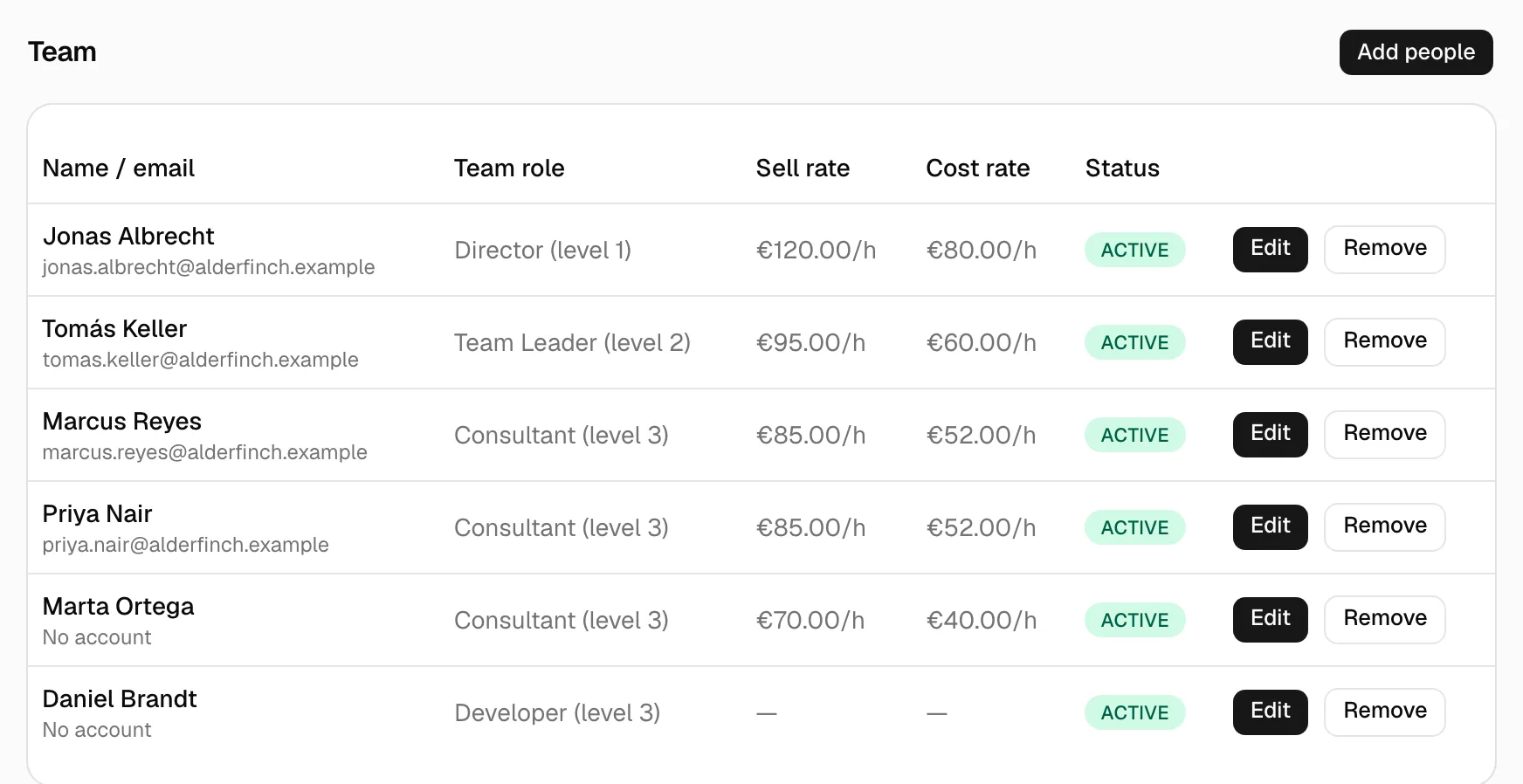
People are created here, in People. A project's Team tab only adds people who already exist in the organisation (with or without an account), with a team role and, optionally, their own billing rate and cost rate per hour for that person in that project. A person can be in several projects with different roles and rates. Details in Project team.
Delete a person
Press Delete in the row and confirm.
- Person without an account: deleted, and removed from any project team they were in (also if they had a pending invitation, which then no longer has any effect). It cannot be deleted if they have assigned tasks or logged hours: you will see a notice with the counts and the actual hours (“It can't be deleted: it has 1 assigned task and 7.5 logged hours. Unassign it from its tasks first.”). Unassign them first.
- Person with an account: their membership of your organisation is deleted (only that one: their account and other organisations are untouched) and they are removed from teams and from organisation members. It is also blocked if they have assigned tasks, logged hours or hours they logged for other people: “It can't be deleted: it has 1 assigned task and 7.5 logged hours (plus 2 hours logged on behalf of other people). Unassign them from their tasks first.”. You cannot delete your own account from here (“You can't delete your own account from the organisation here.”). If they have other data attached (uploaded documents, minutes created, projects they are PM of…) the operation is rejected with “It can't be deleted: it has other related data in the organisation (documents, minutes, projects they own…).”.
Summary: who can do what
| Action | PM | Consultant/Developer | Organisation member (CEO) who is not a PM | Person without account |
|---|---|---|---|---|
| See People | Yes | No | No | — |
| Create, invite and delete people | Yes | No | No | — |
| Log hours on behalf of someone else | Only the PM who owns the project | No | No | — |
| See their own tasks and hours | Yes | Yes, only their own | Depends on their role (see Roles and access) | No |
Where organisation-wide members are managed
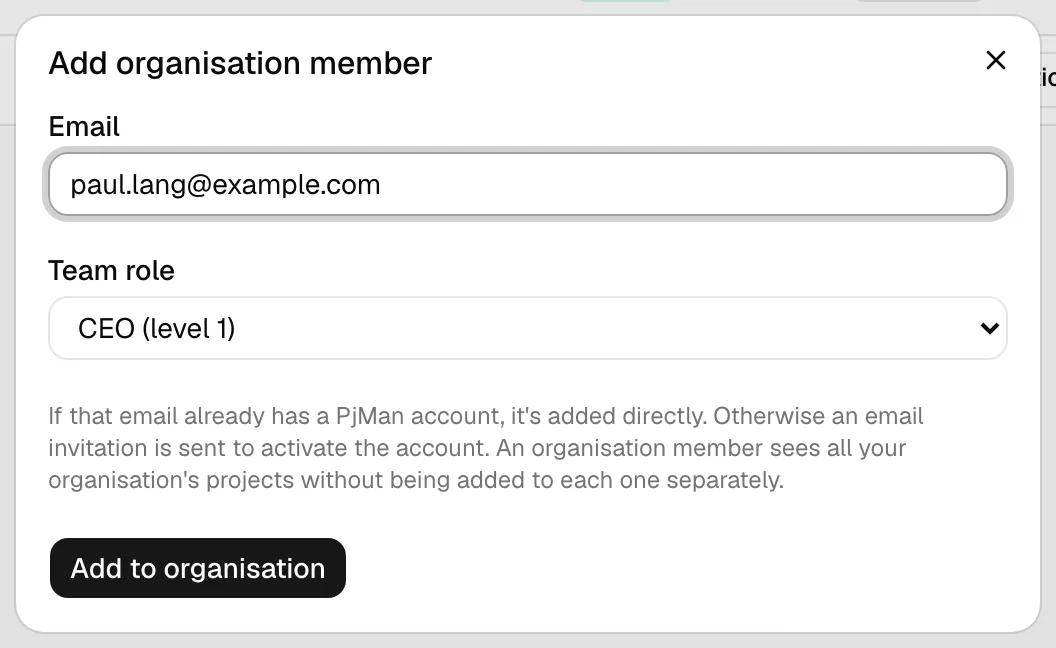
Members with an “entire organisation” role (for example a CEO) are not managed in People but in Settings → Organisation members. See Organisation members (CEO).
Related topics
Updated 2026-10-08