Risks
A risk is something that could happen and affect the project. It lets you anticipate: you note what might occur, how likely it is, how much it would hurt and what you will do to avoid or contain it. When something has already happened, it is logged as an issue.
Each risk belongs to a project and, optionally, to a phase and/or task of that same project. It has a short code (for example R0002) that is unique within the project.
It is visible to the owner PM, to the project's level 1-2 members (Director, PM, Team Leader) and to CEOs. Only the owner PM creates and deletes. A Consultant/Developer has no access.
The Risks tab
In the project, the Risks tab (with its count) shows a table sorted with the most recent first.
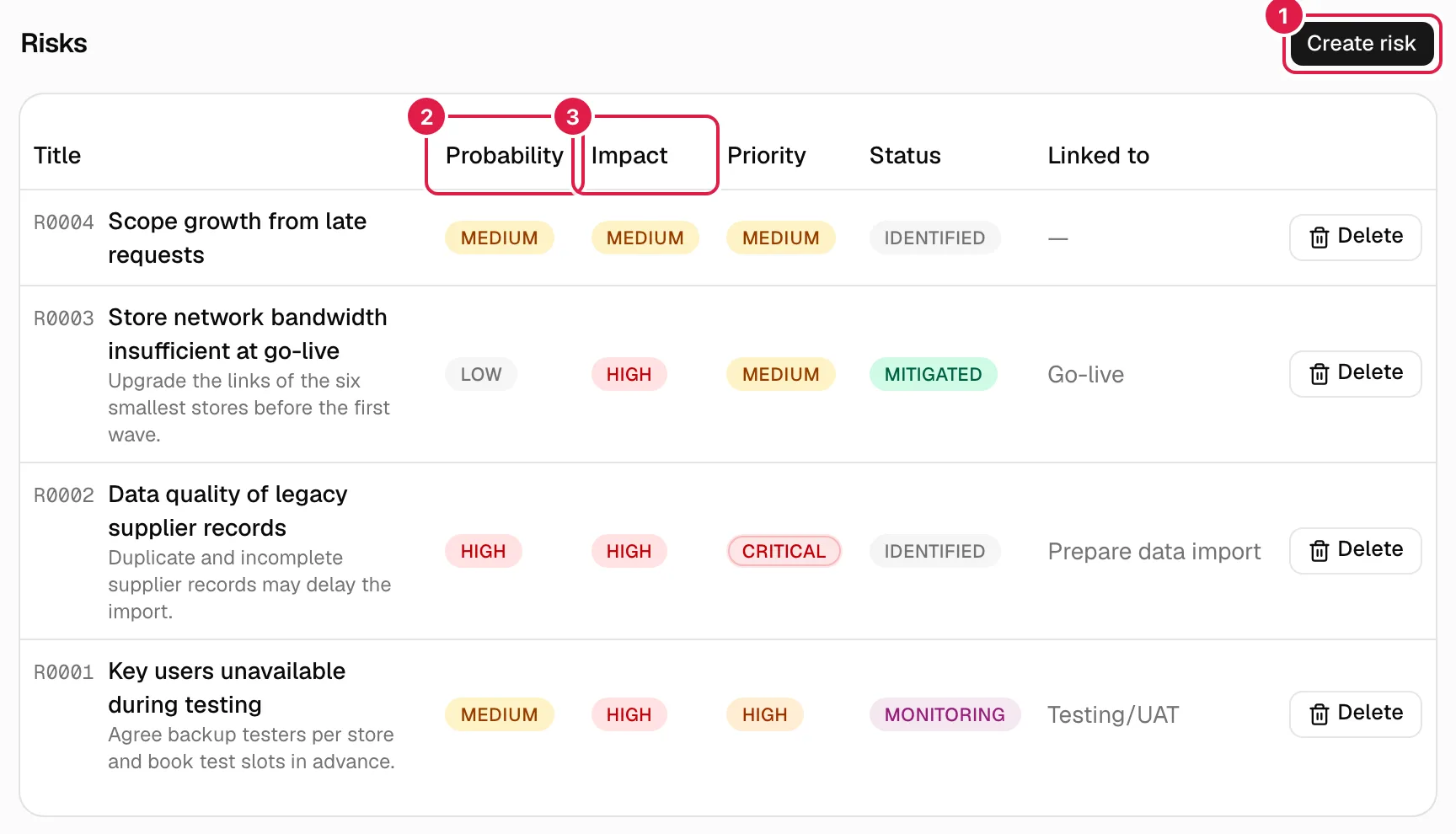
| Column | What it shows |
|---|---|
| Title | Code, title and, below it, the description and the contingency/mitigation plan if there are any. |
| Probability | Low, Medium or High (grey, yellow or red label). |
| Impact | Low, Medium or High (same colours). |
| Priority | Low, Medium, High or Critical. |
| Status | Identified, Monitoring, Mitigated or Closed. |
| Linked to | The phase if there is one; otherwise the task; otherwise “—”. |
With no risks you see: “This project has no risks logged yet.”. The table has no filters or search box.
Create a risk
Only the project's owner PM.
Press Create risk (top right). The Log risk dialog opens.
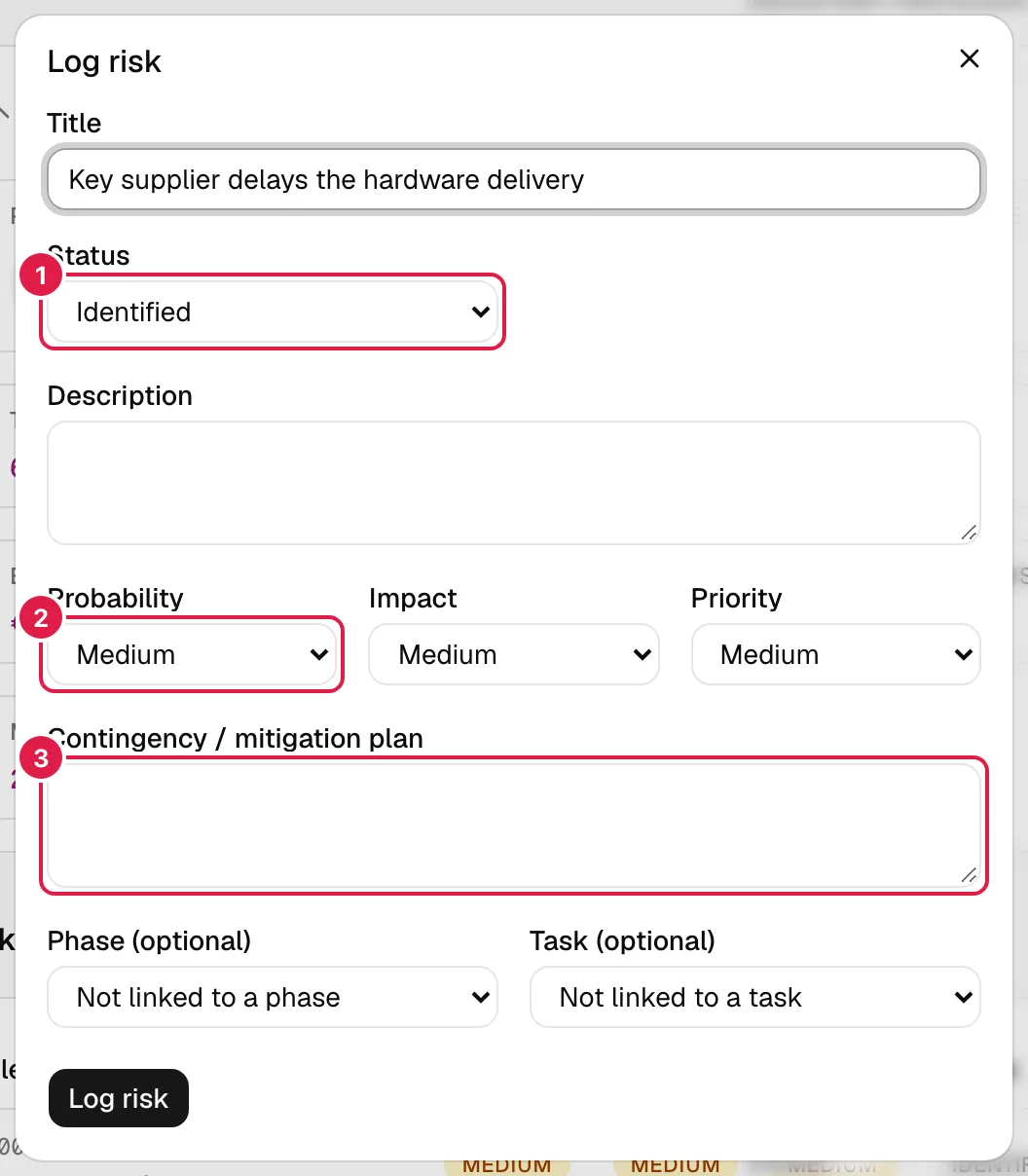
| Field | What it means |
|---|---|
| Title (required) | Short name of the risk. |
| Status | Identified (default): detected, no action yet. Monitoring: mitigation is under way. Mitigated: the mitigation has taken effect, although it is still watched. Closed: no longer applies (it was resolved or stopped being relevant). |
| Description | What could happen and why. |
| Probability | Low, Medium (default) or High: how likely it is to happen. |
| Impact | Low, Medium (default) or High: how much it would affect the project if it happens. Only three levels, unlike an issue's severity (which has four). |
| Priority | Low, Medium (default), High or Critical. |
| Contingency / mitigation plan | What you will do to reduce it or respond if it happens. |
| Phase (optional) / Task (optional) | Link the risk to a phase and/or task of this project. “Not linked to a phase” / “Not linked to a task” leave them free; sub-phases appear with dashes. |
When you press Log risk the dialog closes and the risk appears in the table. Errors (in red below the form): “The title is required.”, “The probability is required.”, “The impact is required.”, “The selected phase doesn't belong to this project.”, “The selected task doesn't belong to this project.”, and “Only a PM can perform this action.” / “You don't have access to this project.” if you are not the owner PM.
Change an existing risk
The screen has no edit form: once created, status, probability, impact, priority and plan cannot be changed from the table. Two ways round it:
- Ask the assistant: it can propose changing the title, probability, impact, priority, status and contingency plan of a risk for which you are the owner PM, with a confirmation card that shows the before and after, and it can be undone for a while.
- Delete it and create it again.
Delete a risk
Only the owner PM.
Press Delete on its row and confirm “Are you sure you want to delete this risk?”. Deletion is permanent. A risk takes nothing else with it (it has no assignees or hours). If it fails, a pop-up notice shows the reason.
Who can do what
| Action | Owner PM | Project Director / PM / Team Leader, and CEO | Consultant/Developer |
|---|---|---|---|
| See the Risks tab | Yes | Yes (read-only) | No |
| Create | Yes | No | No |
| Edit from the screen | Doesn't exist | Doesn't exist | No |
| Change with the assistant | Yes | No | No |
| Delete | Yes | No | No |
Related topics
Updated 2026-10-08