Communications
The Communications tab is the project's email diary: who wrote to you, when, what stage their handling is at and which phase or task it relates to. It does not sync your mailbox or send emails: you log each communication by hand or by importing the email as a file. Each one is linked to a contact.
Only the owning PM logs, imports, changes the status, deletes and uses the assistant. The owning PM, team roles at level 1 or 2 (Director, PM, Team Leader) and organisation-wide members (CEO) can view the tab (read-only). A level 3 Consultant/Developer never sees communications: they are correspondence with the client.
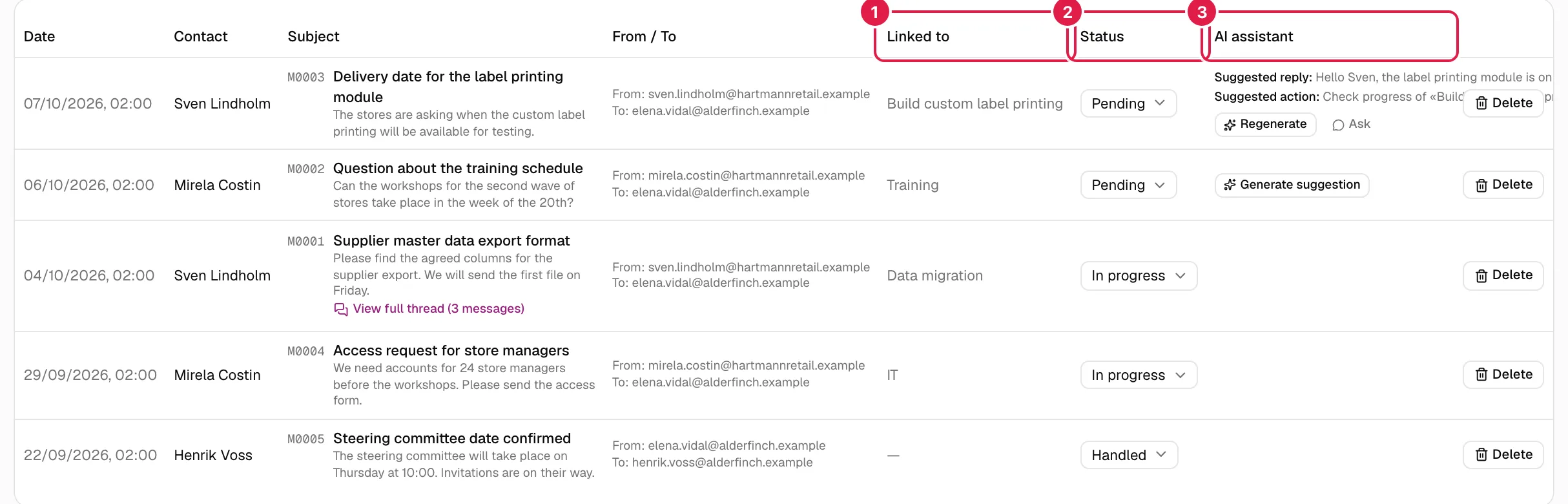
The table
Sorted from newest to oldest by the date of the email.
| Column | What it shows |
|---|---|
| Date | Date and time of the email. |
| Contact | Which contact it is linked to. |
| Subject | Short code (M0004), subject, body and, if it was imported with a thread, the View full thread (N messages) link. If it has an attachment, “Attachment: name” (text only; see below). |
| From / To | “From: …” and “To: …”. |
| Linked to | The phase, or if there is none, the task, or if there is none, the department; “—” if there is none of them. Only one of the three is shown, even if the communication has more. |
| Status | Pending / In progress / Handled selector. |
| AI assistant | Suggested reply and action (see below). |
With no communications you will see “This project has no communications logged yet.”.
Filter by status
The selector at the top right (All statuses) filters by Pending, In progress or Handled. It is stored in the page address (?status=), so you can reload or share the page. If none match: “No communication in this project has that status.”.
Statuses
They tell you which emails you still have to deal with; they change nothing else.
| Status | Use it for |
|---|---|
| Pending | The initial value of every new communication: you have not dealt with it yet. |
| In progress | You are working on it (waiting for a reply, preparing something…). |
| Handled | Closed. |
The owning PM changes the status from the row's selector and it is saved instantly, with no button. For every other role the selector is disabled. An invalid value is rejected with “Invalid communication status.”.
Log a communication
Only the owning PM sees the Log communication button.
The button opens a dialog with two tabs: Manual and From email file.
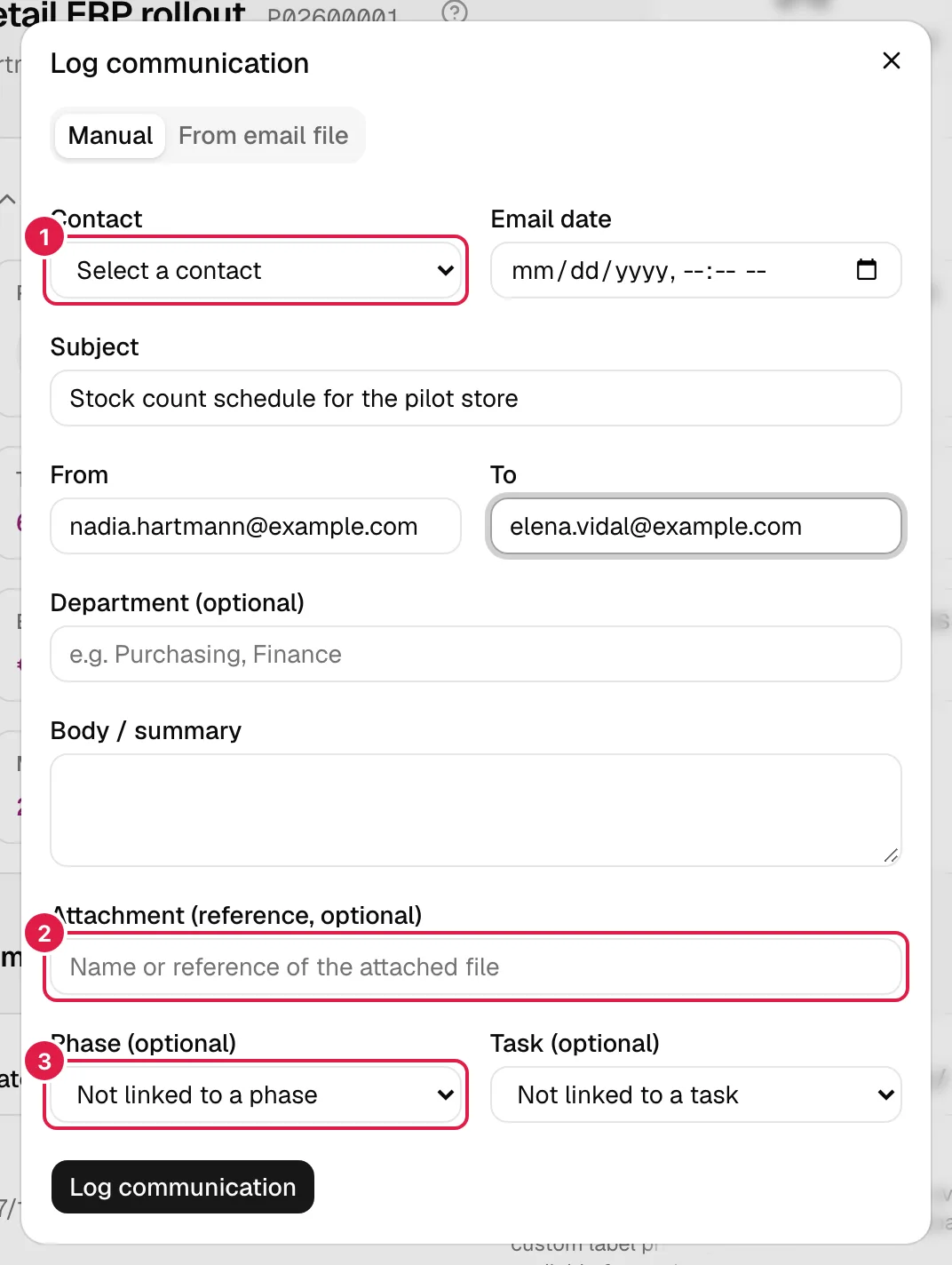
Manual tab
Useful when you do not have the email file. It requires the project to have at least one contact; otherwise the dialog warns “This project has no contacts yet. Create a contact in the “Contacts” tab first to log a communication.” and the button stays disabled.
| Field | Required | What it means |
|---|---|---|
| Contact | Yes | Who the communication was with. Only contacts of this project are listed. |
| Email date | Yes | Date and time of the email. |
| Subject | Yes | |
| From / To | Yes | Addresses as free text (their format is not validated). |
| Department (optional) | No | Free text (“Purchasing”, “Finance”). It is not a catalogue. |
| Body / summary | No | The text of the email or your summary. |
| Attachment (reference, optional) | No | Just a text with the attached file's name; no file is uploaded. |
| Phase (optional) / Task (optional) | No | Link to a phase (sub-phases are shown with dashes) or to a task of the same project. They are independent of each other: nothing checks that the task belongs to the chosen phase. |
Possible errors: “The contact is required.”, “The subject is required.”, “The sender is required.”, “The recipient is required.”, “The email date is required.”, “The selected phase doesn't belong to this project.”, “The selected task doesn't belong to this project.”.
From email file tab
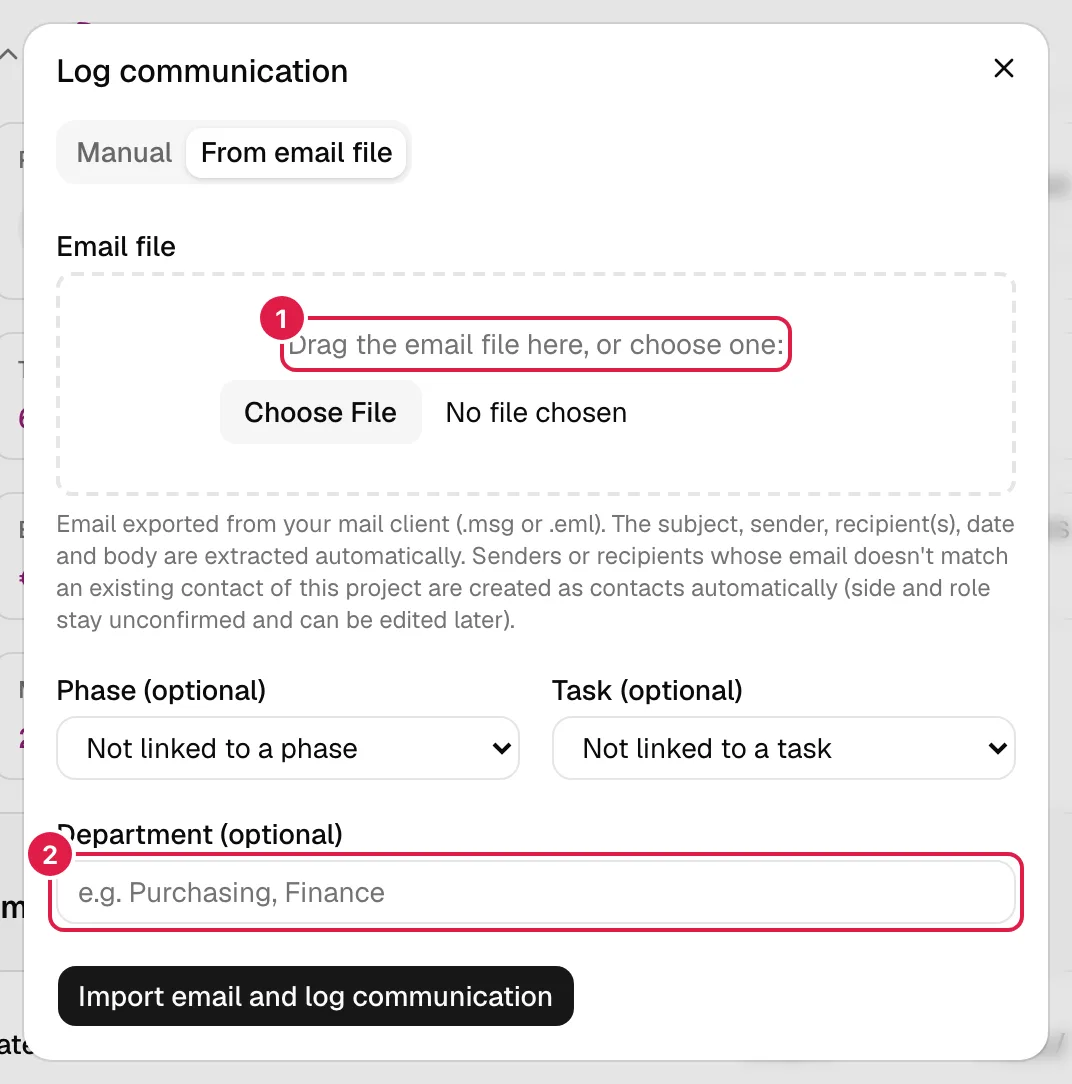
It saves typing: drag the email exported from your mail client onto the dotted area (or pick it with the selector).
- Supported formats:
.eml(standard email text, exported by almost every mail client) and.msg(the format of a desktop mail client). The type is decided by the extension. If you drop several files, only the first one is used. - What is extracted: subject, sender, recipients (To and CC, without duplicates), sent date and plain-text body. If the file has no date, the moment of import is used.
- Optional fields in the same form: Phase (optional), Task (optional) and Department (optional), with the same meaning as in manual entry.
- Automatic contacts: the communication is linked to the sender (even if the email has several recipients). If their email matches no contact in the project (case-insensitive), one is created with the name from the email and the side Unconfirmed. The other recipients get the same treatment, but are not linked to this communication. Review them afterwards in Contacts.
- Attachment: the imported file's name is kept as “Attachment: …” in text. The original file is not stored, so that text is not a download link (it only is for older imports that did keep it).
- Result: the notice “Communication created from the email file.” and the dialog closes. Initial status: Pending.
Error messages: “Select an email file (.msg or .eml).”, “The file must have a .msg or .eml extension.”, “The file is empty.”, “The .eml file couldn't be read. Check that it's a valid email.”, “The .msg file couldn't be read. Check that it's an email exported in .msg format.” and, if something essential is missing, “The email file has no subject; use manual entry to log this communication.”, “The email's sender couldn't be determined; use manual entry…” or “No recipient of the email could be determined; use manual entry…”. If the server fails, “The email file could not be imported.” or another generic notice.
Email clean-up and threads
A real email usually carries all the earlier replies, security notices and signatures underneath. When importing, PjMan does two things with the body:
- Splits the thread into one message per quoted email (it recognises the usual separators: the long line of underscores, “Original message”, “On … wrote:” and quotes marked with “>”). The sender and date of the older messages are read from those headers when possible; otherwise “Unknown sender” or “Date not available” appears. The newest message always uses the real data from the file.
- Cleans the noise from each message: “external email/security” warnings at the top, confidentiality or data-protection paragraphs, tracking links added by security gateways and the signature after a line containing only “--”.
The table shows only the newest message; View full thread (N messages) opens a dialog with all of them in chronological order.
The AI assistant
Only the owning PM has the assistant buttons, and all of them need your own Anthropic key in Settings → Assistant. Without a key no call is made.
The assistant only drafts text: it never sends emails or creates anything on its own. There are two different aids.
Suggested reply and action (AI assistant column)
- On a Pending communication, Generate suggestion appears. It reads that email (subject, sender, date, body and the contact's role) and stores a draft reply (in the email's language) and a follow-up action for you (in your language). They show in the cell as “Suggested reply:” and “Suggested action:”.
- Once a suggestion exists, the button becomes Regenerate (only while it is still Pending; in In progress or Handled the suggestion is kept but cannot be regenerated).
- Ask opens the assistant panel with this communication attached, so you can discuss it.
- If you have no key: “Set up your AI key in Settings to generate suggestions.”. If the key is not valid: “Your Anthropic key isn't valid. Check it in Settings.”.
Proposed reply on the whole thread
Inside View full thread (which only exists on imported communications), the Propose a reply button analyses the whole thread plus the project's state (phases, progress and open tasks) and returns:
- An editable Proposed reply, with a Copy button to paste it into your mail client.
- Suggested tasks (N): each with a tick box, title, description and a Phase (preselected if the assistant recognises it). Tick the ones you want and press Create selected tasks (N); every ticked task needs a phase (“Select a phase for each ticked task, or untick it if you don't want to create it yet.”). Tasks are created in the project's first status, with no estimated hours or dates; those created are marked Created. Creation is all or nothing: if one fails, none is created.
- If it finds no tasks: “The assistant didn't find any new tasks in this thread.”.
This proposal is ephemeral: it is not stored, and if you close the dialog it disappears. Without a key, the button shows a notice with a link to Settings.
Delete a communication
Only the owning PM sees Delete.
Delete asks for confirmation (“Are you sure you want to delete this communication?”) and removes the communication with its thread. It is permanent. Remember that deleting a contact deletes all of their communications.
What you cannot do
- Edit a communication that is already logged: only its status can be changed. To correct the subject, date, contact, phase or task you have to delete it and log it again.
- Sync your mailbox or send emails from PjMan.
- Upload real attachments (the field is only text).
Who can do what
| Action | Owning PM | Director / PM / Team Leader, CEO | Consultant/Developer (level 3) |
|---|---|---|---|
| View communications and threads | Yes | Yes, read-only | No |
| Filter by status | Yes | Yes | No |
| Log, import, delete | Yes | No | No |
| Change the status | Yes | No (selector disabled) | No |
| Assistant suggestions and proposals | Yes, with their key | No | No |
Related topics
Updated 2026-10-08