Confirmation by risk level, batches and undo
The assistant never changes your data behind your back. Each tool has a risk level, and that level decides whether it first shows you a confirmation card. Everything it does also goes through the same services as the application, with your session and your permissions, and almost everything can be undone for 10 minutes.
The rules are the same for everyone, but what the assistant can propose depends on your role: a PM who owns the project can propose almost anything; a Consultant/Developer only what the interface allows them (logging time on their assigned tasks, changing the status or % progress of their own tasks, creating issues if their team role permits it). If you can't do something, the assistant explains why instead of trying.
Risk levels
| Level | What it is | Asks for confirmation? |
|---|---|---|
| Read | Search projects, tasks and issues, see a project's status, hours, expenses, form options, codes, forecast, portfolio, report data. Changes nothing. | Never |
| Navigation | “Take me to…”: opens a screen of the application that you have access to. | Never |
| Create | Task, expense, issue, time entry, risk, change request, contact, phase, meeting minutes (with their agreements). New project, only inside a batch. | According to your preference, unless a reason forces it |
| Change | Change a task, issue, expense, risk, change request or time entry; assign a person to a task or issue, or remove them. | Always |
| Delete | Delete a task, issue, expense, time entry, risk, change request, contact, phase or set of meeting minutes. | Always, and a second click if it can't be undone |
| Batch | Several writes on a single card. | Always, even if all of them are creations |
The assistant has no tools to delete projects, to edit phases, contacts or meeting minutes that already exist (it can only create or delete them), or to touch settings, master data or people. And no tool confirms or runs a pending action: only you can, with the button.
Create: your preference and the reasons that force a card
In Settings → Assistant (see Your own Anthropic key), the Ask for confirmation before the assistant creates anything checkbox is on by default.
- On: every creation is shown on a card and nothing happens until you press Confirm.
- Off: the assistant creates the record directly and shows it already done, with the note “Created without prior confirmation.” and the Undo button. The panel shows the link “Confirmation off · Settings”.
Even if you turn it off, it still asks for a card if any of these reasons applies; the card lists them after “I'm asking you to confirm:”:
| Reason | Text you will see | When it happens |
|---|---|---|
| Third-party text | “The conversation includes text written by other people.” | What the assistant has read in this conversation contains text from another person (titles of other people's tasks, names of projects that aren't yours…). Someone could try to manipulate it. |
| Attached content | “This request includes third-party content (for example, an imported email).” | You have sent a communication or a suggestion from another screen (Attaching content). |
| Ambiguity | “There were several possible matches for some of the data.” | A search returned several candidates and one of them was used (unless it is the entity on your screen). |
| Voice | “You dictated it: check it was understood correctly.” | There is a dictated message in the conversation window (Voice). |
| Pasted text | “It comes from pasted text, which may be someone else's: check each item.” | The message carries pasted text (Pasted text). |
The confirmation card
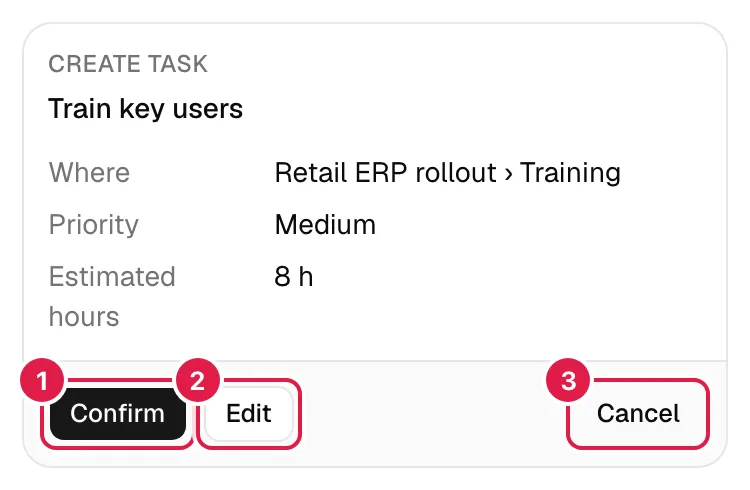
A card shows, from top to bottom:
- The type of action (“Create task”, “Log time”, “Change task”, “Delete expense”…) and the name of the record, with its short code when there is one (for example
P02600001-T0003). - Where: the project, phase or task where it will be created or which it refers to, with its code. A creation has no code of its own yet; it gets one when it is carried out.
- The fields. Values the assistant has chosen for you (initial status, medium priority, today's date, your name as the author of the hours…) carry “ · default”. In a change, each field is shown as “before → after”.
- Amber warnings that don't block: for example, “A similar risk already exists: ‘…’ (date).” if one with a similar title was created in the last 14 days (risks and change requests); or the warning that a deletion can't be undone.
- The reasons for confirmation, if there are any.
Buttons of a pending card:
| Button | What it does |
|---|---|
| Confirm | Runs exactly what you see. It only sends the card's identifier: the data lives on the server and can't be altered from the browser. If you press it twice, it runs once. |
| Edit | Opens a form with the editable fields of that action (title, description, priority, hours, dates, status, amounts…). Save and create saves and confirms in one go (editing already counts as reviewing); Back closes the form. The destination (project, phase, task) isn't editable: if it is a different one, ask the assistant again. It doesn't appear on deletions or assignments. |
| Cancel | Discards the proposal (“Action cancelled”). |
| Delete / Yes, delete permanently | On a deletion, the first one; if what you are deleting can't be undone, you have to press a second confirmation button. |
After you confirm, the card changes to “Task created”, “Time logged”, “Task updated”… with a link to the record (Open task, View expenses…) and, where applicable, Undo.
When a card can no longer be confirmed
- It expires after 15 minutes (“Expired”): “The proposal has expired. Ask the assistant again.”.
- There is only one pending proposal per conversation: when you ask for another, the earlier one becomes “Discarded”.
- New conversation cancels any pending ones.
- Permissions are checked again when you confirm: if you lost access in the meantime, it fails (“Couldn't be done”) with the service's reason.
- If someone has modified that record after a change was proposed, it is rejected: “Someone has changed this task since I proposed it. Please ask me again.”.
Batches
When you ask for several writes at once (“Today I spent 3 h on the migration and 1 h in the meeting”; a phase with its tasks; meeting notes), the assistant proposes a batch: a single card with all the items, which is always confirmed (“Several actions at once: I always ask you to confirm.”). It accepts up to 20 items and 10 deletions; if there are more, the assistant splits the work and tells you so.
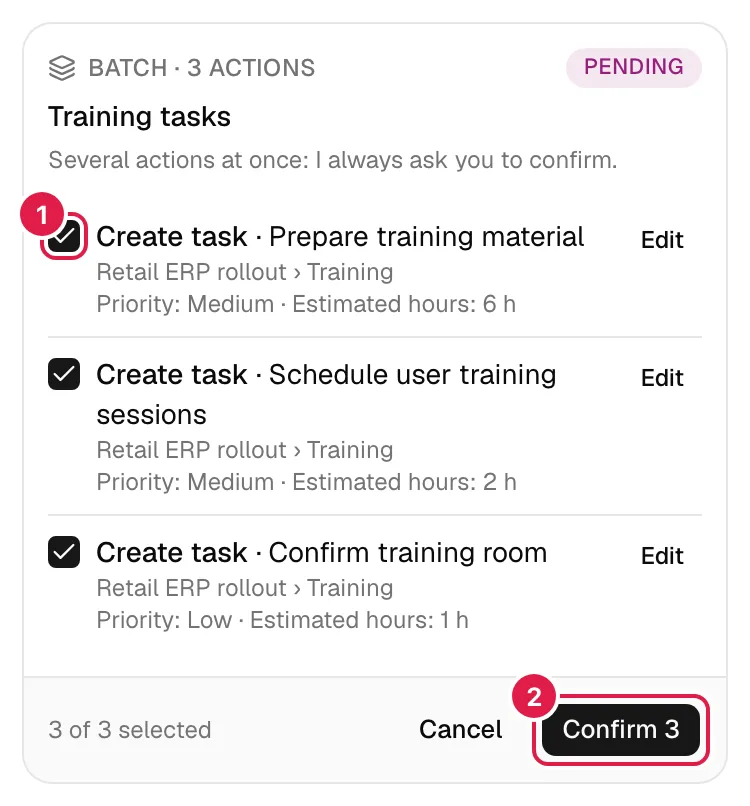
On the batch card:
- Each item has a checkbox; untick the ones you don't want (“{n} of {total} selected”). If an item depends on another one in the same batch (the tasks of a new phase), unticking the first one unticks the dependent ones (“Depends on: …”), and ticking one ticks what it depends on.
- Each item has its own Edit (saving only saves; the batch is confirmed as a whole).
- Deletions are grouped at the end under “Will be deleted”.
- Confirm {n} button; with deletions, Confirm and delete {n}, and if any of them can't be undone, a second click: Yes, confirm (some deletions can't be undone). Cancel discards the batch.
When it runs, the items are carried out one by one and in order. If one fails, the rest carry on and those that depend on it are skipped (“It depends on ‘…’, which wasn't done.”). The result is marked per item (Done, Failed with the reason, Skipped, Not selected) and the batch as Done, Partly done (“Done with 1 ✕”) or Couldn't be done. When something has failed, Retry the failed one / Retry the failed ones runs them again (the skipped ones too), within the next 15 minutes: after that, “Too much time has passed to retry. Ask the assistant again.”.
Undo
After an action has run, its card shows Undo · mm with a 10-minute countdown. Rules:
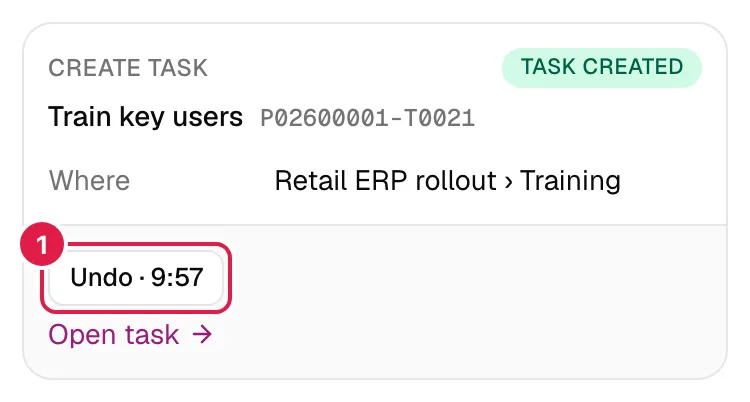
- Only you (the person who did it) can undo it, once and within the time limit. After that: “It can no longer be undone (more than 10 minutes have passed or it isn't reversible).”.
- The button does it, never the model: neither manipulated text nor the assistant itself can trigger an “undo”. If you ask it in the chat, it points you to the button.
- It is undone with the same services and permissions as any other operation.
| What you did | What Undo does | When it can't be done |
|---|---|---|
| Create a task, issue, expense, time entry, risk, change request, contact or phase | Deletes what was created | If it now holds data that would be lost: a task or issue with logged hours, a phase with tasks or sub-phases, a contact with communications. The message explains it. |
| Create meeting minutes | Deletes the minutes and the follow-up tasks they generated | If those tasks already have hours |
| Create a project (inside a batch) | Deletes it | If it already has phases or data |
| Change a task, issue, expense, risk, change request or time entry | Restores the previous values | If someone has changed it again: “Someone changed it afterwards: it isn't undone so their change isn't overwritten.” |
| Assign or remove a person | Does the opposite | — |
| Delete an expense, time entry, risk, change request or a contact without communications | Restores the record as it was | — |
| Delete a task, issue, phase or set of meeting minutes, or a contact with communications | Can't be undone | The card warns you beforehand (“It can't be undone. …”) and asks for a second click. |
Batches. The button is Undo what was done · mm. It undoes the items that were carried out in reverse order (tasks before their phase). Items that can't be undone are left as they were, with their reason; the batch only becomes “Undone” if all of them were undone. The items of a batch can't be undone individually: “Items in a batch are undone from the batch.”.
Who can do what with the assistant
| Proposed action | PM who owns the project | Consultant/Developer |
|---|---|---|
| Read and navigate | Yes (their projects) | Yes, only what their role sees |
| Create a task, expense, risk, change request, contact, phase, meeting minutes | Yes | No |
| Create an issue | Yes | Only if their team role is level 1–2 in the project |
| Log time | On any task of the project, also on behalf of another team member | On their assigned tasks, only in their own name |
| Change a task | Any field | If assigned: only status, % progress and finished |
| Change an issue, expense, risk, change request | Yes | No |
| Correct or delete a time entry | Yes | Only the ones they logged |
| Assign or remove people | Yes | No |
| Delete a task, issue, phase, meeting minutes, contact, expense, risk, request | Yes | No |
| Create a project (only in a batch) | Yes, any PM | No |
A PM does not see or act on another PM's projects. If you ask for something that isn't allowed, the assistant answers with the reason and sometimes offers to ask the project's PM instead; on the card or in the chat you will see “You can't do this with your role”.
Related topics
Updated 2026-10-08