Tasks
The task is PjMan's unit of work: it hangs from a phase and has a status, progress, estimated hours and (if you want) dates, a deliverable and assignees. Hours are logged against it and expenses are recorded on it. This page covers creating tasks and the Task tab of a task's page; assignees, dependencies, checklist and deliverables are in Assignees, dependencies, checklist and deliverables.
Only the project's owning PM creates and deletes tasks and edits all their fields. A Consultant/Developer assigned to the task can only change its status, its % progress and the “Finished” box.
Create a task
Only the project's owning PM. A consultant, or a Director/Team Leader who is not the owner, cannot create tasks.
- Open the project, expand the phase and press + Task (tasks are also created from the assistant and from a set of minutes' agreements, but there you do not choose these fields).
- Fill in the form New task in “Phase name” and press Create task.
- You return to the project screen.
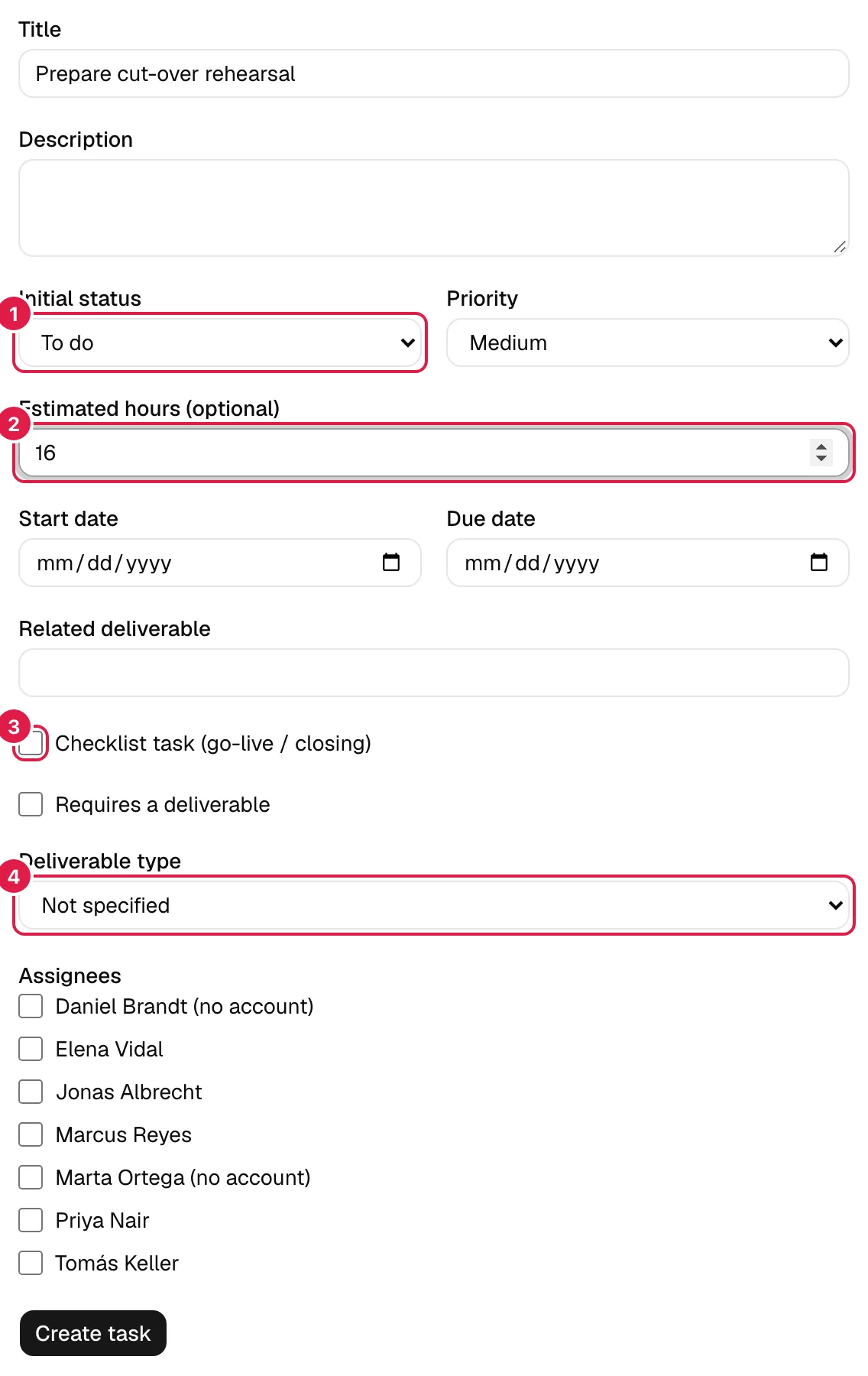
| Field | What it means | Required |
|---|---|---|
| Title | Short name of the task. Surrounding spaces are trimmed. If empty: “The task title is required.” | Yes |
| Description | Free text with the detail. | No |
| Initial status | One of the statuses of this project (each project has its own; see below). | Yes |
| Priority | Low, Medium (default), High or Critical. It only informs and sorts; it changes no calculation. | No |
| Estimated hours (optional) | Number ≥ 0 in steps of 0.5. Empty means “Not estimated”, which is not the same as 0. They weight the average used for progress. If negative: “Estimated hours must be a number equal to or greater than 0.” | No |
| Start date / Due date | Calendar dates. The start cannot be after the due date: “The start date cannot be after the due date.” | No |
| Related deliverable | Free note about the expected deliverable (e.g. “Signed acceptance report”). | No |
| Checklist task (go-live / closing) | Turns the task into a list of checkpoints. See checklist. | No |
| Requires a deliverable | Marks that the task must produce a formal deliverable. | No |
| Deliverable type | An active type from the Master data catalogue, or “Not specified”. You can tick “Requires a deliverable” before deciding the type. | No |
| Assignees | Tick boxes with the PM and the project's active team (people without an account appear with “(no account)”). If there is nobody: “There's nobody in your organisation to assign the task to yet.” | No |
A task's statuses
The status is a per-project list, not a global one. Each project starts with five: To do, In progress, Blocked, In review and Closed. “Closed” is a final status: a task in a final status counts as completed in reports, in “My work” (it stops showing as pending) and in overdue-task queries, and is displayed with the green badge. “Blocked” is flagged as “equivalent to blocked”, which is what the automatic unblocking uses.
When a task is created directly in a final status, it is recorded as completed at that moment.
The task page
It opens from the project, from My work, from a Kanban board or from the command palette. At the top you see the project and phase name, the title with its code and, below, a summary card.
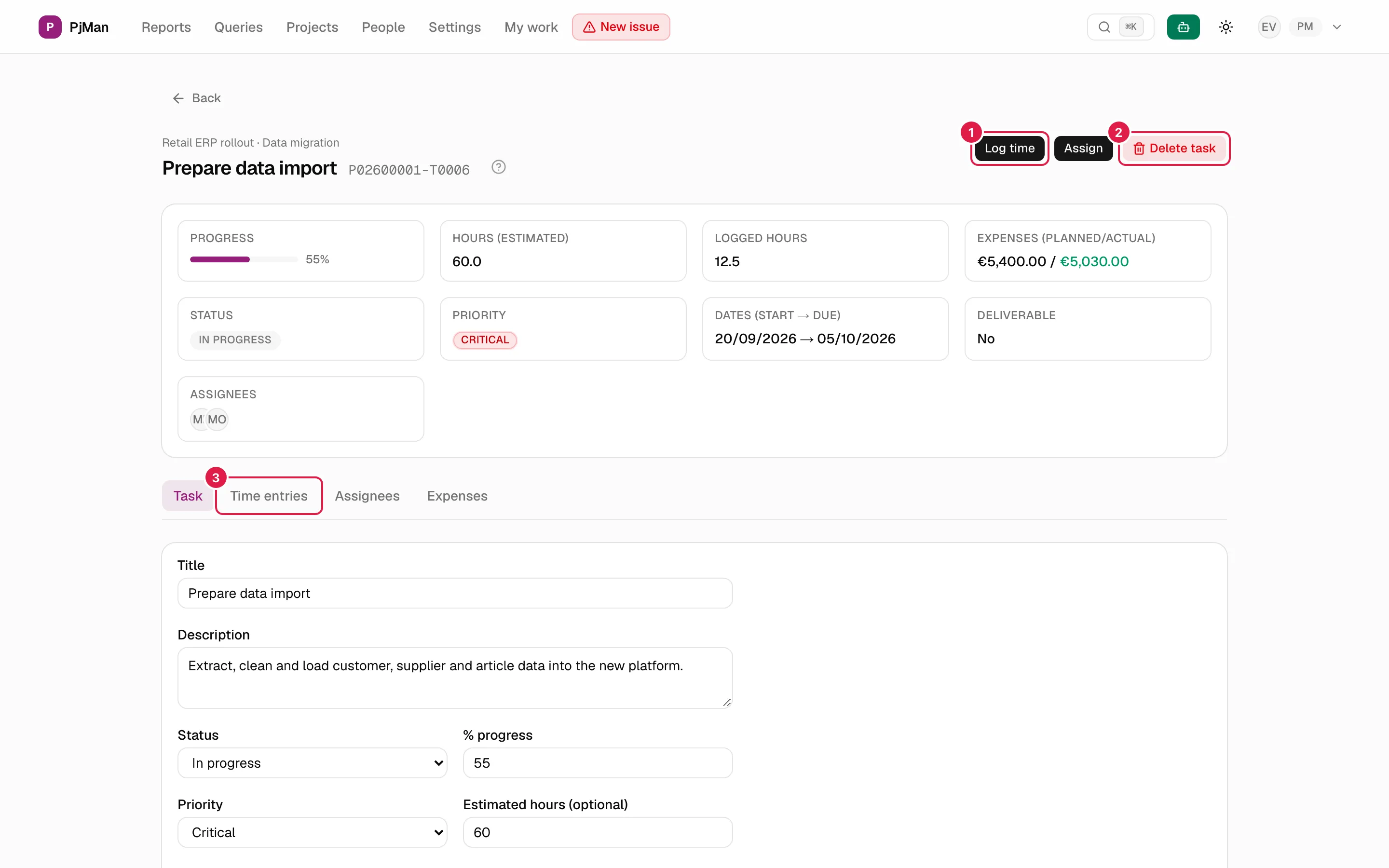
The summary card shows: Progress (bar), Hours (estimated) (or “Not estimated”), Logged hours, Expenses (planned/actual) (only if the task has expenses and you can see them), Status, Priority, Dates (start → due), Deliverable (“No” or “Yes (type)”) and Assignees. The tabs are Task, Time entries, Assignees and, if you have full visibility of the project, Expenses.
The header buttons: Log time (anyone with write access, see Time entries), Assign and Delete task (owning PM only).
Edit a task
The Task tab holds the edit form. Which fields appear depends on who you are:
| Field | Owning PM | Assigned consultant |
|---|---|---|
| Title, Description | Yes | Not shown |
| Status | Yes | Yes |
| % progress (0–100, whole number) | Yes | Yes |
| Priority, Estimated hours, Dates, Related deliverable, Checklist task, Requires a deliverable, Deliverable type | Yes | Not shown |
| Validated by the client | Yes | Not shown |
| Finished | Yes | Yes |
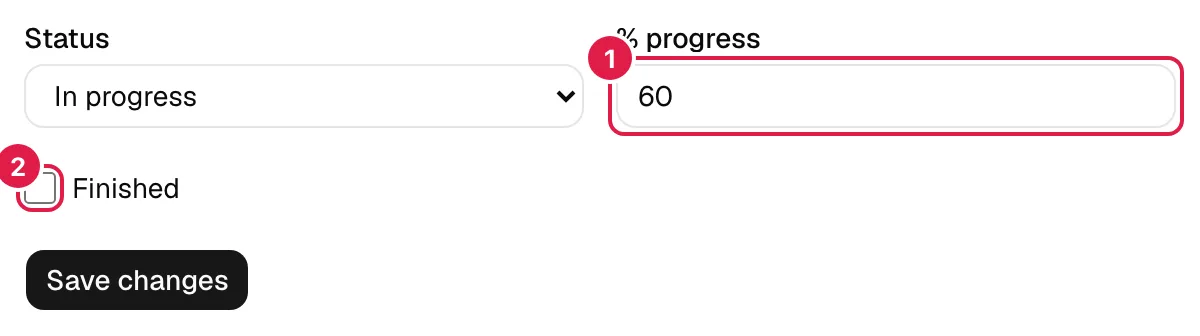
When you save, “Saved.” appears. If the progress is not between 0 and 100: “The % progress must be between 0 and 100.” If you leave the estimated hours empty they are saved as “Not estimated”. On the Kanban board, if someone else changed the status in the meantime, your change is not applied: “Someone changed this task's status in the meantime. Your change hasn't been applied.”
“Finished” versus “Validated by the client”
They are two manual boxes, independent of the status and of each other:
- Finished: the team considers the work done. The assigned consultant or the PM can tick it.
- Validated by the client: the client has given their approval. Only the owning PM ticks it. Reports use it to calculate what percentage of completed tasks is validated.
- Final status (e.g. Closed): this is what counts as “completed” in reports and in My work. Ticking “Finished” does not change the status or the % progress, nor the other way round.
What both boxes do is unblock dependants: as soon as one goes from unticked to ticked on saving, the tasks that depend on this one are reviewed (details). If any is unblocked, you will see the notice “1 task was unblocked automatically: …” (or “N tasks were unblocked automatically: …”).
% progress
A task's % progress is a figure a person types in; it is not derived from logged hours or from the status. The phase's and the project's are never stored: they are always calculated with a single function, as the average of the tasks' percentages weighted by their estimated hours (a 40 h task weighs twice as much as a 20 h one). If no task has estimated hours, a simple average is used. Sub-phases are folded into their parent phase by the same rule. That is why it pays to estimate tasks: without estimates, they all weigh the same. Issues are not part of this calculation.
Delete a task
Only the owning PM. Press Delete task and confirm “Are you sure you want to delete this task?”.
Deletion is permanent and, besides the task, takes with it:
- all its time entries (the hours disappear from the project totals);
- its assignments, its checklist items and its dependencies (both its own and those of other tasks that depended on it);
By contrast, its linked expenses, risks, issues and communications are kept and simply end up with no task. The confirmation notice on the task's page does not detail any of this; it is the assistant that shows the counts before deleting. If you only want to set the task aside, put it in a final status instead of deleting it.
Who can do what
| Action | Owning PM | Director / Team Leader who is not the owner | Assigned Consultant/Developer | Unassigned consultant |
|---|---|---|---|---|
| See the task page | Yes | Yes | Yes | No: “You don't have access to this task.” |
| Create a task | Yes | No | No | No |
| Change status, progress and “Finished” | Yes | Only if assigned | Yes | No |
| Change the other fields and “Validated by the client” | Yes | No | No | No |
| Delete | Yes | No | No | No |
| See and edit the task's expenses | Yes (edits) | Sees, does not edit | Does not see the tab | No |
Related topics
Updated 2026-10-08