Project list, statuses and codes
Projects is the PM's home screen: one card per project, with its progress and key figures, and below it two monitoring blocks (overdue tasks and workload). From here you create a new project and open the summary of each one.
The Projects menu is seen by the PM. The list shows the projects the person can see in full: their own as owning PM, those where they are a team member with a level 1 or 2 role (for example Director or Team Leader) and, if they are a “whole organisation” member (for example a CEO), all of the organisation's projects. A Consultant/Developer who fits none of those cases sees no projects here: their tasks are in My work.
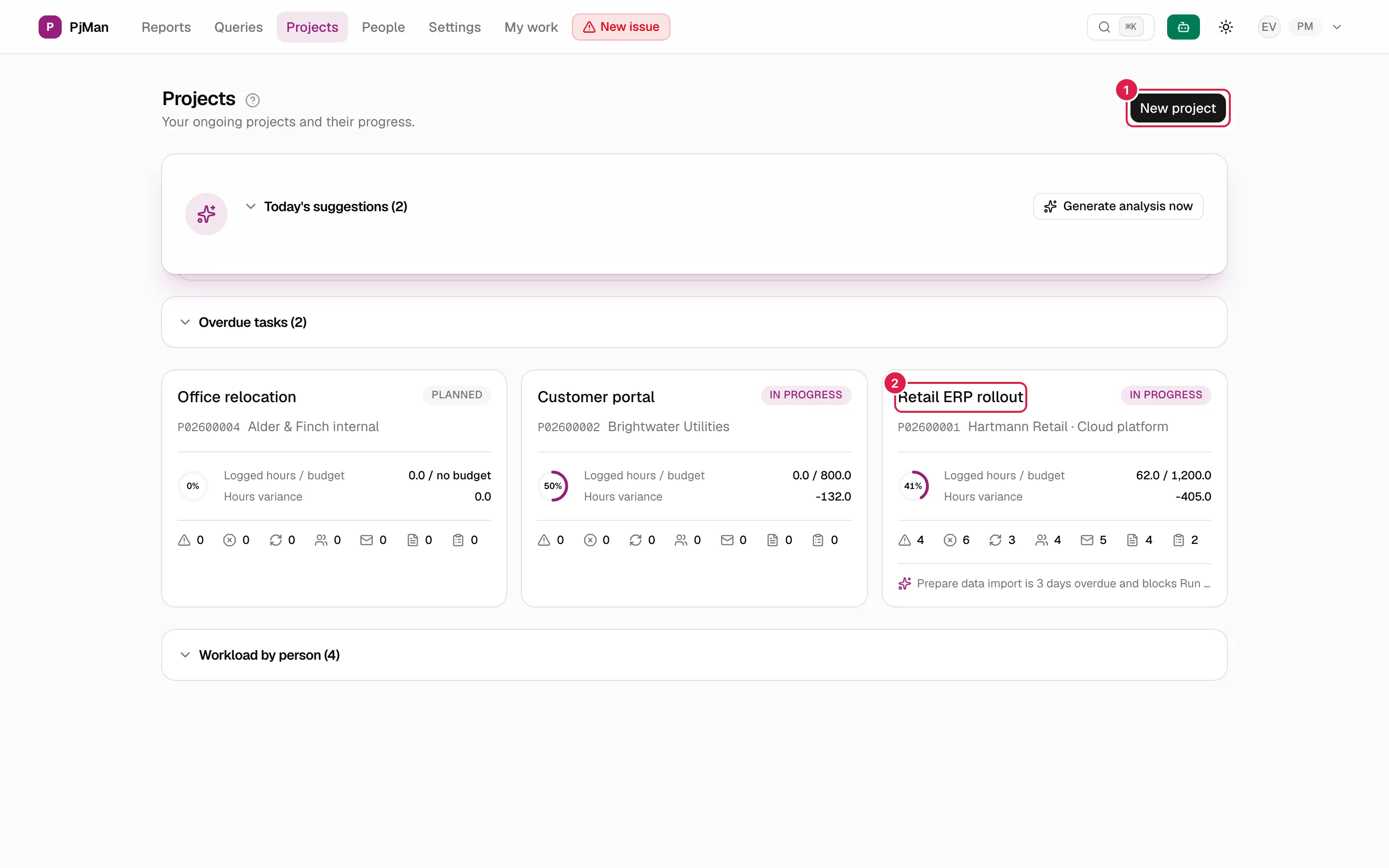
In the image, 1 is the New project button and 2 the card of a project.
What the screen contains
From top to bottom:
- Header: the title Projects, the text “Your ongoing projects and their progress.” and, for the PM only, the New project button (see Creating a project).
- Today's suggestions from the assistant, if you use it (see Daily suggestions).
- Overdue tasks: a collapsible card with the tasks that are past their due date and not in a final status, from oldest to most recent, with the project they belong to. Each title opens the task. If there are none, the card does not appear.
- The project cards, in a grid of one, two or three columns depending on the screen width.
- Workload by person: a collapsible card with one row per person (columns Person, Active tasks, Logged / estimated hours and Overdue). People without an account carry the “(no account)” mark. If there is no data, it does not appear.
The project card
The whole card is a link to the project summary. It shows:
| Element | What it is |
|---|---|
| Name and status label | Top right (see Statuses). |
| Code, client and platform | For example P02600001 · Hartmann Retail. The platform / technology only appears if the project has one. |
| Progress dial | The project's progress percentage, calculated from its tasks (see Project summary). |
| Logged hours / budget | Hours recorded against the budget. Shown in red if you exceed the budget; if there is no budget it says “no budget”. |
| Hours variance | Logged hours minus estimated hours. In red if positive (more hours than planned). |
| Row of icons with counters | Risks, Issues, Change requests, Contacts, Communications, Documents and Meeting minutes. Hover over an icon to see its name and the number. |
| Assistant suggestion | One line with today's highest-priority suggestion for that project, if there is one. Only calculated for those with a PM account. |
Project statuses
The status is a label that you set yourself when you edit the project (see Editing a project). All new projects start as Planned.
| Status | Colour | When to use it |
|---|---|---|
| Planned | grey | The project is registered but work has not started yet. |
| In progress | blue | Work is under way. |
| On hold | amber | Temporarily stopped (waiting for the client, no budget…). |
| Closed | green | Finished. |
The status never changes by itself: not when the first hour is logged, nor when progress reaches 100%. And it blocks nothing: in a closed or on-hold project you can keep editing, creating tasks and logging time. What the status does do, according to what has been verified in the application:
- In progress: only tasks from projects in this status are suggested in the reminder to log time.
- On hold: the assistant's project-end forecast is not calculated and the project is flagged as on hold in the portfolio view.
- Closed: it is left out of the assistant's portfolio view and forecast, and Kanban boards hide it by default (there is an option to include closed projects). See Kanban boards and Status, forecast, portfolio, client report and meetings.
Codes
Every project has a code of the form P + the last three digits of the year + a five-digit number (P02600001, the first of 2026). It is assigned on creation, is unique within the organisation, cannot be changed and is never reused. It names the project unambiguously (also in the assistant and in the palette). Phases (F001), tasks (T0003) and other items have their own codes; the full reference combines both, P02600001-T0003. Details in Short codes.
Which projects each person sees
| Person | Projects shown |
|---|---|
| PM | Their own (where they are the owning PM) and those of other PMs where they are on the team with a level 1 or 2 role. Never those of another PM they do not take part in. |
| Person with a level 1 or 2 team role (Director, Team Leader, PM…) in a project | That project, with full visibility, even if their account is Consultant/Developer. |
| “Whole organisation” member (CEO) | All of the organisation's projects, read-only (see Organisation members (CEO)). |
| Consultant/Developer who fits none of the cases above | None. They see the notice “Your tasks are in My work” and the Go to My work button. |
Team role levels are explained in Team roles and the full set of permissions in Roles and access.
Empty screen
The message depends on who you are:
| Person | Message |
|---|---|
| PM | “You don't have any projects yet” · “Create your first one to start tracking.” |
| “Whole organisation” member | “You're not on any project yet” · “When you're assigned to one, it will appear here.” |
| Consultant/Developer | “Your tasks are in My work” · “Projects aren't listed here: My work has the tasks, issues and time entries assigned to you.” |
Who can do what
| Action | PM | Level 1-2 in a project | “Whole organisation” member | Consultant/Developer |
|---|---|---|---|---|
| See the list | Their projects | The projects they take part in | All | Sees no projects |
| Create a project | Yes | No | No (unless a PM account) | No |
| Open a project | Yes | Yes, read-only (the owning PM manages) | Yes, read-only | Only their tasks, from My work |
Related topics
Updated 2026-10-08