Issues
An issue is something that has already happened in the project (a failure, a blockage, a data error). It is an entity of its own, independent of tasks: it has its status, its severity, its assignees and its hours. What might happen is recorded as a risk.
Each issue belongs to a project and, if you wish, to a phase and/or a task of that same project. Its short code (for example I0003) is unique within the project and never changes.
Viewing, creating, editing, assigning and deleting are not shared out in the same way. The owning PM does everything; a Director, PM or Team Leader of the project (level 1-2) and a CEO see all the issues and can create them; a Consultant/Developer only sees those that concern them. Details in Who can do what.
The project's issue list
In the project, the Issues tab (with the number of issues in brackets) shows a table. Next to the title is the List | Kanban switch: the Kanban view shows the same issues in status columns (see Kanban boards).
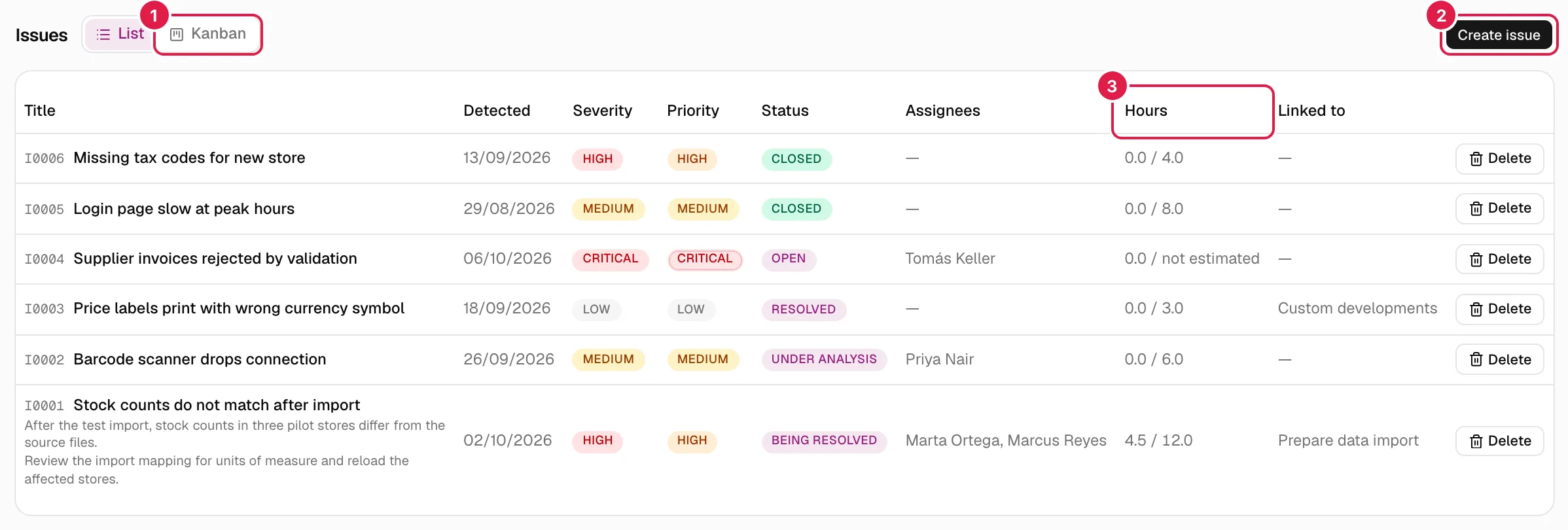
| Column | What it shows |
|---|---|
| Title | Code, title (a link to the detail) and, underneath, the description and the resolution plan if there are any. |
| Detected | Detection date. |
| Severity | Low, Medium, High or Critical. |
| Priority | Low, Medium, High or Critical. |
| Status | The status from the organisation's catalogue (see Statuses). |
| Assignees | Names of the people assigned, or “—”. |
| Hours | Logged hours / estimated hours. If there is no estimate, “not estimated” (never “0”). |
| Linked to | The phase if there is one; otherwise the task; if there is neither, “—”. |
If the project has none, you see: “This project has no issues logged yet.”. The table has no filters or search box; to cross-check issues from several projects use Queries or My work.
Create an issue
The owning PM and any level 1-2 member of the project (Director, PM or Team Leader) can create one, even if their account is a Consultant/Developer account, as can an “entire organisation” member (CEO). A level 3 Consultant/Developer cannot.
There are two ways:
- From the project: Issues tab → Create issue.
- From anywhere: the red New issue button in the header opens the Log an issue dialog with a Project selector (the project you are in is preselected if you can create there). If you cannot log issues in any project, the button still shows, but the dialog says “You don't have any project where you can log an issue.”. Until you choose a project, the phase and task fields are disabled, and so is the submit button.
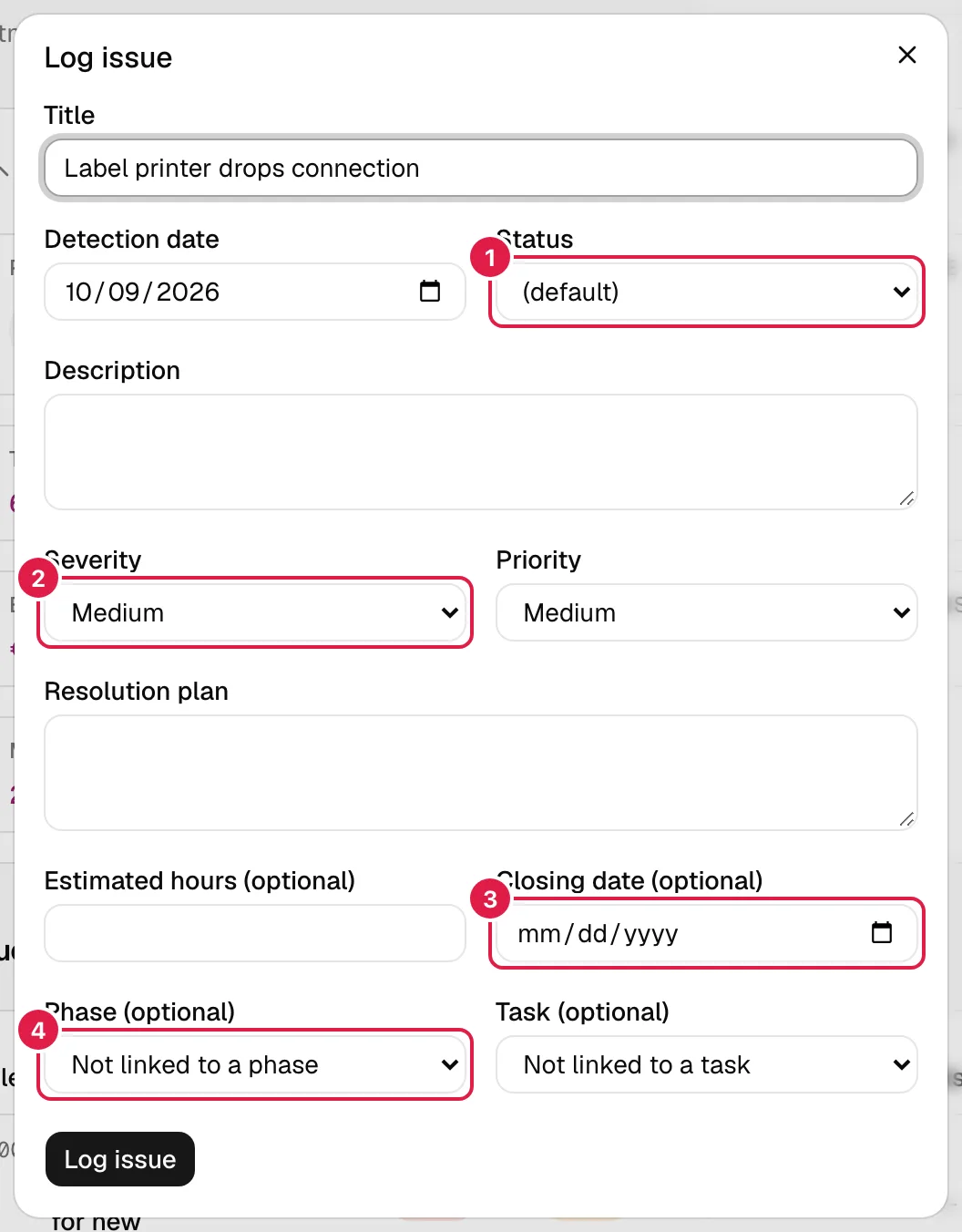
| Field | What it means and what happens |
|---|---|
| Title (required) | What you will see in tables and boards. Saved without extra spaces. |
| Detection date (required) | When it was detected. Today by default. |
| Status | Initial status. “(default)” uses the organisation's active status with the lowest order (in the factory catalogue, Open). Only the PM sees the list of statuses; a Director/Team Leader with a Consultant/Developer account only has “(default)”. |
| Description | Optional free text. |
| Severity | Low, Medium (default), High or Critical: how serious the problem is. |
| Priority | Low, Medium (default), High or Critical: how urgently it is dealt with. They are two different axes: an issue can be serious but not urgent. |
| Resolution plan | How you plan to resolve it. Optional. |
| Estimated hours (optional) | Empty = “not estimated”. A 0 means “estimated at zero hours”, which is different. It cannot be negative. |
| Closing date (optional) | See Closing date. |
| Phase (optional) / Task (optional) | Link the issue to a phase and/or task of the project. “Not linked to a phase” / “Not linked to a task” leave them free. Lower-level phases appear with dashes (“— Sub-phase”). |
When you press Log issue the dialog closes and the issue appears in the table. Possible errors (shown in red below the form):
| Message | When |
|---|---|
| “The title is required.” | Empty title. |
| “The detection date is required.” | No date. |
| “Invalid date.” | An impossible date, e.g. 30 February. |
| “Estimated hours must be a number equal to or greater than 0.” | Negative or non-numeric hours. |
| “The selected phase doesn't belong to this project.” / “The selected task doesn't belong to this project.” | Only happens if the form is tampered with; the selector only offers those of the project. |
| “The closing date cannot be before the detection date.” | Closing before detection (the same day is fine). |
| “The selected issue status doesn't belong to your organisation.” | Status from another organisation. |
| “Your organisation has no issue statuses configured. Set up at least one in Settings → Issue statuses.” | The catalogue is empty or all statuses are deactivated and you left “(default)”. |
| “You don't have access to this project.” | You are neither the owning PM nor level 1-2 on the project. |
Statuses
Statuses are an organisation catalogue that the PM manages under Issue statuses (see Master data and catalogues). The factory ones are Open, Under analysis, Being resolved, Resolved and Closed. Each status can be flagged as final: only Closed is by default (Resolved is not, because it usually still awaits formal closure).
A status being final has consequences: it sets the closing date and makes the issue count as closed in Reports.
If you deactivate a status that already has issues, those issues keep it; in their edit form it appears as “Name (inactive)” so it is not lost when saving.
Closing date
The closing date manages itself from the status, unless you enter it yourself:
| Situation | Result |
|---|---|
| You edit an issue and move it from a non-final status to a final one, without touching the closing field | Today's date is set. |
| You reopen it (from final to non-final), without touching the field | The closing date is cleared. |
| You switch between two final statuses or between two non-final ones | Nothing is touched. |
| You enter the date yourself (or empty it) in the same save | What you entered prevails, even if you also change the status. |
| You create the issue from the form with a final status and an empty closing date | No date is set: the form sends the field empty and it is respected as “no date”. You can set it later by editing. |
Validations: the closing date cannot be before the detection date (“The closing date cannot be before the detection date.”). If the detection date is later than today and you move to a final status without entering the closing date yourself, you will see “The detection date is later than today: correct it before moving the issue to a final status.”. If you only change other fields, old inconsistent data does not block saving.
An issue's detail
Click the title in the list (or on a board, in My work or in Queries) to open /incidents/…. The header shows the project and the phase, the title with its full code (project + issue), the action buttons and a card with Status, Severity, Priority, Estimated hours (“Not estimated” if there are none), Logged hours, Detection date, Closing date (only if it exists) and Assignees (avatars; the first four are shown and “+N”; people without an account carry “(no account)” in their label).
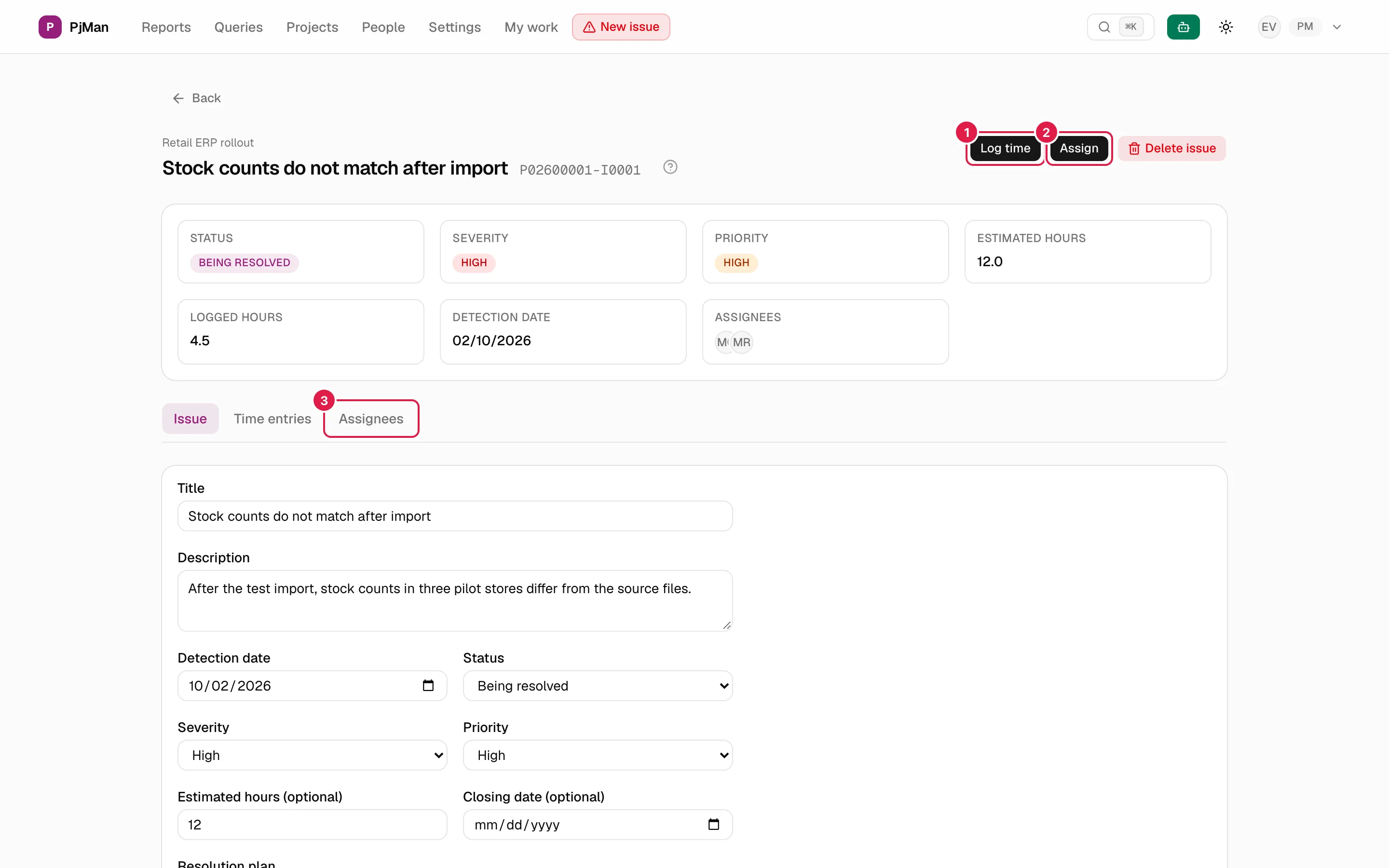
Below, three tabs: Issue, Time entries and Assignees.
Issue tab: edit
Only the PM who owns the project edits. Everyone else who can see the issue sees a read-only card with severity, description (“No description.” if there is none), resolution plan (“No resolution plan.”) and what it is linked to (with a link to the task).
The owning PM sees the complete form already filled in, with the same fields as when creating (without the project selector). Press Save changes; you will see “Saved.” in green. Rules:
- Changing the Status applies what is described in Closing date.
- Emptying Estimated hours leaves it “not estimated”.
- Choosing “Not linked to a phase/task” unlinks it.
- Phase and task are independent: there is no check that the task belongs to the chosen phase. The list table shows the phase and, if there is none, the task; the PM's own detail lets you combine them.
- If saving fails, what you typed is kept and the error appears in red.
- Changing the status by dragging on the Kanban board follows the same rules and the same permissions; if someone else changed the status in the meantime: “Someone changed this issue's status in the meantime. Your change hasn't been applied.”.
Assignees tab
Lists the people assigned (with “(no account)” next to those without an account). An issue can have several assignees, with or without an account.
Only the owning PM assigns and removes.
- Assign: header button; opens “Assign to the issue” with an “Assign to...” drop-down. It only offers members of the project team who are not yet assigned; the button disappears if they all are. Assigning someone who is already assigned does not duplicate.
- Remove: red link on each row, with the confirmation “Remove {name} from this issue?”.
Being assigned to an issue is what gives a Consultant/Developer access to it (it appears under My work → issues) and lets them log hours.
Time entries tab
List of logged hours (code, person, duration “H h M min”, date and description). It works the same as on tasks: see Time entries. The Log time button (header) opens “Log worked hours” with Hours, Minutes (0-59), Date and a required Description; the “Who did the work?” selector (“Myself” by default) is only seen by the owning PM and offers the whole project team, with or without an account.
Actual rules:
- Logging for yourself requires being the owning PM or being assigned directly to the issue. Having access through a linked task or as a Team Leader is not enough: even if you see the button, on submitting you will see “You don't have access to this issue.”.
- Logging on behalf of someone else is only for the owning PM (“Only the owning PM can log hours on behalf of another person.”).
- Duration errors: “Hours must be a whole number equal to or greater than 0.”, “Minutes must be a whole number between 0 and 59.”, “An entry of 0 hours and 0 minutes can't be logged.”.
- Editing or deleting a time entry: whoever logged it or the owning PM (“Only whoever logged the time entry or the project's owning PM can change or delete it.”).
- Issue hours add to the total hours of the project and of Reports.
Delete an issue
Only the owning PM. It is in the list (Delete) and in the detail (Delete issue).
It asks for confirmation: “Are you sure you want to delete this issue?”. Its assignments and all its time entries are deleted with it, and it cannot be undone from the interface (the assistant does warn about the impact before confirming). If you delete from the detail, you return to the project screen. If deleting fails, a pop-up notice shows the reason.
Who can do what
| Action | Owning PM | Director / PM / Team Leader of the project, and CEO | Consultant/Developer |
|---|---|---|---|
| See the project's Issues tab and all its issues | Yes | Yes | No: they do not enter the project |
| See an issue's detail | Yes | Yes | Only if assigned to the issue or to its linked task |
| Create (from the project or with New issue) | Yes | Yes | No |
| Choose the status when creating | Yes | No (only “(default)”) | — |
| Edit, change status (also in Kanban) | Yes | No | No |
| Assign and remove | Yes | No | No |
| Log your own hours | Yes | Only if assigned | Only if assigned to the issue |
| Log hours for someone else | Yes | No | No |
| Delete | Yes | No | No |
Also with the assistant
The assistant can propose creating, modifying (status, severity, priority, title, estimated hours) and deleting issues, with the same permission rules as the interface and always through a confirmation card when applicable.
Related topics
Updated 2026-10-08