The assistant panel and screen context
The assistant is a chat that lives in a side panel, available on any screen of the private area. Use it to look up your data, go to a screen and record work (create, change and delete) in natural language, always with your own permissions: if you can't do something in the application, neither can the assistant.
It is seen and used by PM and Consultant/Developer accounts that have saved their Anthropic key. Without a key, the panel opens but only shows “Set up your Anthropic key” and a Go to Settings → Assistant button. The hints when typing change with the role: the PM sees “Ask or request an action: create a task, log time…” and everyone else “Ask about your tasks or log time…”.
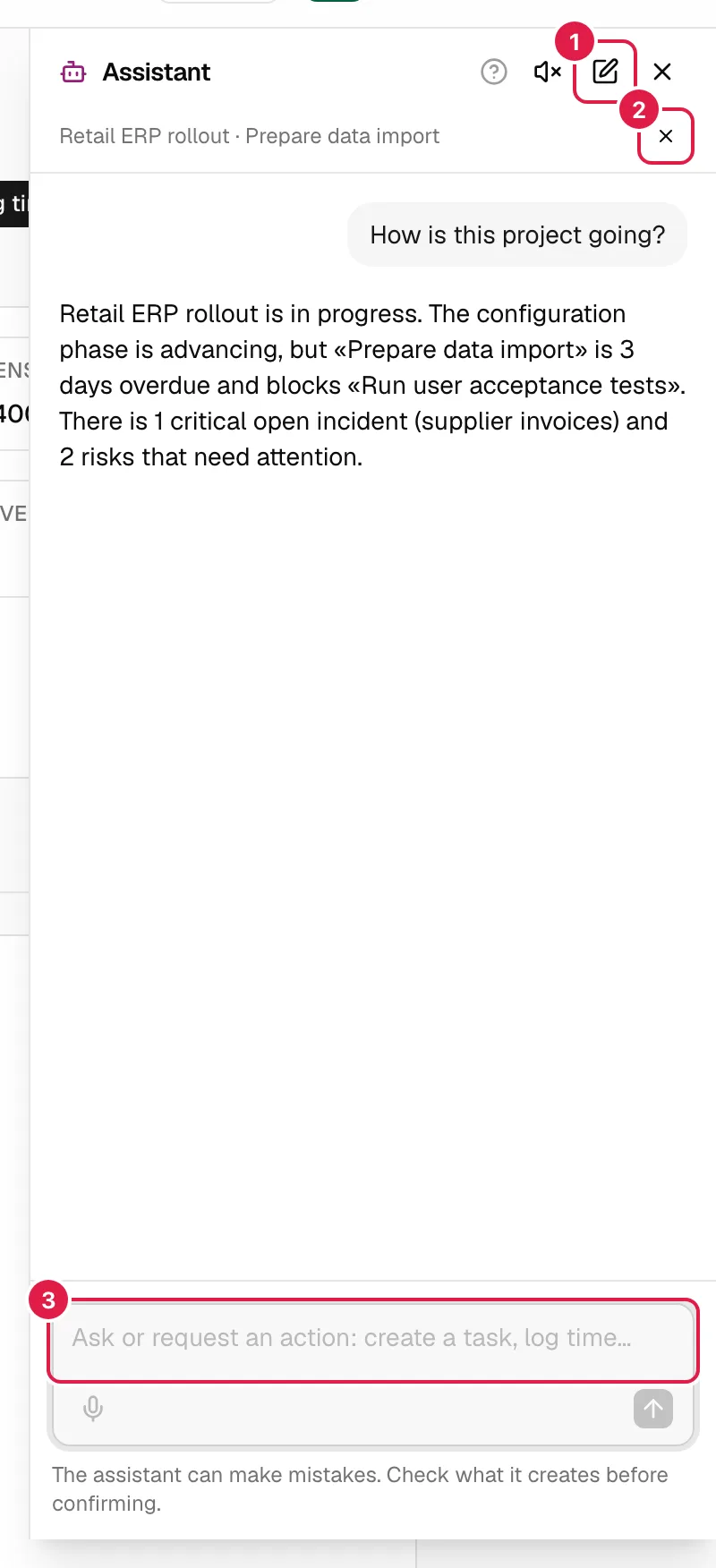
Open and close the panel
There are three ways to open it (and the same ones, or Esc, to close it):
- The green Assistant button in the header. On wide screens it shows the text and the shortcut; on narrower ones, only the robot icon.
- The Ctrl+J shortcut (⌘+J on Mac), which opens and closes it. It doesn't work if a dialog is open; in some browsers Ctrl+J is reserved for another function, and then you use the button.
- The command palette (Ask the assistant; if you have already typed something, Ask the assistant: “…” leaves it written in the panel). See Command palette and shortcuts.
It also opens from the Ask buttons of a communication and Ask the assistant on a daily suggestion, which in addition attach that content (see Attaching content).
If you didn't log any time on your last working day and have Remind me to log hours turned on, the button shows an amber dot (“Assistant: you have time to log”) and, when you open the panel, a card “You didn't log any time on {weekday} {day}.” with Log time now (it writes “On {weekday} I worked on ” and a few recent tasks for you to complete it) and Not today (it dismisses it).
How it sits: docked or full screen
You don't choose the mode: it depends on the width of the window.
| Window | Mode | Behaviour |
|---|---|---|
| Wide (768 px or more) | Docked | Panel anchored to the right, below the header. It doesn't block the page: you can keep using it while the panel is open. It remembers whether it was open when you reload. Esc closes it when there is nothing to stop. |
| Narrow (mobile or small tablet) | Full screen | Modal panel covering the page; when you navigate to a screen (for example, “Take me to My work”) it closes by itself so that you can see the destination. |
The panel belongs to the application's general layout, not to a screen: it stays (and its conversation with it) as you navigate, including navigations launched by the assistant itself.
What it knows about the screen you are on
Under the panel title there is a line with your context, for example “Retail ERP rollout · Prepare data import” or, if no entity is open, the name of the section (“Risks”, “Task board”, “My work”…). If there is nothing to show, it says “No context”.
Each message you send is accompanied by the path and the identifiers of what you have open (project, phase, task or issue). The server checks them one by one against your permissions and silently discards whatever you can't see; from them it obtains the name and code of the entity, whether you have full access to the project or only to your assigned tasks, and what you can do there (create tasks in that phase, create expenses or issues in the project, log time on that task, log time on behalf of other people). Thanks to that, it understands “this task”, “this project” or “this phase” without you having to name them.
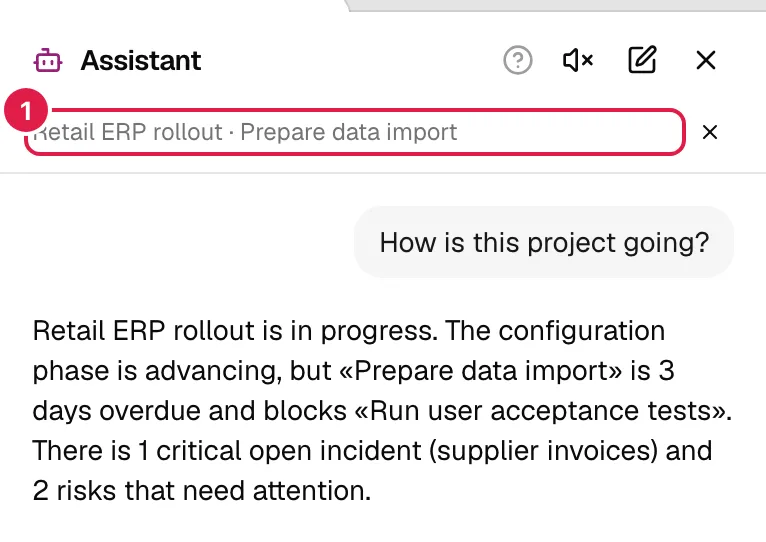
Cases that clarify:
- Detail of a task or issue: context = that task (and its phase and project).
- Kanban modal: when you open a card in the modal, the browser address becomes that of the task or issue detail, so the assistant sees that card as the open entity and not only the board. With the panel open, it sits above the modal.
- Boards in My work and in Queries: if you filter by project, the filtered project counts as the open project.
- Consultant without access to the whole project: if they only have assigned tasks in it, the assistant knows the project's name but treats it as “access to their assigned tasks only”.
- General screens (Reports, People, Settings, Organisation dashboard…): it only knows the section name.
Removing the context. The ✕ button next to the line (“Don't use this context”) makes the following messages go out without the screen: useful if your question has nothing to do with what you are looking at. It resets by itself when you change screen. If you ask about another entity, the assistant looks for it by name or by short code.
Initial suggestions
With an empty conversation, the panel offers example phrases depending on the screen and your role (on a task: “Log 2 h of review on this task”; on a project: “How is this project going?”; in My work: “How many hours have I logged this week?”…). When you click them they are written into the box, not sent: you can adjust them first. They are fixed phrases, not generated by AI, so they use up nothing.
Conversations and history
- There is always one active conversation per person and organisation; it is stored on the server and recovered when you open the panel (on another device too).
- New conversation (pencil icon in the header) archives the active one and starts an empty one. If there is an unconfirmed action it asks “There's an unconfirmed action. Discard it and start again?” with Discard / Keep going; when discarded, it is cancelled and can no longer be confirmed.
- There is no list of old conversations: you only see the active one. Archived ones can't be reopened.
- Retention: 30 days. The messages of a conversation are deleted 30 days after it was archived or after its last activity. The record of the actions the assistant carried out for you is kept as an audit trail.
- The model doesn't receive the whole conversation, only the most recent turns that fit in a limited size; in earlier ones, query results are summarised. If a conversation gets very long, it is normal for it to “forget” old details: repeat them or start a new one.
Type, send and stop
- Enter sends; Shift+Enter inserts a line break; ↑ with an empty box recovers your last message.
- While it replies, the send button turns into Stop reply (also Esc): it cuts off the reply and leaves “Reply stopped”. Once sent, the text appears as a stream and, during queries, status lines (“Searching tasks…”, “Looking at the project…”, “Preparing the task…”).
- If the connection fails you will see “It looks like a connection problem.” or “Incomplete reply” and a Retry button that resends your last message. Key errors carry a Settings → Assistant link; if the provider limits requests an amber notice is shown: “Your Anthropic key has reached its request limit. Please try again later.”.
- If something isn't allowed for your role, a note with a padlock appears: “You can't do this with your role” and the reason.
- When the reply is long and you have scrolled up to read, Jump to the end appears.
- Under the box, the fixed notice “The assistant can make mistakes. Check what it creates before confirming.”. If you turned confirmation off, the Confirmation off · Settings link appears as well.
Attaching content from another screen
Some screens send content to the assistant without you copying it:
- In Communications, the Ask button (next to “Suggested reply” and “Suggested action”) attaches that communication.
- On a daily suggestion, Ask the assistant attaches the suggestion.
The panel opens with a line “About: communication “…”” (or “suggestion for {project}: “…””) and a ✕ Remove this content. The attachment travels with a single message; after that it stays in the history. The panel only sends the type and the identifier: the server reads it again with your permissions (if it doesn't exist or you can't see it: “That content couldn't be attached: it doesn't exist or you don't have access to it.”) and marks it as third-party text, meaning the assistant treats it as data and never as orders. In addition, while there is an attachment, any creation asks for a confirmation card (“This request includes third-party content…”). Each attached text is trimmed to 3,000 characters. To paste a long text yourself, see Pasted text.
Limits
| Limit | Value | What you see when you exceed it |
|---|---|---|
| Length of a message | 4,000 characters | “The message is too long (maximum 4,000 characters).” |
| Pasted text | 12,000 characters | “The pasted text is too long (… characters; maximum 12,000). Paste it in parts.” |
| Steps per message | 6 calls to the model | “This request needed too many steps. Try making it a bit more specific.” |
| Writes per message | One action or one batch | The assistant gathers several writes into a batch. |
| Items in a batch | 20 (10 deletions) | The assistant splits the work and tells you so. |
| Pending proposals | One per conversation | The earlier one becomes “Discarded”. |
| Proposal expiry | 15 minutes | “The proposal has expired. Ask the assistant again.” |
| Stored history | 30 days | Old messages disappear. |
An empty message gives “Type a message.”. If the provider rejects the request for content reasons: “The assistant can't help with this request.”.
What the assistant doesn't do
It doesn't send emails or messages (reports are left as a draft to copy), doesn't upload or read documents, doesn't change settings or master data, doesn't manage users or invitations, doesn't delete projects and doesn't confirm any action itself: only you do that, with a button. Nor does it undo anything on its own: the Undo button is yours (see Confirmation and undo). For examples of what it does understand, see Phrases that work.
Related topics
Updated 2026-10-08