Project team
A project's Team section lists the people who take part in it, each with their team role and, if you want, a sell rate and a cost rate per hour specific to that project. It is the list from which you pick the people you can assign tasks to and log hours for on behalf of others.
Managing the team (adding, editing, removing) is reserved for the project's owning PM. The owning PM, team members at level 1 or 2 (Director, Team Leader…) and “whole organisation” members (CEO) can view it, hourly rates included. A Consultant/Developer does not see this section.
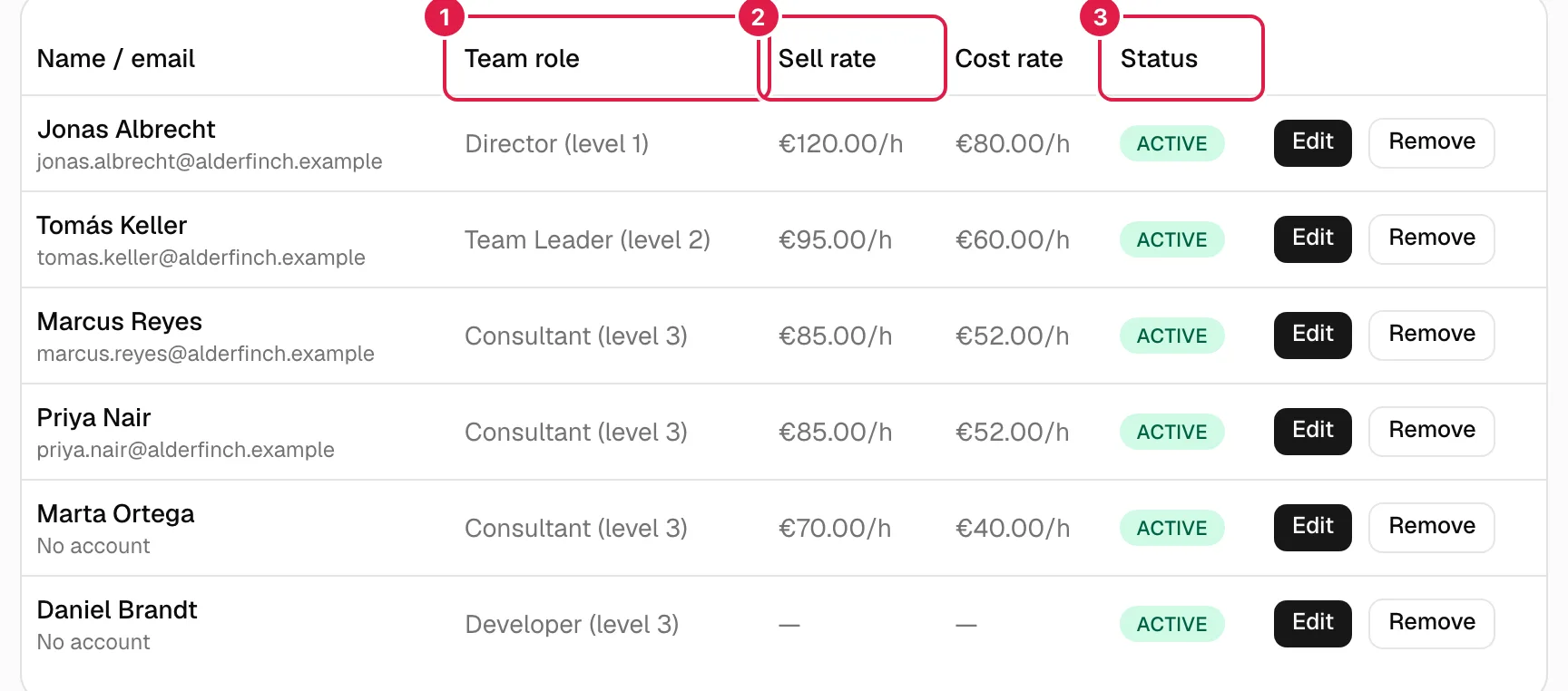
In the image: 1 team role with its level, 2 hourly sell rate and 3 member status.
The team table
| Column | What it shows |
|---|---|
| Name / email | Name and email for people with an account; name and the “No account” mark for people without one (see People). |
| Team role | The role and its level, in the form “Team Leader (level 2)”. |
| Sell rate | Hourly sell rate in the project's currency, followed by “/h” (for example “€95.00/h”). “—” if not defined. |
| Cost rate | Hourly cost rate, likewise. |
| Status | Active (green) or Invited (amber). |
| Actions | Edit and Remove, owning PM only. For everyone else the cell is empty. |
Statuses: Active and Invited
- Active: the person is already part of the team. It is the status every member is created with from the current interface, with or without an account.
- Invited: a member whose account does not exist yet because they were invited by email directly to this team. The current interface no longer creates members this way (invitations are made from People), so you will only see it in older projects. An invited member is shown with their email, with no access yet; once they accept the invitation they become Active. Invited members cannot receive tasks.
A person without an account whom you have invited from People still shows as Active and “No account” until they accept; when they do, their row becomes that of their real account, with the role and rates they had.
Team roles and levels
The team role describes the person's part in this project and is independent of their account role (PM or Consultant/Developer). The role catalogue (Director, Team Leader, PM, Consultant, Developer, CEO and any you create) is managed in Team roles. What matters here is the level:
| Level | Factory roles | What it gives in this project |
|---|---|---|
| 1 | CEO, Director | See the whole project, read-only. |
| 2 | Team Leader, PM | See the whole project, read-only. The Team Leader can also reassign the PM. |
| 3 | Consultant, Developer | Nothing special: they still see only the tasks assigned to them. |
No team role allows modifying the project: that always belongs to the owning PM.
The “whole organisation” role (CEO) in the selector
In the role selector, the CEO appears as “CEO (level 1)”. When you choose it, the text below reads: “Gives read-only access to this project. Visibility of the whole organisation is granted in Settings → Organisation members.”. In other words: assigning someone as CEO in a project only gives them read access to that project. For them to see all the organisation's projects they must be registered in Organisation members (see Organisation members).
Add people to the team
Only the project's owning PM.
- Press Add people.
- The Add people to the team dialog shows a table with everyone in your organisation (with and without an account) who is not yet on this project's team. Those who are already active members, and you as owning PM, do not appear.
- Tick the box of each person you want to add.
- In their row, choose the Team role and, if you want, the Hourly sell rate and Hourly cost rate. The rates are optional; empty means “undefined”, not 0.
- Press Add to team.
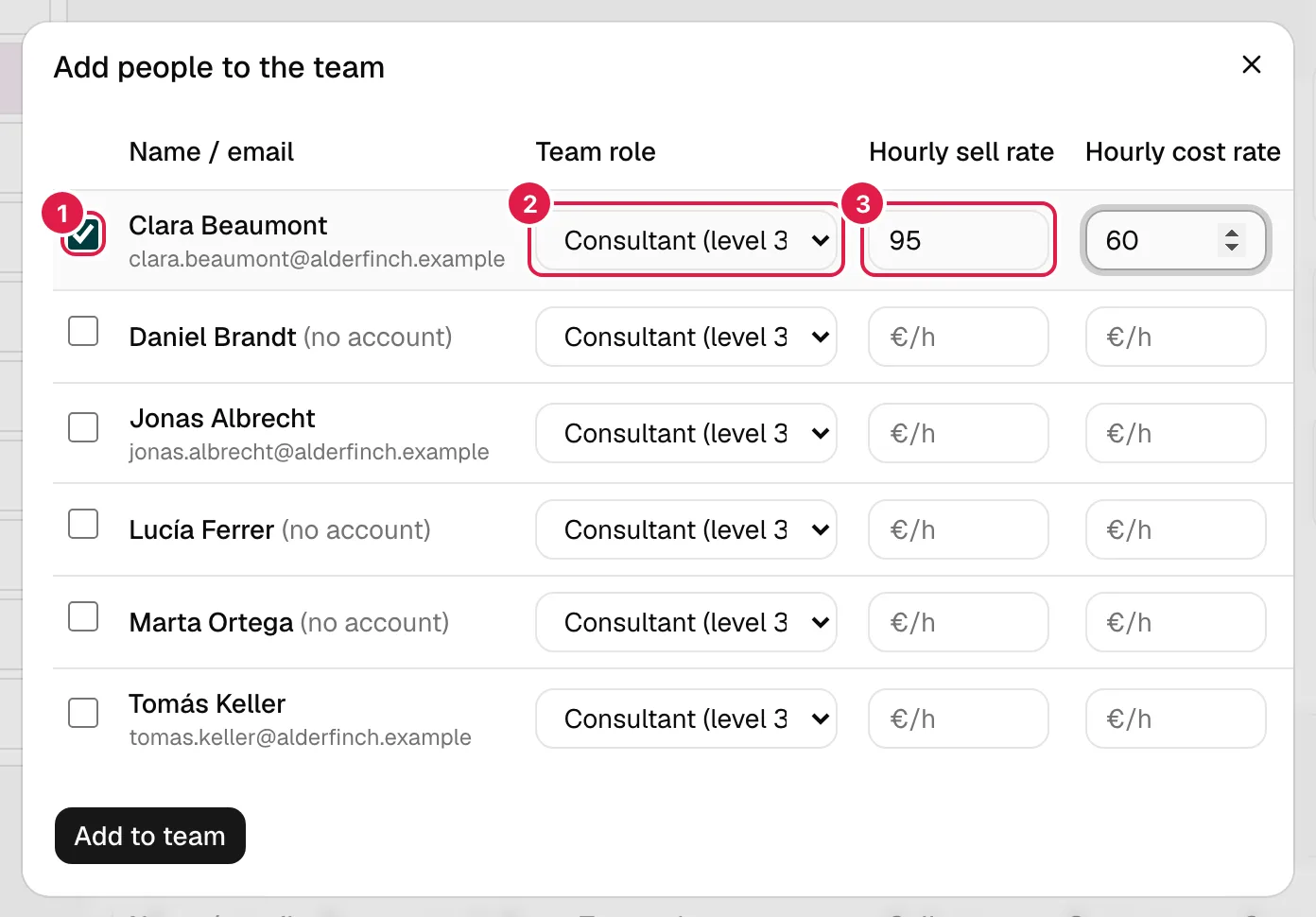
In the image: 1 the person's tick box, 2 their team role and 3 the hourly sell rate.
You can add several people at once, each with their own role and rates. Only ticked rows are taken into account.
Creating new people. This screen only adds people who already exist in the organisation. To create someone new (with or without an account), go to People first. If everyone is already in the project, the dialog says: “There's nobody else to add: your whole organisation team is already in this project.”.
Possible errors
| Message | When |
|---|---|
| “Select at least one person.” | You press Add to team without ticking anyone. |
| “You've selected the same person more than once.” | Duplicate entry (it should not happen from the dialog). |
| “The hourly sell rate must be a number equal to or greater than 0.” / “The hourly cost rate must be a number equal to or greater than 0.” | A negative rate or one that is not a number. |
| “That user is already a member of this project.” / “That person is already a member of this project.” | Someone added them in another tab while you had the dialog open. |
| “The selected team role doesn't exist.” | The role was deleted from the catalogue in the meantime. |
Edit a member
Only the project's owning PM.
Press Edit in the row. The Edit team member dialog lets you change the Team role, the Hourly sell rate (optional) and the Hourly cost rate (optional). Emptying a rate leaves it “undefined”. The same rate validations apply as when adding.
Changing the role changes at once what the person can see: moving them from Consultant (level 3) to Team Leader (level 2) gives them read-only visibility of the whole project; the reverse takes it away. You cannot change the person themselves (for that, remove them and add someone else).
Remove a member
Only the project's owning PM.
Press Remove and confirm: “Are you sure you want to remove this member from the project team?”. The person leaves the team and can no longer be chosen in this project's selectors. What already exists is not deleted: their assigned tasks and logged hours stay where they were, and the person remains in the organisation. If they had visibility through a level 1 or 2 role, they lose it.
Hourly rates: what they are for and who sees them
The sell rate (what you charge per hour of that person) and the cost rate (what it costs you) are specific to the person + project combination: the same person can have different rates in two projects. They are expressed in the project's currency (see Edit a project). The assistant's client report uses them to estimate the billable amount and the cost of the logged hours; hours from people with no rate are counted separately (see Status, forecast and portfolio).
The rates are visible in the table itself, so whoever sees the table sees them: the owning PM, team members with a level 1 or 2 role and “whole organisation” members. This is intentional: they are the people with full visibility of the project. Level 3 people and Consultants/Developers see neither the section nor the rates.
Who can do what
| Action | Owning PM | Level 1-2 in the project | “Whole organisation” member | Consultant/Developer |
|---|---|---|---|---|
| See the table and the rates | Yes | Yes | Yes | No |
| Add people | Yes | No | No | No |
| Edit role and rates | Yes | No | No | No |
| Remove members | Yes | No | No | No |
Related topics
Updated 2026-10-08