Master data and catalogues
The master data are the lists of values that fill the drop-downs in your projects: the main platform or technology, the deliverable type of a task, the expense type, the currency, the status of an issue and the templates used to create phases. They belong to your organisation: whatever you change here applies to all your projects. You reach them from Settings.
Only the PM sees and changes the catalogues. If someone with another role opens the address of a catalogue, the application shows the generic “Something went wrong” error screen instead of a notice about missing permissions (see Frequently asked questions).
Team roles and organisation members are also managed from Settings, but they have their own pages: Team roles and Organisation members.
Common concepts
Factory values and your own values
When you sign up, your organisation receives an initial catalogue (see Sign-up and first sign-in). These factory values are shown translated into each person's language: “Cloud platform” appears as “Plataforma en la nube” in Spanish. The values you create yourself are shown exactly as you typed them, in every language.
- If you edit a factory value and leave its text as it is, it stays a factory value (and translated).
- If you change its text to something else, it becomes yours and is no longer translated.
- If you later delete a factory value and create a new one with its original text (in any language, ignoring case), it regains its factory status and is shown translated again.
- Two values cannot look the same: the new name is compared, ignoring case, with the saved name and with the translations of the factory values in all four languages. If it clashes, you see “A platform / technology called "…" already exists.” (or the equivalent for each catalogue).
Activating, deactivating and deleting
- Deactivating removes a value from future options without losing what is already recorded. It is reversible.
- Deleting removes it completely. First the application asks for confirmation with a browser prompt (“Delete …?”). If the value is in use, the deletion is rejected with a message and you can deactivate it instead (where the catalogue allows it).
Who can do what
| Action | PM | Consultant/Developer | Organisation member (CEO) who is not a PM |
|---|---|---|---|
| See and manage catalogues | Yes | No | No |
| Use the values in forms | Yes (depending on the form) | Only those offered on their tasks | Read-only |
Platforms / main technologies
Path: Settings → Master data → Platforms / main technologies. Catalogue of a project's main platform or technology: the ERP being implemented, the BI tool, the development stack, the design software… It is optional in each project (the “Platform / main technology (optional)” field when you create or edit a project).
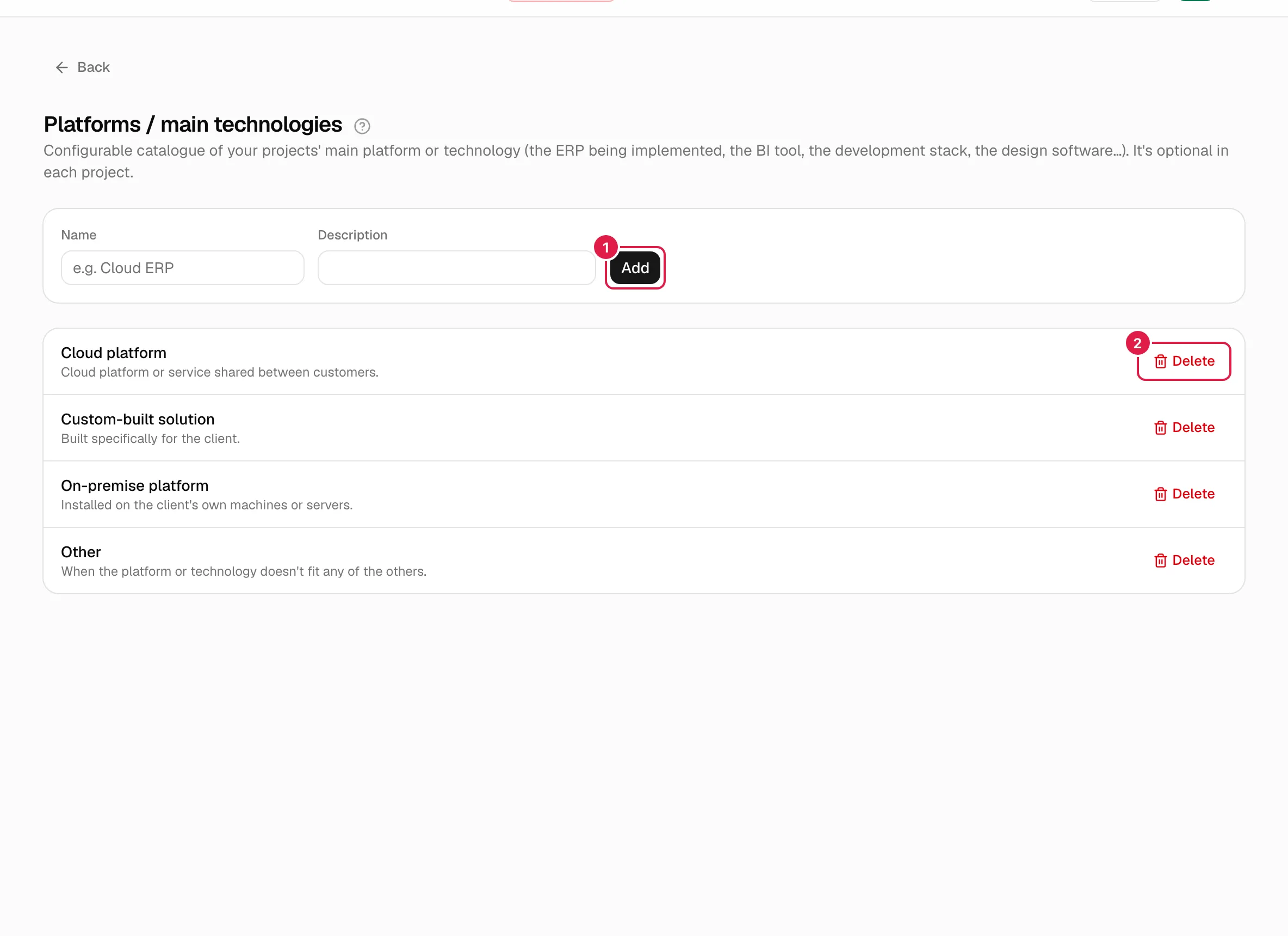
Factory values: “Cloud platform”, “On-premise platform”, “Custom-built solution” and “Other”, each with its description.
Create
Fill in Name (required) and, if you like, Description, and press Add. Possible errors: “The platform / technology name is required.” and “A platform / technology called "…" already exists.”.
Edit
This screen has no edit button and no activate/deactivate button: it only lets you add and delete. To change a name, create the correct value and delete the old one (if no project uses it).
Delete
Press Delete in the row and accept the prompt “Delete the platform / technology “…”?”. If a project uses it: “It can't be deleted: some projects use this platform / technology.”. Change the platform of those projects first, from their edit screen.
Deliverable types
Path: Settings → Master data → Deliverable types. When a task requires a deliverable, you say which type it is (for example “Closing report”). Details in Assignees, dependencies, checklist and deliverables.
This catalogue has no factory values: it starts empty (“No deliverable types configured yet.”).
Create
Name (required) and an optional Description, then Add. Names cannot be repeated within your organisation. The application does not check for duplicates in a friendly way: if you repeat a name, saving fails with the generic error screen instead of a clear message (see findings); check the list before adding.
Activate and deactivate
Each row has a Deactivate / Activate button and an Active / Inactive badge. It asks for no confirmation. An inactive type disappears from the drop-down for new tasks and when editing tasks, but tasks that already had it keep it.
Delete
Delete with the confirmation “Delete the deliverable type “…”?”. If a task uses it: “It can't be deleted: some tasks use this deliverable type.”. Deactivate it instead.
Expense types
Path: Settings → Master data → Expense types. Each expense in a project picks one from this list.
Factory values: “Service”, “Materials”, “Travel” and “Software licence”.
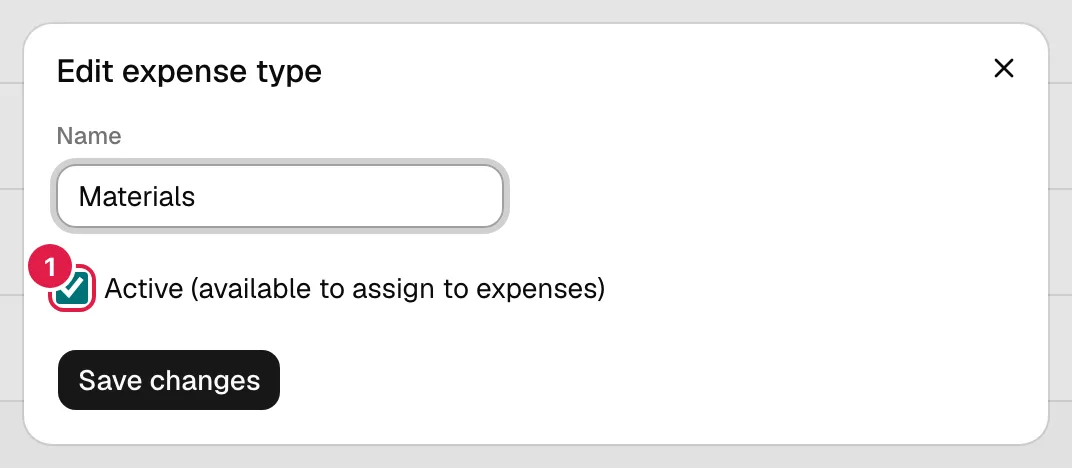
- Create: Name field and Add. Errors: “The expense type name is required.” and “An expense type called "…" already exists in your organisation.”.
- Edit: Edit button → “Edit expense type” dialog with Name and the checkbox “Active (available to assign to expenses)”. Saved with Save changes. Renaming a factory value makes it your own.
- Deactivate: untick the checkbox. The badge changes to Inactive, but the expenses drop-down still offers inactive types too: today the checkbox is only a visual marker in this list.
- Delete: confirmation “Delete the expense type “…”?”. If expenses have that type: “It can't be deleted: some expenses use this type.”.
Currencies
Path: Settings → Master data → Currencies. Each project has a currency, in which its team's hourly rates are shown, and each expense picks its own (by default, the project's).
Factory values: “EUR — Euro”, “USD — US dollar” and “GBP — Pound sterling”. Every new project is created in EUR; you can change it later when you edit the project.
- Create: Code (ISO 4217) (exactly three letters; converted to capitals) and Name; press Add. Errors: “The currency code must be exactly 3 capital letters (ISO 4217).”, “The currency name is required.” and “A currency with the code "…" already exists in your organisation.”. The application only checks that the code looks like a currency code, not that it really exists.
- Edit: Edit → “Edit currency” with Code, Name and the checkbox “Active (available to assign to projects)”. If you change the code of a currency that projects already use, those projects start showing the new currency without any warning: do not change it if prices have been recorded; create another one.
- Deactivate: as with expense types, the badge changes to Inactive, but the project and expense drop-downs still offer it.
- Delete: “Delete the currency “…”?”. If a project uses it: “It can't be deleted: some projects use this currency.”.
Issue statuses
Path: Settings → Master data → Issue statuses. This is the lifecycle of the issues of the whole organisation (unlike task statuses, which are per project).
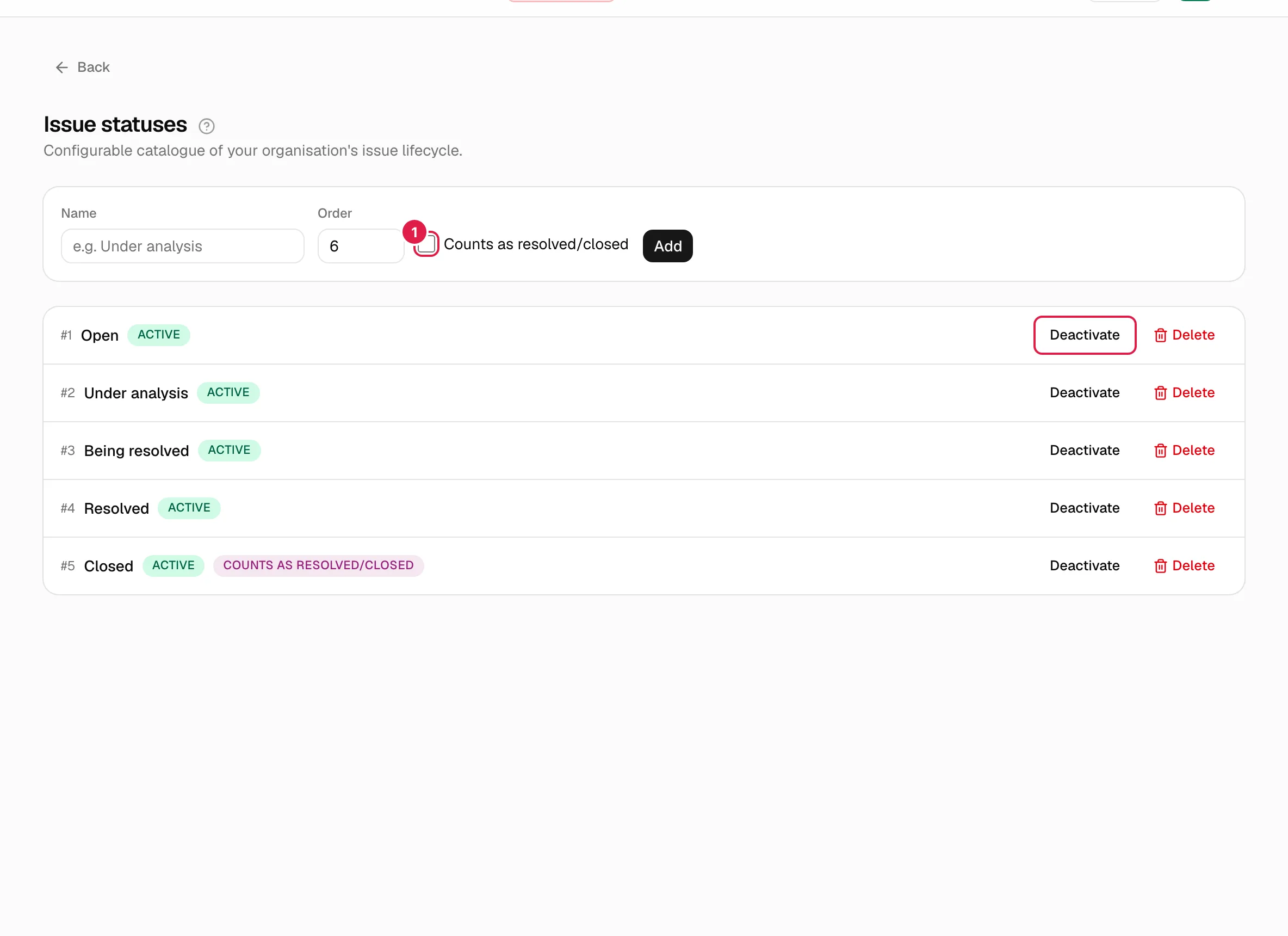
Factory values (in order): 1 Open, 2 Under analysis, 3 Being resolved, 4 Resolved, 5 Closed. Only “Closed” counts as final.
Create
Fields: Name, Order (an integer from 1; the next free one is suggested) and the checkbox Counts as resolved/closed. Press Add. Errors: “The issue status name is required.”, “The order must be a number equal to or greater than 1.” and “An issue status called "…" already exists.”.
The checkbox matters: when an issue moves to a status that counts as resolved/closed, the application sets its closing date automatically; if it goes back to a non-final status, the date is cleared. The figures for open and closed issues are calculated with that flag. The order sets the order of the board columns and of the lists, and the initial status of a new issue is the active one with the lowest order.
Activate, deactivate and delete
- Deactivate / Activate (no confirmation): an inactive status is not offered in the forms or on the board, except for the issues that already have it.
- Delete: “Delete the issue status “…”?”. With issues in that status: “It can't be deleted: some issues use this status.”.
- If you deactivate or delete all of them, creating an issue fails with “Your organisation has no issue statuses configured. Set up at least one in Settings → Issue statuses.”.
Project templates
Path: Settings → Master data → Project templates. A template is an ordered list of phases. When you create a project you pick one (or “Blank project (no initial phases)”) and its phases are copied to the project, with their code F001, F002… and in the language of whoever creates it. Later changes to the template never affect projects already created.
Predefined templates
They carry the Predefined badge and cannot be deleted or changed: neither name, nor description, nor phases.
| Template | Phases |
|---|---|
| ERP implementation | Analysis, Configuration/set-up, Data migration, Custom developments, Training, Testing/UAT, Go-live, Post go-live support |
| Software development | Discovery, Design, Development, Testing, Deployment, Support |
| BI project | Requirements, Data modelling, ETL, Visualisation/Dashboards, Validation, Production |
| Architecture / Engineering | Preliminary design, Basic design, Detailed design, Permits, Construction/Execution, Handover |
The Edit button does appear on them: it opens the dialog with the fields disabled and the text “Predefined templates have a fixed name, description and phases.”. Pressing Save changes there always returns the error “The name of a predefined template can't be changed.”. Close it without saving. If you need a variant, create a template of your own.
Create a template of your own
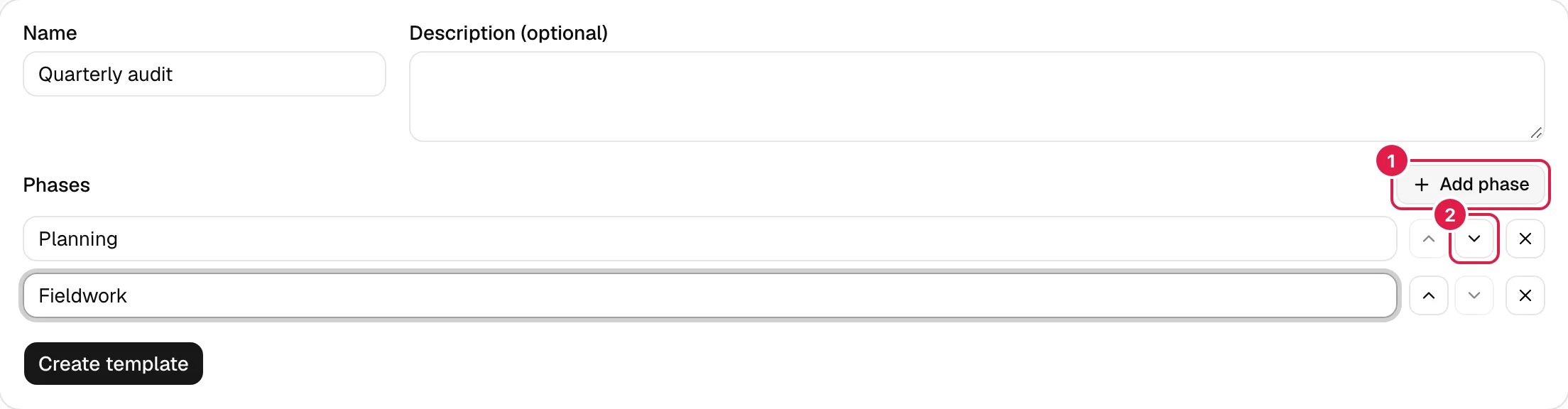
- Enter the Name (required, unique) and, if you like, the Description (optional).
- Under Phases, enter the name of the first one. With Add phase you add more rows (“Phase 2”, “Phase 3”…).
- Order them with Move phase up and Move phase down; remove one with Remove phase (at least one row always remains).
- Press Create template.
Rules: empty rows are discarded without warning (you can create a template with no phases; it will show “Phases: none”); two phases cannot have the same name within the template, ignoring case (“The phase "…" appears more than once in the template.”); and two templates cannot have the same name (“A project template called "…" already exists.”). Your own templates appear in the new-project drop-down under “Yours”.
Edit and delete
- Editing a template of your own opens “Edit project template” with the same fields. When you save, the phases are replaced entirely by the new list. No existing project changes.
- Delete (own templates only): “Delete the project template “…”?”. If a project was created with it: “It can't be deleted: some projects use this template.”. That project keeps its phases; it only prevents the template from being deleted.
- Templates belong to the organisation: any PM in the organisation can use and manage them.
Summary: what you can do in each catalogue
| Catalogue | Factory values | Create | Edit | Activate/deactivate (real effect) | Delete |
|---|---|---|---|---|---|
| Platforms / technologies | 4 | Yes | No | Does not exist | Yes, if no project uses it |
| Deliverable types | None | Yes | No | Yes, hides it from the drop-down | Yes, if no task uses it |
| Expense types | 4 | Yes | Yes | Visual marker only | Yes, if no expense uses it |
| Currencies | 3 | Yes | Yes | Visual marker only | Yes, if no project uses it |
| Issue statuses | 5 | Yes | No | Yes, hides it from forms and the board | Yes, if no issue uses it |
| Project templates | 4 (predefined) | Yes | Only your own | Does not exist | Only your own and with no projects |
Related topics
Updated 2026-10-08