Voice: dictation and reading aloud
The assistant panel lets you dictate what you want to ask for and, if you turn it on, have its replies read aloud. Both functions use the voice features already built into your browser: PjMan has no speech recognition or speech synthesis service of its own.
Available to anyone who can use the assistant (PM and Consultant/Developer with their own key). Dictating grants no additional permission: what you dictate is treated exactly like what you type, with the same permissions and, in addition, with mandatory confirmation when creating (see below).
Which browsers allow it
| Function | Needs | If your browser doesn't offer it |
|---|---|---|
| Dictate | The browser's speech recognition (available in Chrome-based browsers, in Edge and in Safari; not in Firefox) | The microphone button appears crossed out and disabled; on hover: “Your browser doesn't support dictation. You can type the message.” |
| Read aloud | The browser's speech synthesis (offered by all current browsers) | The reading switch isn't even shown |
Dictating also needs an internet connection in some browsers and an available microphone.
Languages
Recognition and reading use the language of your interface (Settings → Preferences): Spanish (Spain), British English, German or French. So dictate in the same language you have selected in PjMan. For reading, the browser picks a voice in that language if it has one installed (first the preferred regional variant, then any other in the same language); if there is none, it uses the system's default voice, which may sound with an odd accent.
Dictate a message
- Press the microphone (Dictate) in the lower corner of the message box.
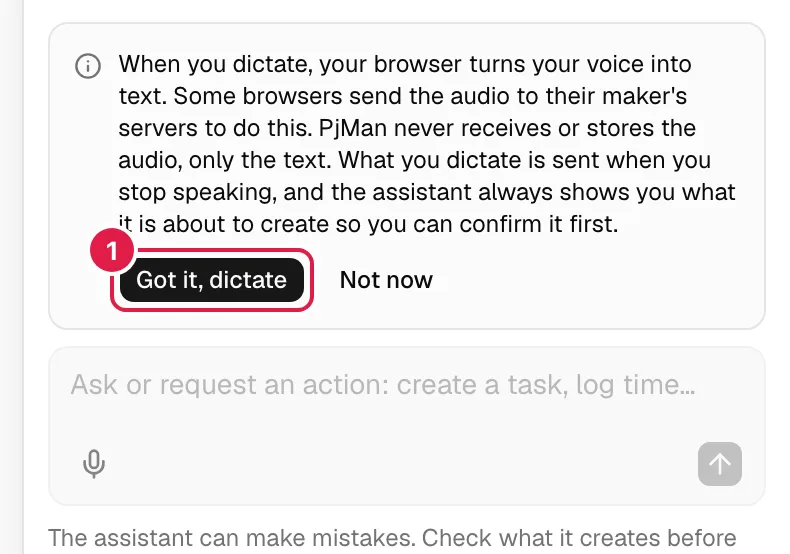
- The first time in each browser a privacy note appears. Press Got it, dictate to start (Not now closes it without dictating). It doesn't appear again in that browser.
- The browser asks for permission to use the microphone: accept. While it waits, the button shows “Waiting for microphone permission”.
- When the button turns green with a blinking dot and the box says “Listening…”, speak. What the browser understands is written into the box as you speak.
- When you stop speaking, the browser detects the silence and the message is sent by itself as a voice turn. There is no need to press Send.
Details of each button and key:
| Action | Effect |
|---|---|
| Microphone (inactive) | Starts listening. If there was already text in the box, what you dictate is added after it. |
| Microphone while listening (“Stop dictating and send”) | Ends listening and sends whatever has been understood. |
| Esc while listening | Cancels listening without sending; the text understood stays in the box so that you can correct it. |
| Microphone disabled | There is no AI key configured, or the assistant is replying. |
Dictate short, complete sentences: listening ends with a pause and only picks up one sentence per press. If a pause interrupts you in the middle of a sentence, what was said up to that point will be sent; check the card (see the next section) or press the microphone again to complete it.
Dictation errors
If something fails, a note is shown with a ✕ (“Close notice”) and nothing is sent:
| Situation | Message |
|---|---|
| Microphone permission denied | “The browser isn't allowed to use the microphone. Allow it from the icon next to the page address and try again.” |
| No microphone | “No microphone detected. Connect one and try again.” |
| No connection | “Dictation needs an internet connection in this browser. Check your connection and try again.” |
| Heard nothing | “I didn't hear you. Press the microphone and try again.” |
| Other error | “Dictation couldn't be used. Type the message or try again.” |
Why dictating always asks for confirmation
Recognition can misunderstand figures or names (“two hours” for “twelve hours”). That is why, while the conversation the assistant sees contains a dictated message, any creation asks for a confirmation card, even if you have turned confirmation off in Settings. The card explains the reason: “You dictated it: check it was understood correctly.”. Typing a follow-up message (“OK, do it”) doesn't remove the flag while the dictated message is still in the history window. Changing and deleting always ask for confirmation, whether you dictate or type. See Confirmation by risk level.
Read the replies aloud
The speaker icon in the panel header (“Read replies aloud” / “Stop reading replies aloud”) turns reading on. It is a preference of your account (remembered between sessions and devices), off by default.
With reading on, the browser reads each reply when it finishes. A bar “Reading the reply…” appears with a Stop button. What exactly is read:
- Only the text of the reply: no code, JSON, links, web addresses, identifiers or formatting marks. Abbreviated hours are spoken in words (“2 h 30 min” is read as “2 hours 30 minutes”).
- At most around 1,500 characters; the rest stays on screen (“The rest is on screen.”).
- If the assistant proposes an action, it reads a short summary and the closing question, for example “I'm going to log 2 hours on the task Prepare data import. Shall I go ahead?”. A batch is summarised by types (“I'm going to record 2 tasks and an issue. Shall I go ahead?”). It confirms nothing for you: you still press the button.
- Client reports and meeting preparations aren't read in full: it only tells you that they are on screen.
Reading stops when you send a new message, press the microphone, close the panel, with Esc or with Stop. Turning on reading when the browser has no voices doesn't cause an error: it simply makes no sound.
Privacy
- When you dictate, your browser is what turns the voice into text. Some browsers send the audio to their maker's servers to do so; that depends on the browser and its configuration, not on PjMan.
- PjMan neither receives nor stores the audio, only the resulting text. That text is treated like any message: it is sent to the AI model provider with your key (what data is sent) and stored in your history for 30 days. It is also stored that the message was dictated, to force confirmation.
- Reading aloud also happens in your browser; PjMan doesn't generate audio.
- The privacy text is shown on the first dictation and in Settings → Assistant (“Voice dictation”).
Related topics
Updated 2026-10-08