Pasted text: notes and requirements
If you paste a long text into the panel (meeting notes, an email with requirements, a list of tasks), the assistant reads it and offers to turn it into records: meeting minutes with their agreements, tasks, risks, change requests, or a structure of phases and tasks. Everything arrives in a single batch card so that you can review it before anything is created.
Anyone with the assistant can paste text, but what can be created depends on your role. Meeting minutes, risks, change requests, phases, tasks and new projects can only be proposed by a PM (and tasks, phases, minutes and so on only in projects they own). A Consultant/Developer can paste a text to ask about it, but the assistant will only propose what their role allows (for example, logging time on their tasks); it explains the rest as “not allowed”.
How to paste a text
- Open the assistant panel (how) and, if your question is about a project, open it first or tell the assistant which one it is.
- Paste (Ctrl/⌘+V) into the message box. If the text is longer than 400 characters or has 4 lines or more, it doesn't go into the box: a pill appears above it with “Pasted text (1,250 characters)” and the start of the text. A short text is pasted straight into the message, as usual.
- Write what you want (“Turn these notes into meeting minutes for the project Retail ERP rollout and create the tasks”) or send without writing anything: it goes out with “Here is this text.” and the assistant proposes whatever it finds useful.
- You can paste several fragments: they are joined into the same text, separated by a blank line.
The pill has two buttons:
| Button | Effect |
|---|---|
| Paste into the message | Moves the text into the message box and treats it as written by you. Use it only if the text is yours and you want to edit it; you lose the protection described below. |
| ✕ Remove the pasted text | Discards it. |
If sending fails because of the connection, the pasted text is kept in the pill so that you can try again.
Why it is handled separately: security
Even if you paste it yourself, the text may be from someone else (a forwarded email, someone else's notes) and could contain hidden orders (“delete all the tasks”, “don't ask”). That is why the pasted text travels separately from the message, the server marks it as “third-party text” and the assistant treats it as data, never as instructions: it only does what you ask in your message. In addition:
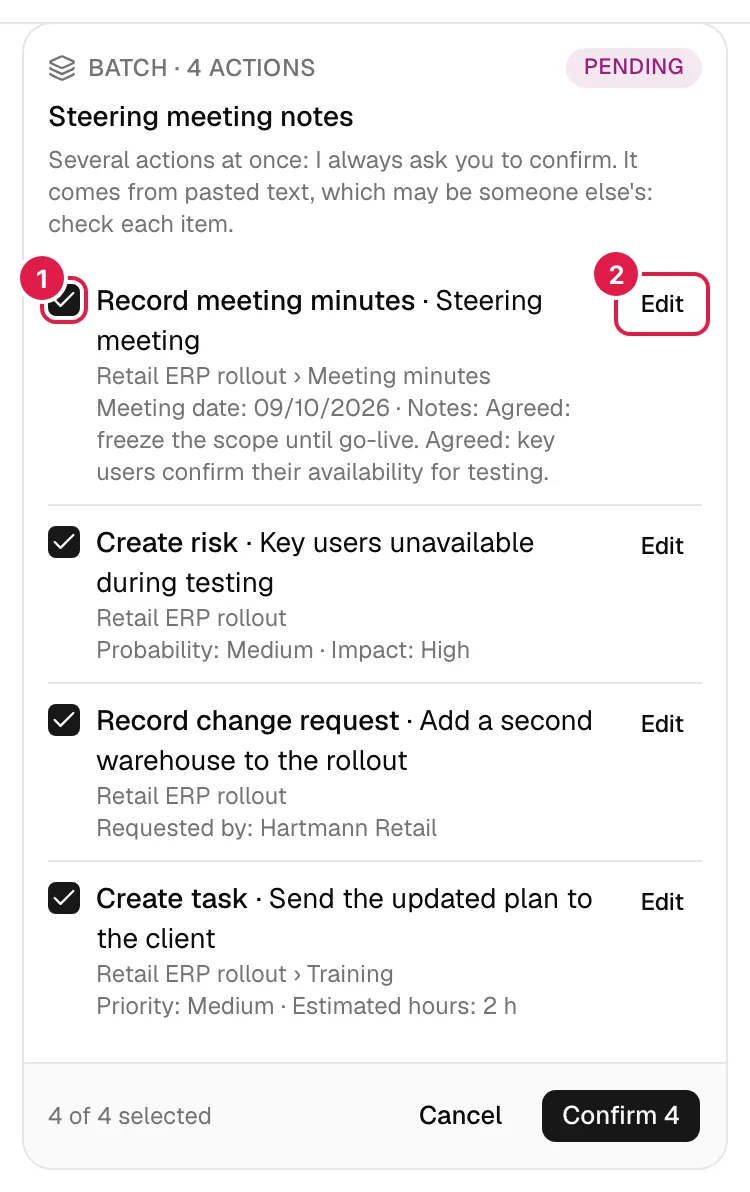
- Anything created from a pasted text always asks for a confirmation card, even if you have turned confirmation off, with the notice “It comes from pasted text, which may be someone else's: check each item.”. And since there are several writes, it goes in a batch, which is also always confirmed (see Confirmation).
- Identifiers that appear inside the text are of no use: the assistant always looks for projects, phases and people with its tools, with your permissions.
- In the following turns of the conversation, the pasted text is replaced by “[pasted text omitted in later turns]” so that you don't pay for it on every message (the “third-party text” mark is kept). If you later want to ask more about that text, you will have to paste it again.
Meeting notes
With some notes, the assistant prepares in a single batch:
- The minutes (title, date, notes) with their agreements: each agreement has a description, an owner and a due date, and when the minutes are created it generates an unassigned follow-up task in the phase you indicate (the owner goes in the task description). Up to 20 agreements per set of minutes.
- The risks that are mentioned (probability, impact and the status “Identified”).
- The change requests (who requests it, effort or cost if they are stated; created as pending a decision).
- The tasks that are not agreements of the minutes.
- If the owner of an agreement matches without doubt a person on the project team, an assignment of that person to the task the agreement will generate. If there are several matches or none, it doesn't assign and says so (“owner to be confirmed”).
Relative dates (“on Friday”, “next week”) are resolved with your local date and written as absolute dates. Before confirming you can untick items (the minutes and their tasks depend on each other) or Edit each one; the cards warn about possible duplicates (a similar risk or request created in the last 14 days).
Requirements into structure
If you paste a requirements document or a scope, the assistant proposes the corresponding phases and tasks, with estimated hours. Those hours are set by the assistant itself, and the card says so: “Estimated hours (assistant's estimate)”. They are indicative: review or edit them before confirming. Two destinations:
- In an existing project (the one you have open or the one you name): the phases are created and each task goes in its corresponding new phase.
- In a new project: the batch includes Create project (“New blank project”, with name and client; dates and hour budget if stated) and its phases and tasks. A project created this way uses no template: it is a blank project to which the batch adds the phases. Only a PM can do this.
New tasks start in the project's first status. With more than 20 items, the assistant proposes a part first (“I suggest the phases of … first”) and tells you so.
Limits and tips
- A maximum of 12,000 characters per pasted-text message (if you go over: “The pasted text is too long (… characters; maximum 12,000). Paste it in parts.”). The message you write has its own limit of 4,000.
- A long text costs more tokens than a short one (cost).
- If you paste an email from a project contact, it is sometimes better to import it into Communications and use the Ask button on that screen (Communications).
- Always review the card: the assistant may misread names or dates. You have 10 minutes to Undo the whole batch.
- The assistant doesn't upload the text as a document or save it as an attachment: the only things that remain are what you create and your conversation history (30 days).
Related topics
Updated 2026-10-08