Kanban boards
A Kanban board is another way of looking at the same tasks or issues you already have in a list: each column is a status and each card is a task or an issue. Changing the status is as simple as dragging the card to another column. It is not a separate module: it uses the same data, the same permissions and the same rules as the task or issue form.
Every role has boards, but each sees a different set of cards and can move only some of them (see Who sees and who moves what). The Queries boards are only for PMs and “entire organisation” members (for example a CEO).
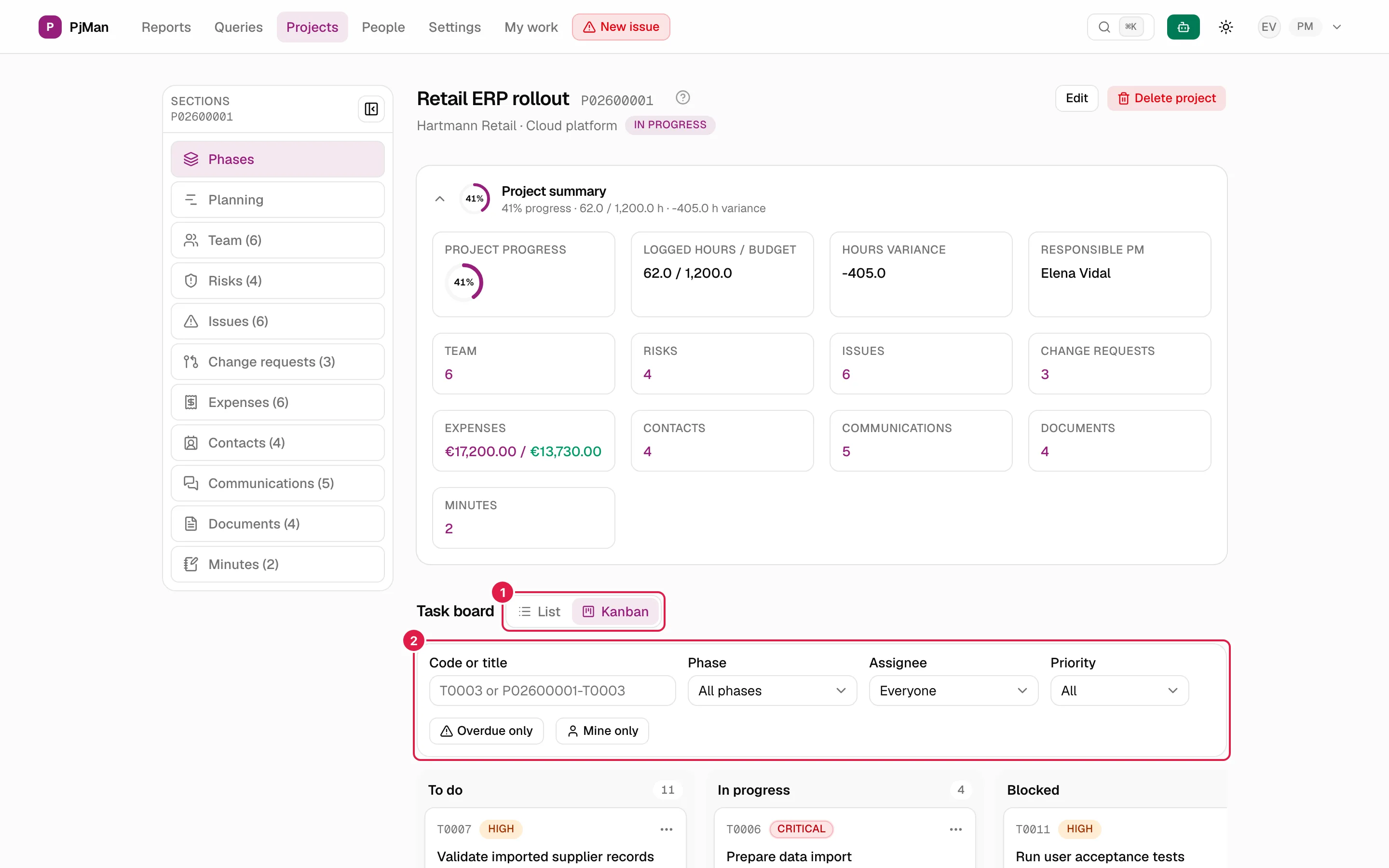
Where the six boards are
There is a task board and an issue board in three places. In all of them you get there with the List | Kanban switch next to the title of each view; each view has its own address, so you can bookmark it or reload it.
| Place | Task board | Issue board | Who can enter |
|---|---|---|---|
| A project | The project's Phases tab → Kanban (/projects/…/board) |
The project's Issues tab → Kanban (/projects/…/incidents/board) |
Whoever sees the whole project: the owning PM, the Director/Team Leader on the team and “entire organisation” members |
| My work | My work → My tasks → Kanban (/my-tasks/board) |
My work → My issues → Kanban (/my-tasks/incidents/board) |
Anyone with an account, only with what is assigned to them |
| Queries | Queries → Tasks → Kanban (/consultations/board) |
Queries → Issues → Kanban (/consultations/incidents/board) |
PMs and “entire organisation” members |
For screen readers the switch is called “Task view” or “Issue view”. When you go from the Queries or My work list to the Kanban board, the project filter (projectId) is kept if you had one set; the other filters are not carried over.
How the board is organised
- Columns = statuses. In a project, the columns are that project's task statuses, in their order. On the issue board they are the organisation's issue statuses (those under Settings → Issue statuses; see Master data and catalogues).
- Number in the header: the total number of cards in the column (with the search applied, even if not all of them are showing).
- Circle icon with a green tick next to the name: it is a final status (for example “Closed”). It is shown with the label “Final status”.
- “(inactive)”: a deactivated issue status only appears if it still has cards in it, and it does not accept new cards.
- Empty column: “No tasks” or “No issues”.
- Several projects at once (My work and Queries): the columns group the equivalent statuses of each project (same factory key or same name, ignoring case). Hovering over the column number shows “Groups the statuses with this name from {n} projects.”. Statuses that are final in every project go last; the rest are sorted by their average position.
- Order within a column: automatic, no manual ordering. In non-final task columns: overdue tasks first, then by priority (critical to low), then by due date (those without a date last) and by code. For issues: severity, priority, the longest-detected first and code. In final columns: the most recently completed or closed first. That is why a card does not stay where you drop it, but where it belongs by order.
- “Show more” and limits: each column shows 50 cards and a Show more ({n}) button for another 50. On the Queries board the text “Showing {x} of {y}” gives the real total and “Show more” asks the server for the next ones. On a project's board and in My work, up to 2,000 cards are loaded; if there are more, “There are more than 2000 cards: the 2000 most recent are shown. Use the filters to narrow it down.” appears.
What each card shows
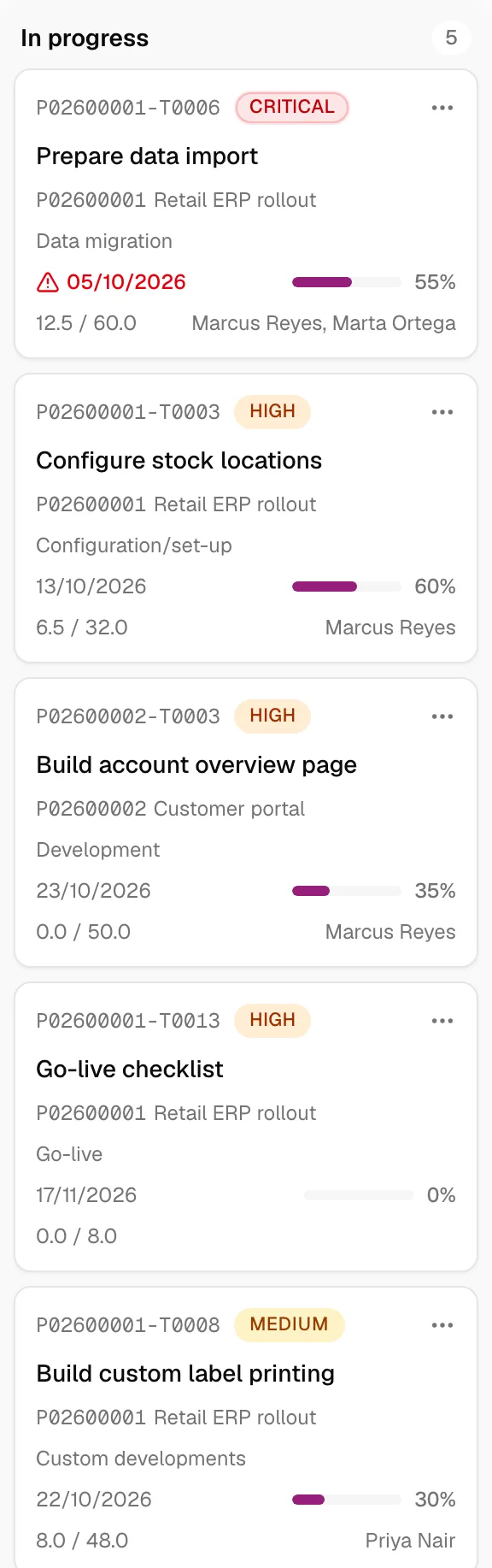
- Code (
T0003, orP02600001-T0003outside a project, where two T0003 from different projects may exist) and priority (tasks) or severity (issues). - On the right, indicators: a dashed circle if the task is in a final status but not marked as finished (“In a final status, but not marked as finished”); a padlock if you cannot change its status (the reason shows when you hover); “Moving…” while it is being saved; and the ⋯ button with the card's actions.
- Title (up to three lines). It is a link: a click anywhere on the card opens its detail in a modal.
- Outside a project, the code and name of the project.
- Tasks: phase name, due date (in red with a triangle if overdue: date in the past and non-final status) and progress bar. Issues: “Priority: …”, the linked task (arrow icon and its code), the phase (its own or that of the linked task) and “Detected on …”.
- Logged / estimated hours (for example
18 / 24), or “logged / not estimated”; in red if the logged hours exceed the estimate. - Assignees: up to two names and “+n” for the rest. They are not shown on the My work board (everything is yours).
Moving a card to another status
There are two equivalent ways:
By dragging. With the mouse, pick up the card and drop it in another column (you need to move about 5 pixels, so that a simple click still opens the card). On touch screens, press and hold the card for a moment before dragging (so it is not confused with scrolling the board). While you drag, columns where it cannot be dropped are dimmed and show the reason:
- “This status doesn't exist in this task's project.” (boards with several projects: the column groups statuses from other projects, but this task's project has no equivalent status).
- “Inactive status: issues can't be moved here.”
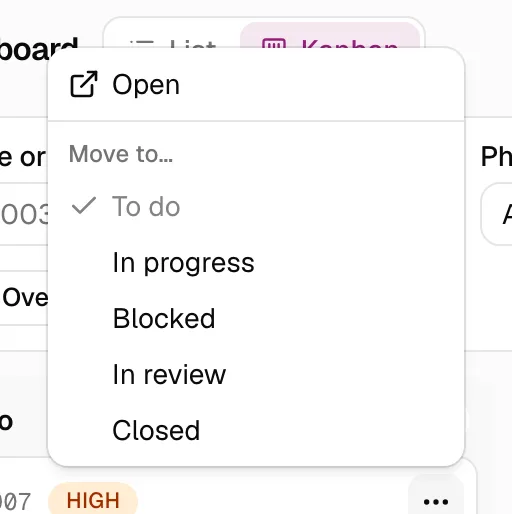
With the card menu. The ⋯ button (“Actions for {code}”) offers Open and, if you can move the card, the Move to… group with all the available statuses; the current one is marked with a tick and disabled (for screen readers, “(current status)”). It is the accessible alternative to dragging: it works with a keyboard and a screen reader, and when you finish, focus returns to the ⋯ button of that card. For issues, the list does not include deactivated statuses (except the current one).
What happens when you drop
- Immediate response: the card jumps to the new column at once and is dimmed with “Moving…” until the server replies.
- The server decides with the usual rules. Moving has no rules of its own: it is exactly the same as changing the Status in the task or issue form, with the same permissions.
- Success: the notice “{code} moved to “{status}”.” with an Undo button that puts it back in its previous status (notice “{code} is back in “{status}”.”).
- Automatic dates: on entering a final status the completion date (tasks) or closing date (issues) is set; on leaving a final status and returning to a non-final one, that date is cleared. They do not change the “Finished” checkbox, client validation or the % progress: that is why a task moved to “Closed” may show the dashed circle until you mark it as finished in its detail.
- Every change is announced to screen readers (“Picked up {code}. It's in “{status}”.”, “… was dropped in “{status}”.”, “Move cancelled…”).
Error notices when moving
If something fails, the card goes back to its column and a red notice appears in the format “{code} couldn't be moved. {reason} It's back in “{status}”.”. The actual reasons:
| Reason | When it happens |
|---|---|
| “You don't have access to this task.” | Task: you are neither the owning PM nor assigned to it. |
| “Only a PM can perform this action.” | Issue: your account is not a PM account. |
| “You don't have access to this project.” | Issue: you are a PM, but not the owner of that project. |
| “The selected status doesn't belong to this project.” | The target status no longer exists in the task's project. |
| “The selected issue status doesn't belong to your organisation.” | The target issue status no longer exists. |
| “The detection date is later than today: correct it before moving the issue to a final status.” | Issue with a future detection date that you try to close. |
| “No connection to the server. {code} is back in “{status}”.” | The connection was lost while moving. |
Conflict with another person. If someone changed the same card while you were moving it, their change is not overwritten: the card stays in its real status and “Someone changed {code} in the meantime: it's now in “{status}”. It hasn't been moved.” appears with a Refresh board button. (If the status can no longer be determined: “Someone changed {code} in the meantime. It hasn't been moved.”). If “Show more” fails: “More cards couldn't be loaded.”.
If moving a task unblocks others that depended on it, a notice says so (“1 task was unblocked automatically: …”) and the board refreshes.
Filters and search
The filter bar sits above the columns (on narrow screens it folds behind the Filters (n) button, with the number of active filters). All filters are saved in the page address.
| Filter | What it does | Project | My work | Queries |
|---|---|---|---|---|
| Code or title | Searches by code (T0003 or P02600001-T0003, or I0003 for issues) or by title text, ignoring case and accents |
Yes | Yes | Yes |
| Project | Limits to one project (and therefore changes the columns) | — (you are already in one) | Yes | Yes |
| Phase | Only with a project chosen (“Choose a project” while there is none); includes indented sub-phases. In My work only the phases where you have work are listed | Yes | Yes | Yes |
| Assignee | One person (with or without an account), Unassigned or Everyone | Yes | — | Yes |
| Priority (tasks) / Severity (issues) | Low, Medium, High, Critical | Yes | Yes | Yes |
| PM | Only that PM's projects | — | — | Only “entire organisation” members |
| Overdue only (tasks) | Due date in the past and non-final status | Yes | Yes | Yes |
| Mine only | Only cards assigned to you | Yes | — | Yes |
| Include closed projects | By default closed projects are left out | — | Yes | Yes |
- In a project and in My work, filtering is immediate (in your browser, without reloading; the text search waits 250 ms after you stop typing). In Queries, filtering is done on the server: adjust the filters and press Search (or Enter in the text field).
- Clear filters appears when any filter is active.
- No results: “No tasks match these filters.” / “No issues match these filters.” with the Clear filters link. With no cards and no filters, the text depends on the place: “This project has no tasks yet. Create them from the list view.”, “You have no assigned tasks.”, “There are no tasks in your projects.” (and the issue equivalents). A project with no task statuses shows “This project has no task statuses set up.”.
- On the Queries board, the project filter only offers the projects you see in full.

Who sees and who moves what
Which cards each person sees
| Role | A project's board | My work | Queries |
|---|---|---|---|
| PM | Their projects | What is assigned to them directly | Tasks and issues of their projects, plus what is assigned to them in others |
| Director / Team Leader (team role, level 1-2) | The projects where they are on the team at that level | What is assigned to them directly | Only if they are also a PM or an “entire organisation” member |
| Consultant/Developer | No (they see the access notice) | What is assigned to them directly | No (they see “You don't have access to this section: it's only for PMs and organisation members (team role marked “whole organisation”, e.g. CEO).”) |
| “Entire organisation” member (CEO) | Any project in the organisation | What is assigned to them directly | The whole organisation, with the PM filter |
Which cards each person can move
| Card | Who can change its status |
|---|---|
| Task | The project's owning PM and the people with an account assigned to it |
| Issue | Only the project's owning PM |
Everyone else sees the card with a padlock (“You can't change this task's status: only the project PM and the assignees can.” or “Only the project PM can change this issue's status.”), cannot drag it, and their ⋯ menu only offers Open. A CEO, a Director or a Team Leader sees other people's cards but only moves those they could change by hand: being level 1-2 gives visibility, not write access. A Consultant/Developer does move the tasks assigned to them, but not issues, even if assigned to them.
Related topics
Updated 2026-10-08