Short codes
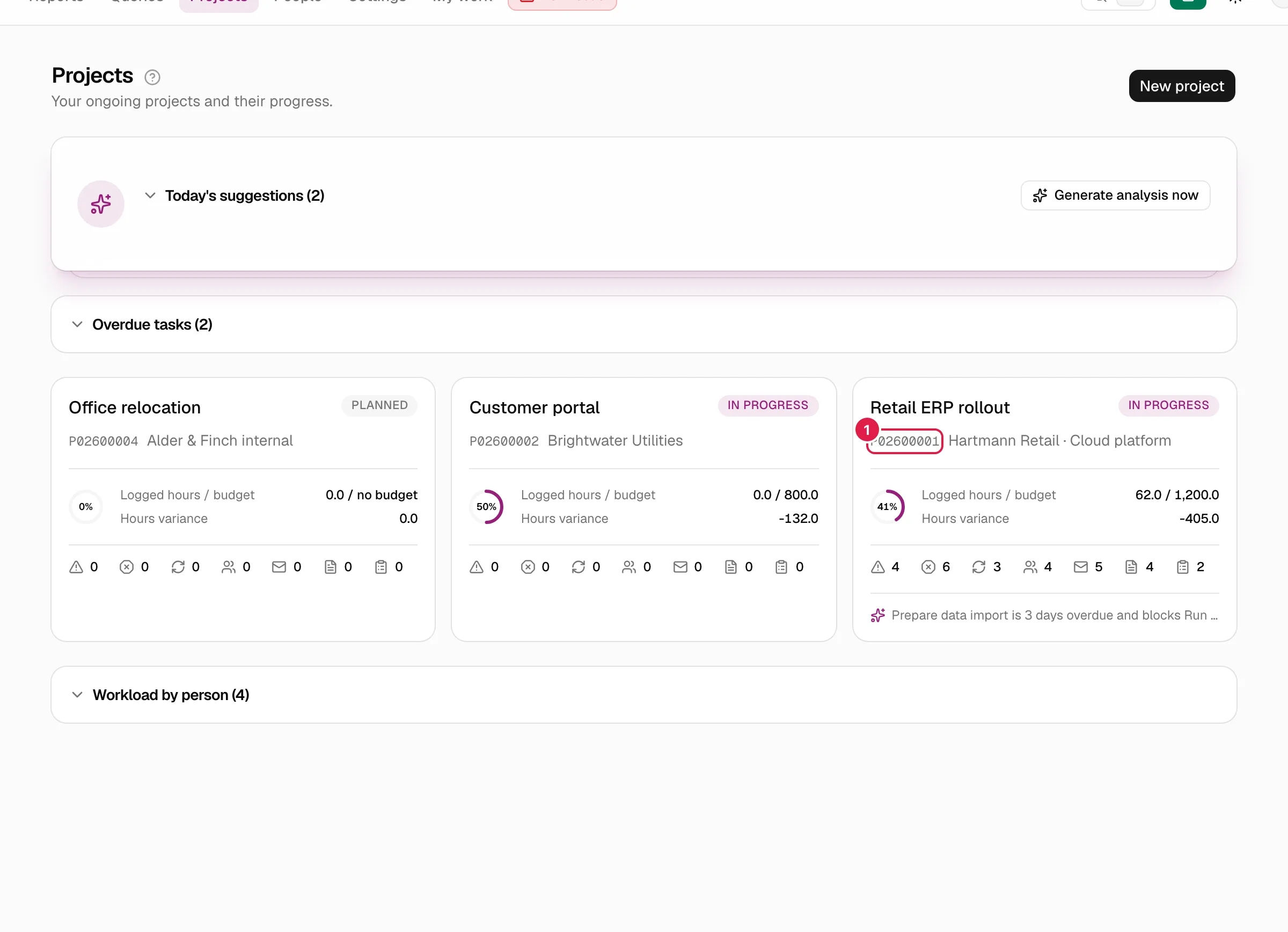
Every project and every record in a project (phase, task, issue, expense…) receives a short code when it is created, and it never changes. It lets you name unambiguously something that, by title, could be repeated: “T0003”, “risk R0002 of project P02600001”. The codes are the same in all four languages and are not translated.
All roles see the codes of what they can see. A code only resolves to records you already have access to (see below).
Code format
Project: P + the last 3 digits of the creation year + a 5-digit sequence number counted per organisation and year. Example: P02600001 is the first project created in 2026. The year is that of the creation date in the time zone of the person who creates it (the one in Settings → Preferences).
All other records: a letter + a sequence number counted per project. Phases use 3 digits; everything else, 4.
| Record | Letter | Digits | Example |
|---|---|---|---|
| Project | P (+ year) | 3 + 5 | P02600001 |
| Phase (and sub-phase) | F | 3 | F001 |
| Task | T | 4 | T0003 |
| Issue | I | 4 | I0001 |
| Expense | G | 4 | G0001 |
| Risk | R | 4 | R0001 |
| Change request | S | 4 | S0001 |
| Contact | C | 4 | C0001 |
| Meeting minutes | A | 4 | A0001 |
| Communication | M | 4 | M0001 |
| Document | D | 4 | D0001 |
| Time entry | H | 4 | H0001 |
Details worth knowing:
- Sub-phases share the numbering of phases (they are phases with a parent phase).
- The zero padding is a minimum: past 9,999 the number keeps growing (
T10000). - A record's full reference adds the project:
P02600001-T0003. Because theT0003numbering repeats in every project, the full reference is the one that identifies a record across the whole organisation. - Deliverables, checklist items and assignments have no code of their own.
- The letter
Eis reserved for deliverables, but is not used today.
They are immutable and never reused
A code cannot be edited or reassigned. If you delete task T0003, number 3 is not used again: the next task will be T0004. If a creation fails halfway, there may be a gap in the numbering; that is normal. The counters are incremented atomically, so two simultaneous creations never get the same number.
Where you see them
The code appears in grey, in a small monospaced font, next to the name:
- Cards and list of Projects, and the header and side menu of each project.
- Phase cards and the tables of tasks, issues, expenses, risks, change requests, contacts, communications, meeting minutes, documents and time entries.
- The header of a task's and an issue's detail.
- Cards on the Kanban boards.
- The assistant's cards, which show the code of what it is about to create or change and, once executed, that of what was created.
A click on the code selects all of it so you can copy and paste it (for example, into the assistant).
How to use them to search
| Where | What you type | What it finds |
|---|---|---|
| Command palette (Ctrl/⌘+K) | P02600001, T0003 or P02600001-T0003 |
A result in the Go to code group that takes you to the record |
| Code filter in Queries (tasks, time entries, issues) | T0003 or P02600001-T0003 |
The rows whose full reference contains what you typed |
| Code or title filter on the boards | T0003 or P02600001-T0003 (issues: I0003) |
The matching cards |
| Assistant | “T0003”, “phase F002 of project P02600001”… | The record, so it can act on it |
The code filter works by content of the full reference:
T0003finds that task in any project.P02600001finds everything in that project.P02600001-T0003finds exactly that record.
Upper/lower case and spaces are ignored (p02600001 - t0003 works).
In the palette
Type the code as it is. If it is a project or a full reference, it always resolves. If you type only T0003 (a relative code), the palette needs to know which project you mean: it uses the project of the screen you are on (a project's, or that of the open task, issue or phase, or the My work page of a project). Outside a project, a relative code gives no result: use the full reference.
When you pick the result you go to:
| Code of… | Destination |
|---|---|
| Project, phase | Project summary |
| Task, issue | Its detail |
| Time entry | The time entries of its task or issue |
| Expense, risk, change request, contact, meeting minutes, communication, document | The corresponding tab of the project, positioned on that row |
With the assistant
You can type it or dictate it. The assistant understands “T0003”, “tee zero zero zero three”, “task 3”, “phase two”, “project 26-1”, “Aufgabe drei” or “tâche trois” and converts it into the real code. If you type it without a project, it looks for it in the project open on screen; with no project on screen, it looks across all your projects and, if it exists in several, asks you which one you mean. If it does not find it, it tells you, using the code it understood.
Permissions: a code grants no access
Resolving a code applies the same read rules as the rest of the application:
- Project, phases, expenses, risks, change requests, contacts, meeting minutes, communications and documents: you need to see the full project (owner PM, team member with a Director/PM/Team Leader level, or CEO).
- Tasks and issues: those you can see (for a Consultant/Developer, only those assigned to them).
- Time entries: those of a task or issue that you can see.
A code from another organisation, from a project you cannot access or that does not exist gives exactly the same result (none): whether it exists is not revealed.
Related topics
Updated 2026-10-08