Suggestions and bugs
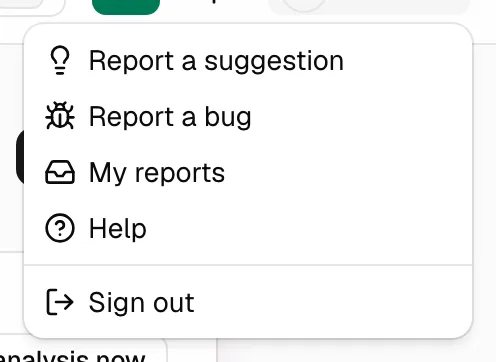
If you have an idea to improve PjMan or something does not work, you can tell whoever maintains the platform directly from your account menu (top right, your avatar and your role). It has nothing to do with your projects: it is a channel about the tool itself.
Anyone with an account can send reports and see their own: PM, Consultant/Developer and organisation members (CEO). Nobody sees another person's reports, not even those of colleagues in their organisation.
Send a suggestion or a bug
- Open your account menu and choose Report a suggestion (an idea or improvement) or Report a bug (something that fails or behaves unexpectedly).
- A dialog opens with the title of the option you chose. The type (Suggestion or Bug) is fixed by the option you chose; it cannot be changed inside the form.
- Fill in:
| Field | What to put |
|---|---|
| Title | A short summary. Required |
| Description | What you wanted to do, what happened and, if it is a bug, which screen you were on. Required |
- Press Send report. You will see “Thank you, we have received your report.” and the dialog closes.
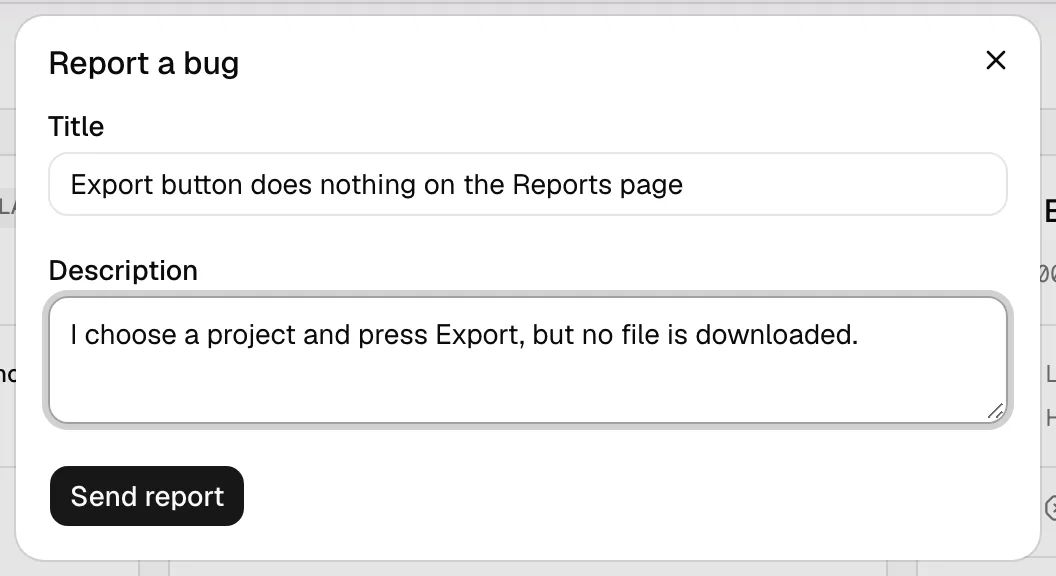
If any detail is missing, the report is not sent and the dialog shows “The title is required.” or “The description is required.”. The description is not marked as required in the form, but the server demands it; remember to fill it in.
Your user and your organisation are stored with the report, so that whoever handles it knows who it comes from; you do not need to write that in.
My reports
Your account menu also has My reports (the /my-feedback screen): the list, from newest to oldest, of what you have sent, with the answer once it has been dealt with. If you have not sent anything, you see “You haven't sent any reports yet.”.
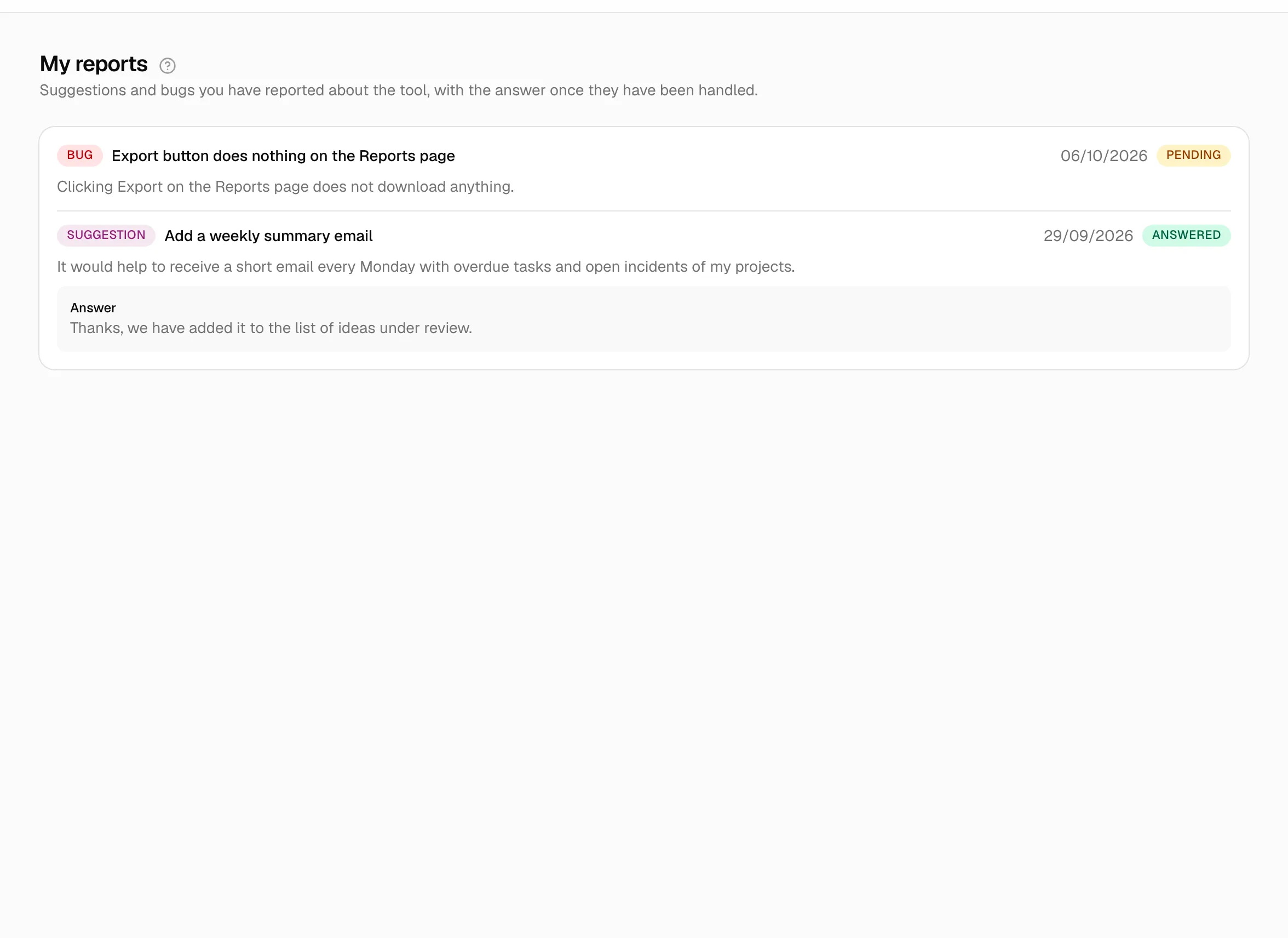
Each report shows:
| Element | Meaning |
|---|---|
| Suggestion (blue) or Bug (red) label | The type you chose |
| Title and date sent | What you wrote and when |
| Status label | Pending (yellow): no answer yet. Answered (green): it already has an answer |
| Description | Your text |
| Answer box | Only on answered ones: the text of the answer |
The screen is read-only: you cannot edit or delete a report you have sent, or reply to the answer. If you need to add something, send another report.
What happens next
The reports of all users and organisations are handled only by the platform operator. When they reply, the report changes to Answered and you will see the text in My reports; no email is sent to you and no notification appears, so look at the list again from time to time. You cannot see who answered. The operator can correct or extend an answer already given; you will see the new version.
There are no other statuses: a report is either pending or answered, and an answer does not necessarily mean the idea will be implemented.
Related topics
Updated 2026-10-08