Language, theme, time zone and password
These four personal settings are not all in the same place. The Preferences tab of Settings contains the language and the guided tour; the theme is changed from the header, the time zone lives in the Assistant tab and the password can only be changed with the recovery link.
Anyone with an account can change their own language and theme. The tour and the time zone require access to the assistant (PMs and Consultants/Developers).
| Setting | Where | Saved | Who |
|---|---|---|---|
| Language | Settings → Preferences | In your account | Everyone |
| Guided tour | Settings → Preferences | In your account | PMs and Consultants/Developers |
| Theme (light, dark, system) | The “Change theme” button in the header | In your browser | Everyone |
| Time zone | Settings → Assistant | In your account | PMs and Consultants/Developers |
| Password | “Forgot your password?” | In your account | Everyone |
Language
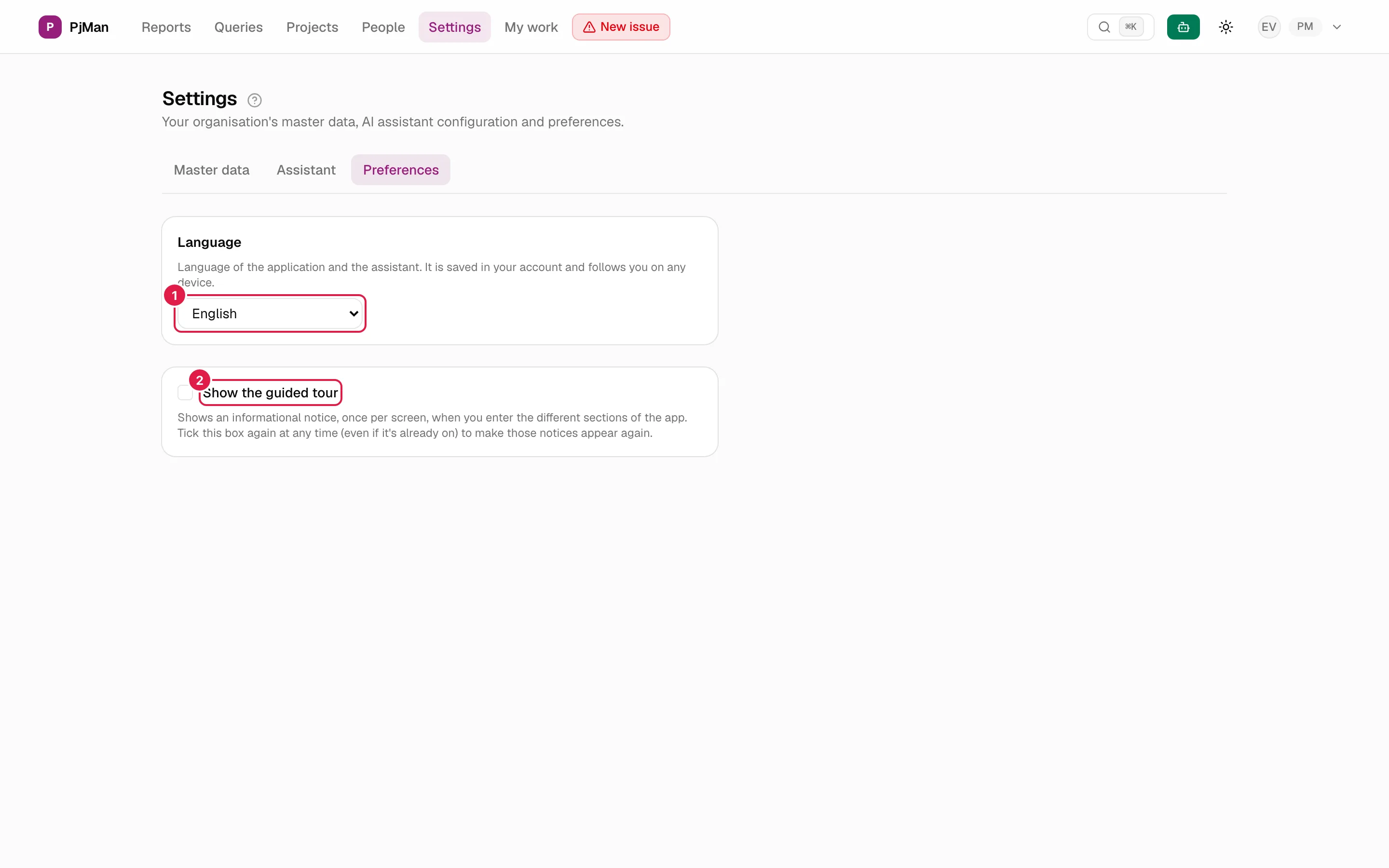
In Settings → Preferences, the Language card explains: “Language of the application and the assistant. It is saved in your account and follows you on any device.”. Choose between Español, English, Deutsch and Français (each language appears under its own name).
- There is no save button: the change applies as soon as you choose the option. The notice “Language updated.” appears, already in the new language.
- It changes the whole application (menus, forms, messages, the factory values of the catalogues) and also the assistant's language.
- It is also remembered for the public part: after you sign out, the sign-in screen appears in your language.
- Your initial language is that of the page from which you signed up or accepted the invitation (see Sign-up and first sign-in).
- It is per person, not per organisation: your colleagues can use another language. The texts each person writes (titles, descriptions) are not translated.
Light or dark theme
In the header there is a button with a sun, moon or monitor icon (described as “Change theme”). When you press it you choose Light, Dark or System (follows your computer's mode). The dot next to the option marks the active one.
The theme is saved in the browser, not in your account: if you sign in from another browser or computer, choose it again. If you have never chosen it, the application starts in dark.
Time zone
It is set in Settings → Assistant (see Your own Anthropic key), not in Preferences. It is a list with a search box (“Search time zone...”). It shows “Time zone: …” and, until you have chosen one, “(default value — set it if it isn't yours)”.
It is used to decide what “your day” is: the assistant uses it for the daily 06
analysis, and the application for the year in the code of a new project. Anyone without access to the assistant does not have this setting.Guided tour
The Show the guided tour checkbox turns on or off the notices that explain each screen. It only appears for PMs and Consultants/Developers. Full details in Guided tour.
Password
There is no screen inside the application for changing the password. To change it:
- Sign out (account menu → Sign out).
- On the sign-in screen press Forgot your password? and enter your email.
- Open the link in the email and choose the new password.
The whole process, with its error messages, is in Sign-up and first sign-in.
Related topics
Updated 2026-10-08