Meeting minutes
A set of minutes puts in writing what was discussed and decided at a project meeting: title, date, an optional phase, notes and a list of agreements (what, who and by when). When you save it, PjMan does three things at once:
- saves the minutes;
- creates a follow-up task for each agreement, so that nothing gets lost;
- generates a text document with the content of the minutes, which you can download.
Its short code is, for example, A0001, unique within the project.
Creating and deleting minutes belongs to the owning PM only. The Meeting minutes tab is seen (read-only, with download) by the project's level 1-2 members (Director, PM, Team Leader) and by CEOs. A Consultant/Developer does not see it, not even if they are assigned to tasks in the project, including the tasks that came from an agreement.
The Meeting minutes tab
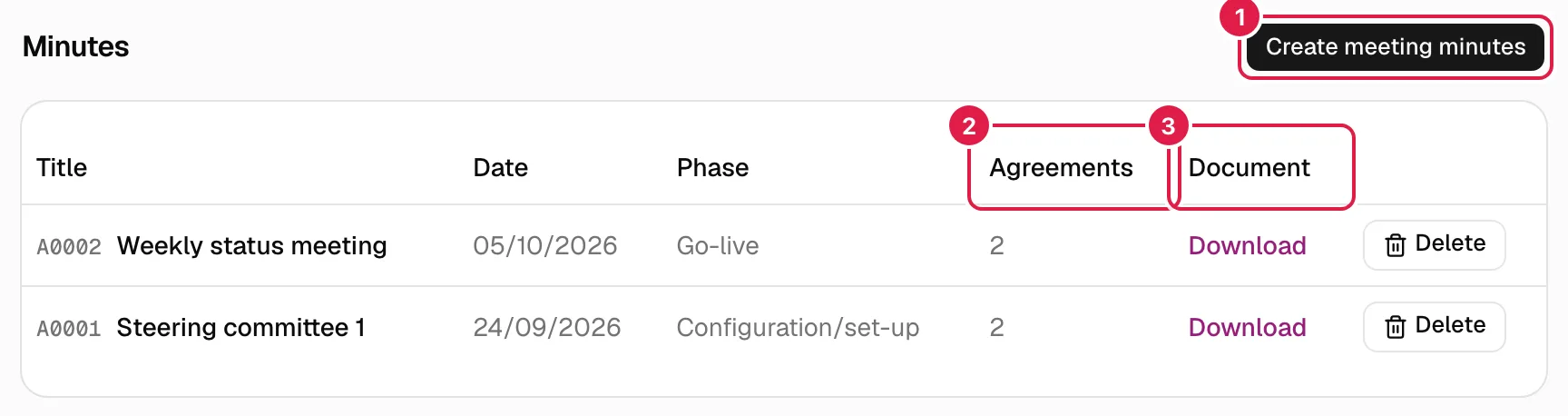
The table is sorted by meeting date, most recent first:
| Column | What it shows |
|---|---|
| Title | Code and title of the minutes. |
| Date | Date of the meeting. |
| Phase | The linked phase or “—”. |
| Agreements | Number of agreements. |
| Document | Download link to the generated document (or “—”). |
With no minutes: “This project has no meeting minutes yet.”. There are no filters or search box, and the content of the minutes (notes and agreements) is not shown in the table: you consult it by downloading the document and, for the agreements, in the tasks they generated.
Creating minutes
Only the project's owning PM.
Press Create meeting minutes. The dialog has the same title.
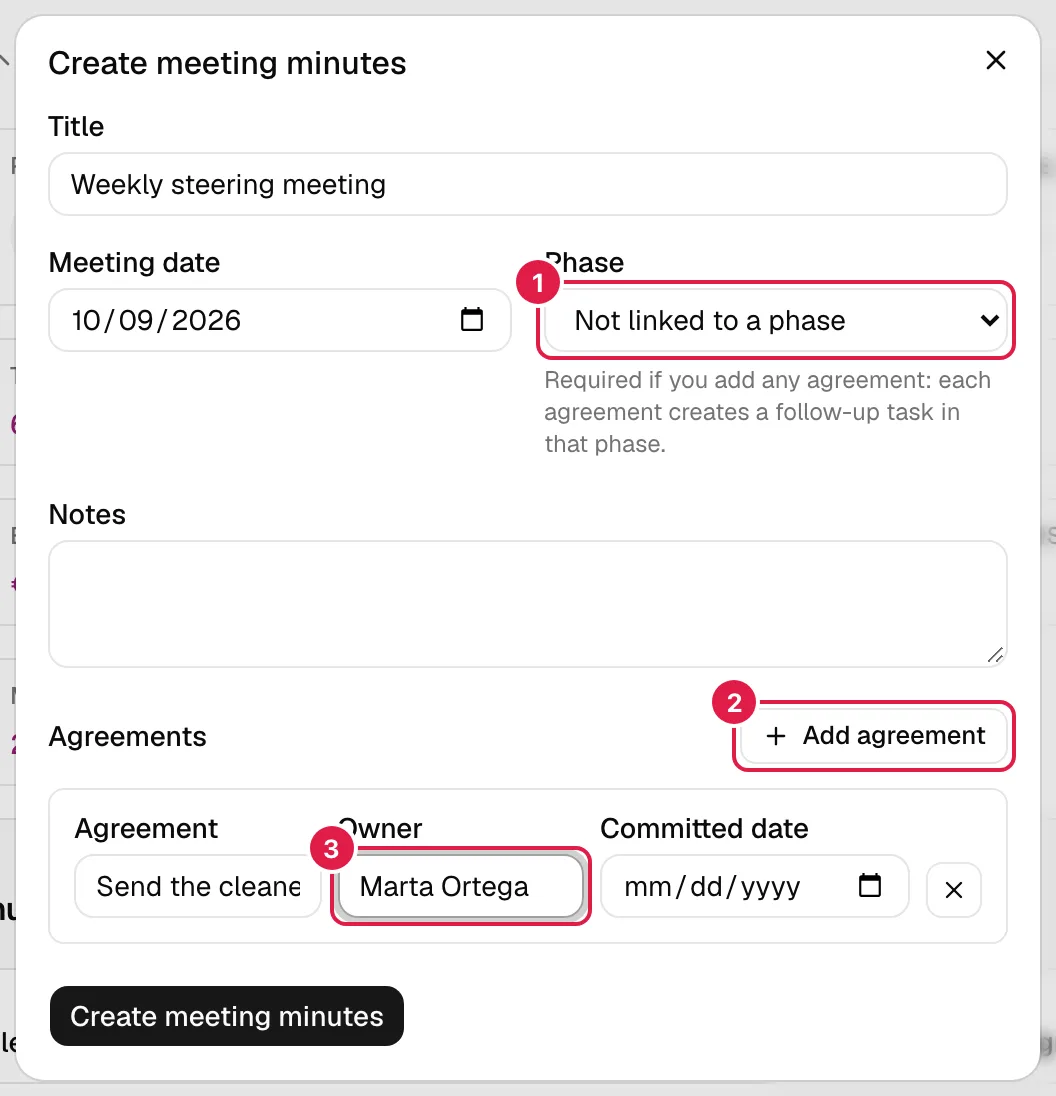
| Field | What it means |
|---|---|
| Title (required) | Name of the meeting. |
| Meeting date (required) | Today by default. |
| Phase | Optional if there are no agreements. “Not linked to a phase” leaves it unassigned. Required if you add any agreement: below the selector a notice says “Required if you add any agreement: each agreement creates a follow-up task in that phase.”. |
| Notes | Free text with what was covered. Optional. |
| Agreements | Dynamic list. With no agreements you will see “No agreements: the minutes will be saved with the notes only, without creating follow-up tasks.”. |
The agreements
Add agreement inserts a line with three fields, and the X (Remove agreement) deletes it:
| Field | What it means |
|---|---|
| Agreement | What was agreed (“Agreement description”). It becomes the task's title. |
| Owner | Name of the person who commits to it. It is free text: it can be someone from the client or someone without an account. |
| Committed date | When it must be done. It becomes the task's due date. It cannot be earlier than the meeting date (the same day is fine). |
What is generated on saving
For each agreement a task is created in the chosen phase with this data:
| Task data | Value |
|---|---|
| Title | The agreement's description. |
| Description | “Owner: {name}. Generated automatically from the meeting minutes “{title}” of {date}.” (in your language). |
| Status | The project's first one (the lowest order; normally the initial one). |
| Due date | The committed date. |
| Estimated hours | 0. |
| Assignees | None. The owner is only written in the description; they are not assigned automatically even if they match someone on the team. Assign them yourself afterwards (see Assignees, dependencies, checklist and deliverables). |
The generated document is a text file named “Minutes - {title} - {date}.txt” (in Spanish, “Acta - …”), with title, date, phase, notes and the numbered list of agreements with owner and date. It is created in the language you were using when you saved and is not updated afterwards. It also appears in the project's Documents tab.
Errors when saving
If something fails nothing is saved (neither the minutes nor the tasks) and you will see the message in red:
| Message | When |
|---|---|
| “The minutes title is required.” | Empty title. |
| “The meeting date is required.” / “The meeting date isn't valid.” | No date or an impossible date. |
| “Each agreement needs a description.” | There is an empty agreement line (remove the lines you do not use). |
| “Each agreement needs an owner.” | The owner is missing. |
| “Each agreement needs a valid committed date.” | The date is missing or invalid. |
| “An agreement’s committed date cannot be before the meeting date.” | Committed date earlier than the meeting. |
| “Select a phase to create the follow-up tasks for the agreements.” | There are agreements and you did not choose a phase. |
| “The selected phase doesn't belong to this project.” | Only if the form is tampered with. |
| “The project has no task statuses configured; the follow-up tasks can't be created.” | Project with no task statuses. |
| “The agreements have an invalid format.” | Internal format error (rare). |
| “Only a PM can perform this action.” / “You don't have access to this project.” | You are not the owning PM. |
Editing minutes
Minutes cannot be edited. To correct a set, delete it and create it again. Bear in mind that the tasks already generated are not deleted along with the minutes (see below), so if you recreate them without cleaning up first you would end up with duplicate tasks: edit or delete the old tasks by hand.
Creating minutes with the assistant
If you paste the notes of a meeting into the assistant, it can propose the complete minutes (with agreements, phase and, if the owner clearly matches someone on the team, the task assignment) together with risks, change requests and tasks, so that you confirm everything at once. It is the only way for an owner to be assigned automatically. There is no import of minutes files.
Deleting minutes
Only the owning PM.
Press Delete on the row. Confirmation: “Are you sure you want to delete these minutes? Their generated document will also be deleted; follow-up tasks already created are NOT deleted.”.
- The minutes, their agreements and their document (including the stored file) are deleted.
- The follow-up tasks are kept, with their hours, progress and comments; they become normal tasks, no longer linked to the minutes.
- Deletion is final from the interface.
Who can do what
| Action | Owning PM | Project Director / PM / Team Leader, and CEO | Consultant/Developer |
|---|---|---|---|
| See the Meeting minutes tab | Yes | Yes (read-only) | No |
| Download the minutes document | Yes | Yes | Not from here |
| Create | Yes | No | No |
| Edit | Does not exist | Does not exist | No |
| Delete | Yes | No | No |
Related topics
Updated 2026-10-08