Contacts
A project's Contacts tab is the address book of the people you deal with on that project: people from the client (a sponsor, the purchasing lead…) and internal people (your own team or third parties such as a supplier). Each contact belongs to a single project, and it is what communications are linked to.
A contact is not a person of the organisation or a team member: it does not sign in, receive tasks or log hours. For that there are People and the Project team.
Only the project's owning PM creates, edits and deletes contacts. The owning PM, anyone with a team role at level 1 or 2 in the project (Director, PM, Team Leader) and organisation-wide members (CEO) can view them (read-only). A level 3 Consultant/Developer never sees contacts or communications, not even in a project where they have tasks.

The table
Each row shows:
- Name, preceded by the contact's short code (for example
C0003), unique within the project, which never changes and is never reused. - Side: Client, Internal or Unconfirmed (see below).
- Role: free text; “—” if empty.
- Email and Phone (“—” if there is none).
The most recent appear first. If the project has none yet you will see “This project has no contacts yet.”. The number of contacts also appears on the tab and in the project summary.
Create a contact
Only the owning PM sees the Create contact button.
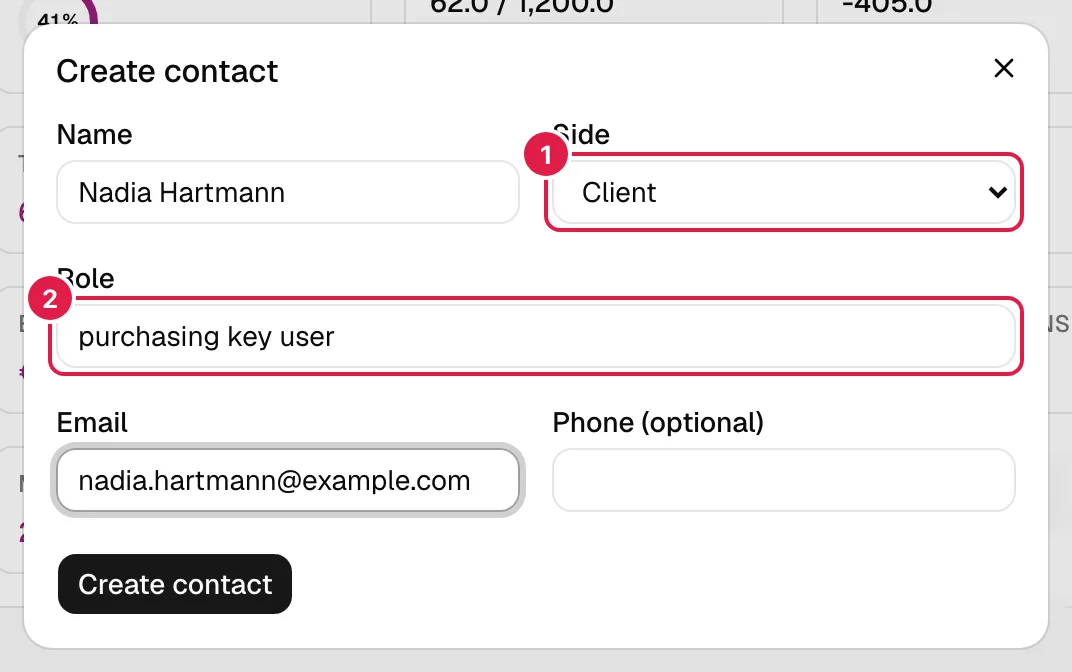
Press Create contact and fill in the dialog:
| Field | Required | What it means |
|---|---|---|
| Name | Yes | The person's name. Surrounding spaces are removed. |
| Side | Yes (Client by default) | Client if they belong to the company you work for; Internal if they are from your team or a third party (for example a supplier). |
| Role | No | Free text about their part in the project: “purchasing key user”, “sponsor”, “external consultant” (the examples the field suggests). There is no closed list. |
| Yes | Their address. The browser requires an email format; the server only requires it not to be empty. | |
| Phone (optional) | No | Free text; the format is not validated. |
If something is missing, the dialog shows the error below the form: “The name is required.”, “The side (client/internal) is required.” or “The email is required.”.
“Key users” and other roles
PjMan does not distinguish contact types beyond the side: a “key user”, a sponsor or a client technician are simply contacts on the Client side with whatever role you type. Use a consistent role (for example “purchasing key user”) so you can pick them out at a glance in the table.
“Unconfirmed” contacts
When you import an email, PjMan automatically creates a contact for each sender and recipient whose email is not already registered in the project. Since it cannot know whether they are from the client or internal, those contacts start with the side Unconfirmed and an empty role: it never invents a value.
To confirm them, press Edit in their row, choose the Side (the selector shows “Select a side...” and will not let you save without choosing one) and, if you want, type the role.
Edit a contact
Only the owning PM sees the Edit button.
Edit opens the Edit contact dialog with the same fields as creation, filled with the current values. The same validations apply: name, side and email cannot be left empty. The role can be emptied, and so can the phone (it shows “—”). Save with Save changes.
Changing a contact's name, email or side is reflected in all of their communications, because they are linked to the contact, not copied.
Delete a contact
Only the owning PM sees the Delete button.
Press Delete and confirm. The warning says it plainly: “Are you sure you want to delete this contact? Their logged communications will also be deleted.”.
It is literal: deleting a contact deletes, with no way to recover them, all the communications logged with that contact (manual or imported, with their thread, status and the assistant's suggestions). The warning does not say how many there are. Before deleting, check in Communications what is linked to that contact.
Deleting the whole project also deletes all its contacts and communications.
Who can do what
| Action | Owning PM | Project Director / PM / Team Leader, CEO | Consultant/Developer (level 3) |
|---|---|---|---|
| See the tab and the contacts | Yes | Yes, read-only | No |
| Create, edit, delete | Yes | No (the buttons do not appear) | No |
| See contacts of other people's projects | No | No | No |
If someone tries to open the tab without permission, they see “You don't have access to this project.” or “Project not found.”.
Related topics
Updated 2026-10-08