Assignees, dependencies, checklist and deliverables
A task with no assignees has nobody responsible for it: nobody will see it in their My work, and nobody except the PM can log time on it. This page explains how to assign people, what a dependency is, how automatic unblocking works, checklists and deliverables.
Assigning, removing, adding dependencies and managing the items of a checklist belong to the owning PM. An assigned consultant sees the task and can tick and untick checklist items.
Assigning people to a task
Only the project's owning PM.
- On the task page, press Assign (in the header). The button only appears if there is still someone left to assign.
- In the Assign to the task dialog, pick someone from the Assign to... drop-down and press Assign.
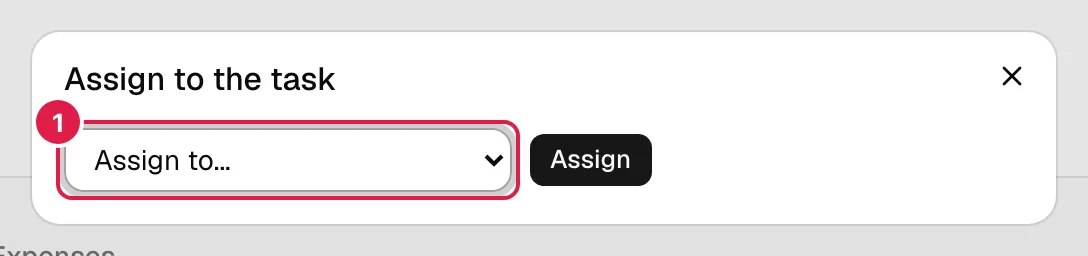
- The list contains the owning PM and the project's active team (not the whole organisation). If someone is missing, add them first in Project team. People without an account appear with “(no account)”.
- You can assign people with an account and people without an account (People of the organisation). A person without an account will never see the task: the PM keeps track of their work and logs their hours for them.
- Assigning the same person twice does not duplicate anything.
- You can also tick assignees right from the start when you create the task.
What changes for the person assigned
A person with an account who is assigned starts to see the task in My work and on their board, can change its status, progress and “Finished” box, and can log their own hours. If they are removed from the task, they stop seeing it; the hours they already logged are kept.
Removing an assignee
Only the owning PM.
On the Assignees tab of the task page (the list of assignees, with “(no account)” next to anyone without an account), press Remove next to the name and confirm “Remove Name from this task?”. If nobody is assigned you will see “Nobody is assigned to this task yet.”
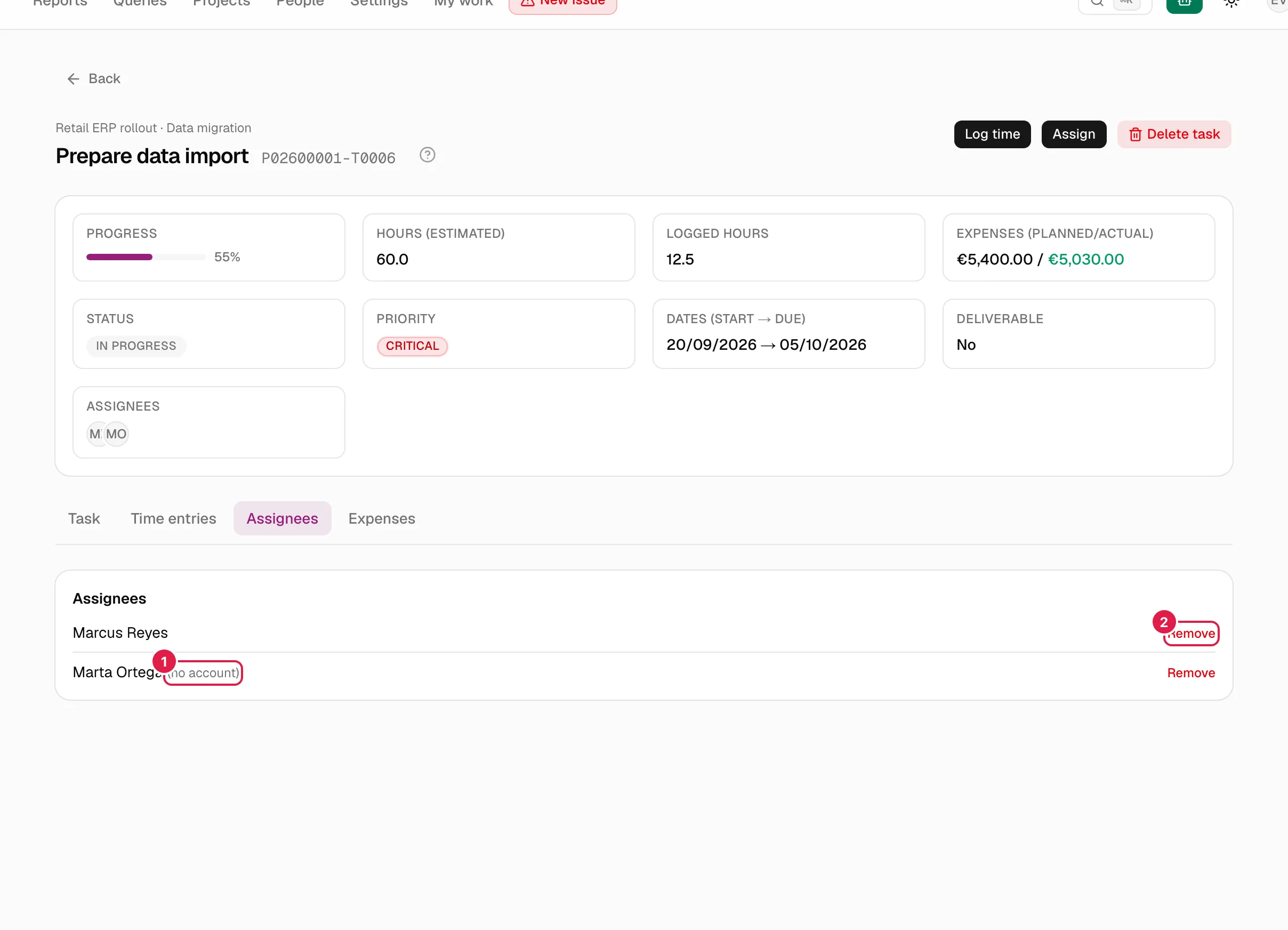
A consultant, and anyone else who can see the task, sees the list but not the Remove button.
Dependencies between tasks
A dependency says that one task (the dependent) should not start until another (the prerequisite) is done. Rules:
- Both tasks must belong to the same project: “Both tasks must belong to the same project.”
- A task cannot depend on itself: “A task can't depend on itself.”
- A task can depend on several others, and several tasks can depend on one.
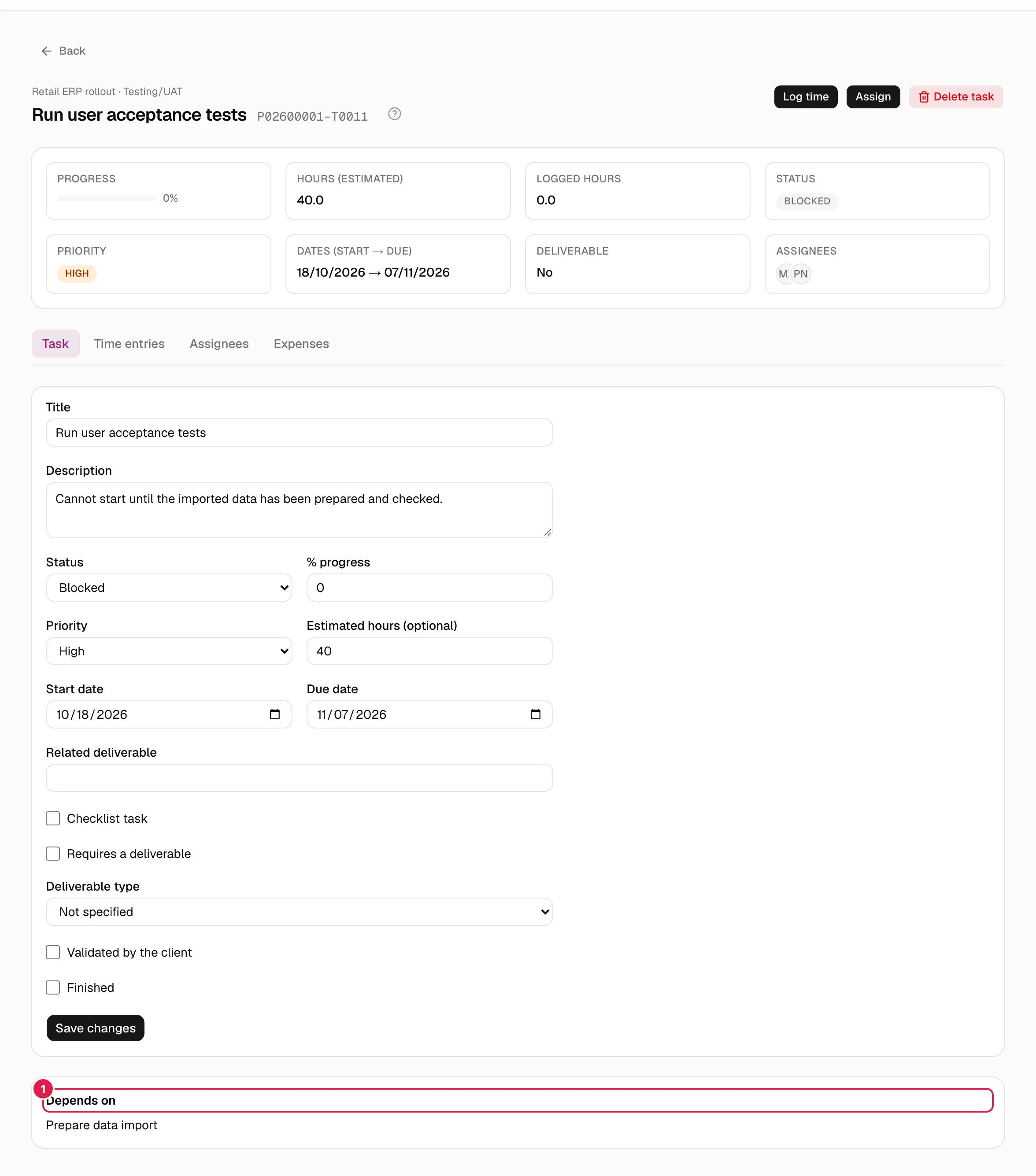
On the task page, the Task tab shows a Depends on block listing the prerequisites, each as a link to its task.
What “blocked” means and when a task is unblocked
“Blocked” is a task status (the one the project flags as equivalent to blocked; by default the Blocked status). Adding a dependency does not block the task by itself, nor does it prevent anyone from working on it: the status is set by a person.
What is automatic is the unblocking. When you save a task and its Finished or Validated by the client box goes from unticked to ticked, PjMan reviews the tasks that depended on it and, for each one that meets all of the following, moves it to the project's first “normal” status (the first one that is neither final nor blocked, by default To do):
- it is currently in the blocked status;
- all its other dependencies are also finished or validated by the client.
A notice tells you: “1 task was unblocked automatically: …” (or “N tasks were unblocked automatically: …”). You see the notice yourself, at that moment; nobody else is notified.
Things worth knowing:
- What unblocks is the prerequisite's Finished or Validated by the client box, not its status: setting the prerequisite to “Closed” without ticking either box unblocks nothing.
- Unticking the box afterwards does not block the task again.
- If the project has no status flagged as blocked, or no normal status to go back to, nothing is unblocked (and this is not an error).
| Role | What they see |
|---|---|
| Owning PM | The “Depends on” block, the status of each task and the unblocking notice on saving. |
| Assigned consultant | The task with its status and the “Depends on” block (if it has prerequisites). They can tick “Finished” on their own task; if that unblocks other tasks, they see the notice even though they have no access to those tasks. |
| Director / Team Leader | The same as the PM, read-only. |
Checklist
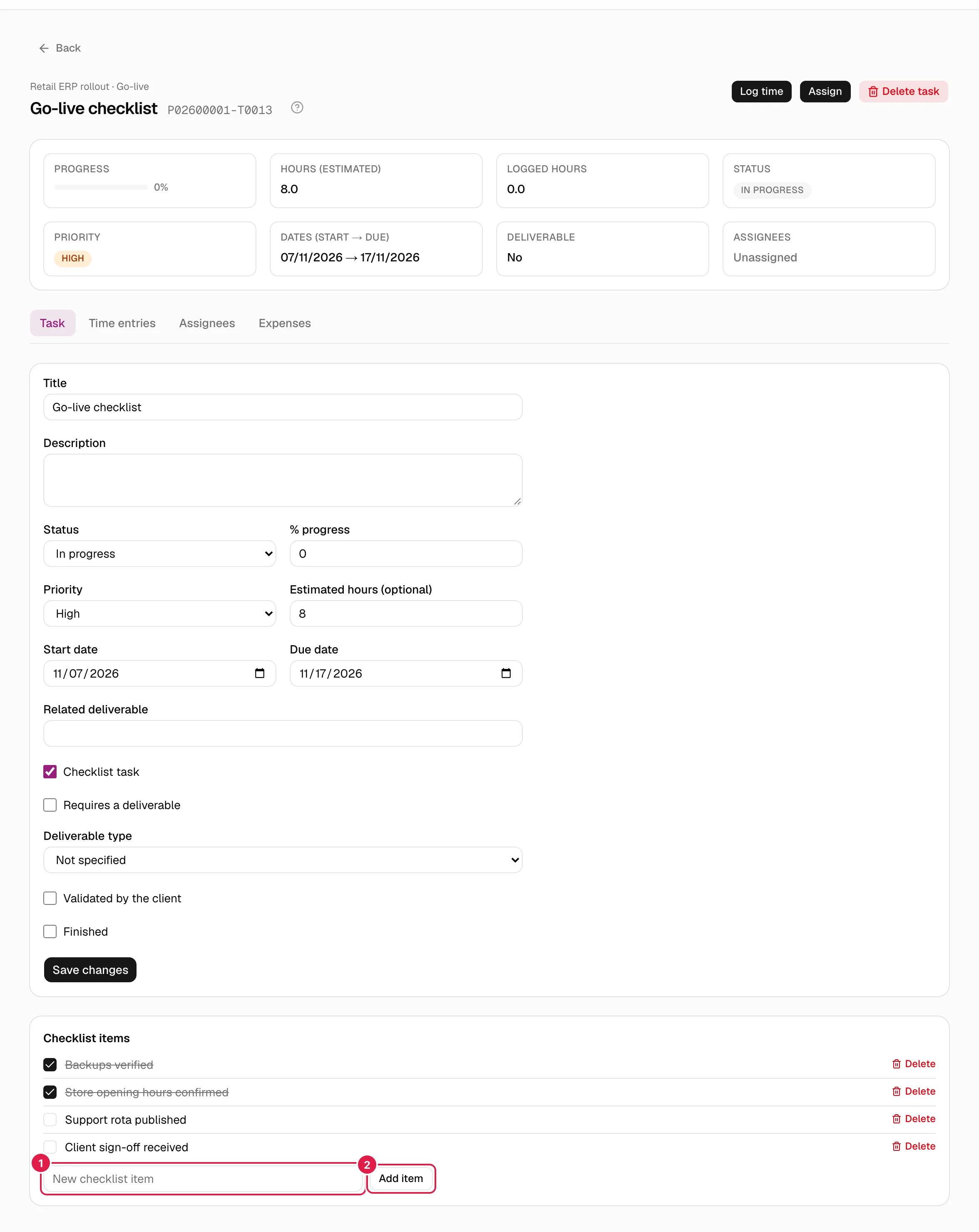
A checklist task (the Checklist task (go-live / closing) box in the form) is a list of checklist items, intended for go-live or closing lists. On the Task tab the Checklist items block appears; if there are none: “This checklist has no items yet.”
| Action | Who | How |
|---|---|---|
| Add an item | Owning PM | Type in New checklist item and press Add item. It is placed at the end. If empty: “The checklist item text is required.” |
| Tick / untick | Owning PM or assigned consultant | Press the checkbox; it is saved instantly. Ticked text is struck through. |
| Delete an item | Owning PM | Delete and confirm “Delete the item “…”?”. |
- The items are shared by all assignees: there is no per-person checklist.
- Ticking all the items does not finish the task or change its progress: those are done separately.
- Adding items to a task that is not a checklist is rejected: “Checklist items can only be added to checklist tasks.” If you untick “checklist task”, the items are kept but stop being shown.
Deliverables and deliverable types
Each task can declare a deliverable in three complementary ways:
- Related deliverable: free text (a note or reference).
- Requires a deliverable: a box indicating that the task must produce a formal deliverable. On the summary card, Deliverable shows “No” or “Yes (type)”; if you have not chosen a type, “Yes (no type specified)”.
- Deliverable type: a value from the organisation's catalogue (for example, acceptance certificate). The catalogue is maintained in Master data and catalogues. The drop-down offers only active types; if a task already has a type that was later deactivated, it is still shown (marked as inactive) so that the value is not lost when saving.
A deliverable type cannot be deleted while a task uses it. Today a deliverable is not a record of its own with a code: it only describes what the task must produce.
Who can do what
| Action | Owning PM | Assigned consultant | Others with read access |
|---|---|---|---|
| See assignees and dependencies | Yes | Yes | Yes |
| Assign and remove | Yes | No | No |
| Add and delete checklist items | Yes | No | No |
| Tick and untick items | Yes | Yes | No |
| Change deliverable type | Yes | No | No |
Related topics
Updated 2026-10-08