The card in the modal
When you click a card on a Kanban board, the detail of the task or issue opens in an overlay window (modal), with the board behind it exactly as you left it: same filters, same position. You can edit, log time and assign without leaving the board.
What you can do inside the modal is exactly the same as on the full detail page and depends on your role (see What each role can do).
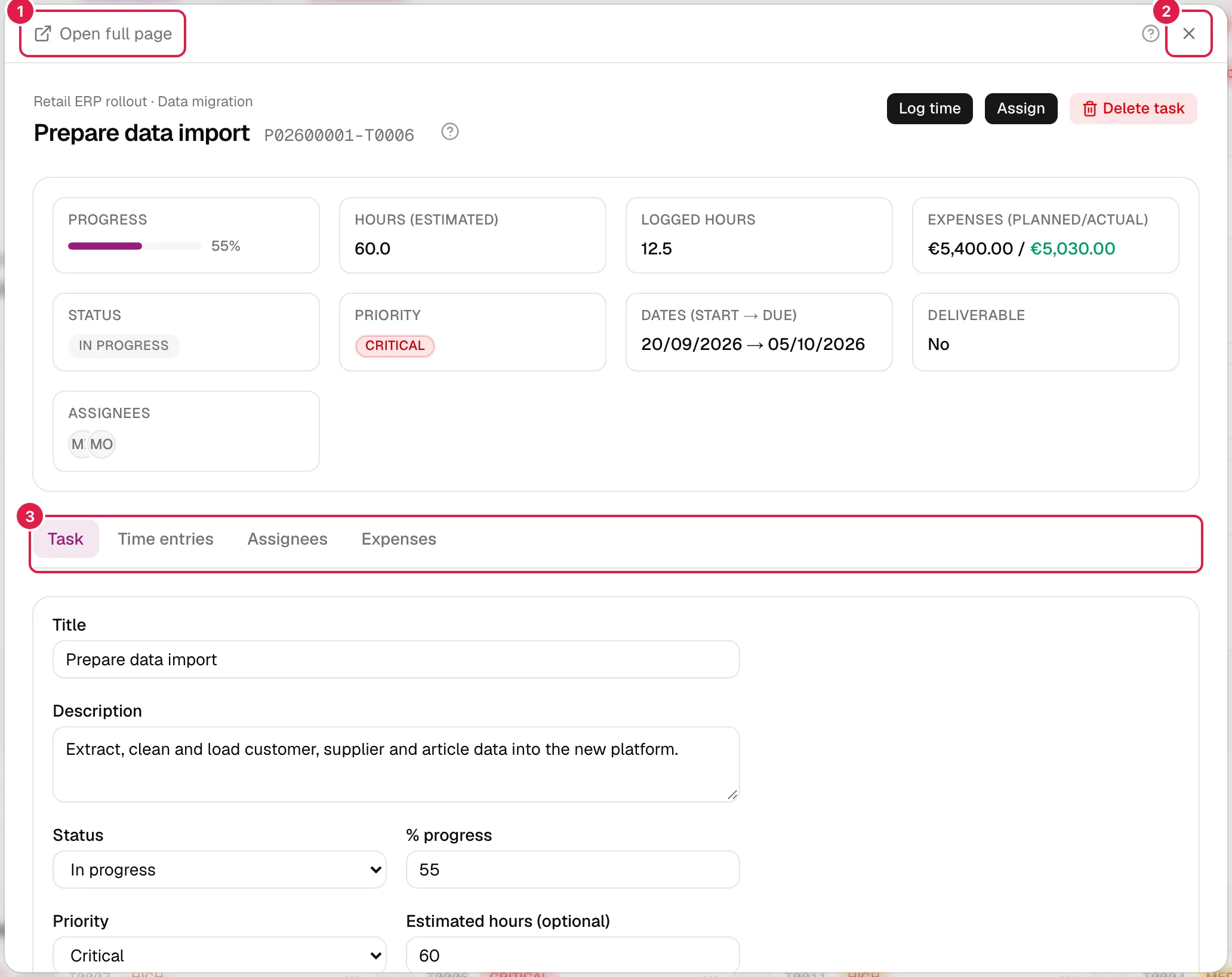
How it opens
- A click on the card (on its title or anywhere else), or Open in the card's ⋯ menu.
- From a board only. Links to a task or issue from a list (Phases, Queries, My work…) go to the usual full page.
- The browser address changes to that of the detail (
/tasks/…or/incidents/…), so you can copy it, share it or reload: on reload, the full page is shown, not the modal.
What it contains
At the top: the project and phase, the title with its code, the action buttons (Log time, Assign and Delete task / Delete issue, depending on your role) and a data card: progress, estimated and logged hours, expenses (if you can see them), status, priority, dates, deliverable and assignees. Below that, the tabs:
| Task | Issue | Content |
|---|---|---|
| Task | Issue | The form with the fields, the checklist and the dependencies (“Depends on”) of the task; or the issue's fields |
| Time entries | Time entries | Logged hours and Log time (see Time entries) |
| Assignees | Assignees | Who is assigned, with assign and remove for the owner PM |
| Expenses | — | The task's expenses. Only appears if you can see the whole project (owner PM, Director/Team Leader or “entire organisation” member); issues do not have this tab |
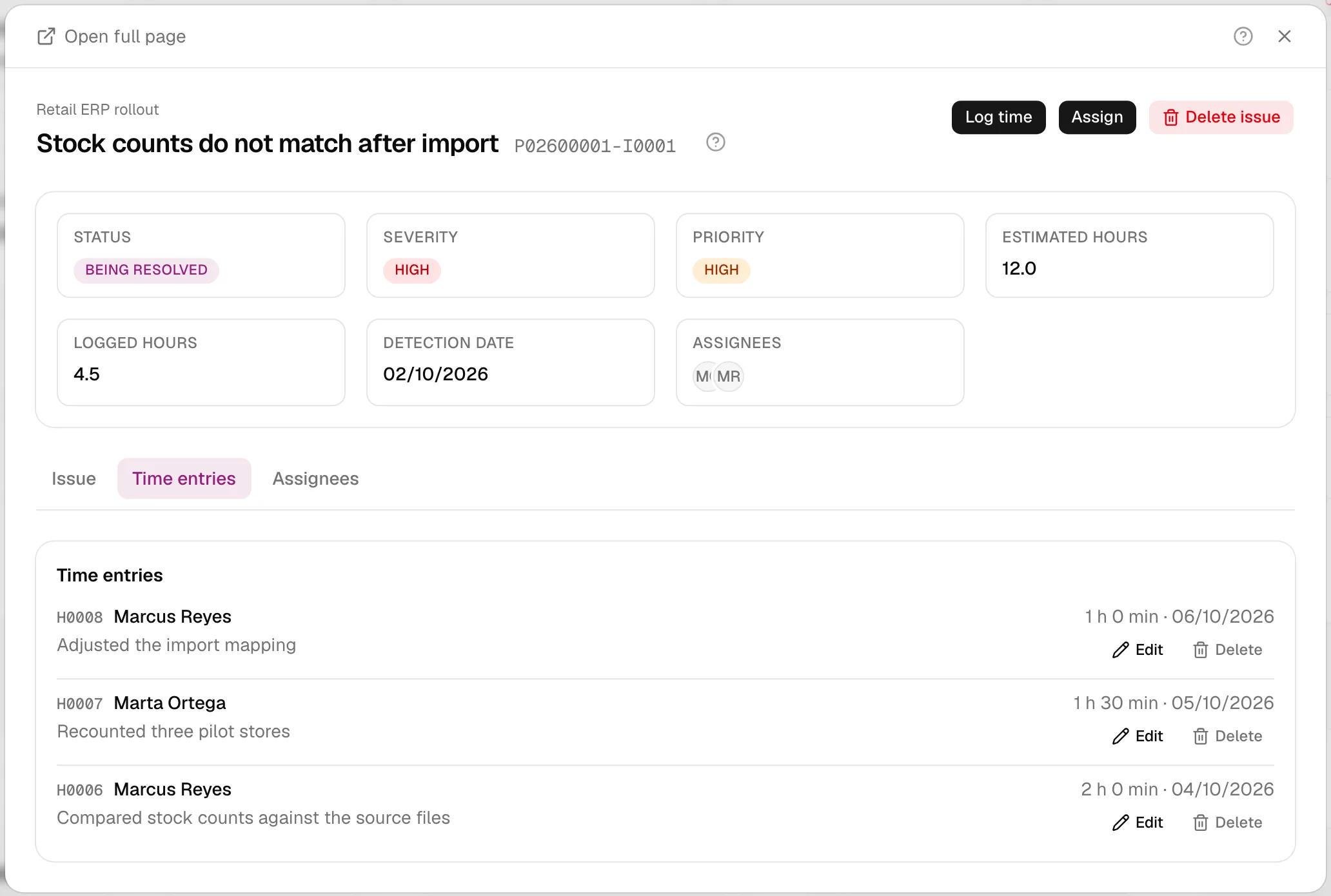
Tabs switch instantly, without reloading, and what you have typed in one tab is kept when you go to another. You can move between them with the keyboard arrows (left/right) and with Home/End. The fields, validations and messages are those of the full page; for each of them, see Tasks, Issues and Assignees, dependencies, checklist and deliverables.
Edit and log time without leaving
- Change what you need in the Task (or Issue) tab and press Save changes: “Saved.” appears. If, after closing, you do not see the change reflected on the card, reload the page.
- Log time opens its own dialog (“Log worked hours”) on top of the modal. Its fields look after themselves: they do not count as unsaved changes of the modal.
How it closes
All the ways of closing are equivalent to going back in the history: the modal disappears and the board stays as it was, and focus returns to the card you opened it from.
| Way | Notes |
|---|---|
| Close button (X) | Top right |
| Esc key | |
| Click outside the modal | |
| Browser Back button | See the warning below |
Unsaved changes warning. If you have modified a field in a form and not saved it, closing with X, Esc or a click outside makes the browser ask “You have unsaved changes. Close and discard them?”. If you cancel, the modal stays open with what you typed.
The browser's Back button has a trick: as soon as you change the first field, PjMan adds an extra entry with the same address to the history (a “guard”). That way, when you press Back, the modal is still mounted for a moment and can ask you the question. If you cancel, the guard is added again; if you accept, you carry on going back and the modal closes. In practice: after editing, the history has one more entry, and if you close with the X you also go back over it. If you have already saved, Back closes without asking.
Open as a page and return to where you came from
- Open full page (top left) loads the same task or issue as a normal page, with its Expenses tab where applicable.
- On the full page, the Back arrow takes you to the screen you came from: the board with its filters, My work, Queries, Phases, Issues… PjMan remembers the last screen you visited that is neither the detail itself nor its tabs (going from “Task” to “Time entries” does not change the origin). It is stored in the browser tab's session: reloading does not lose it, but opening the link directly in a new tab does; in that case the arrow takes you to the project.
On mobile
On small screens the modal takes up the whole screen, with larger close buttons, and the content scrolls inside it. The tabs scroll horizontally.
Accessibility
The modal is announced as “Task details” or “Issue details”, traps focus while it is open and returns it to the card when it closes. The tabs follow the accessible tabs pattern (tab list, associated panel).
The assistant with the modal open
If you have the assistant panel docked on the right, it coexists with the modal: while it is open, the modal stops trapping focus so that you can type in the panel, and clicking or using the panel does not close the modal. The panel is drawn above the modal. Esc does close the modal. The assistant receives the open task or issue as context.
What each role can do
| Owner PM | Director / Team Leader / “entire organisation” member | Assigned Consultant/Developer | |
|---|---|---|---|
| Open the card | Yes | Yes (if they see it on the board) | Yes (in My work) |
| Edit all the fields of the task | Yes | No | Only status, % progress and “Finished” |
| Edit an issue | Yes | No (sees the fields read-only) | No (read-only) |
| Log time | Yes, and on behalf of other people | Only if assigned | Yes, on their tasks |
| Assign / remove / delete | Yes | No | No |
| Expenses tab | Yes | Yes | No |
Related topics
Updated 2026-10-08