Clients
Clients (main menu) is your organisation's client master: one record per company with its general and tax details, its addresses and its contact people. Each project can have one client (and a client can have many projects), and client contacts are written only once on the record and linked to the projects they take part in.
Any PM of the organisation creates, edits and deletes clients, addresses and contacts, even if they do not own that client's projects. Members of the whole organisation (CEO) see them read-only. A Consultant/Developer sees neither the master nor the tax details: the Clients menu entry is not there, just as they do not see a project's contacts. Each organisation sees only its own clients.

The list
Each row shows the client's code (for example CL0003, auto-generated, unique in the organisation and never reused), its trade name (a link to the record), the tax ID, the country, the status (Active or Inactive) and how many of its projects you can see. That number counts only the projects you are allowed to see: a PM sees their own and those where they have a level 1 or 2 team role; the CEO sees all of them.
At the top, Search looks at trade name, legal name, tax ID or code (case-insensitive), and Status filters by Active or Inactive; press Filter to apply them. With no results it says “No client matches the search.”; with an empty master, “There are no clients yet. Create the first one to link it to your projects.”.
Creating a client
Only PMs see the New client button.
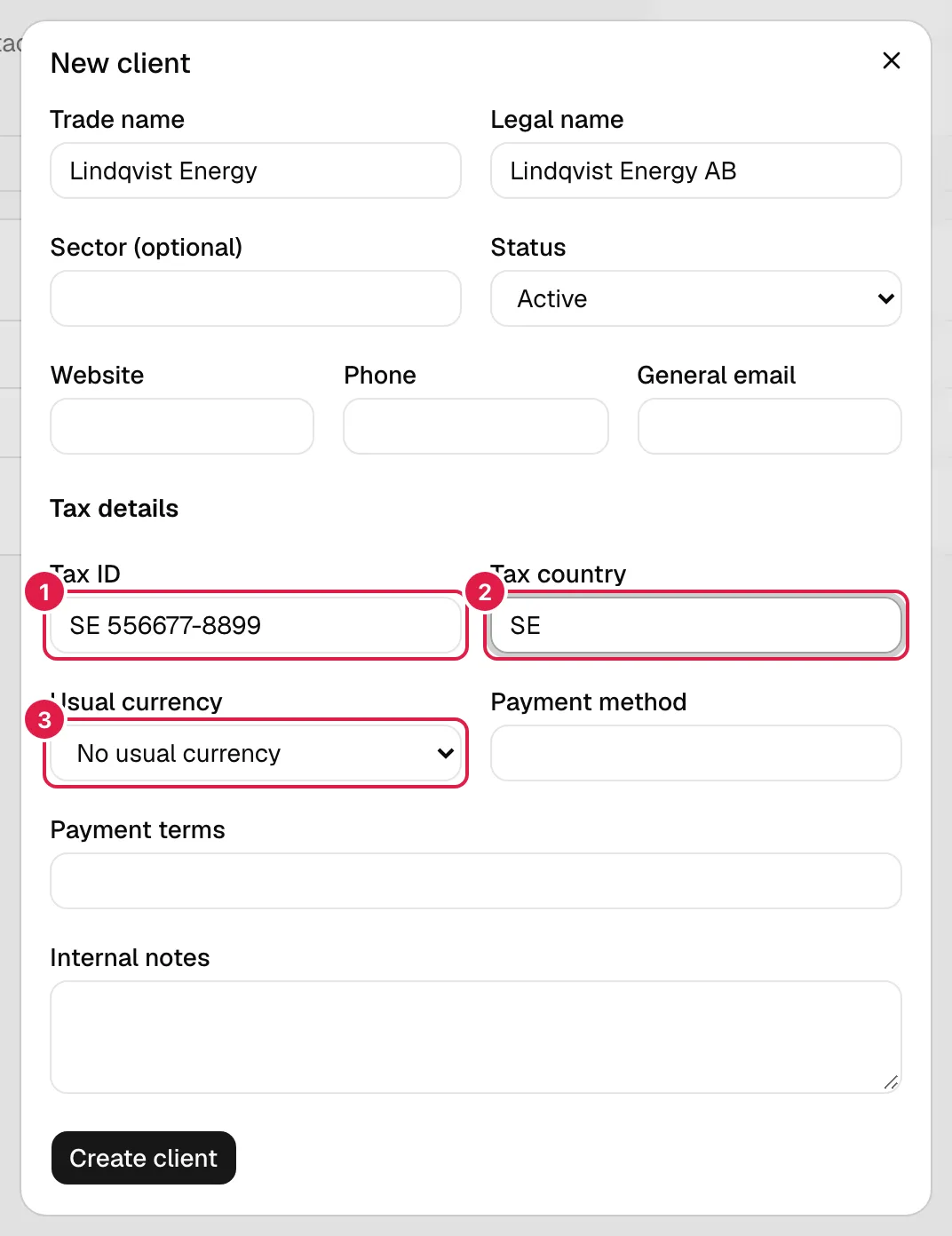
| Field | Required | What it means |
|---|---|---|
| Trade name | Yes | What you call the client day to day. |
| Legal name | Yes | Its full legal name. |
| Status | Yes (default Active) | An Inactive client is not offered when creating new projects (see Mark inactive). |
| Sector (optional), Website, Phone, General email | No | Free text; the email, if you type one, must have a valid format (“Enter a valid email.”). |
| Tax ID | Yes | Its tax identifier. PjMan does not validate the format by country: it only requires that it exists and is not already in the organisation (see below). |
| Tax country | Yes | A 2-letter code, for example ES; stored in capitals. Anything else gives “The country must be a 2-letter code (e.g. ES).”. |
| Usual currency | No | An active currency from the Currencies catalogue. Default: No usual currency. |
| Payment method, Payment terms | No | Free text, for example “Transfer” and “30 days from invoice date”. |
| Internal notes | No | For your team only. |
The tax ID is never repeated
The tax ID is unique within the organisation and is compared normalised: ignoring case and without spaces, dots, hyphens or slashes, so B-123.456 78 and b12345678 are the same. If it already exists, the creation (or the edit) is blocked with “A client with that tax ID already exists: Acme Retail (CL0001).” and nothing is saved. Another organisation can have the same tax ID without any problem.
The client record
Click a client's name. The record has four tabs, with the number of addresses and contacts in brackets: General and tax, Addresses, Contacts and Projects. At the top right, PMs have Edit client (the same form as the creation, with the current values and Save changes), Mark inactive and Delete client. Anyone who can only read sees “You have read-only access to the client master.” and no buttons.
Addresses
A client can have several addresses, each with a Type (Tax, Shipping or Other), Address (and an optional second line), Postal code, City, Province or region (optional) and Country (2-letter code). Add address, Edit and Delete manage them.
Only one tax address can be the main one (the Main tax address checkbox, and the Main tax badge on its card): the first tax address you create becomes it automatically, and marking another one removes it from the previous one. Only addresses of type Tax can be the main one; if a main one changes type, it loses the mark. It is normal for a client to have no addresses at first: they are added when needed.
Client contacts
The client's contact people live here, only once: name, job title, department, email, phone, notes and the Main contact checkbox (only one per client; the first one you create becomes it automatically). The email is not repeated within the same client (case-insensitive): “This client already has a contact with that email.”. The Projects column says in how many projects each contact is linked (hover to see which).
Editing a contact here shows in all its projects at once, because projects do not keep a copy: they always read the record. How they are linked to a project is explained in Contacts.
Deleting a contact linked to projects is blocked: the notice says how many projects it is linked to and which ones, and asks whether you want to unlink it from all and delete it. If you accept, it disappears from those projects and its recorded communications are kept, without a contact. A contact with no links is deleted with a simple notice.
Projects
It lists the client's projects that you can see, with their code and name (each one links to the project). Those you cannot see are neither named nor listed. Inside a project, the client appears next to the company name in the header, with a link to its record for anyone who can see the master.
Marking inactive and deleting
- Mark inactive (with confirmation) stops offering the client in New project and Edit project; projects that already have it keep it and carry on working. Mark active reverts it.
- Delete client also deletes its addresses and contacts, and is only possible if it has no projects. With projects, the button is not there and instead it says “It cannot be deleted: it has 3 projects. Mark it inactive.”. The number counts all projects, including those of other PMs that you do not see.
Linking a client to a project
In New project and Edit project there is a Client from the master (optional) selector (it only appears once some client exists). The old free-text Client field is no longer asked for: the selector is the only way to state the client. In an old project that only has that text and no linked client, the text is still shown (in the header and in the lists) with the Create client with this name action, which only the owning PM sees: it opens the client creation with that name already typed, asks for the tax ID and the country and, on saving, creates the client and links it to the project. Headers, lists, reports and the assistant always show a single client: the linked one and, if there is none, the old text.
In Edit project the active clients and the current one are offered, even if it is inactive. Changing or removing the client of a project that has linked client contacts is rejected (“To change or remove the client, first unlink the project's 2 client contacts.”): unlink them first in the Contacts tab.
The assistant and clients
The assistant can look up clients: find one by name, see its record, its contacts and its projects that you can see, for the PM and for anyone who sees the whole organisation; never for a consultant. It does not create or edit clients. It only includes tax details and addresses if you ask for them, and it treats everything that comes from the record (names, job titles, notes) as third-party text, that is, as data and never as an instruction.
Personal data
A client's contacts are personal data (name, job title, email, phone). Whoever enters them is responsible for having a lawful basis to process them; PjMan processes them only to provide the service. See the privacy policy.
Who can do what
| Action | PM of the organisation | CEO / whole organisation | Consultant/Developer |
|---|---|---|---|
| See the master and the records | Yes | Yes, read-only | No |
| Create, edit, mark inactive and delete clients, addresses and contacts | Yes | No | No |
| See a client's projects | The ones they can see | All | No |
| Link client contacts to a project | Only the project's owning PM | No | No |
Related topics
Updated 2026-10-26