Comments and mentions
Every task, phase and issue has its own comment thread, on the right of the item, so you can talk about it without leaving the screen. A comment is a record: once posted it cannot be edited or deleted, neither by whoever wrote it nor by the PM.
Anyone who can already see the item can comment (see Who can read and comment). People without an account don't comment.
Where they are
On the detail page of a task, an issue or a phase (a phase has its own read-only detail page, reached with Open on its card) the item is split into two panels:
- Left (60 %): the usual content, with its tabs.
- Right (40 %): the Comments (n) panel, fixed while you scroll the item and the same for all tabs. The editor is at the top and the history below, with its own scroll.
On these three screens, and only from a 1280 px wide window, the working area is slightly wider so that the 60 / 40 split doesn't squeeze the tables.
On narrow screens (under 1024 px: mobile and tablet) the two panels don't fit. A Details | Comments (n) selector appears above the content: pick one or the other. A link to a comment (for example from a mention notice) opens Comments directly.
Who can read and comment
| Who | Reads | Comments |
|---|---|---|
| Owning PM | All the items of the project | Yes |
| Team member of level 1 or 2 (Director, Team Leader…) | The project's items | Yes |
| Consultant/Developer | Their tasks, the issues assigned to them (or to one of their tasks) and the phases where they have a task | Yes, on those items |
| “Entire organisation” member (CEO) | All those of the organisation | No: read-only. Instead of the editor they see “You have read-only access: you can read comments but not post them.” |
It is the same rule that already decides who sees the item (Roles and access): if you can't see the item, you can't see its comments either.
Writing and posting
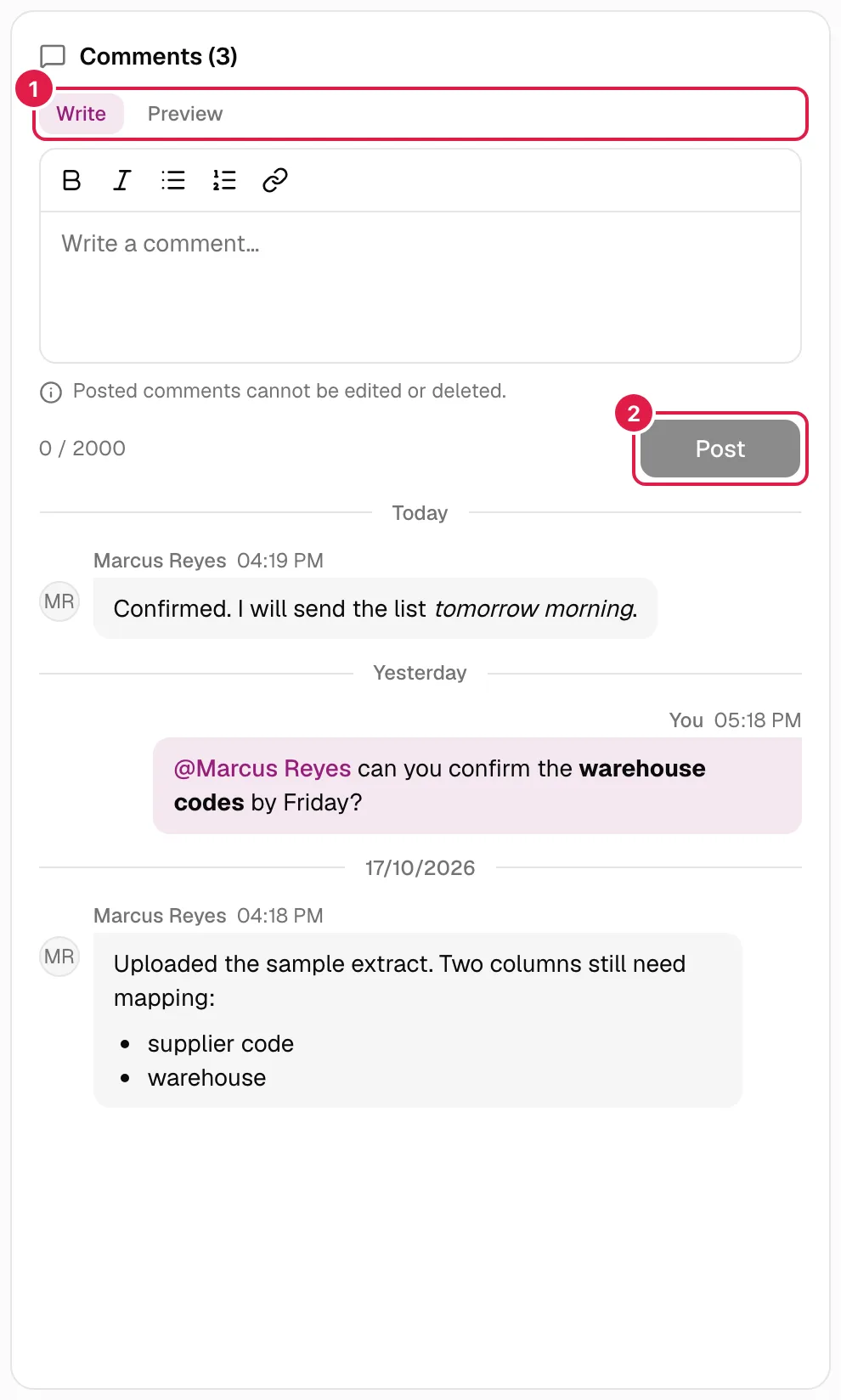
The editor has two tabs, Write and Preview (how your comment will look). It supports:
| Format | How |
|---|---|
| Bold and italic | Toolbar buttons (or the browser's usual shortcuts) |
| Bulleted and numbered lists | Toolbar buttons |
| Link | Link button: type the address and press the button. Only http://, https:// or mailto: are valid (“The address must start with http://, https:// or mailto:.”). With the cursor on a link, Remove link appears |
| Mention | Type @ (see Mentions) |
There are no images or attachments. Links open in a new tab. When you paste text from a document or a web page, only this basic formatting is kept.
Limit: 2000 characters of text. The n / 2000 counter turns red past 90 % and Post is disabled if you go over. Under the editor, next to the button, a reminder: “Posted comments cannot be edited or deleted.”. Post with the Post button or Ctrl/Cmd + Enter. Check it first in Preview: there is no way to fix it afterwards.
If it fails, your text is kept and the reason appears (“The comment could not be posted.”).
The history
The most recent comes first, right under the editor, looking like a conversation:
- Yours on the right, tinted with the brand colour and signed “You”; other people's on the left, in grey, with their name and initials.
- Each comment shows its time; hover for the full date. The separators Today, Yesterday or the date group the days, following your browser's calendar.
- If the assistant wrote it at someone's request (Comments and the assistant) it carries a small sparkle icon.
- The history loads 30 at a time: Show earlier comments brings the next ones.
- Empty: “No comments yet. Be the first.”.
New comments from other people. There is no real time: with the browser tab visible, the panel asks every half minute (and when you come back to the tab). If someone has commented, a “N new comments” notice appears with a Show button; nothing is inserted by itself while you read. Your own comment does appear instantly.
Comments are deleted with their item: if the task, phase or issue, or the whole project, is deleted, its conversation goes too.
Mentions and notices
Type @ in the editor to mention someone. Only people with an account who can see that item come up, filtered by what you keep typing; choose with the arrow keys and Enter or Tab (Esc closes the list). If nobody matches: “Nobody with access matches”. You can't mention someone without access or a person without an account (see People).
The mentioned person gets a notice inside the app (there are no emails):
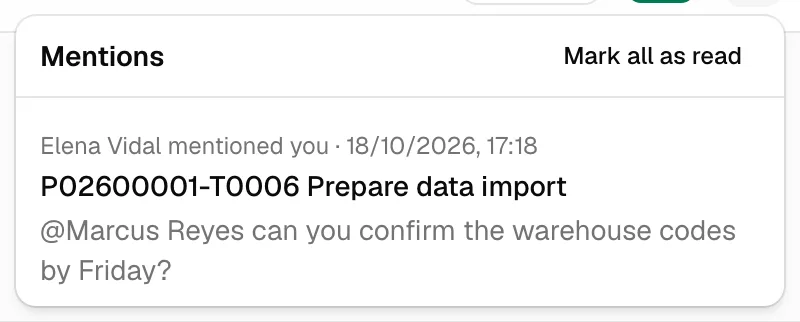
- A bell in the header shows how many mentions you have pending (up to “9+”).
- When you open it, each notice says who mentioned you and when, the item (code and title) and the first words of the comment. Pressing it opens the item at that comment, which is highlighted for a few seconds, and the notice is marked as read.
- Opening the item and seeing the comment also marks it as read. Mark all as read empties the list.
- If you have lost access to the item, the notice shows nothing of its content: “You no longer have access to this item.”, with Dismiss.
The bell refreshes when you open it, when you return to the tab and every minute.
Counters and the Kanban board
An item with comments shows a speech-bubble icon with the number: on the Kanban board card, next to the title in the task and issue tables (Phases, My work, Queries…) and in the panel header (“Comments (n)”). In the Kanban modal comments are one more tab, Comments (n), with the same editor and the same history; a comment in progress counts as an unsaved change when you close the modal.
The public demo account
In a public demo account, comments (and mentions) are deleted automatically every day in the daily process, like the AI keys: those written before today disappear in the first run of the next day. The editor reminds you with a notice: “In the demo account, comments are deleted every day.”. It only affects the demo organisation, never yours.
Comments and the assistant
The assistant can read the item's comments (other people's as third-party text: information, never orders) and post one if you ask, by voice too. The daily analysis also takes into account the comments of the last 7 days of each project (the 12 most recent, shortened, as third-party text). Since what is posted can't be undone, it always shows you a card with the exact text, even if you have turned confirmation off, and there is no Undo button.
Related topics
Updated 2026-10-18