Labels
A label is a short coloured tag you put on a task or an issue to group them by your own criterion: a client, a wave, “Client review”… Labels are free-form and per project: there is no organisation-wide catalogue; a label is born when someone types it on a record and stays available in that project. They show on the cards of the Kanban board and in the rows of the lists, and you can filter by them on the boards and in Queries.
Whoever can edit a task or issue can add and remove labels on it and create new names. Only the project's owning PM renames, recolours or deletes them. The CEO and “whole organisation” members can only see them. See Who can do what.
Adding and removing labels on a record
On the Task tab of a task and the Issue tab of an issue (also in the Kanban modal) there is a Labels card above the form:
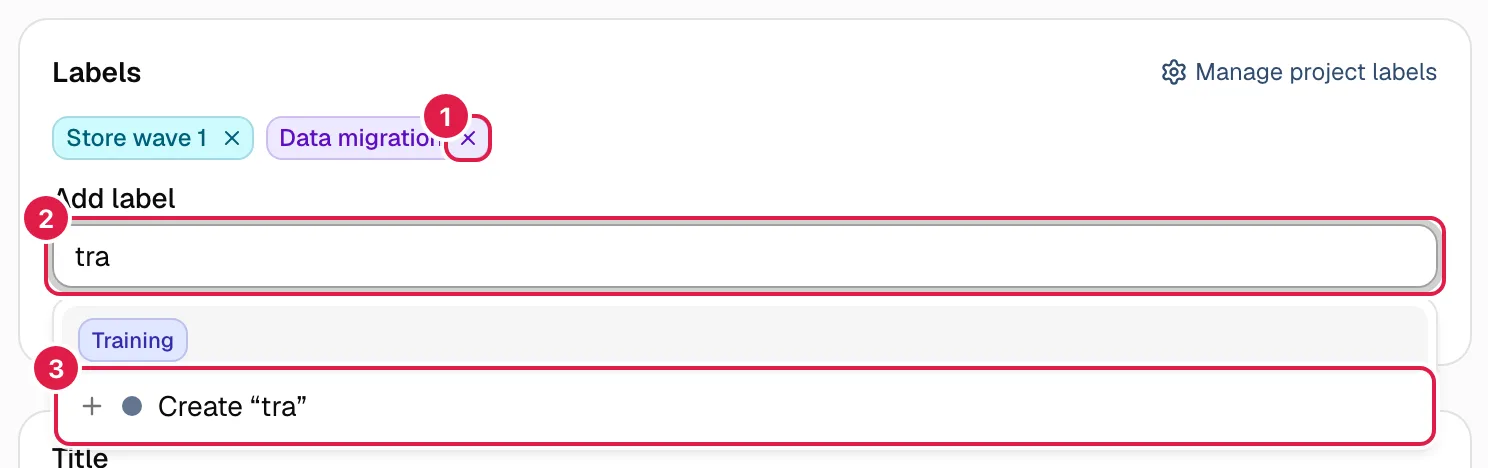
- Click the Add label field and type. The project's labels that match come up (ignoring upper/lower case and accents). If what you typed does not exist yet, the last option is Create “…” (matches come first, so Enter picks the existing one).
- Pick one with the mouse, or with the arrow keys and Enter (the first option is highlighted: Enter picks it). Esc closes the list.
- To remove one, click the × on its chip (“Remove label …”).
It is saved instantly, with no button: you do not need to press Save changes, and typing here does not count as “unsaved changes” when you close the Kanban modal. If it fails, the change is undone and the reason shows in red (“The label change could not be saved.”). After every change the board card behind the modal is refreshed.
Name rules and limits:
| Rule | Detail |
|---|---|
| Length | 1 to 24 characters. “A label name can have at most 24 characters.” |
| Characters | Commas and semicolons are not allowed (the export and the assistant separate names with them), nor control characters. |
| Case and spaces | “Client”, “client ” and “CLIENT” are the same label: spaces at the ends are trimmed, repeated spaces collapse into one and upper/lower case is ignored. The name is shown as it was first typed. Accents do matter: “Révision” and “Revision” are two labels. |
| Per record | Up to 6 labels on a task or issue. “A task or issue can have at most 6 labels.” Adding one it already has does nothing and gives no error. |
| Per project | Up to 50. “A project can have at most 50 labels. Delete one you no longer use in the project's "Labels" tab.” Reusing an existing one is always possible. |
| Colour | Assigned automatically from a palette of six (cyan, violet, lime, indigo, teal and slate): the project's least used one and, on a tie, in that order. None looks like the brand red or the warning red. The owning PM can change it. |
| Order | On a record, the order in which they were added; the same on every screen and in the export. |
Where they show
Labels appear as rectangular chips with a border, so they are not mistaken for statuses and priorities (which are upper-case pills):
- Kanban card: the first 2 chips and a “+N” for the rest, on a single line (the full name on hover). Cards therefore do not change height.
- List rows (tasks in phases and in a phase, a project's issues, My work, Queries): the first 3 and “+N”, under the title.
- Record: all of them, with the ×.
A screen reader reads the full list (“Labels: …”), not just the visible chips. With no labels nothing is drawn.
Filtering by labels
The Labels filter is in the filter bar of all six Kanban boards (project, My work and Queries, for tasks and issues) and on the Tasks and Issues tabs of Queries. It is a drop-down with check boxes:
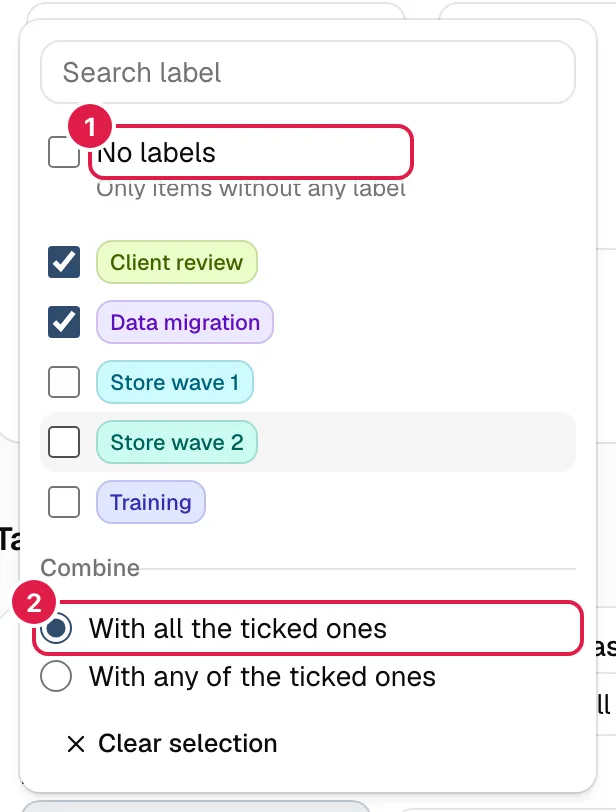
- Search label narrows the list.
- No labels (exclusive): only what has none.
- Tick one or several. With two or more, Combine appears: With all the ticked ones (the default; it is what you would expect, as the other filters add up) or With any of the ticked ones.
- Clear selection empties the filter. On the boards it counts as one more filter in Filters (n).
Outside a project (My work, Queries) the filter works on the name: if “Client” exists in two projects, a single box covers both. The list only offers the labels of the records you can see. It combines with the other filters.
In Queries, the export respects the filter and includes a Labels column with the names joined by “; ” (see Exporting).
Managing the project's labels (owning PM)
Only the owning PM can change anything. A Director or Team Leader (level 1-2) and a “whole organisation” member see the list read-only, with the notice “Only the project PM can rename, recolor or delete labels.”. A consultant does not see the tab.
The project's Labels tab (after Statuses, also in the side menu) lists the labels with how many tasks and issues carry each one (“3 tasks · 1 issue”) and how many there are out of the maximum (“12 of 50 labels”). Labels are not created here: they are born when typed on a record. From a record's selector, the owning PM has the Manage project labels link.
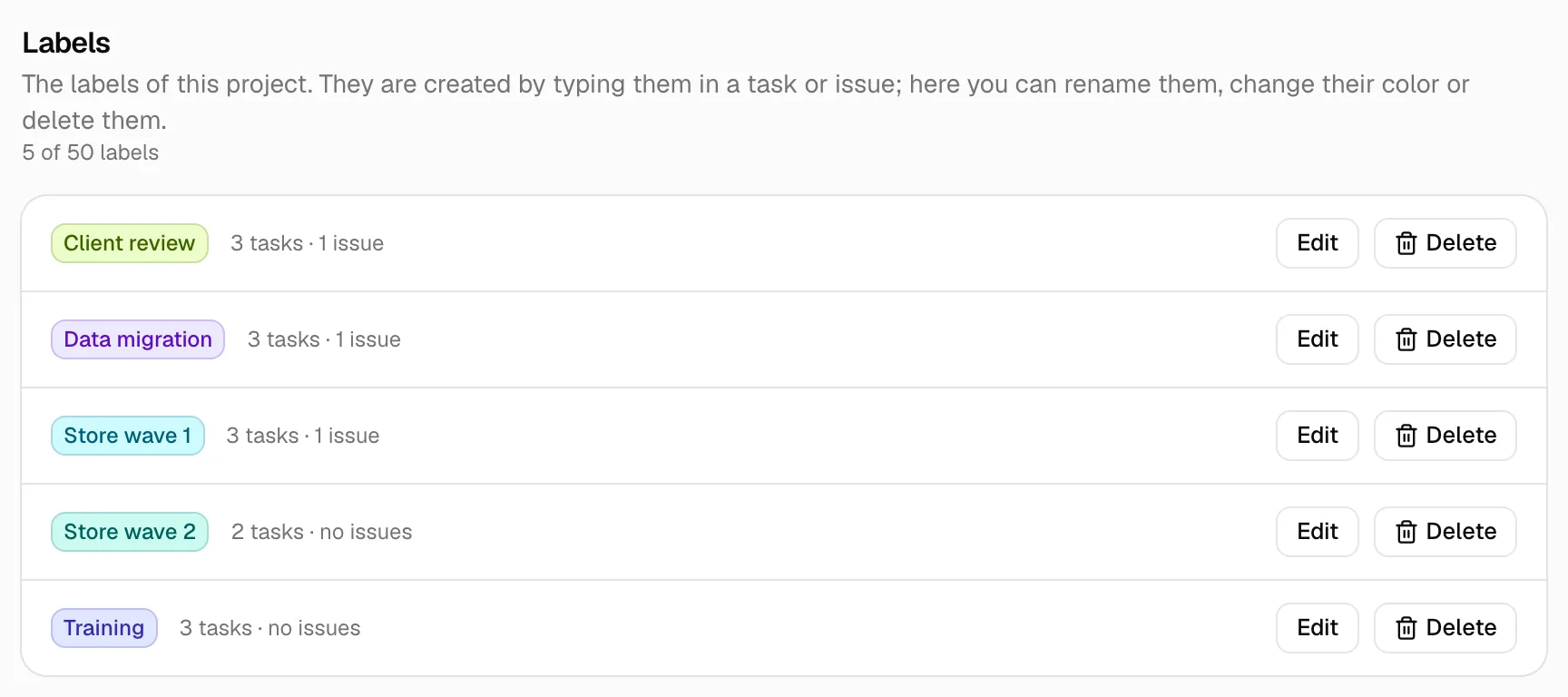
- Edit: changes the name and the colour (the six in the palette, with a chip preview). Renaming to a name that already exists in the project is rejected: “A label with that name already exists in this project.” (labels are not merged). Changing only the case of its own name is fine.
- Delete: asks for confirmation and says how many items it affects (“You are about to delete the label “…”. It will be removed from 3 tasks and 1 issue. The tasks and issues themselves are not deleted. Continue?”). It removes the label from everything that carries it; the tasks and issues remain.
Labels are deleted with their project, and deleting a task or issue only drops its tags. Project templates do not carry labels: a new project starts with none.
Who can do what
| Owning PM | Director / Team Leader (level 1-2) | Consultant/Developer | CEO (“whole organisation”) | |
|---|---|---|---|---|
| See a record's labels | Yes | Yes, on the records they see | Those of their records | Yes, on what they see |
| Add, remove and create names | Yes | Only where they already edit (a task assigned to them, an issue they created) | On their assigned tasks and issues | No |
| Rename, recolour, delete | Yes | No (read-only list) | No (no tab) | No (read-only list) |
| Autocomplete and filter | All the project's labels | All the project's labels | Only labels carried by their own records | Those of what they see |
A PM from another project and anyone from another organisation see nothing of these labels.
Also with the assistant
The assistant reads the labels of tasks and issues, filters by them when it searches, and can add and remove a label. That is a change, so it always asks for confirmation with a card (if the label is new, the card says “The new label … will be created in the project.”), it can be undone for 10 minutes and it also works in a batch (“put the label “Wave 2” on these tasks”). Renaming, recolouring or deleting labels is not something the assistant does: that is managed on the Labels tab. Label names are written by people, so the assistant treats them as third-party text. See Phrases that work.
Related topics
Updated 2026-10-23